
Firefox allows you to copy any network request as a curl command from the Network Monitor. The Firefox Copy as cURL option includes the request URL, method, headers, cookies, and request body.
In this tutorial, you'll learn how to use Firefox's cURL tools to find a request, copy it as cURL, and run the command from your terminal.
How to copy a request as cURL
1. Open the Firefox Network Monitor
Open the page containing the request you want to copy, then press
- Ctrl + Shift + E on Windows or Linux
- Cmd + Option + E on macOS
2. Trigger the request
To trigger the request, you can repeat the action that sent the request, for example, clicking a button or submitting a form or just reloading the page.
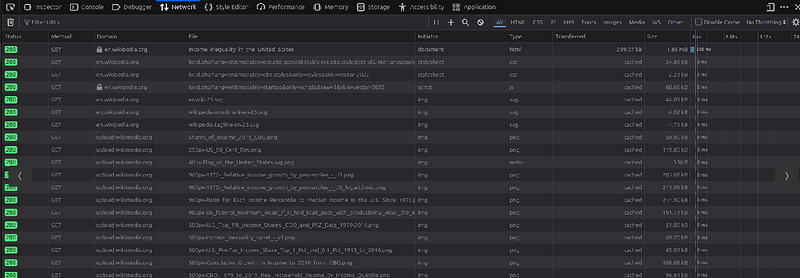
3. Copy the request as cURL
Once you find the right request, right-click it and select Copy Value, Copy as cURL.
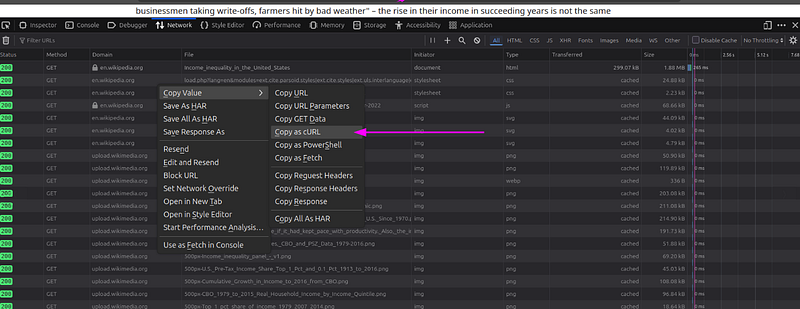
4. Run the cURL command
Paste the command into your terminal and press Enter. The request runs exactly as Firefox sent it, including all headers, cookies, and authentication.

Common Issues
- Empty Network Monitor: To resolve this issue, reload the page after opening the Network Monitor or repeat the action that triggers the request.
- The Command Returns 401 or 403: The request might contain an expired cookie, session token, authorization header, or CSRF token. Sign in again and copy the request one more time.
- The Request Works in Firefox but Fails in cURL: The request may depend on JavaScript-generated values, browser state, anti-bot checks, or another request that runs first. A copied cURL command reproduces one request. It does not reproduce the page's full browser workflow.
Conclusion
Firefox makes it easy to copy any network request as a cURL command from the Network Monitor. Once you find the correct request, use Copy as cURL, paste the command into your terminal, and run it.
You can also paste the copied command into the relevant curl converter to translate it into the language you want.
Go back to tutorials