---
title: "Web Scraping with Objective C"
description: "This tutorial covers the main tools and techniques for web scraping in Objective C."
url: "https://www.scrapingbee.com/blog/web-scraping-with-objective-c/"
canonical: "https://www.scrapingbee.com/blog/web-scraping-with-objective-c/"
date: 2026-01-19
lastmod: 2026-01-19
author: "Raji Sankar"
publisher: "ScrapingBee"
---
# Web Scraping with Objective C
In this article, you’ll learn about the main tools and techniques for [web scraping](https://www.scrapingbee.com/) using Objective C for both static and dynamic web pages.
This article assumes that you’re already familiar with Objective C and [XCode](https://developer.apple.com/documentation/xcode), which will be used to create, compile, and run the projects on a macOS—though you can easily change things to run on iOS if preferred.

## Basic Scraping
First, let’s take a look at using Objective C to scrape a static web page from [Wikipedia](https://en.wikipedia.org/wiki/Physics):

In this tutorial you will load the page, read the title, scrape the content of `span` elements with class `mw-headline`, and log the information in the console. Then you will read the href from the first `a` element in all paragraphs (`p`) under the `div` identified as `mw-content-text`, load the content and scrape its `span` elements, and follow the links from the loaded content.
The sample output will end up looking something like this:


The working code can be found in this [GitHub repository](https://github.com/rajsanka/TestURLApp.git).
### Step 1: Create the Project
This project can be created as an app or command line tool.
*Note: If the project is created as a command line tool, the `dispatch_main()` function has to be called at the end of the main function. Otherwise, the program will terminate without processing the queue. You’ll also have to call the `exit()` function to end the program.*
For this tutorial, you’ll create a macOS App project. Select "App" in the “New Project” dialog and enter all the details requested to create the project using the default structure. Among other things, this will create a default `AppDelegate.m` file, the code for which can be added to any design as required by your project.


### Step 2: Load the Contents of a URL
To connect to the URL and load its contents, you’ll use the Foundation classes [NSSession](https://developer.apple.com/documentation/foundation/nsurlsession) and [NSSessionDataTask](https://developer.apple.com/documentation/foundation/nsurlsessiondatatask). Declare a class called `WebCrawl` with a function called `crawlURL`:
```objectivec
@interface WebCrawl:NSObject {
NSMutableData *_responseData;
}
- (id)init;
- (void)crawlURL:(NSString *)url;
@end
```
Add the following implementation to load the content:
```objectivec
@implementation WebCrawl
- (id)init {
self = [super init];
return self;
}
- (void)crawlURL:(NSString *)url {
NSURL *nsurl = [NSURL URLWithString:url];
//create a request for the URL
NSURLRequest *request = [NSURLRequest requestWithURL:nsurl];
//singleton shared session provided by NSSession. We use this here, given it is a static page.
NSURLSession * sess = [NSURLSession sharedSession];
//creates and calls the completionHandler block when contents are loaded
NSURLSessionDataTask *task = [sess dataTaskWithRequest:request
completionHandler:
^(NSData *data, NSURLResponse *response, NSError *error) {
if (error) {
//handle transport errors here
NSLog(@"Error in transport %@", error);
return;
}
NSHTTPURLResponse *resp = (NSHTTPURLResponse *)response;
//handle other codes
if ([resp statusCode] != 200) {
NSLog(@"HTTP Error %d", (int)[resp statusCode]);
return;
}
self->_responseData = [[NSMutableData alloc] init];
[self->_responseData appendData:data];
}];
[task resume];
}
@end
```
The `completionHandler` block in the above code is called when the URL content has finished loading. In this block, the `error` parameter includes transportation errors. If it is `null`, it indicates that there is no transportation error. The `NSHTTPResponse` parameter contains the status code returned by the server when the URL is invoked; the above code checks only for the `200-OK` status, though more code checks can be added as needed. If there is no error and the HTTP response is valid, then the `data` parameter contains valid content. Here, the data has been saved into a member variable called `_responseData`.
To test this, invoke the `crawlURL` function in the AppDelegate implementation:
```objectivec
- (void)applicationDidFinishLaunching:(NSNotification *)aNotification {
WebCrawl *webscrap = [[WebCrawl alloc]init];
[webscrap crawlURL:@"https://en.wikipedia.org/wiki/Physics"];
}
```
If you run this in a sandbox, ensure that you’ve enabled both "Incoming Connections" and "Outgoing Connections" in the App Sandbox settings:

Once that’s done, you can compile and run the app. It should load the contents of the URL into the `_responseData` variable. You can also add a call to `NSLog` to test or set a breakpoint to check the value in the variable to ensure that it has loaded the content.
### Step 3: Parse the Content
The loaded content can be parsed in many ways using tools like libxml or other libraries such as [HTMLReader](https://github.com/nolanw/HTMLReader) or [Ono](https://github.com/mattt/Ono). If you want to use libxml, take a look at [this project](https://github.com/timonus/Objective-C-HTML-Parser) on GitHub. This tutorial will use [HTMLReader](https://github.com/nolanw/HTMLReader).
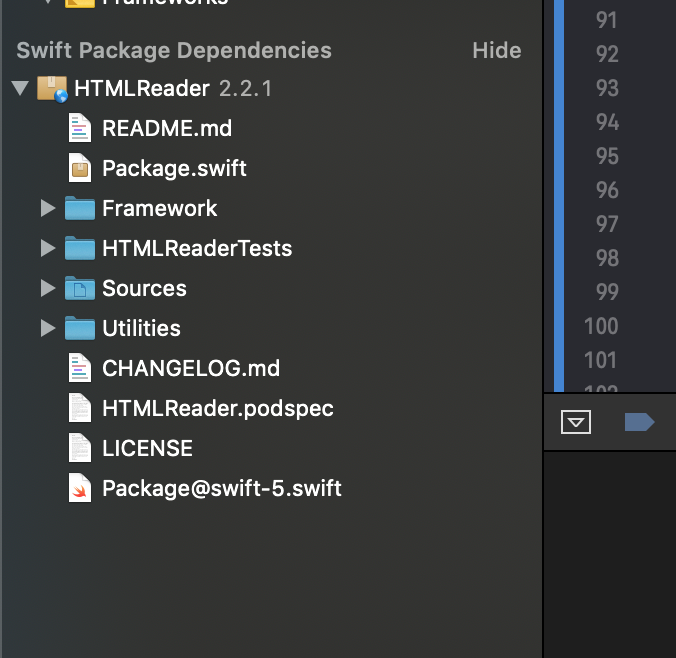
You can add the dependency of the project to the HTMLReader library in multiple ways. Here, you’ll add it as a swift package dependency. To do so, select the menu and choose **File > Swift Packages > Add Package Dependency**. In the URL field, add the URL (https://github.com/nolanw/HTMLReader) and click “Next.” Follow through the steps to finish adding the library:


Once added, it will show the following as the dependency:

The dependency should also be added to the project structure:
Now you can start adding the code to parse the content you loaded into the `_responseData` variable. To do so, start by importing the HTMLReader package:
```objectivec
@import HTMLReader;
```
Then add the following piece of code to the`completionHandler` to parse and create the `HTMLDocument` from the loaded content. The `contentType`, retrieved from the headers of the document, is required to parse the content:
```objectivec
self->_responseData = [[NSMutableData alloc] init];
self->_responseData appendData:data];
NSString *contentType = nil;
if ([response isKindOfClass:[NSHTTPURLResponse class]]) {
NSDictionary *headers = [(NSHTTPURLResponse *)response allHeaderFields];
contentType = headers[@"Content-Type"];
}
HTMLDocument *home = [HTMLDocument documentWithData:data
contentTypeHeader:contentType];
```
Now you’re ready to start scraping data from the `HTMLDocument` object.
### Step 4: Read Specific Data from the Content
The `HTMLDocument` object has many functions to retrieve specific data from the document. The simplest method is to filter and retrieve all nodes that match a specific tag. For example, the following code will retrieve the title of the page and trim the spaces. Add this to the `completionHandler` and run it. It will print "Physics - Wikipedia" in the console.
```objectivec
HTMLElement *div = [home firstNodeMatchingSelector:@"title"];
NSCharacterSet *whitespace = [NSCharacterSet whitespaceAndNewlineCharacterSet];
NSString *title = [div.textContent stringByTrimmingCharactersInSet:whitespace];
NSLog(@"%@", title);
```
The above code only retrieves the first node matching the given selector. The function `nodesMatchingSelector` can be used to retrieve all nodes matching the selector. Add the following code to retrieve all the `a` elements in the document, enumerate through them, and log their content:
```objectivec
NSArray *links = [home nodesMatchingSelector:@"a"];
NSEnumerator *enumerate = [links objectEnumerator];
HTMLElement *alink;
while (alink = [enumerate nextObject]) {
//process the nodes here
NSLog(@"%@", [alink textContent]);
}
```
#### CSS Selectors
In the steps above, only tag names were used as filters for the nodes. However, the parameter to these functions accepts any CSS Selector pattern, which gives you more control over which nodes to filter. Here are few examples:
```objectivec
//to select a specific node with a specific id:
NSString *search = [NSString stringWithFormat:@"%@[id=\"%@\"]", elemType, name];
NSArray *elems = [home nodesMatchingSelector:search];
//to select nodes with a specific class
NSString *search = [NSString stringWithFormat:@"%@[class=\"%@\"]", elemType, name];
NSArray *elems = [home nodesMatchingSelector:search];
//to select the first node within a paragraph
NSString *selector = @"p > a:first-child";
//any CSS Selector can be used
```
You can learn more about CSS Selectors [here](https://www.w3.org/TR/selectors-3/). CSS Selectors can also be used to filter based on [attributes](https://developer.mozilla.org/en-US/docs/Web/CSS/Attribute_selectors).
#### Reading Attributes of the Nodes
The functions above allowed you to read the text content for a tag name and filter nodes based on various conditions. However, you may also want to read attributes of the nodes you have filtered. These are exposed via the `attributes` member variable in `HTMLElement` object. The `HTMLElement` object is an `HTMLOrderedDictionary` object, of the `NSMutableDictionary` class. Functions from the Dictionary can be used to select a particular attribute. Here, you’ll use the `objectForKey` function to get the href attribute of the `a` node that you filtered previously:
```objectivec
NSArray *links = [home nodesMatchingSelector:@"a"];
NSEnumerator *enumerate = [links objectEnumerator];
HTMLElement *alink;
while (alink = [enumerate nextObject]) {
NSString *href = [alink.attributes objectForKey:@"href"];
//process the nodes here
NSLog(@"%@ %@", [alink textContent], href);
}
```
#### Using a Helper Class to Scrape Nodes
You can pull all this together to create a helper class that will help scrape the content. Create a class called `URLScrap` as below:
```objectivec
@interface URLScrap:NSObject {
HTMLDocument *_document;
}
- (id)initWithDocument:(HTMLDocument *)document;
- (void)scrapTitle:(void (^)(NSString *title))titleHandler;
- (void)scrapContent:(NSString *)element contentHandler:(void (^) (NSString *element, NSString *textContent, int index))contentHandler;
- (void)scrapAttributes:(NSString *)element attributes:(NSArray *)attributes attributeHandler:(void (^) (NSString *element, int index, NSString *name, NSString *value))attributeHandler;
- (void)scrapContentWithId:(NSString *)name elemType:(NSString *)elemType contentHandler:(void (^)(HTMLElement *element, NSString *name, NSString *type, int index))contentHandler;
@end
```
The implementation for these functions are shown below:
```objectivec
@implementation URLScrap
- (id)initWithDocument:(HTMLDocument *)document {
self->_document = document;
return self;
}
- (void)scrapTitle:(void (^) (NSString *title))titleHandler {
HTMLElement *div = [self->_document firstNodeMatchingSelector:@"title"];
NSCharacterSet *whitespace = [NSCharacterSet whitespaceAndNewlineCharacterSet];
NSString *title = [div.textContent stringByTrimmingCharactersInSet:whitespace];
//NSLog(@"%@", title);
titleHandler(title);
}
- (void)scrapContent:(NSString *)element contentHandler:(void (^)(NSString * element, NSString * content, int index))contentHandler {
NSArray *tables = [self->_document nodesMatchingSelector:@"table"];
NSEnumerator *enumerate = [tables objectEnumerator];
HTMLElement *table;
int count = 0;
while (table = [enumerate nextObject]) {
//NSLog(@"%@", [table textContent]);
contentHandler(element, [table textContent], count);
count++;
}
}
- (void)scrapContentWithId:(NSString *)name elemType:(NSString *)elemType contentHandler:(void (^)(HTMLElement *element, NSString *name, NSString *type, int index))contentHandler {
NSString *search = [NSString stringWithFormat:@"%@[id=\"%@\"]", elemType, name];
NSArray *elems = [self->_document nodesMatchingSelector:search];
NSEnumerator *enumerate = [elems objectEnumerator];
HTMLElement *elem;
int count = 0;
while (elem = [enumerate nextObject]) {
//NSLog(@"%@", [table textContent]);
contentHandler(elem, name, elemType, count);
count++;
}
}
- (void)scrapAttributes:(NSString *)element attributes:(NSArray *)attributes
attributeHandler:(void (^)(NSString *, int, NSString *, NSString *))attributeHandler {
NSArray *elems = [self->_document nodesMatchingSelector: element];
NSEnumerator *enumerate = [elems objectEnumerator];
HTMLElement *anElem;
int count = 0;
while (anElem = [enumerate nextObject]) {
NSEnumerator *attrEnumerate = [attributes objectEnumerator];
NSString *attr;
while (attr = [attrEnumerate nextObject]) {
NSString *attrval = [anElem.attributes objectForKey:attr];
NSLog(@"%@ %@", attr, attrval);
attributeHandler(element, count, attr, attrval);
}
count++;
}
}
@end
```
The above sample uses code blocks such as `contentHandler` and `attributeHandler` as callbacks. Other code patterns such as function pointers can also be used, and more helper functions can be added to this class as needed.
Now, you can use the `URLScrap` class to efficiently scrape content in the `WebCrawl` class, rather than repeating the same logic.
To disassociate the content processing from the content parsing, create a `DataHandler` definition to process the collected data:
```objectivec
@interface DataHandler : NSObject {
}
- (void)handleTitle: (NSString *)title;
- (void)handleContent: (NSString *)element content:(NSString *)content index:(int)index;
@end
@implementation DataHandler
- (void)handleTitle: (NSString *)title {
NSLog(@"In Handler: %@", title);
}
- (void)handleContent: (NSString *)element content:(NSString *)content index:(int)index {
NSLog(@"In Handler: %@ %@ %d", element, content, index);
}
@end
```
The sample code given here only logs the values, but you can always add more business logic if you’d like. Next, you'll use the `URLScrap` helper. Modify the `crawlURL` function to accept `DataHandler` and the `completionHandler` to call `URLScrap` as below:
```objectivec
- (void)crawlURL:(NSString *)url (DataHandler *)handler {
NSURL *nsurl = [NSURL URLWithString:url];
//create a request for the URL
NSURLRequest *request = [NSURLRequest requestWithURL:nsurl];
//singleton shared session provided by NSSession. We use this here, given it is a static page.
NSURLSession * sess = [NSURLSession sharedSession];
//creates and calls the completionHandler block when contents are loaded
NSURLSessionDataTask *task = [sess dataTaskWithRequest:request
completionHandler:
^(NSData *data, NSURLResponse *response, NSError *error) {
if (error) {
//handle transport errors here
NSLog(@"Error in transport %@", error);
return;
}
NSHTTPURLResponse *resp = (NSHTTPURLResponse *)response;
//handle other codes
if ([resp statusCode] != 200) {
NSLog(@"HTTP Error %d", (int)[resp statusCode]);
return;
}
self->_responseData = [[NSMutableData alloc] init];
[self->_responseData appendData:data];
NSString *contentType = nil;
if ([response isKindOfClass:[NSHTTPURLResponse class]]) {
NSDictionary *headers = [(NSHTTPURLResponse *)response allHeaderFields];
contentType = headers[@"Content-Type"];
}
HTMLDocument *home = [HTMLDocument documentWithData:data
contentTypeHeader:contentType];
URLScrap *scrap = [[URLScrap alloc]initWithDocument:home];
[scrap scrapTitle:
^(NSString *title) {
//NSLog(@"%@", title);
[handler handleTitle:title];
}];
[scrap scrapContent:@"span[class=\"mw-headline\"]" contentHandler:
^(NSString *element, NSString *content, int index) {
//NSLog(@"%@:%@", element, content);
[handler handleContent:element content:content index:index];
}];
}];
[task resume];
}
```
#### Follow Links
Finally, you can add code to read the sub-links present in the document and follow through to load and scrape their content. To do so involves the following steps:
* Scraping `link` or `a` tags
* Reading their href attributes
* Calling `crawlURL` for the sub-links
The `a` tags can be further filtered based on need, as not all links need to be traversed. Add the following code to follow through sub-links under a specific node. It will load the content of `div` with id `mw-content-text`, search for all `p` paragraphs, read the href of the first `a` element in each paragraph, and crawl the sub-link, limiting the depth of sub-links crawled to the value passed in the parameter `maxlevel`:
```objectivec
//added to the URLScrap class
- (void)followLinksWithSelector:(WebCrawl *)scrapper handler:(DataHandler *)handler element:(HTMLElement *)element selector:(NSString *)selector level:(int)maxlevel currentlevel:(int)currentlevel {
NSArray *links = [element nodesMatchingSelector:selector];
NSEnumerator *enumerate = [links objectEnumerator];
HTMLElement *alink;
if (currentlevel >= maxlevel) {
return;
}
currentlevel++;
while (alink = [enumerate nextObject]) {
NSString *href = [alink.attributes objectForKey:@"href"];
if ([href length] != 0) {
NSString *scrubbedhref = [scrapper scrubURL:href];
//quick & dirty fix to check URL
if ([scrubbedhref hasPrefix:@"http://"] || [scrubbedhref hasPrefix:@"https://"]) {
NSLog(@"Scrapping %@ %d %d", href, maxlevel, currentlevel);
[scrapper crawlURL:scrubbedhref handler:handler maxlevel:maxlevel currentlevel:currentlevel];
}
}
}
}
//called as
{
.....
[scrap scrapContentWithId:@"mw-content-text" elemType:@"div" contentHandler:
^(HTMLElement *element, NSString *name, NSString *type, int index) {
NSString *selector = @"p > a:first-child";
[scrap followLinksWithSelector:self handler:handler element:element selector:selector level:2 currentlevel:1];
}];
}
```
The above can be applied to any node filtered using a CSS Selector instead of the `div` node filtered by id.
*Note: HTMLReader will only read HTML files. If the `link` tag contains references to stylesheets, JavaScript files, or any other files, they will need to be parsed manually or with other appropriate libraries.*
## Advanced Scraping
The scraping technique described above can only be used on static pages; it can’t be applied on dynamic pages or SPAs (single page applications) where the HTML is rendered by JavaScript that is run while the page is loading.
For dynamic pages, you need a different strategy. For instance, take a webcomponent page that simply contains `` without the shadow DOM:
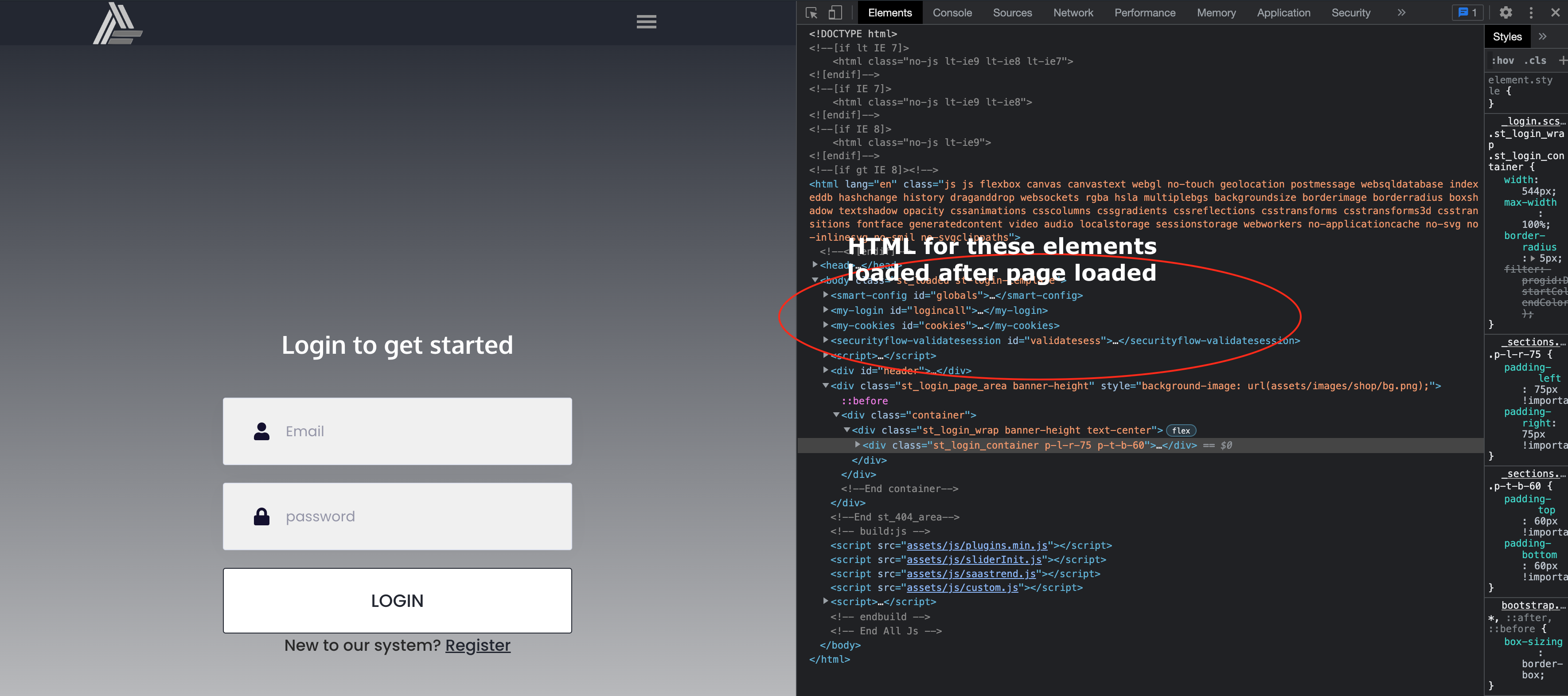
To scrape these pages, you need to use a headless browser—that is, a browser that does not have a GUI component and that can be controlled programmatically. This tutorial will use the [Selenium](https://www.selenium.dev) testing framework to control the headless browser and scrape [this dynamic webpage](https://hoopshype.com/salaries/players/). You can find the source code [here](https://github.com/rajsanka/ScrapDPages).
### Step 1: Run the Selenium Grid
First, the [Selenium Grid](https://www.selenium.dev/documentation/grid/getting_started/) needs to be run as a hub with at least one node to start scraping web pages. To install Selenium Grid, download the jar file [here](https://www.selenium.dev/downloads/). Create a `selenium-server` directory and move the jar file, `selenium-grid-.jar`, into that directory. Because you may run across some bugs due to a hostname mismatch between hub and node, you can create a `selenium.toml` file to configure the hostname:
```
[server]
host = "192.168.0.103"
hostname = "192.168.0.103"
```
To run the hub, run the following command in a terminal window:
```
java -jar selenium-server-4.5.0.jar hub --config selenium.toml
```
Then open another terminal window and run the following command to start a single node:
```
java -jar selenium-server-4.5.0.jar node --port 5555 --config selenium.toml
```
To verify that the Selenium Grid is running, access the URL `http://:4444/`. This should list the stereotypes present. Take note of the `platformName` and `browserName` present here. You will need to use those later on in the code to create a session. Check the status of the grid to ensure it is ready by accessing the URL `http://:4444/wd/hub/status`. You should see a JSON response similar to below. Here, the "ready" value should be "true".
```
{
"value": {
"ready": true,
"message": "Selenium Grid ready.",
"nodes": [
{
"id": "7b160ac9-d615-4589-bc42-42279cb3cf8b",
"uri": "http:\u002f\u002f192.168.0.103:5555",
"maxSessions": 1,
"osInfo": {
"arch": "x86_64",
"name": "Mac OS X",
"version": "10.14.4"
},
"heartbeatPeriod": 60000,
"availability": "UP",
"version": "4.5.0 (revision fe167b119a)",
"slots": [
{
"id": {
"hostId": "7b160ac9-d615-4589-bc42-42279cb3cf8b",
"id": "d738c605-977d-4194-bf14-e8b27fe84dab"
},
"lastStarted": "2022-10-13T06:48:40.886555Z",
"session": null,
"stereotype": {
"browserName": "safari",
"platformName": "MAC"
}
}
]
}
]
}
}
```
### Step 2: Enable the Safari Driver for Automation
The Selenium Grid runs the Safari web driver to connect and load the web pages before it can retrieve the elements. Thus, you need to ensure that the driver is present and is enabled for automation.
For Safari, the web driver is "safaridriver" and is present at `/usr/bin/safaridriver`. Ensure that the file is present. Then, to set up the driver to run in headless mode, follow [these steps](https://support.accelq.com/hc/en-us/articles/360028346351-Setting-up-Safari-browser-for-automation) or simply run the following command:
```
"/usr/bin/safaridriver --enable"
```
This assumes that the Selenium Grid is run on macOS. To run it in another OS, refer to the [Selenium documentation](https://www.selenium.dev/documentation/grid/getting_started/) and the documentation for the appropriate webdrivers.
### Step 3: Download and Use the Selenium Objective C Framework
The framework can be downloaded [here](https://github.com/appium-boneyard/selenium-objective-c). You’ll want to compile the code yourself instead of downloading the pre-compiled version, as it is not signed.
Open `Selenium.xcodeproj` in XCode and change the Team and Signing capabilities to match your project's signing capabilities. Ensure that the "Selenium" schema is selected. Select **Build for > running**. This will create the “Selenium.framework” directory in the “Build” folder. You can use it directly from this folder or copy it to a simpler folder structure.

Next, you’ll add the dependency of the framework to your project. Create a new "App" project or reuse the one you already created. To add the framework to "Frameworks, Libraries and Embedded Content" for this project, click on "Add Files" and select the Selenium.framework directory that you built. This should add the framework and set up the dependencies.


Now you’ll add the custom directory to the search path so the IDE can resolve the header files. Go into "Build Settings" and search for "Framework Search Paths". Add the parent path of the framework to it:

Finally, you’re ready to use the library to scrape web pages. The simplest code to do so is as follows:
```objectivec
SECapabilities *c = [SECapabilities new];
//ensure this matches the platformName and browserName that you picked up earlier.
[c setPlatformName:@"MAC"];
[c setBrowserName:@"safari"];
NSError *error;
SERemoteWebDriver *driver;
driver = [[SERemoteWebDriver alloc] initWithServerAddress:@"192.168.0.103" port:4444
desiredCapabilities:c requiredCapabilities:nil error:&error];
[driver setUrl:[[NSURL alloc] initWithString:@"https://hoopshype.com/salaries/players/"]];
NSArray *a = [driver findElementsBy:[SEBy idString:@"//td[@class=\"name\""]];
NSLog(@"%@", a);
```
This opens the Safari browser in the background and loads the page, which will be used by the Selenium.framework library to scrape the content.
The `findElementBy` and `findElementsBy` functions serve to find elements by XPath. The XPath can be retrieved from the browser's Inspect Element console; you can learn more about how to get the XPath for an element [here](https://www.browserstack.com/guide/find-element-by-xpath-in-selenium).
## Conclusion
In this article, you learned how to use Objective C to load and scrape static and dynamic pages from scratch. You learned about various filters that can be applied to static page scraping based on tags and CSS Selectors, as well as how to follow links during scraping. Finally, you explored advanced scraping techniques using Selenium to scrape dynamic pages.
While the code used in this tutorial may be sizable, the functionality achieved is still simple. However, many websites employ sophisticated measures of blocking automated traffic, further increasing the complexity of the code needed to extract content. To simplify [web scraping](https://www.scrapingbee.com/) and data extraction, consider Scrapingbee.
Scrapingbee API handles rotating proxies, headless browsers, and CAPTCHAs. It manages thousands of headless instances using the latest Chrome version and allows you to focus on extracting the data you need—not dealing with concurrent headless browsers that will eat up all your RAM and CPU.
If you prefer not to have to deal with rate limits, proxies, user agents, and browser fingerprints, please check out our no-code web scraping API. Did you know the first 1,000 calls are on us?
Before you go, check out these related reads:
- [Guide to Choosing a Proxy API for Scraping](https://www.scrapingbee.com/blog/guide-to-choosing-a-proxy-for-scraping/)
- [How to Set Up a Proxy Server with Apache](https://www.scrapingbee.com/blog/how-to-set-up-a-proxy-server-with-apache/)