
Web scraping headers are the key to successful data extraction. In my experience, mastering these HTTP headers is often what separates successful scraping projects from those that get blocked after a few requests.
In this guide, I will walk you through using optimized headers in your Python web scraping projects to reduce blocks and make your requests look like genuine browser traffic. It's a skill that’s more crucial than ever in 2026’s increasingly sophisticated web environment. As you’ll see, the most common HTTP headers aren’t just “nice to have”, they’re the foundation of reliable data collection from web pages and HTTPS websites. Let's dive right in.
Quick Answer (TL;DR)
Here’s a working Python example of setting custom headers that mimic a Chrome browser. This sort of web scraper code is perfect when you want to make direct requests that look like they’re coming from Google Chrome on a Windows computer:
import requests

params = {
'api_key': 'YOUR_API_KEY',
'url': 'https://example.com',
'render_js': 'true',
'headers': {
'User-Agent': 'Mozilla/5.0 (Windows NT 10.0; Win64; x64) AppleWebKit/537.36 (KHTML, like Gecko) Chrome/121.0.0.0 Safari/537.36',
'Accept-Language': 'en-US,en;q=0.5'
}
}


response = requests.get('https://app.scrapingbee.com/api/v1/', params=params)
print(response.text[:500])
Why Python? It is the most common programming language used to scrape data. Learn more about Python web scraping.
Understanding HTTP Headers in Web Scraping
Headers are like your digital ID card when making requests on the web. They identify who you are, what you want, and how you’d like to receive it. In web scraping, headers are crucial because they help your scraper blend in with regular browser traffic. In other words, HTTP headers for web automation are the clues a web server uses to decide how to respond to your requested document type and whether to serve compressed content via document accept encoding.
Think of headers as your scraper’s disguise. Without proper headers, your scraper might as well be wearing a sign saying “I’m a bot,” and that’s exactly what we’re trying to avoid. But optimizing HTTP headers not only makes requests look human, it also improves performance and success rates during data collection.
From my experience, the difference between using default headers and properly configured ones can be night and day in terms of success rates. Websites have become increasingly sophisticated at detecting scrapers, making header optimization no longer optional but essential. Getting the standard headers right, especially when issuing direct requests from HTTP client libraries, makes Python web scraping consistent.
What Are HTTP Request Headers?
HTTP request headers are key-value pairs sent at the beginning of an HTTP request. They provide metadata about the request, such as what type of content the client can accept, what browser they’re using, and what language they prefer. In practice, the request headers section you see in a browser’s developer tools contains the most common HTTP headers you’ll copy into your scripts.

For example, the user-agent header tells the server what browser and operating system you’re using. The accept-language header indicates what languages you prefer content in. These seemingly minor details actually play a major role in how websites perceive and respond to your requests. It’s no exaggeration to say that HTTP headers play an outsized role in whether a web server trusts your HTTP request.
I’ve seen sites that return completely different content based solely on the user-agent string you provide; it’s that important for identifying legitimate traffic. And when you’re making direct HTML requests or dynamic data requests, proper header order and realistic default values matter too.
How Headers Influence Server Responses
Headers can dramatically change what data you receive from a server. For instance, sending different accept-language headers might return content in different languages. Setting the Accept header to “application/JSON” signals you want JSON data rather than HTML.
Some websites even use headers to determine if you’re a legitimate user. Without the right Referer header, you might be blocked from accessing certain pages. I’ve worked with sites that check for specific combinations of headers before serving their content; it’s like a secret handshake between browsers and servers.
This is why understanding and manipulating headers is crucial for successful web scraping – they directly influence what you can access and how.
If you want to understand headers in detail, check out the What is HTTP article.
Difference Between Request and Response Headers
Request headers are sent from the client to the server, containing information about what the client wants and who they are. These include User-Agent, Accept, and Cookie headers, which help identify your request.
Response headers, on the other hand, are sent from the server back to the client. These include content-type (telling you what kind of data was returned), set-cookie (for setting new cookies), and status codes indicating success or failure.
Understanding this two-way communication is essential for debugging scraping issues. I’ve spent hours troubleshooting scrapers only to find that I was ignoring critical response headers that contained the information I needed to adjust my requests.
Essential Headers to Avoid Getting Blocked
Web scraping without getting blocked means that you need to get headers right. Some headers are scrutinized more heavily by anti-scraping systems than others. Based on my experience with various scraping projects, these are the headers you absolutely must get right to stay under the radar.
If you move too aggressively with your headers, websites will block you. If you're too timid, you’ll miss critical data. Finding that perfect balance requires understanding which headers matter most.
The good news is that with the right configuration, your scraper can blend in with normal browser traffic and extract data without triggering alarms. Let’s dive into the most important headers to focus on.
User-Agent: Mimicking Real Browsers
The user-agent header is your scraper’s identity card. It tells websites what browser and operating system you’re using. This is often the first thing anti-bot systems check, making it the most critical header to get right.
Default Python request libraries use user-agent strings that scream, “I’m a bot!” Here’s a better example for Chrome:
Mozilla/5.0 (Windows NT 10.0; Win64; x64) AppleWebKit/537.36 (KHTML, like Gecko) Chrome/121.0.0.0 Safari/537.36
Or for Firefox:
Mozilla/5.0 (Macintosh; Intel Mac OS X 10.15; rv:121.0) Gecko/20100101 Firefox/121.0
I’ve found that using outdated browser versions can sometimes be as suspicious as using no user-agent at all, so keep these up to date.
Accept-Language: Matching User Locale
The accept-language header indicates what languages you prefer content in. This is another signal that helps your scraper appear more like a real user.
A typical value might be:
Accept-Language: en-US,en;q=0.9
This says you prefer English (US), followed by any English variant. I’ve noticed that sites with international audiences often check this header to determine what content to serve. Using values that don’t match your IP location (like Chinese language preferences from a US IP) can raise red flags.
Referer: Simulating Natural Navigation
The referer header tells a website where you came from. This simulates the natural navigation pattern of a real user clicking links from one page to another.
For example, if scraping product details from an e-commerce site, setting the referer to the category page makes your request pattern look more natural:
Referer: https://example.com/category/electronics
In my scraping projects, properly setting the Referer has often been the difference between successful data extraction and getting blocked after a few requests.
Accept-Encoding: Enabling Compression
The accept-encoding header indicates what compression methods your client supports. Modern browsers support multiple compression methods to save bandwidth:
Accept-Encoding: gzip, deflate, br
This not only makes your scraper look more legitimate but can also improve performance by reducing data transfer. I’ve seen scraping jobs run up to 60% faster when properly handling compressed responses. It's a nice bonus beyond just avoiding blocks.
Cookie: Maintaining Session State
The cookie header sends stored cookies back to the server, which is crucial for maintaining logged-in states or session information.
Many websites require cookies for normal operation. Without them, you might receive different content or be blocked entirely. I’ve worked with e-commerce sites that won’t show prices unless you have the right cookies set.
Managing cookies properly often requires handling set-cookie response headers and storing session state between requests – a bit more work, but essential for realistic scraping.
How to Get Headers for Web Scraping from Your Browser
Rather than trying to construct headers from scratch, I’ve found it’s much more effective to copy them directly from a working browser session. This ensures you’re using legitimate header combinations that won’t trigger suspicion.
This approach has saved me countless hours of trial and error. When a website blocks my scraper, I simply observe what headers my browser sends, apply those to my scraper, and usually, the problem resolves immediately.
Let’s walk through how to extract these valuable headers using Chrome’s developer tools.
Using Chrome DevTools to Inspect Headers
Here’s a simple step-by-step process to view the headers your browser sends:
Open Chrome and navigate to the target website
Press F12 or right-click and select “Inspect”
Click on the “Network” tab
Refresh the page (F5)
Click on any request (usually the first HTML document)
Look for the “Headers” tab in the right panel
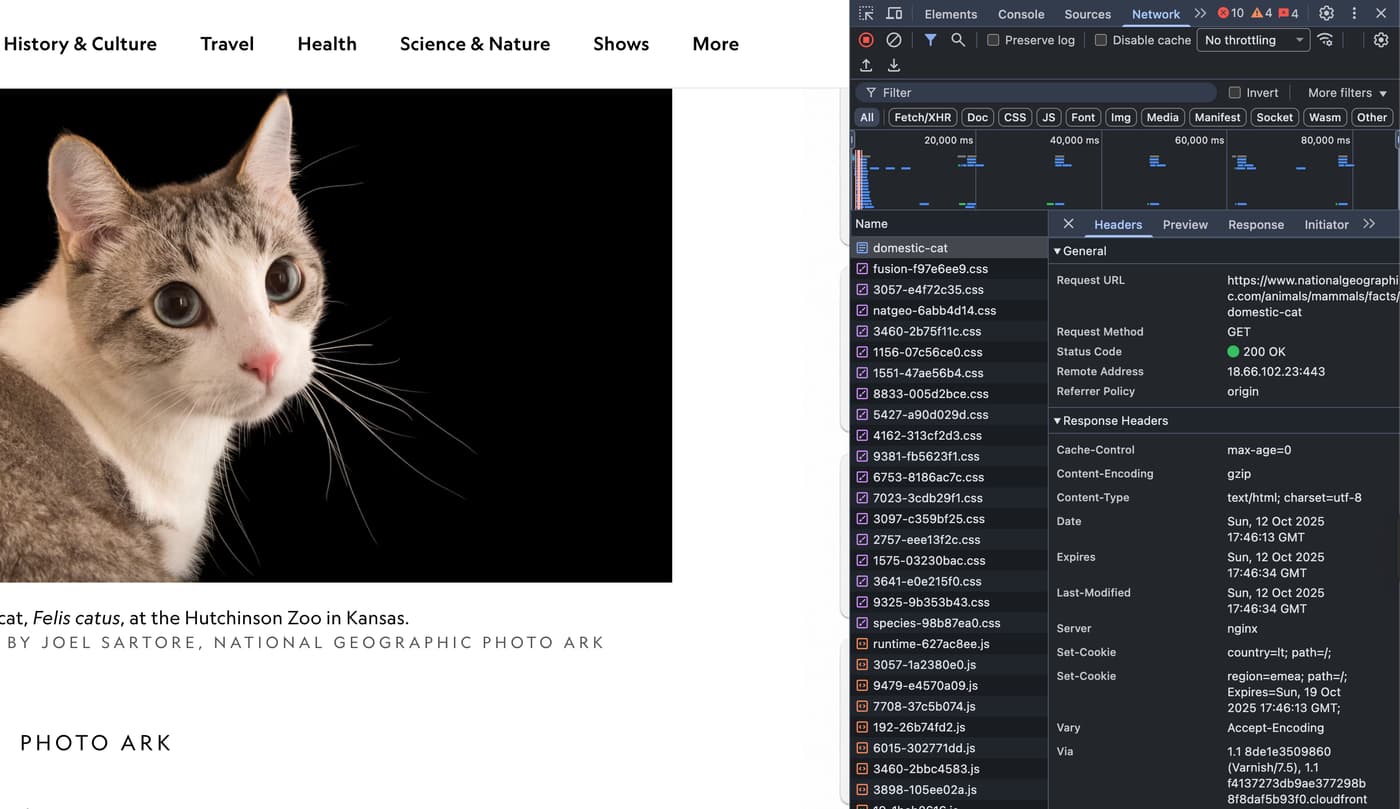
This reveals exactly what headers your browser sends. In my experience, paying special attention to this process when working with challenging websites has been invaluable. I can see exactly what the website expects and mimic that behavior precisely.
Identifying Relevant Request Headers
Not all headers are equally important. Focus on these critical ones:
User-agent: Always necessary
Accept: Especially for API requests
Accept-language: For international sites
Referer: When navigating between pages
Cookie: For maintaining sessions
I typically ignore headers like “Connection” or “Upgrade-insecure-requests” unless I’m dealing with a particularly sensitive site that checks everything. Most anti-bot systems focus on the headers that best identify browser fingerprints.
Copying Headers for Use in Python Scripts
Once you’ve identified the headers you need:
In Chrome DevTools Network tab, right-click on a request
Select “Copy” → “Copy as cURL”
Use an online converter to transform the cURL command to Python code
This gives you a ready-to-use Python dictionary with all the relevant headers. I find this method much more reliable than manually constructing headers, as it captures exactly what a real browser sends.
Using Custom Headers in Python Web Scraping
Now that we understand what headers to use and where to get them, let’s look at how to implement them in Python. I’ve used these techniques across hundreds of scraping projects with excellent results.
The requests library makes it straightforward to add custom headers to your requests. Whether you’re scraping a simple HTML page or making complex API calls, proper header implementation follows the same patterns.
Here’s what the server sees when we send that header set.

The examples below have been tested and proven to work across a variety of websites, from simple blogs to sophisticated e-commerce platforms with anti-bot measures.
Setting Headers in requests.get()
The simplest way to add headers is directly in the get() method:
params = {
    'api_key': 'YOUR_API_KEY',
    'url': 'https://example.com',
    'render_js': 'true',
    'headers': {
        'User-Agent': 'Mozilla/5.0 (Windows NT 10.0; Win64; x64)...'
    }
}
response = requests.get('https://app.scrapingbee.com/api/v1/', params=params)
This approach works well for simple scripts. For more complex projects, I prefer defining headers separately for better readability and maintenance.
Example: Headers Python Dictionary Setup
Here’s a more comprehensive headers setup I typically use:
headers = {
    'User-Agent': 'Mozilla/5.0 (Windows NT 10.0; Win64; x64) AppleWebKit/537.36 (KHTML, like Gecko) Chrome/121.0.0.0 Safari/537.36',
    'Accept': 'text/html,application/xhtml+xml,application/xml;q=0.9,image/avif,image/webp,*/*;q=0.8',
    'Accept-Language': 'en-US,en;q=0.5',
    'Accept-Encoding': 'gzip, deflate, br',
    'Referer': 'https://www.google.com/',
    'Connection': 'keep-alive',
    'Upgrade-Insecure-Requests': '1',
    'Sec-Fetch-Dest': 'document',
    'Sec-Fetch-Mode': 'navigate',
    'Sec-Fetch-Site': 'cross-site',
    'Sec-Fetch-User': '?1',
    'Cache-Control': 'max-age=0',
}

response = requests.get('https://example.com', headers=headers)
This comprehensive setup mimics Chrome browser headers and works reliably across many websites.
Testing Headers with httpbin.org
Before targeting your actual scraping site, I always recommend testing your headers with httpbin:
params = {
    'api_key': 'YOUR_API_KEY',
    'url': 'https://httpbin.org/headers',
    'render_js': 'false',
    'headers': {
        'User-Agent': 'Mozilla/5.0 (Windows NT 10.0; Win64; x64) Chrome/121.0.0.0'
    }
}
response = requests.get('https://app.scrapingbee.com/api/v1/', params=params)
This returns exactly what headers the server sees, helping you verify your configuration. I use this technique to debug header-related issues and ensure my scraper is presenting itself exactly as intended.
Avoiding Default Python-Requests User-Agent
By default, the requests library uses a user-agent like:
python-requests/2.28.1
This is a dead giveaway that you’re scraping. Always override this default with a browser-like user-agent. It’s such a common mistake that I’ve developed a habit of setting custom user-agents even in quick throwaway scripts; it’s saved me countless headaches.
Advanced Header Optimization Techniques
For challenging websites with sophisticated anti-bot measures, basic header configuration isn’t enough. After years of working with complex scraping projects, I’ve developed these advanced techniques to stay one step ahead.
These approaches move beyond simple header setting to create truly browser-like behavior patterns. They require more effort but deliver significantly better results for difficult targets.
I typically reserve these techniques for high-value scraping projects where the basic approaches have failed. Let’s explore how to take your header management to the next level.
Rotating Headers and User-Agents
Using the same user-agent for every request can trigger rate limiting. Instead, rotate between several realistic options:
import random
import requests

user_agents = [
    'Mozilla/5.0 (Windows NT 10.0; Win64; x64) Chrome/121.0.0.0 Safari/537.36',
    'Mozilla/5.0 (Macintosh; Intel Mac OS X 10_15_7) Safari/605.1.15',
    'Mozilla/5.0 (X11; Linux x86_64) AppleWebKit/537.36 Chrome/121.0.0.0'
]

params = {
    'api_key': 'YOUR_API_KEY',
    'url': 'https://example.com',
    'render_js': 'true',
    'headers': {
        'User-Agent': random.choice(user_agents)
    }
}

response = requests.get('https://app.scrapingbee.com/api/v1/', params=params)
I’ve found this approach particularly effective for longer scraping sessions where patterns become more apparent to defensive systems.
Maintaining Correct Header Order
Browsers send headers in specific orders, and some sophisticated websites check this. The requests library doesn’t maintain this order by default.
Using the HTTPX library instead of requests allows you to maintain header order:
import httpx

headers = httpx.Headers([
    ('User-Agent', 'Mozilla/5.0 (Windows NT 10.0; Win64; x64) Chrome/121.0.0.0'),
    ('Accept', 'text/html,application/xhtml+xml,application/xml;q=0.9'),
    # Other headers in correct order
])
This level of detail matters for sites with advanced fingerprinting techniques.
Avoiding Proxy-Injected Headers
When using proxies, be aware that they often add headers like X-Forwarded-For that reveal your scraper’s nature. Check what your proxy adds:
proxies = {'http': 'http://myproxy.com:8080'}
response = requests.get('https://httpbin.org/headers', proxies=proxies)
Then explicitly override any problematic headers. In my experience with large-scale scraping operations, proxy-injected headers have often been an overlooked source of detection.
Keeping Headers Up to Date with Browser Versions
Browser version numbers in user-agent strings change frequently. Outdated versions can be a red flag:
# Outdated (2022)
Mozilla/5.0 (Windows NT 10.0; Win64; x64) Chrome/96.0.4664.110

# Current (2026)
Mozilla/5.0 (Windows NT 10.0; Win64; x64) Chrome/121.0.0.0
I make it a practice to update my user-agent strings quarterly. This simple habit has prevented numerous blocking issues as websites increasingly check for current browser versions.
Using Header Sets That Match Browser Fingerprint
Different headers should be consistent with each other. For example, if your user-agent says Chrome, your Accept headers should match Chrome’s patterns.
Browser fingerprinting has become much more sophisticated in 2026. I’ve encountered sites that detect mismatches between headers that would have gone unnoticed just a couple of years ago.
For maximum effectiveness, copy entire header sets from real browsers rather than mixing and matching from different sources. This maintains the internal consistency that advanced anti-bot.
Call to Action: Make Your Scraper Look Human
While mastering headers is essential for successful web scraping, it’s just one piece of the puzzle. Modern websites also look at request patterns, JavaScript execution, browser fingerprints, and many other signals to detect bots.
I started my scraping journey by building everything from scratch, managing headers, sessions, proxies, and fingerprints. It was educational but incredibly time-consuming. For professional projects where reliability matters, I’ve found that ScrapingBee saves enormous amounts of time by handling these complexities automatically.
The API manages headers, rotates user agents, executes JavaScript, and maintains browser-like behaviors, all while providing a simple interface for your scraping needs. Instead of spending weeks perfecting header configurations and dealing with blocks, you can focus on what really matters: using the data you extract!
Frequently Asked Questions (FAQs)
What are HTTP headers, and why are they important for web scraping?
HTTP headers are metadata sent with HTTP requests that provide information about the browser, preferred content type, and other details. They’re crucial for web scraping because they help your scraper appear legitimate. Without proper headers, many websites will immediately identify and block your scraper, seeing it as automated traffic rather than a real user.
How can I configure headers to avoid detection when web scraping?
To avoid detection, use headers copied from real browsers instead of defaults. Rotate User-Agent strings between requests, maintain consistent header sets that match real browser fingerprints, and update header values to reflect current browser versions. Always test your configuration with tools like httpbin.org to verify what servers actually see.
What are some essential headers to include in my web scraping requests?
The most important headers are User-Agent (browser identification), Accept (content types), Accept-Language (preferred language), Referer (source page), and Accept-Encoding (compression support). For sites requiring login, the Cookie header is also critical. These core headers cover the primary signals websites use to identify legitimate browsers.
How can I extract and use real browser headers for my web scraper?
Open Chrome DevTools (F12), go to the Network tab, refresh the page, click on any request, and examine the Headers tab. Right-click and select “Copy as cURL”, then use an online Convert cURL commands to Python tool to transform it into Python code. This gives you an exact replica of what real browsers send, significantly improving your scraper’s success rate.

Kevin worked in the web scraping industry for 10 years before co-founding ScrapingBee. He is also the author of the Java Web Scraping Handbook.