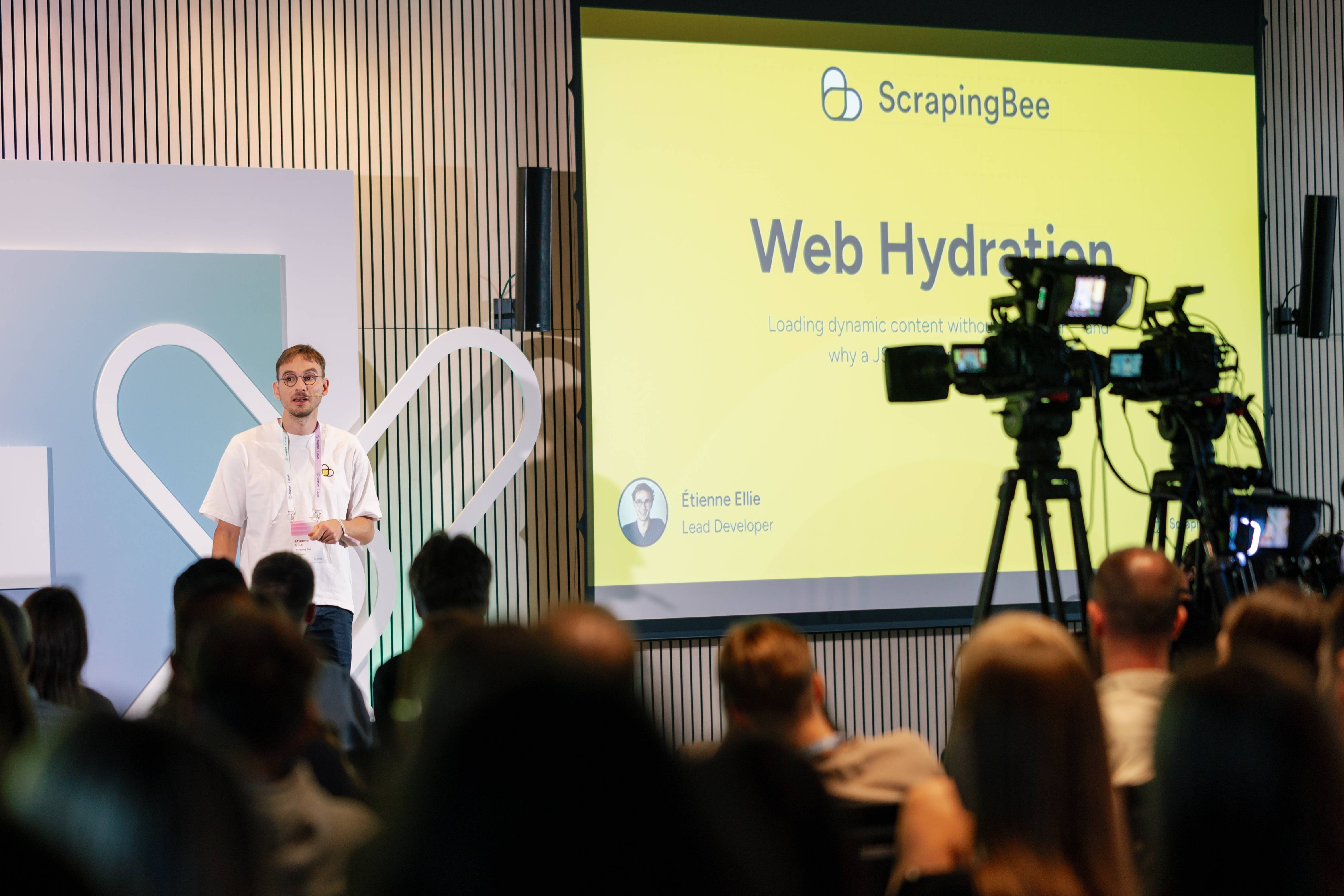
At OxyCon 2026, I gave a talk about a common reflex in web scraping: if a page needs JavaScript, launch a browser.
That works, of course, but it is often more than you actually need. If the goal is simply to execute some JavaScript, build the DOM, and extract the resulting data, running a full Chromium instance means bringing along a lot of extra machinery.
For a handful of pages, that hardly matters. At larger scale, it does. So in this post, I'll show a lighter approach using JSDOM, compare it with browser-based scraping, and look at the cases where a real browser is still the better tool.
Why browsers are an expensive default
If a page needs JavaScript, the reflex is almost automatic: launch a browser. It is a bit like walking into the office and heading straight for the coffee machine — you barely think about it anymore.
And to be fair, Chromium gets the job done. It renders the page, runs the scripts, and gives you the DOM you expect. But it also brings a rendering engine, network stack, media codecs, multiple processes, its own memory management, and quite a bit more. If all you really need is the final DOM, that is a lot of machinery for a fairly small job.
On a single page, the overhead is easy to ignore. On 100,000 pages, it becomes part of the infrastructure cost. More memory per scrape means fewer concurrent jobs per machine and, eventually, more machines.
That is why the first question should not be "How do I automate this page in Chromium?" but simply: what does the page actually need to produce the data I want?
We have compared two of the most popular web automation solutions: Playwright and Selenium. Find more info in our blog post: Playwright vs Selenium: Which is the best Headless Browser.
Static HTML vs. JavaScript-rendered pages
Before deciding what to run, it helps to look at what the server actually gives you.
Sometimes the response already contains the content you need. In that case, scraping is simple: fetch the HTML, parse it, extract the data, done.
A JavaScript-rendered page is different. It may look perfectly complete in the browser, while the initial HTML contains little more than an empty shell:
<div id="quotes"></div>
The missing content may come from data embedded in a script or from an API request made after the page loads. In the first case, the raw data is already somewhere in the response, but the DOM has not been built from it yet. In the second, the data is not part of the initial response at all.
Either way, a plain HTTP client will not execute the page JavaScript for you. That empty <div> stays empty until something runs the code that fills it.
Want the broader JavaScript scraping picture? Our guide to web scraping with JavaScript and Node.js covers HTTP clients, parsing with Cheerio, JSDOM, Playwright, Puppeteer, and the rest of the stack.
The obvious solution is to launch a browser and let it run the page. But if executing JavaScript and building the DOM is all we need, do we really need the rest of the browser?
What web hydration actually needs
Once you strip away everything a browser does for a human user, the requirement becomes much smaller.
For the simple case we're looking at, you basically need three things: the initial HTML, the page's JavaScript, and somewhere for that JavaScript to build and modify the DOM. The data may already be embedded in the page or fetched separately, but the important part is that the scripts get a DOM API they can work with.
A browser provides all of this, but it also has to turn that DOM into pixels. It needs layout, painting, fonts, media support, graphics APIs, and a whole rendering pipeline because someone may actually be looking at the page. A scraper usually is not.
Strictly speaking, frontend frameworks usually use hydration to describe attaching JavaScript behavior to server-rendered HTML. Here, I'm using the term more broadly, as I did in the talk, for executing a page's JavaScript against an initial DOM until the content we need appears.
If the end goal is to run the scripts and then query the resulting DOM, the rendering part can simply disappear. A JavaScript engine such as V8 can execute the code, while a lightweight DOM implementation provides familiar APIs such as document, querySelector(), and the rest.
That is the idea behind browserless hydration: keep the JavaScript engine and the DOM, skip everything needed only to draw the page on a screen.
Libraries such as JSDOM give us exactly that setup. So instead of booting Chromium, we can hand the page to JSDOM, let its scripts run, and then query the hydrated DOM much like we would inside a browser.
Hydrating a page with JSDOM
Now we can put the idea into practice. The basic flow is fairly small: fetch the HTML, give it to JSDOM, let the page scripts run, and then query the DOM.
For a small demo, I'll use the JavaScript version of Quotes to Scrape:
import { JSDOM } from "jsdom";

const response = await fetch("https://quotes.toscrape.com/js/");
const html = await response.text();

const dom = new JSDOM(html, {
  url: "https://quotes.toscrape.com/js/",
  runScripts: "dangerously",
  resources: "usable",
});

await new Promise((resolve) => {
  dom.window.addEventListener("load", resolve);
});

const quotes = [...dom.window.document.querySelectorAll(".quote")].map((quote) => ({
  text: quote.querySelector(".text")?.textContent,
  author: quote.querySelector(".author")?.textContent,
}));

console.log(quotes);
The important bit here is runScripts: "dangerously". Without it, JSDOM will parse the HTML but will not execute scripts embedded in the page. With it enabled, those scripts can populate and modify the DOM, which is exactly what we need for hydration.
The name of that option is also a warning. You are executing code from the page inside a Node.js environment, and JSDOM is not designed to be a secure sandbox for arbitrary untrusted JavaScript. I would not run this against unknown pages on a machine that contains anything valuable. In production, this kind of workload should be properly isolated.
resources: "usable" allows JSDOM to load external resources such as scripts referenced with <script src="...">, while setting url gives it the correct base URL for resolving relative paths.
Once the load event fires, the page has had a chance to run its JavaScript, and we can work with the resulting DOM using the same selectors we would normally use in a browser.
Choosing a JavaScript scraping library? We have a separate comparison of JavaScript web scraping libraries covering JSDOM, Cheerio, Puppeteer, Playwright, and other options.
And that is basically the whole trick. We have executed the page's JavaScript and extracted the rendered content without ever launching Chromium. The next question is whether doing this actually saves enough resources to matter.
What do you actually gain?
So, is this actually faster? On a simple page, not by much. In my test, the JSDOM version took about 2.2 seconds, while Chromium took around 2.7 seconds. At that scale, both runs are dominated by things like Node.js startup and network latency, so replacing the browser does not suddenly make the scraper ten times faster.

Memory is where the difference becomes more interesting. The JSDOM version peaked at roughly 207 MB, while Chromium used around 470 MB — about 2.3 times more.
That difference matters once you start running many scrapes concurrently. Lower memory usage means more jobs per machine, and eventually fewer machines to pay for.
There is also the deployment footprint to consider. JSDOM does not require a separate browser binary, while Chromium added roughly another 265 MB to the deployment in this test. And if the page does not need JavaScript at all, a lighter HTML parser can bring memory usage down even further, to around 40–60 MB in this test.
Scaling a scraper usually brings another problem: getting blocked. Our guide to web scraping without getting blocked covers rate limits, proxies, headers, browser fingerprints, CAPTCHAs, and other common causes of blocked requests.
There is a catch, though. By removing the browser, we also remove some behavior that websites and anti-bot systems expect to see from a real browser — and that starts before any JavaScript is rendered.
The browser was doing more than rendering
Dropping Chromium saves a lot of memory, but the browser was doing more than building the DOM.
A plain HTTP client does not connect to a website in exactly the same way Chrome does. The TLS handshake itself has a recognizable fingerprint, and anti-bot systems can use signatures such as JA3 and JA4 to spot requests that do not look like they came from a real browser. That check can happen before the page has rendered anything at all.
There is also the matter of consistency. A modern page rarely makes just one request. It may fetch scripts, JSON, images, or additional API responses as it loads. If those requests suddenly come from a different IP or present a different network fingerprint, the whole session starts to look suspicious even if each request seems reasonable on its own.
You can handle this yourself, of course. That means managing proxies, keeping the same IP throughout a page load, and making sure your HTTP client presents a browser-like TLS fingerprint.
Want to dig into the fingerprinting part? Our guide to TLS fingerprinting with Burp Suite explains how TLS fingerprints work and how they can be inspected in practice.
This is the catch. JSDOM may be enough to run the page JavaScript, but it does nothing to make your requests look like they came from Chrome. If the site blocks you at the network layer, hydration never even gets a chance to start.
Let ScrapingBee handle the network layer
JSDOM can take care of hydration, but that still leaves us with the networking problems from the previous section: proxies, TLS fingerprints, IP consistency, and anti-bot checks.
One way to split the work is to let JSDOM execute the JavaScript locally while ScrapingBee handles the page's resource requests.
The important part is render_js=false. ScrapingBee does not launch a browser, so JavaScript rendering still happens entirely on our side. We also keep the same session_id for the whole page load so the initial document and follow-up requests stay on the same ScrapingBee session and IP.
To make that work, we can create an Undici dispatcher that routes JSDOM's requests through the ScrapingBee API:
import { Dispatcher } from "undici";

export class ScrapingBeeDispatcher extends Dispatcher {
  #apiKey: string;
  #sessionId: number;
  #premiumProxy: boolean;

  constructor(opts: {
    apiKey: string;
    sessionId: number;
    premiumProxy?: boolean;
  }) {
    super();

    this.#apiKey = opts.apiKey;
    this.#sessionId = opts.sessionId;
    this.#premiumProxy = opts.premiumProxy ?? false;
  }

  // Turn the URL JSDOM wants into a ScrapingBee API request.
  #wrap(targetUrl: string): string {
    const url = new URL("https://app.scrapingbee.com/api/v1/");

    url.searchParams.set("url", targetUrl);

    // Keep JavaScript rendering local in JSDOM.
    url.searchParams.set("render_js", "false");

    url.searchParams.set("session_id", String(this.#sessionId));

    if (this.#premiumProxy) {
      url.searchParams.set("premium_proxy", "true");
    }

    return url.toString();
  }

  // Undici calls this whenever JSDOM wants to load a resource.
  override dispatch(opts: any, handler: any): boolean {
    const targetUrl =
      opts.opaque?.url ?? `${opts.origin}${opts.path}`;

    const proxied = this.#wrap(targetUrl);

    const ac = new AbortController();

    handler.onConnect?.((reason: unknown) => ac.abort(reason));

    fetch(proxied, {
      method: "GET",
      headers: {
        Authorization: `Bearer ${this.#apiKey}`,
      },
      redirect: "manual",
      signal: ac.signal,
    })
      .then(async (res) => {
        // Convert the Fetch API response into the format Undici expects.
        const rawHeaders: Buffer[] = [];

        for (const [key, value] of res.headers) {
          rawHeaders.push(
            Buffer.from(key),
            Buffer.from(value)
          );
        }

        handler.onHeaders?.(
          res.status,
          rawHeaders,
          () => {},
          res.statusText
        );

        // Stream the ScrapingBee response body back to JSDOM.
        if (res.body) {
          const reader = res.body.getReader();

          for (;;) {
            const { done, value } = await reader.read();

            if (done) break;

            if (value) {
              handler.onData?.(Buffer.from(value));
            }
          }
        }

        handler.onComplete?.([]);
      })
      .catch((err) => {
        handler.onError?.(
          err instanceof Error
            ? err
            : new Error(String(err))
        );
      });

    return true;
  }
}
The dispatcher is mostly plumbing. Its job is simple: take the URL JSDOM wants to request, wrap it in a ScrapingBee API call, and reuse the same session_id.
Now we can use it when hydrating the page:
import { JSDOM } from "jsdom";
import { ScrapingBeeDispatcher } from "./scrapingbee-dispatcher.ts";

const DYNAMIC_PAGE_TARGET =
  "https://quotes.toscrape.com/js/";

const API_KEY = process.env.SCRAPINGBEE_API_KEY;

if (!API_KEY) {
  console.error(
    "Set SCRAPINGBEE_API_KEY before running the script."
  );
  process.exit(1);
}

// One session ID for the entire page load keeps the same
// ScrapingBee network identity across the initial request and subresources.
const SESSION_ID = Math.floor(
  Math.random() * 1_000_000
);

const dispatcher = new ScrapingBeeDispatcher({
  apiKey: API_KEY,
  sessionId: SESSION_ID,
});

// Fetch the initial HTML through ScrapingBee without launching a browser.
const shellUrl = new URL(
  "https://app.scrapingbee.com/api/v1/"
);

shellUrl.searchParams.set(
  "url",
  DYNAMIC_PAGE_TARGET
);

shellUrl.searchParams.set(
  "render_js",
  "false"
);

shellUrl.searchParams.set(
  "session_id",
  String(SESSION_ID)
);

const response = await fetch(shellUrl, {
  headers: {
    Authorization: `Bearer ${API_KEY}`,
  },
});

// JSDOM executes the page JavaScript locally.
// Any subresources it loads go through the same ScrapingBee session.
const dom = new JSDOM(await response.text(), {
  runScripts: "dangerously",
  resources: { dispatcher },
  url: DYNAMIC_PAGE_TARGET,
});

// Wait until the page has loaded before querying the hydrated DOM.
await new Promise<void>((resolve) => {
  dom.window.addEventListener(
    "load",
    () => resolve()
  );
});

const quotes =
  dom.window.document.querySelectorAll(".quote");

// Extract data from the DOM JSDOM built for us.
const result: {
  quotes: {
    author: string | null;
    quote: string | null;
  }[];
} = {
  quotes: [],
};

for (const quote of quotes) {
  result.quotes.push({
    author:
      quote.querySelector(".author")
        ?.textContent ?? null,
    quote:
      quote.querySelector(".text")
        ?.textContent ?? null,
  });
}

console.log(
  `session_id=${SESSION_ID} · render_js=false · ${result.quotes.length} quotes`
);

console.log(
  JSON.stringify(result, null, 2)
);
The initial HTML goes through ScrapingBee, and so do the resources JSDOM loads while the page runs. JSDOM still executes the JavaScript locally, so there is no browser on our machine and no browser on the ScrapingBee side either. This is useful when lightweight hydration is enough for the page, but you do not want to build the networking layer yourself.
Not sure which approach fits your scraper? Our guide to web scraping tools compares scraping APIs, browser automation tools, libraries, frameworks, and other options.
One billing detail is worth keeping in mind: every resource routed through the dispatcher is a separate ScrapingBee API request. With classic proxies and render_js=false, each successful request costs one credit. On a page with many subresources, those requests can add up. A smarter dispatcher can reduce credit usage by avoiding unnecessary requests, reusing cached resources, or selectively routing only the resources needed for hydration through ScrapingBee. Depending on the page, letting ScrapingBee render everything in a single 5-credit request may still be simpler — and sometimes cheaper.
Where lightweight hydration works — and where it doesn't
Lightweight hydration works best when the page does something fairly simple: load some data, turn it into DOM nodes, and call it a day. Plenty of single-page applications work more or less like that. The problems start when the frontend expects a real browser. Canvas and WebGL are obvious examples, but layout can matter too. If the code relies on actual element sizes, positions, or other geometry, JSDOM may not be enough.
And even without anything visual, compatibility can still bite you. JSDOM does not implement the entire browser platform. A perfectly accessible site may depend on a browser API that simply is not there, or does not behave exactly as it would in Chrome. Things like navigation, ResizeObserver, module scripts, or late asynchronous updates can all become a problem.
That last one is especially easy to miss: the load event firing does not necessarily mean that the page is finished. An app may still be fetching data or updating the DOM afterwards.
Anti-bot code adds another layer on top of that, since some scripts actively check whether they are running inside a real browser environment.
So JSDOM is not Chromium with the pixels removed. It is a lightweight implementation of enough of the browser environment to handle many pages, but not all of them. In practice, the only reliable way to know whether it will work for a particular site is to try it.
If the page only needs JavaScript and a DOM, great. If it starts depending on the rest of the browser, that is your cue to move up to the real thing.
Pros, cons, and things to watch out for
Pros
- Much lower memory usage than a full browser.
- More concurrent scrapes per machine.
- No Chromium binary or browser process to manage.
- Good fit for pages that mainly use JavaScript to populate the DOM.
Cons
- No real layout or rendering engine.
- Canvas, WebGL, element geometry, and some browser APIs may not work.
- Complex browser detection can still force you back to Chromium.
Things to watch out for
runScripts: "dangerously"executes third-party JavaScript, so treat it as untrusted code and isolate it properly.- External scripts and API requests still need to be loaded somehow.
- TLS fingerprints, proxies, sessions, and IP consistency remain separate scraping problems.
- Lightweight hydration is not a universal replacement for browser automation.
Use the cheapest tool that works
The point of all this is not that browsers are bad. Sometimes a browser is exactly what you need. The trick is not to start there by default.
I like to think of scraping as a small cost ladder:
- Parse the HTML. If the data is already in the response, just extract it.
- Call the underlying API. If the page fetches its data from an endpoint, see if you can request that data directly.
- Hydrate the page. If the rendering logic is tied up in JavaScript, run it with something lightweight like JSDOM.
- Use a real browser. When the page depends on layout, browser APIs, complex interactions, or a real browser environment, bring in Chromium. Network-level anti-bot handling may still be necessary on top of that.
Each step gives you more capabilities, but usually costs more in memory, infrastructure, and complexity as well. So there is no prize for using the fanciest tool. Use the cheapest one that reliably gets the data.
Want to skip the browser infrastructure entirely? Try ScrapingBee with 1,000 free API credits — no credit card required. It can handle JavaScript rendering, rotating proxies, premium and stealth proxy pools, geotargeting, and JavaScript scenarios for clicking, scrolling, filling forms, and waiting for dynamic content. Auto-Mode can also try progressively more capable scraping configurations and stop at the cheapest one that works.
That is really the takeaway from my OxyCon talk: reach for the browser when you need it, not simply because JavaScript happens to be on the page.
FAQ
What is web hydration in web scraping?
Web hydration means executing a page's JavaScript so that an initially empty or partial HTML document is turned into the DOM the user would normally see. For scraping, this can sometimes be done with a lightweight DOM implementation instead of a full browser.
Can I scrape JavaScript-rendered pages without a headless browser?
Yes, in some cases. If the page mainly needs JavaScript execution and a DOM, tools such as JSDOM can be enough. A full headless browser is usually only necessary when the page depends on real browser rendering, layout, complex APIs, or advanced anti-bot checks.
Is JSDOM faster than Puppeteer or Playwright?
Not necessarily by a huge margin on a single page. The bigger advantage is usually memory usage. A lightweight DOM can consume far less memory than Chromium, which allows more concurrent scraping jobs on the same machine.
When should I use a headless browser for web scraping?
Use a headless browser when the target site depends on browser-specific behavior such as Canvas, WebGL, real element geometry, complex interactions, or scripts that actively inspect the browser environment.
Is JSDOM safe for scraping untrusted websites?
It depends on how JavaScript is executed. Running third-party scripts with JSDOM's runScripts: "dangerously" option means executing untrusted code. JSDOM is not a security sandbox, so this workload should be properly isolated.