TLS fingerprinting identifies the client behind an HTTPS request by analyzing the Transport Layer Security (TLS) handshake before the server sends any HTML. JA3 and JA4 are common ways to turn that handshake into a repeatable fingerprint. In this guide, you will learn how TLS fingerprints are built, why Burp Suite traffic can get flagged, and how to use burp-awesome-tls to change Burp's ClientHello and verify the before-and-after JA3 and JA4 results.
We will start with the mechanics of the TLS handshake, especially the ClientHello message that exposes cipher suites, extensions, supported groups, and protocol preferences. Then we will compare JA3, JA4, and JA4+ so you can understand what anti-bot systems actually see.
After that, we will move from theory to testing. You will install burp-awesome-tls, configure a browser-like TLS profile in Burp Suite, and measure the fingerprint change with a public TLS checker.
Finally, we will cover where the manual approach stops working. Burp Suite is useful for debugging and security testing, but production scraping usually needs a managed scraping API that handles TLS, browser behavior, and proxies together.
What is TLS fingerprinting?
TLS fingerprinting is a way to identify the client behind an HTTPS connection by analyzing its Transport Layer Security (TLS) handshake. The fingerprint comes from the ClientHello message, which is sent before encrypted application data begins. That means a server can classify your client before it sends any HTML, and before HTTP headers become the main signal.
What the server sees first
The server sees your TLS handshake before it sees the page request itself.
When a client connects to an HTTPS website, it starts with a ClientHello message. This message is sent in cleartext, even though the connection later becomes encrypted. It gives the server an early view of the software making the request.
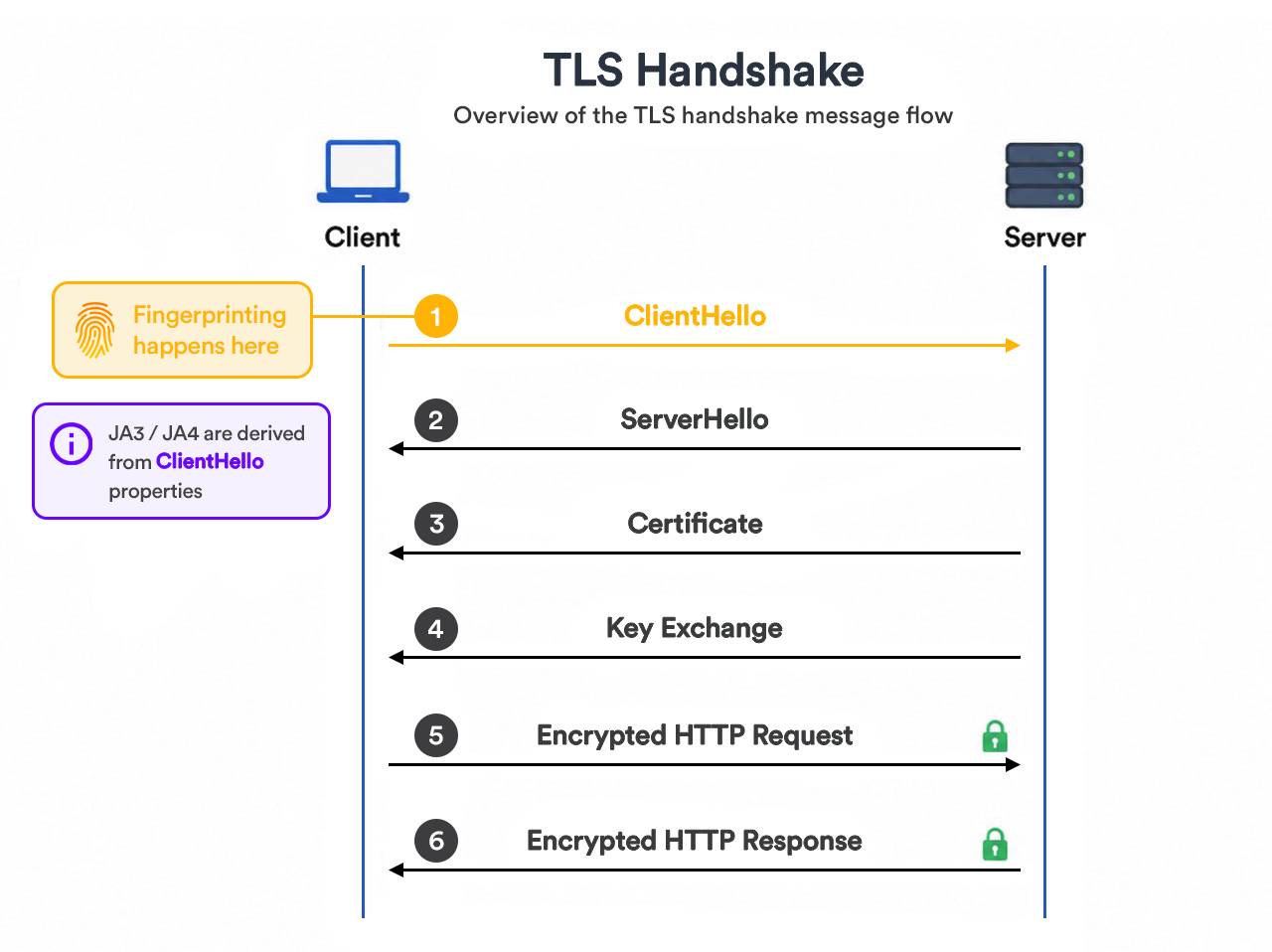
That early signal can reveal whether the request looks like Chrome, Firefox, Safari, Python Requests, cURL, Go's HTTP client, Burp Suite, a headless browser, or a custom scraping client.
TLS fingerprinting does not identify a person in the same way a login, cookie, or device ID can. It identifies the shape of the client software.
What makes a TLS fingerprint useful?
A TLS fingerprint is useful because different clients build different handshakes.
The fingerprint can include TLS versions, cipher suites, extensions, supported groups, signature algorithms, Application-Layer Protocol Negotiation (ALPN), and the order of those values. The exact fields depend on the fingerprinting method, but the core idea is the same: the server compares the handshake shape against known client patterns.
This is why a browser and a script can look different even when they send similar HTTP headers. The HTTP layer might claim Chrome, while the TLS layer still looks like Python, cURL, Go, Java, or Burp Suite.
Why IP rotation does not fix TLS fingerprinting
IP rotation does not fix TLS fingerprinting because the fingerprint comes from the client handshake, not the IP address.
A scraper can rotate proxies, change user agents, and randomize headers, but still send the same non-browser TLS handshake on every request. To the server, that traffic may look like many IP addresses running the same automation client.
That mismatch is one reason scrapers get blocked even when their HTTP headers look browser-like. The request says "Chrome" at the HTTP layer, but the TLS layer says "Python script", "cURL", or "Burp Suite".
Where JA3 fits in
JA3 is one of the best-known ways to represent a TLS client fingerprint.
JA3 turns selected ClientHello fields into a string, then hashes that string into a compact identifier. JA3 was open-sourced by Salesforce in 2017, so it is an older but still important reference point for understanding TLS client fingerprints.
A JA3 fingerprint is useful because it gives defenders a repeatable way to compare TLS clients. For example, a real Chrome browser and a script with Chrome-like headers may have different JA3 fingerprints.
How websites use TLS fingerprinting
Websites use TLS signals as an early risk signal.
A TLS fingerprint can help detect non-browser HTTP clients, automation frameworks, scraping libraries, security testing tools, bot traffic using fake browser headers, and suspicious traffic patterns across many IP addresses.
Modern anti-bot systems rarely rely on this detection method alone. They usually combine TLS signals with HTTP headers, browser behavior, JavaScript signals, IP reputation, request timing, and historical traffic patterns.
TLS fingerprinting is still powerful because it happens at the start of the connection. The server can score the client before the page loads, before JavaScript runs, and before most browser-level signals are available.
How TLS fingerprinting works: inside the ClientHello
TLS fingerprinting works by reading the first message your client sends in the Transport Layer Security (TLS) handshake: the ClientHello. That message exposes the TLS library behind the request. The giveaway is often a mismatch: the HTTP User-Agent claims to be Chrome, but the TLS handshake looks like Python, Go, Java, or Burp Suite.
The handshake starts before the page request
An HTTPS connection starts with a TLS handshake, not with HTML.
At a high level, the flow looks like this:
- The client sends a ClientHello.
- The server replies with a ServerHello.
- Both sides negotiate protocol settings and key material.
- The encrypted connection starts.
- The browser or client sends the HTTP request.
The important part is step one. The ClientHello is visible before the encrypted application layer begins. That gives the server an early signal before it reads cookies, headers, JavaScript results, or page behavior.
The ClientHello fields create the fingerprint
A ClientHello contains several fields that vary by browser, operating system, and TLS library.
Common fingerprinted fields include:
| Field | Why it matters |
|---|---|
| TLS version | Version values expose protocol support, such as 771 for TLS 1.2 and 772 for TLS 1.3 in supported version fields |
| Cipher suites | The offered encryption options reveal client defaults |
| Cipher suite order | Real browsers often use a stable order |
| Extensions | Features such as Server Name Indication (SNI), Application-Layer Protocol Negotiation (ALPN), and supported versions reveal client behavior |
| Extension order | The same extensions in a different order can produce a different fingerprint |
| Supported groups | Elliptic curves and key exchange groups vary by TLS stack |
| EC point formats | Older elliptic curve settings can still appear in some fingerprints |
This is why changing the User-Agent header does not change the TLS fingerprint. The User-Agent is sent later at the HTTP layer. The ClientHello is generated earlier by the TLS library.
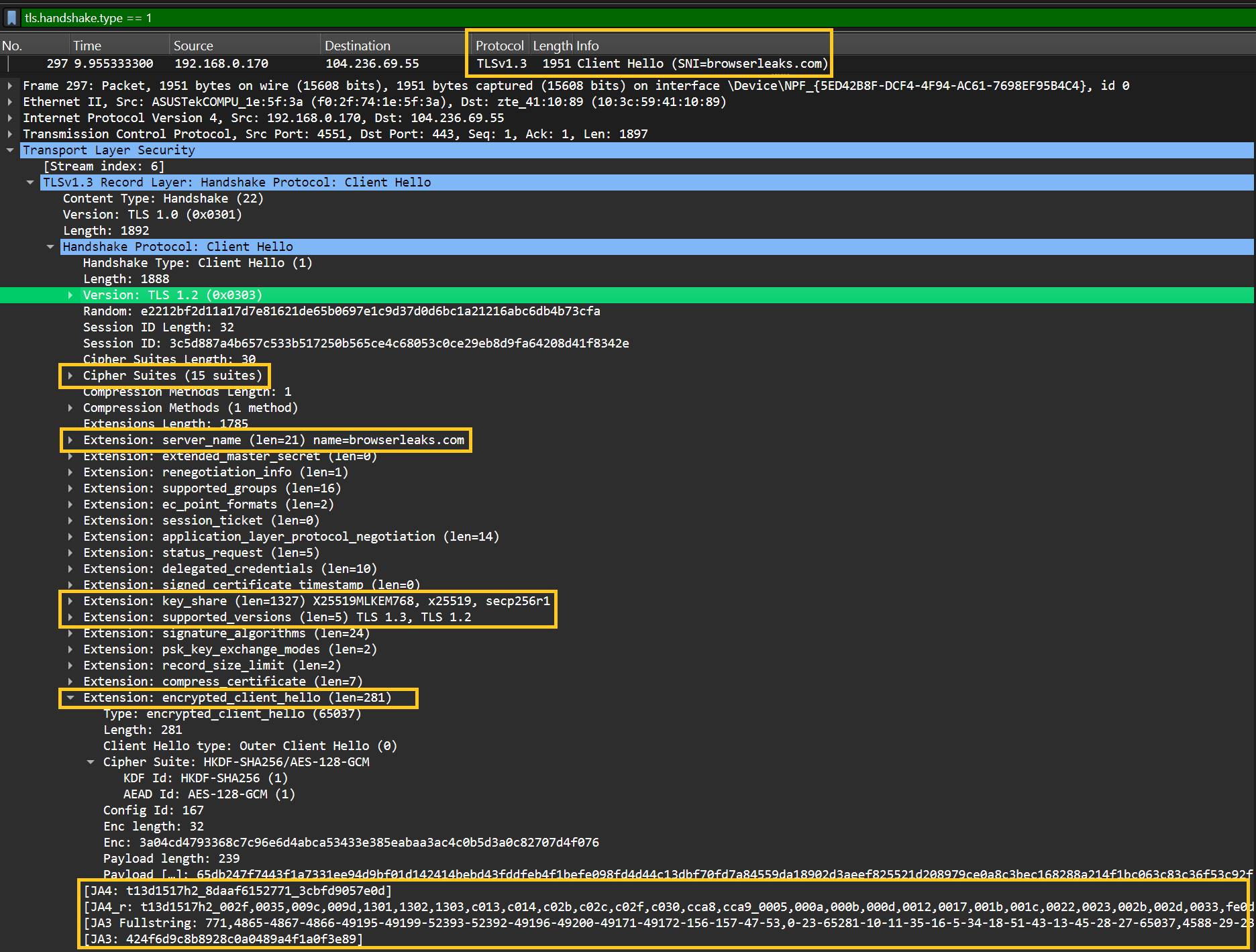
This Wireshark capture shows the TLS ClientHello that created the fingerprint.
The display filter is set to tls.handshake.type == 1, which isolates ClientHello messages. In this capture, the client sends a TLS 1.3 ClientHello to browserleaks.com before any encrypted HTTP request is sent.
Several fingerprinting fields are visible in the expanded ClientHello:
Cipher Suites: the encryption options offered by the client.Extensions: the TLS features and metadata sent by the client.server_name: the Server Name Indication (SNI) value, herebrowserleaks.com.supported_groups: the key exchange groups supported by the client.key_share: the offered key exchange values, includingX25519MLKEM768,x25519, andsecp256r1.supported_versions: the actual supported TLS versions, here TLS 1.3 and TLS 1.2.application_layer_protocol_negotiation: the Application-Layer Protocol Negotiation (ALPN) extension, used to negotiate protocols such as HTTP/2 or HTTP/1.1.JA4,JA3 Fullstring, andJA3: the fingerprints Wireshark calculates from the handshake.
One detail can look confusing at first: Wireshark shows Version: TLS 1.2 (0x0303) inside the ClientHello. For TLS 1.3, this is a legacy compatibility field. The actual version support is shown later in the supported_versions extension.
Different clients use different TLS libraries
Most clients do not handcraft the ClientHello. They inherit it from the TLS library they use.
| Client | TLS library |
|---|---|
| Google Chrome and Microsoft Edge | BoringSSL |
| Firefox | Network Security Services (NSS) |
| Internet Explorer and legacy Edge | SChannel |
| Safari | Apple's platform TLS stack |
| Python requests | OpenSSL |
| Go | crypto/tls |
| Burp Suite | Java Secure Socket Extension (JSSE) |
That library choice shapes the final fingerprint. Chrome and Firefox do not just send different HTTP headers. They also build different TLS handshakes.
The mismatch is the tell
TLS fingerprinting becomes especially useful when the layers disagree.
A request might claim this at the HTTP layer:
User-Agent: Mozilla/5.0 ... Chrome/125.0.0.0 Safari/537.36
But the TLS layer might still look like OpenSSL, Go, or Java Secure Socket Extension (JSSE). That inconsistency is a strong automation signal.
For Burp Suite users, this is the core problem. Even when Burp forwards browser-like headers, the upstream server may see a Java-shaped TLS handshake. That can be enough for a web application firewall (WAF) or anti-bot system to flag the request before the page response is sent.
JA3, JA4, and JA4+ explained
JA3 and JA4 are two ways to turn TLS handshake data into a repeatable client fingerprint. JA3 fingerprinting is older and hashes five ClientHello fields into a 32-character value. A JA4 fingerprint is newer, more readable, and more resistant to browser randomization because it normalizes parts of the handshake before hashing.
What is a JA3 fingerprint?
A JA3 fingerprint is a Message-Digest Algorithm 5 (MD5) hash of selected ClientHello fields.
JA3 uses five values from the client side of the TLS handshake:
- SSL or TLS version
- Accepted cipher suites
- TLS extensions
- Elliptic curves
- Elliptic curve point formats
JA3 joins those values into one ordered string, then hashes the string into a 32-character identifier. That made JA3 easy to share between security tools, logs, and threat intelligence systems.
JA3S applies the same idea to the server side. It fingerprints the ServerHello response, which can help analysts compare both sides of the TLS negotiation.
Why JA3 became less reliable for browsers
JA3 became less reliable for modern browsers because it depends on extension order.
In 2023, Chrome began randomizing the order of TLS ClientHello extensions. That made the same browser produce different JA3 values across connections. This did not make JA3 useless everywhere. It still helps identify many non-browser clients, older stacks, and automation tools. But for current browsers, JA3 alone became too noisy.
What is a JA4 fingerprint?
A JA4 fingerprint is a newer TLS client fingerprint format designed to survive extension randomization.
JA4 keeps the fingerprint more readable by using structured sections instead of a single opaque MD5 hash. It includes signals such as transport type, TLS version, Server Name Indication (SNI), cipher count, extension count, Application-Layer Protocol Negotiation (ALPN), and sorted hashes of cipher and extension data.
A JA4 fingerprint looks more like a compact descriptor than a plain hash. For example, it can show whether the traffic used Transmission Control Protocol (TCP), which TLS version was offered, and whether the first ALPN value looked like Hypertext Transfer Protocol 2 (HTTP/2).
JA3 vs JA4
| Property | JA3 | JA4 |
|---|---|---|
| Year | 2017 | 2023 |
| Hash length | 32 characters | 36 characters |
| Algorithm | MD5 hash of ordered ClientHello fields | Structured format with truncated Secure Hash Algorithm 256 (SHA-256) sections |
| Randomization-resistant | No, extension order changes the hash | Yes, order-variable fields are normalized |
| Extra context: TCP, HTTP/2, ALPN, SNI | Limited | Included in the fingerprint structure |
| Status | Still useful, but noisy for modern browsers | Better suited to modern TLS fingerprinting |
Example: JA3 hash vs JA4 string
Here is the same TLS ClientHello represented as both a JA3 fingerprint and a JA4 fingerprint:
| Fingerprint type | Example value | What to notice |
|---|---|---|
| JA3 | 62f6a6727fda5a1104d5b147cd82e520 | A 32-character Message-Digest Algorithm 5 (MD5) hash. It is compact, but opaque. |
| JA4 | t13d4913h2_bd868743f55c_70ae44219175 | A structured fingerprint string. It keeps readable clues such as TLS version and protocol shape. |
The JA3 value is useful for exact matching, but it does not explain itself. The JA4 value is easier to inspect because part of the fingerprint remains human-readable. For example, t13 indicates TLS 1.3, and h2 indicates HTTP/2 through Application-Layer Protocol Negotiation (ALPN).
The same checker also reported normalized variants:
| Normalized fingerprint | Example value |
|---|---|
| JA3_n | c920d1815a7d2c368c772337f960f8a9 |
| JA4_o | t13d4913h2_7a3698dd13b5_51d33907f814 |
Those variants are useful when a tool normalizes or reorders parts of the handshake before comparison. The key point is the same: JA3 looks like a hash, while JA4 carries more readable structure.
What is JA4+?
JA4+ is a broader network fingerprinting suite, not just one TLS client fingerprint.
The JA4+ suite includes multiple fingerprint types, such as JA4 for TLS clients, JA4S for TLS servers, JA4H for Hypertext Transfer Protocol (HTTP) clients, and additional methods for TCP, Secure Shell (SSH), certificates, and QUIC traffic used by HTTP/3.
For scrapers and security testers, the practical lesson is simple. Matching a browser-like JA3 is no longer enough. Your TLS, HTTP/2, ALPN, SNI, and transport-level behavior all need to make sense together.
Why your scraper or security tool gets blocked
Your scraper or security tool gets blocked when its network layers do not agree with each other. A request can claim to be Chrome in the User-Agent header, but still expose Python, Go, Java, or Burp Suite in the TLS handshake. That mismatch can be scored before the server sends the page.
The browser claim must match the TLS fingerprint
Anti-bot systems look for coherent fingerprints across the full request.
A believable browser request usually has matching signals across:
- TLS fingerprint
- HTTP headers
- Hypertext Transfer Protocol 2 (HTTP/2) settings
- Application-Layer Protocol Negotiation (ALPN)
- JavaScript behavior
- IP reputation
- Request timing
The problem starts when one layer tells a different story. For example, a scraper may send a Chrome User-Agent, Chrome-like headers, and a residential proxy IP. But if the TLS layer still looks like OpenSSL, Go's crypto/tls, or Java Secure Socket Extension (JSSE), the request does not look like real Chrome.
Proxies do not change your TLS library
Residential proxies can change where traffic comes from, but they do not automatically change how your client speaks TLS.
That is why proxy rotation alone often fails against a TLS-layer block. The website may see hundreds of IP addresses, but the same non-browser fingerprint behind all of them. The IPs changed. The client did not.
This is especially common with sites protected by Cloudflare's bot detection, content delivery networks (CDNs), web application firewalls (WAFs), and anti-bot systems like DataDome, Akamai, and anti-bot systems like PerimeterX. Cloudflare documents that Cloudflare uses JA3/JA4 fingerprints to identify TLS clients across destination IPs, ports, and certificates.
Burp Suite has the same problem
Burp Suite traffic can be flagged for the same reason scraper traffic is flagged.
Burp sits between the browser and the target website, then opens its own upstream TLS connection. That upstream connection is not made by Chrome. It is made through Burp's Java-based TLS stack.
So even if the browser sends realistic headers into Burp, the website may see a non-browser TLS fingerprint from Burp on the other side. For protected targets, that can be enough to trigger a block, challenge, or different response.
How to bypass TLS fingerprinting
To bypass this detection, make every layer of the request look like it came from the same client. The TLS handshake, HTTP headers, HTTP/2 settings, browser behavior, and IP reputation should tell one coherent story. A Chrome User-Agent over a Python, Go, Java, or default cURL TLS stack is still easy to flag.
There are four common ways to handle this.
| Approach | Tool example | Best for |
|---|---|---|
| Real browser | Playwright for Python | JavaScript-heavy sites |
| Impersonation client | curl-impersonate | Lightweight request scrapers |
| TLS-rewriting proxy | burp-awesome-tls | Security testing in Burp Suite |
| Managed API | ScrapingBee Stealth | Scale without maintenance |
Run a real browser
A real browser is the simplest way to inherit a realistic TLS fingerprint.
Tools like Playwright, Puppeteer, and Selenium use an actual browser engine, so the TLS handshake usually comes from Chrome, Chromium, Firefox, or WebKit rather than a generic HTTP library. This is useful when the target also relies on JavaScript challenges, browser APIs, cookies, and timing signals.
For harder browser-fingerprint cases, anti-detect browsers like Camoufox can help align more browser-level signals.
Use a TLS impersonation client
A TLS impersonation client is better when you want request-level speed without launching a full browser.
curl-impersonate, tls-client, and uTLS can shape the TLS ClientHello to look closer to a real browser. This is useful for lightweight scrapers, API-like pages, and targets where JavaScript execution is not the main blocker.
The tradeoff is maintenance. Browser TLS fingerprints change, so your impersonation profile can become stale.
Route through a TLS-rewriting proxy
A TLS-rewriting proxy is useful when you need to keep your existing workflow.
That is the Burp Suite use case. Your browser still sends traffic into Burp, but the proxy changes the upstream ClientHello before the target server sees it. We will test that next with burp-awesome-tls.
Offload the stack to a managed API
A managed scraping API is the better fit when the target is difficult or the scraper needs to run at scale.
Instead of maintaining TLS profiles, browser execution, retries, and proxy pools yourself, you send one API request and let the service handle the network stack. This is usually the practical route when you need to avoid getting blocked while scraping across many URLs.
How to bypass TLS fingerprinting with Burp Suite
To bypass TLS fingerprinting with Burp Suite, you need to change the TLS handshake Burp sends to the target website. Burp can forward browser-like HTTP headers, but its upstream TLS connection still comes from Burp's Java stack. burp-awesome-tls fixes that mismatch by sending the upstream request with a browser-like ClientHello.
This matters because Burp is not just a passive pipe. Your browser connects to Burp, then Burp opens a new HTTPS connection to the target. The target does not see Chrome's original TLS handshake. It sees Burp's handshake.
That is why some protected sites flag Burp traffic even when the browser, headers, and proxy look normal. The request claims to be Chrome at the HTTP layer, but the TLS layer says something else.
burp-awesome-tls changes the upstream side of that connection. The extension routes Burp traffic through a local HTTPS server, re-creates the target connection with a selected browser TLS profile, preserves header order, and returns the response back to Burp.
The flow changes from this:
Browser → Burp Suite → target website
to this:
Browser → Burp Suite → burp-awesome-tls → target website
This helps when the block is mainly based on TLS signals. It does not guarantee a bypass against full anti-bot systems that also check JavaScript behavior, browser fingerprints, CAPTCHAs, IP reputation, or request timing.
In the next steps, we will install burp-awesome-tls, choose a browser TLS profile, and verify the result with real before-and-after JA3 and JA4 measurements.
Install and load burp-awesome-tls
Install burp-awesome-tls as a normal Java extension in Burp Suite. No local compilation is required if you use the release JAR.
Download the JAR for your operating system from the burp-awesome-tls project. The project also provides a universal fat JAR, which works across supported platforms.
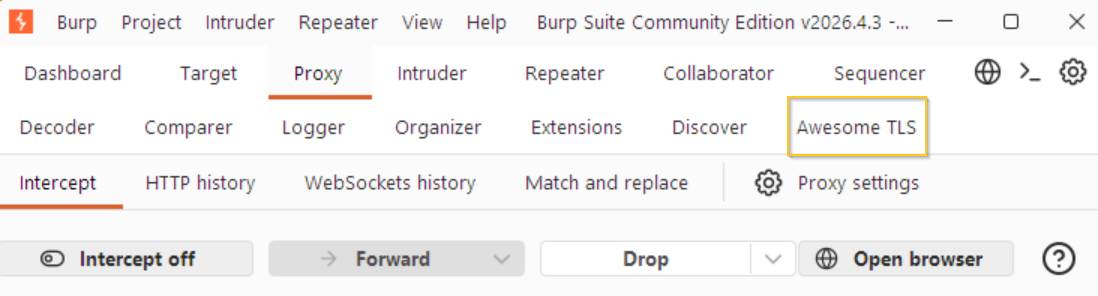
In Burp Suite, use this menu path:
Extensions > Installed > Add
Select Java as the extension type. Browse to the JAR file you downloaded, then load it. If the extension loads correctly, Burp adds a new Awesome TLS tab.
Configure a browser TLS profile
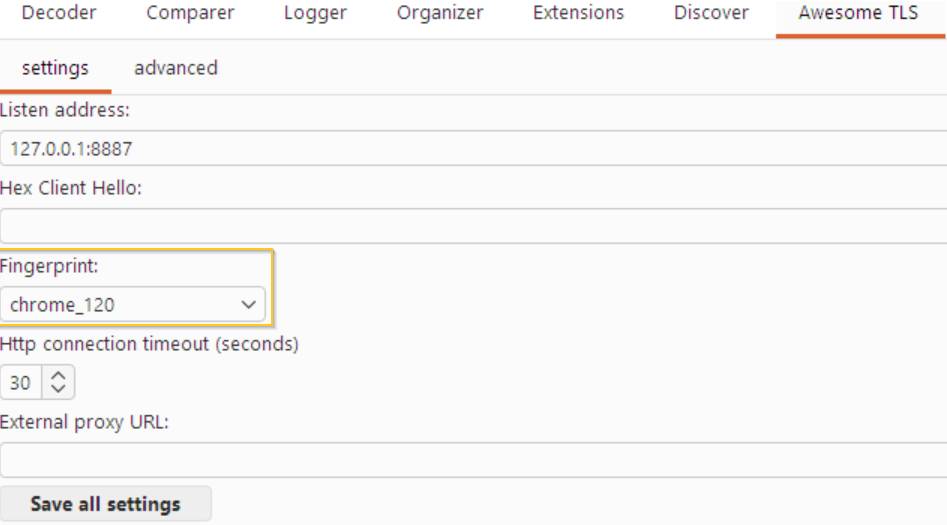
Configure burp-awesome-tls by selecting a predefined browser TLS profile in the Awesome TLS tab.
Pick the browser fingerprint you want Burp to imitate, such as a Chrome-like profile. The extension applies that TLS configuration when it forwards requests upstream, so the target server sees a browser-shaped ClientHello instead of Burp's default Java-shaped handshake.
For easier routing, enable the Advanced Proxy Listener if you want the current fingerprint applied automatically. Note the local server address shown by the extension, because the request path becomes:
Browser > Burp > local Awesome TLS proxy > target website
Advanced users can also import a custom ClientHello. Capture the browser handshake in Wireshark, copy the ClientHello record as a hex stream, and paste it into the Hex Client Hello field.
Verify your spoofed fingerprint before and after
Verify the change by sending the same TLS test request through Burp before and after enabling the browser profile.
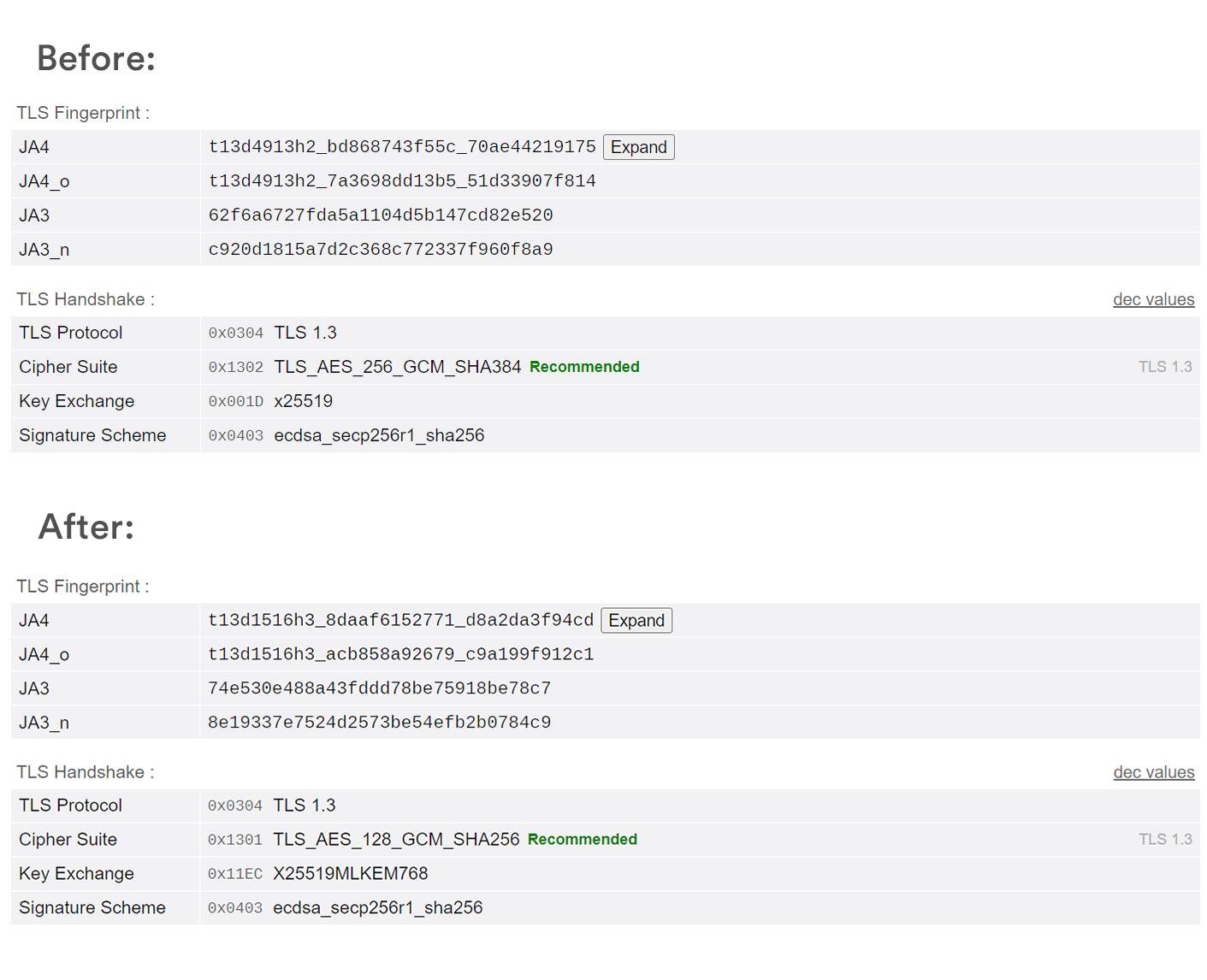
I tested this with Burp Suite's embedded browser and the BrowserLeaks TLS test. First, I opened the TLS test through Burp with the default configuration and recorded the reported JA3 and JA4 fingerprints. Then I enabled a browser TLS profile in the Awesome TLS tab, repeated the same test, and compared the results.
The fingerprints changed immediately:
| Test | JA3 | JA4 |
|---|---|---|
| Burp default | 62f6a6727fda5a1104d5b147cd82e520 | t13d4913h2_bd868743f55c_70ae44219175 |
| Burp with browser TLS profile | 74e530e488a43fddd78be75918be78c7 | t13d1516h3_8daaf6152771_d8a2da3f94cd |
The negotiated TLS parameters changed too:
| Property | Burp default | Burp with browser TLS profile |
|---|---|---|
| TLS protocol | TLS 1.3 (0x0304) | TLS 1.3 (0x0304) |
| Cipher suite | TLS_AES_256_GCM_SHA384 (0x1302) | TLS_AES_128_GCM_SHA256 (0x1301) |
| Key exchange | x25519 (0x001d) | X25519MLKEM768 (0x11ec) |
| Signature scheme | ecdsa_secp256r1_sha256 (0x0403) | ecdsa_secp256r1_sha256 (0x0403) |
This shows that burp-awesome-tls changed the underlying TLS handshake, not just the HTTP request. The User-Agent header can be edited in many tools, but the JA3 and JA4 values only changed here because Burp sent a different ClientHello upstream.
The result also shows why the fingerprint is difficult to fake manually. The visible fingerprint changed, the cipher suite changed, and the key exchange changed. A target website can use those low-level differences to decide whether the client looks like a real browser, Burp Suite, or another automated client.
Limitations of the Burp Suite approach
burp-awesome-tls reduces TLS fingerprinting problems, but it does not guarantee a bypass.
This approach helps most when the block depends mainly on the TLS handshake. It does not solve JavaScript challenges, CAPTCHAs, behavioral detection, browser fingerprinting, account risk scoring, or IP reputation problems.
Browser fingerprints also drift over time. A Chrome-like profile that works today may look stale after Chrome, BoringSSL, or anti-bot vendors change their models.
That is where this manual approach stops scaling. It is useful for debugging, security testing, and controlled experiments. It is harder to maintain across many targets, browser versions, proxy pools, and anti-bot systems.
When to stop hand-rolling: using a managed scraping API
Hand-rolling TLS impersonation is useful for debugging, Burp Suite testing, and small scrapers. It stops being efficient when you need to maintain TLS fingerprints, browser fingerprints, proxy quality, JavaScript execution, and anti-bot retries across many targets. At that point, a managed scraping API can be cheaper than maintaining the evasion stack yourself.
Manual control is still the right choice when you need to inspect one request closely. Burp Suite, curl-impersonate, tls-client, and similar tools are excellent for proving that TLS fingerprinting is part of the block.
The problem is maintenance. Browser fingerprints change. TLS libraries change. HTTP/2 settings change. Anti-bot vendors update their models. A fix that works for one target can fail on another target, even when the code and proxy pool stay the same.
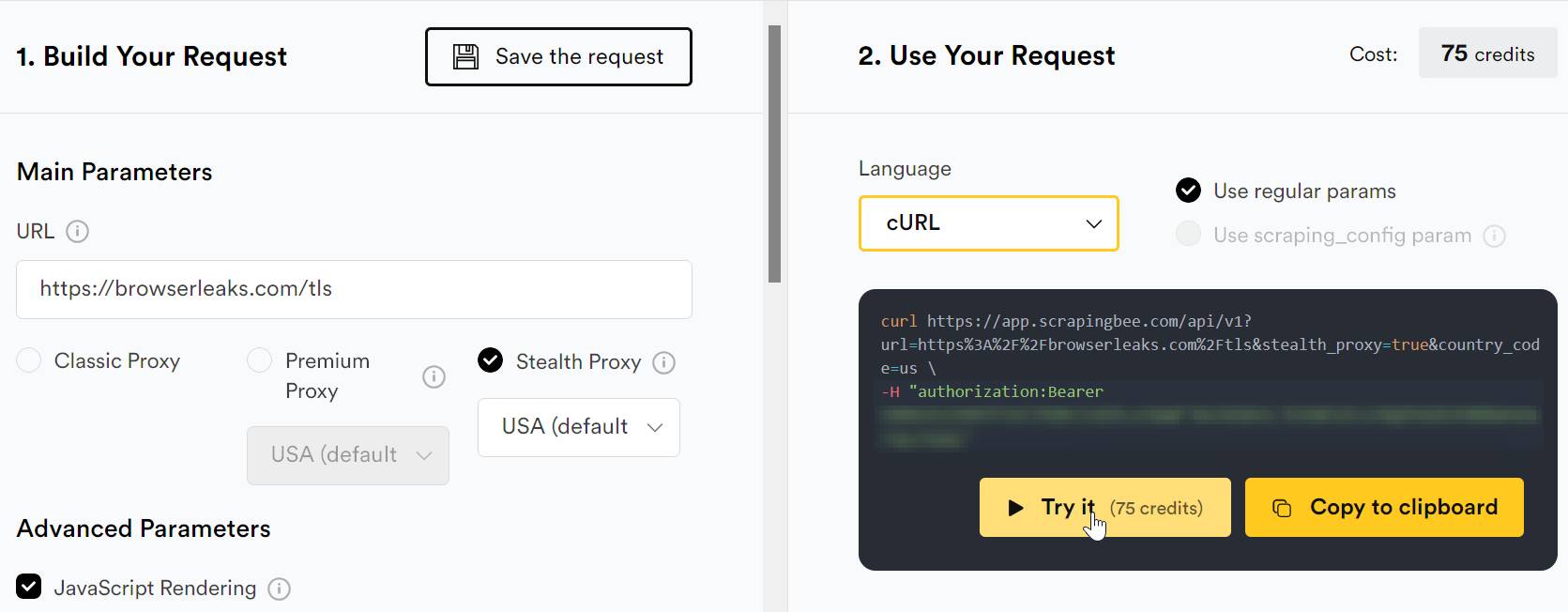
That is where ScrapingBee fits better. Instead of exposing raw proxy infrastructure, ScrapingBee gives you a scraping API that can handle browser rendering, proxy selection, and stealth behavior in one request.
For harder targets, enable the stealth_proxy parameter:
from scrapingbee import ScrapingBeeClient

client = ScrapingBeeClient(api_key="YOUR_API_KEY")

response = client.get(
    "https://browserleaks.com/tls",
    params={
        "stealth_proxy": "True",
    },
)

print(response.status_code)
print(response.text[:500])
In my live Stealth test, ScrapingBee rendered the same BrowserLeaks TLS page and returned resolved fingerprint values. The result shows a browser-shaped TLS profile using TLS 1.3, HTTP/2, and a modern hybrid key exchange.
| Check | Result |
|---|---|
| Target URL | https://browserleaks.com/tls |
| ScrapingBee mode | stealth_proxy=True |
| Rendered User-Agent | Mozilla/5.0 (X11; Linux x86_64; rv:Camoufox Camoufox 140.0) Gecko/20100101 Firefox/Camoufox Camoufox 140.0 |
| JA4 | t13d1717h2_5b57614c22b0_3cbfd9057e0d |
| JA4_o | t13d1717h2_5b234860e130_df135d36b6d5 |
| JA3 | 6f7889b9fb1a62a9577e685c1fcfa919 |
| JA3_n | e4147a4860c1f347354f0a84d8787c02 |
| TLS protocol | TLS 1.3 (0x0304) |
| Cipher suite | TLS_AES_128_GCM_SHA256 (0x1301) |
| Key exchange | X25519MLKEM768 (0x11EC) |
| Signature scheme | ecdsa_secp256r1_sha256 (0x0403) |
This is the managed version of the same idea we tested manually in Burp. Instead of installing an extension and tuning the ClientHello yourself, Stealth returns a rendered browser session where the TLS fingerprint, browser fingerprint, and proxy layer are handled together.
Stealth is not the default choice for every request. Stealth costs 75 credits per successful call, currently works only with JavaScript rendering enabled, and does not support custom headers, cookies, or the timeout parameter. Use it when the target difficulty justifies the cost.
| Factor | Hand-roll (Burp / impersonation libs) | Managed API (Stealth) |
|---|---|---|
| Scale | Best for one-off tests and small scrapers | Better for repeated scraping across many URLs |
| Target difficulty | Works when TLS is the main issue | Better when TLS, browser behavior, and proxies all matter |
| Maintenance | You maintain fingerprints and updates | The API handles the scraping stack |
| JS execution | Separate browser automation may be needed | JavaScript rendering is part of the flow |
| Cost model | Lower direct cost, higher engineering time | Higher per-request cost, lower maintenance burden |
The decision is not manual versus managed forever. Use manual tooling to understand the block. Use a managed API when the scraper needs to run reliably at scale, especially when you need to bypass anti-bot protection at scale without rebuilding the same fingerprinting work for every target.
Frequently asked questions
What is a TLS fingerprint?
A TLS fingerprint is a summary of how a client starts a Transport Layer Security (TLS) connection. It is usually built from the ClientHello message, including supported TLS versions, cipher suites, extensions, supported groups, and the order of those values.
A TLS fingerprint identifies the client software pattern, not a named person. For example, Chrome, Firefox, Python Requests, Go, cURL, and Burp Suite can all produce different TLS fingerprints.
What is the difference between JA3 and JA4?
JA3 is an older TLS fingerprinting method that hashes five ordered ClientHello fields into a 32-character Message-Digest Algorithm 5 (MD5) value. It is simple and widely recognized, but it can be noisy when browsers randomize extension order.
JA4 is a newer fingerprint format that normalizes parts of the handshake and keeps more structure in the output. It is more resistant to extension randomization and can include extra context such as transport type, Application-Layer Protocol Negotiation (ALPN), and Server Name Indication (SNI).
Why does Burp Suite get blocked by Cloudflare?
Burp Suite can get blocked because the upstream request may not look like the browser that started it. Even if Chrome sends realistic headers into Burp, Burp opens its own connection to the target website.
That upstream connection can expose a Java-based TLS fingerprint instead of a Chrome-like one. Cloudflare and similar anti-bot systems can treat that mismatch as an automation signal.
Can you completely hide from TLS fingerprinting?
You cannot completely hide from TLS fingerprinting if you connect to a TLS-protected website. The server needs handshake information to negotiate the encrypted connection.
You can reduce suspicious mismatches by making the TLS fingerprint match the client you claim to be. That does not guarantee a bypass, because modern anti-bot systems also look at JavaScript behavior, HTTP/2 settings, cookies, IP reputation, timing, and browser fingerprints.
Does changing my User-Agent change my TLS fingerprint?
Changing the User-Agent does not change your TLS fingerprint. The User-Agent is an HTTP header, while the TLS fingerprint comes from the earlier TLS handshake.
This is why a scraper can still be flagged after rotating headers. The request may claim to be Chrome, but the ClientHello can still reveal Python, Go, Java, cURL, or another non-browser TLS stack.
Is bypassing TLS fingerprinting legal?
Bypassing TLS fingerprinting can be legitimate in authorized security testing, debugging, and some public-web-data collection workflows. The safer approach is to test only systems you own or have permission to assess, and to respect website terms, robots.txt guidance, rate limits, and applicable law.
Do not scrape behind login walls or collect regulated personal data without a clear legal basis. This section is not legal advice, so talk to qualified counsel when the use case is sensitive, commercial, or jurisdiction-dependent.
Conclusion
TLS blocks often happen before your scraper ever sees HTML. The server reads the ClientHello, compares it with the rest of the request, and decides whether the client looks like a real browser, Burp Suite, or an automation library.
The fix is not to rotate more headers and hope. Match the TLS layer to the browser you claim to be, verify the result with JA3 and JA4 tests, then decide whether the setup is worth maintaining.
For one-off testing, Burp Suite with burp-awesome-tls is the right tool. It lets you prove that the block is caused by TLS fingerprinting and compare the before-and-after handshake.
For production scraping, the manual approach gets expensive fast. ScrapingBee Stealth handles the JA3/JA4 fingerprint, browser rendering, and proxy layer for you in one API request.
To test it on your own target, start with 1,000 free credits. No credit card is required.

Ilya is an IT tutor and author, web developer, and ex-Microsoft/Cisco specialist. His primary programming languages are Ruby, JavaScript, Python, and Elixir. He enjoys coding, teaching people and learning new things. In his free time he writes educational posts, participates in OpenSource projects, tweets, goes in for sports and plays music.