---
title: "How to Web Scrape HTML Tables With Python: Step-by-Step"
description: "Learn how to web scrape a table in Python with pandas read_html and BeautifulSoup. Fix 403 and 'No tables found' errors, handle JS tables, and export to CSV."
url: "https://www.scrapingbee.com/blog/scrape-html-tables-python/"
canonical: "https://www.scrapingbee.com/blog/scrape-html-tables-python/"
date: 2026-06-14
lastmod: 2026-06-14
author: "Ilya Krukowski"
publisher: "ScrapingBee"
---
# How to Web Scrape HTML Tables With Python: Step-by-Step
To learn **how to web scrape a table in Python**, start with the method that matches the page. `pandas.read_html()` is the fastest option for clean static tables and returns a list of DataFrames with very little code. BeautifulSoup with `requests` gives you precise control over irregular rows, headers, and cells. If JavaScript creates the table after page load, or the site blocks basic requests, you must render the page before parsing it. No single tool wins every fight, buddy, but choosing the right one saves plenty of unnecessary suffering.
This guide walks through three tested methods, then covers common errors, JavaScript-rendered tables, merged cells, nested tables, pagination, data cleaning, and exports to CSV, JSON, and SQL.
## TL;DR / Key takeaways
* `pandas.read_html()` is the fastest option for clean static tables and returns a list of DataFrames.
* BeautifulSoup with `requests` gives you more control when `read_html()` selects the wrong table or the markup is irregular.
* The most common failures are `No tables found`, HTTP `403 Forbidden`, and `lxml not found`.
* Watch for the `| ` versus ` | ` trap, which can inflate the column count and shift row data.
* JavaScript-rendered or blocked tables need a headless browser or a rendering API with `render_js=true` and, when required, `premium_proxy=true`.
* Clean the extracted values before exporting the final DataFrame to CSV, JSON, or SQL.
## How an HTML table is structured (and why it trips up scrapers)
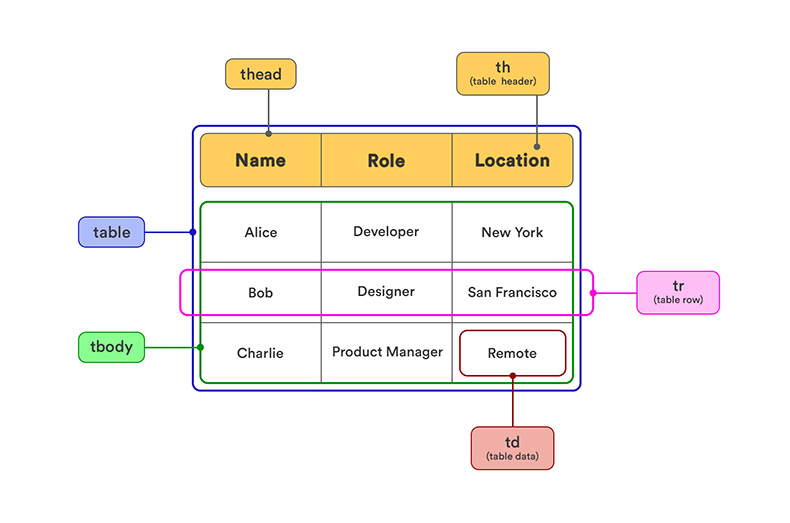
An HTML table stores data in rows and cells. The `` element often contains `` for headers and `` for data. Each `` is a row, `| ` is a header cell, and ` | ` is a regular data cell.
A parser reads this HTML and turns it into structured data. In Python, that result often becomes a pandas **DataFrame**, a two-dimensional table with labeled rows and columns.
```html
| Country |
Population |
| Finland |
5.6 million |
| Latvia |
1.9 million |
```
The structure is simple:
* `` contains the table.
* `` groups header rows.
* `` groups data rows.
* `` defines a row.
* `| ` defines a header cell.
* ` | ` defines a data cell.
Browsers often repair imperfect HTML automatically. Scrapers are less forgiving. Missing tags, inserted ` | ` elements, or uneven cell counts can produce shifted columns, missing values, or a DataFrame shaped like it took a wrong turn through hyperspace.
### Why apparently normal tables break scraping code
Tables break scrapers when the visible grid does not match the underlying HTML.
A body row may use `` for a row label and ` | ` for the remaining values. A scraper that reads only ` | ` skips that label and shifts the data into the wrong columns.
Merged cells create the same problem. `colspan` and `rowspan` make one HTML cell cover several visual positions, so a naive loop returns fewer values than the table appears to contain.
JavaScript-rendered tables may not exist in the initial HTML at all. `requests` and `pandas.read_html()` cannot parse rows that are added only after the browser runs JavaScript.
Blocked requests can also return `403 Forbidden`, a challenge page, or different HTML instead of the expected table. A User-Agent may fix simple blocking, while harder pages may require browser rendering or managed proxies.
Before scraping, inspect the HTML and confirm that:
* the rows exist in the original response;
* body rows use the expected mix of ` | ` and ` | `;
* merged cells do not change the column count.
For the broader workflow, see [web scraping with Python](https://www.scrapingbee.com/blog/web-scraping-101-with-python/). You can also review a study of HTML element usage.
### Three ways to scrape a table in Python
Choose the method based on the table’s actual structure, not on which library has the shortest example. Clean static tables need very little code. Messy markup needs more control. JavaScript-rendered or blocked tables need a method that can load the page before extracting the data.
| Method | Best for | Handles JS or blocked tables? | Output |
| ------------------------------------------------------- | ----------------------------------------------------------------- | ----------------------------- | ------------------------------------- |
| `pandas.read_html()` | Clean static tables, fastest option | No | List of DataFrames |
| BeautifulSoup + `requests` | Messy or custom markup, full control | No, static tables only | Rows you build, then DataFrame or CSV |
| ScrapingBee `extract_rules` with `output: "table_json"` | JavaScript-rendered or anti-bot-protected tables, no parsing code | Yes | Structured JSON |
ScrapingBee can handle many JavaScript-rendered and protected pages, but no tool can guarantee access to every website. The right method depends on what the server returns, how the table is rendered, and how aggressively the site restricts automated requests.
## Method 1: Scrape a table with pandas `read_html()`
`pandas.read_html()` downloads a web page, finds its HTML tables, and returns them as a list of DataFrames. You can complete the entire scraping flow in a few lines: pass in the URL, select a table, inspect the result, and export it to CSV. It is the fastest option for static tables with regular markup.
The convenience comes with limits. `read_html()` does not execute JavaScript, so it cannot "see" rows added after the page loads. It also provides little control over malformed or inconsistent HTML. For a static table, though, pandas handles the whole job without extra fetching code. It is an elegant tool for a more civilized scraping age.
We will scrape the Hockey Teams table from Scrape This Site:
```
https://www.scrapethissite.com/pages/forms/
```
The page contains a static HTML table with team names, seasons, wins, losses, and goal statistics.
### Step 1: Install pandas and the HTML parser
Install pandas and `lxml`:
```bash
pip install pandas lxml
```
Pandas manages the DataFrames and the scraping workflow. The `lxml` library parses the downloaded HTML and identifies elements such as ``, ``, `| `, and ` | `.
### Step 2: Pass the page URL to `read_html()`
Import pandas and call `pd.read_html()` with the page URL:
```python
import pandas as pd
url: str = "https://www.scrapethissite.com/pages/forms/"
tables: list[pd.DataFrame] = pd.read_html(
url,
# Some sites reject pandas’ default request and return 403 Forbidden
# When that happens, pass a browser-like User-Agent through storage_options.
storage_options={
"User-Agent": "Mozilla/5.0 (compatible; table-scraping-tutorial/1.0)"
},
)
print(f"Tables found: {len(tables)}")
```
That single call performs two operations:
1. Pandas downloads the HTML from the URL.
2. Pandas parses every matching `` into a DataFrame.
The return value is always a list because one page can contain several HTML tables. Each item in the list is a separate DataFrame.
This gives us the basic Python web scraping table-to-DataFrame flow:
```
URL → downloaded HTML → detected tables → list of DataFrames
```
You do not need to send a separate request before calling `read_html()`. Pandas handles the HTTP request internally when you give it a URL.
### Step 3: Select and inspect the table
The demo page contains one table, so select the first item at index `0`:
```python
df: pd.DataFrame = tables[0]
print(f"Shape: {df.shape}")
print(df.head().to_string(index=False))
```
The output contains shape `(25, 9)` means that the DataFrame contains 25 rows and nine columns.
Pandas uses the table header cells as column names. It also converts empty cells into `NaN`, which represents a missing value. We will deal with missing values and column cleanup later in the tutorial.
Indexing with `tables[0]` is acceptable when the page contains one table. It becomes unreliable when a page contains several tables and their order can change.
### Step 4: Target a table with `match`
The `match` argument selects tables containing a particular string or regular expression. Pandas checks text inside the table, including captions, headers, and data cells.
The Hockey Teams table contains the distinctive header `Team Name`, so we can use it as the match:
```python
import pandas as pd
url: str = "https://www.scrapethissite.com/pages/forms/"
matched_tables: list[pd.DataFrame] = pd.read_html(
url,
match="Team Name",
storage_options={
"User-Agent": "Mozilla/5.0 (compatible; table-scraping-tutorial/1.0)"
},
)
df: pd.DataFrame = matched_tables[0]
print(df.shape)
```
Choose text that uniquely identifies the target table. `Team Name` works well on this page. A broad value such as `Year` could match several unrelated tables on a larger page.
The `match` argument is useful when you know what the table contains but do not have a stable HTML ID or class.
### Step 5: Target a table by ID or class
The `attrs` argument selects tables by their HTML attributes. Common targets include `id` and `class`.
The table on the demo page uses the class `table`:
```html
```
Pass that class to `attrs`:
```python
import pandas as pd
url: str = "https://www.scrapethissite.com/pages/forms/"
matched_tables: list[pd.DataFrame] = pd.read_html(
url,
attrs={"class": "table"},
storage_options={
"User-Agent": "Mozilla/5.0 (compatible; table-scraping-tutorial/1.0)"
},
)
df: pd.DataFrame = matched_tables[0]
print(df.shape)
```
You can target an ID in the same way:
```python
tables: list[pd.DataFrame] = pd.read_html(
url,
attrs={"id": "results"},
)
```
The `results` ID is only an example. Inspect the target page and use an attribute that exists on its actual `` element. Otherwise, pandas will find precisely nothing, which is technically accurate but not terribly useful.
You can combine `match` and `attrs` for a more precise selection:
```python
matched_tables: list[pd.DataFrame] = pd.read_html(
url,
match="Team Name",
attrs={"class": "table"},
)
df: pd.DataFrame = matched_tables[0]
```
This tells pandas to find a table with the class `table` that also contains the text `Team Name`.
> See the pandas read_html documentation for the complete list of supported arguments.
### Step 6: Export the DataFrame to CSV
Once you have selected the correct DataFrame, save it with `to_csv()`:
```python
from pathlib import Path
output_file: Path = Path("hockey_teams.csv")
df.to_csv(output_file, index=False)
print(f"Saved {output_file}")
```
The `index=False` argument prevents pandas from writing the numbered DataFrame index as an extra CSV column.
### Complete Python script
The complete script covers the entire flow: download the page through pandas, select the table, validate the result, display a preview, and save it to CSV.
```python
from pathlib import Path
from typing import Final
import pandas as pd
SOURCE_URL: Final[str] = (
"https://www.scrapethissite.com/pages/forms/"
)
OUTPUT_FILE: Final[Path] = Path("hockey_teams.csv")
def scrape_hockey_table(url: str) -> pd.DataFrame:
"""Download and parse the hockey statistics HTML table."""
tables: list[pd.DataFrame] = pd.read_html(
url,
match="Team Name",
attrs={"class": "table"},
storage_options={
"User-Agent": "Mozilla/5.0 (compatible; table-scraping-tutorial/1.0)"
},
)
if not tables:
raise ValueError("No matching HTML table was found.")
table: pd.DataFrame = tables[0]
if table.empty:
raise ValueError("The matching HTML table contains no rows.")
return table
def save_table_to_csv(
table: pd.DataFrame,
output_file: Path,
) -> None:
"""Save a DataFrame as a CSV file without its index."""
table.to_csv(output_file, index=False)
def main() -> None:
hockey_table: pd.DataFrame = scrape_hockey_table(SOURCE_URL)
rows: int
columns: int
rows, columns = hockey_table.shape
print(f"Rows: {rows}")
print(f"Columns: {columns}")
print()
print(hockey_table.head().to_string(index=False))
save_table_to_csv(hockey_table, OUTPUT_FILE)
print()
print(f"Saved {OUTPUT_FILE}")
if __name__ == "__main__":
main()
```
This is the fastest way to read an HTML table in Python when the table is already present in the page source. Pandas handles the request, parses the markup, builds the DataFrame, and exports the result with very little code.
Switch methods when the visible rows are rendered by JavaScript, the server blocks pandas' request, or irregular markup produces broken headers and shifted columns. `read_html()` is a great shortcut, but it is not a tiny browser wearing a pandas hat.
## Method 2: Scrape a table with BeautifulSoup and `requests`
BeautifulSoup gives you full control when `read_html()` grabs the wrong table or the markup needs custom handling. The flow is explicit: send a request with a real User-Agent header, parse the HTML, select the table, extract headers from ``, extract body cells from ``, build rows as dictionaries, and load them into a DataFrame.
This method is slower than `read_html()`, but it is easier to debug. It is also the right choice when a table has extra rows, custom attributes, mixed header cells, or markup that needs a firm but loving slap from your code.
We will use the same public Hockey Teams table:
```
https://www.scrapethissite.com/pages/forms/
```
### Install the required packages
Install Requests, BeautifulSoup, and pandas:
```
pip install requests beautifulsoup4 pandas
```
These packages each handle one part of the flow:
* `requests` downloads the HTML.
* `BeautifulSoup` parses and searches the HTML.
* `pandas` stores the extracted rows as a DataFrame.
### Step 1: Send a request with a User-Agent
Start by downloading the page with `requests.get()`:
```python
import requests
url: str = "https://www.scrapethissite.com/pages/forms/"
headers: dict[str, str] = {
"User-Agent": (
"Mozilla/5.0 (compatible; table-scraping-tutorial/1.0)"
)
}
response: requests.Response = requests.get(
url,
headers=headers,
timeout=30,
)
response.raise_for_status()
html: str = response.text
print(response.status_code)
```
- A User-Agent identifies the client making the request. Some sites reject bare default clients and return `403 Forbidden`.
- The `timeout=30` argument prevents the script from hanging forever.
- The `raise_for_status()` method raises an exception for failed responses.
### Step 2: Parse the HTML with BeautifulSoup
Pass the HTML string into BeautifulSoup:
```python
from bs4 import BeautifulSoup
soup: BeautifulSoup = BeautifulSoup(html, "html.parser")
```
BeautifulSoup turns the HTML document into a searchable parse tree. That lets you find elements by tag name, class, ID, attributes, or CSS selector.
> For a deeper walkthrough, see our guide to [scraping with BeautifulSoup in Python](https://www.scrapingbee.com/blog/python-web-scraping-beautiful-soup/).
### Step 3: Select the table
Use `find()` when one tag and one attribute are enough:
```python
from bs4.element import Tag
table: Tag | None = soup.find("table", class_="table")
if table is None:
raise ValueError("Could not find the hockey statistics table.")
```
You can also use a CSS selector:
```python
table: Tag | None = soup.select_one("table.table")
if table is None:
raise ValueError("Could not find the hockey statistics table.")
```
Both examples target:
```html
```
Use `find()` for simple selectors. Use CSS selectors when the path is more specific, such as `main table.stats` or `div.results table`.
### Step 4: Extract the header cells from the first row
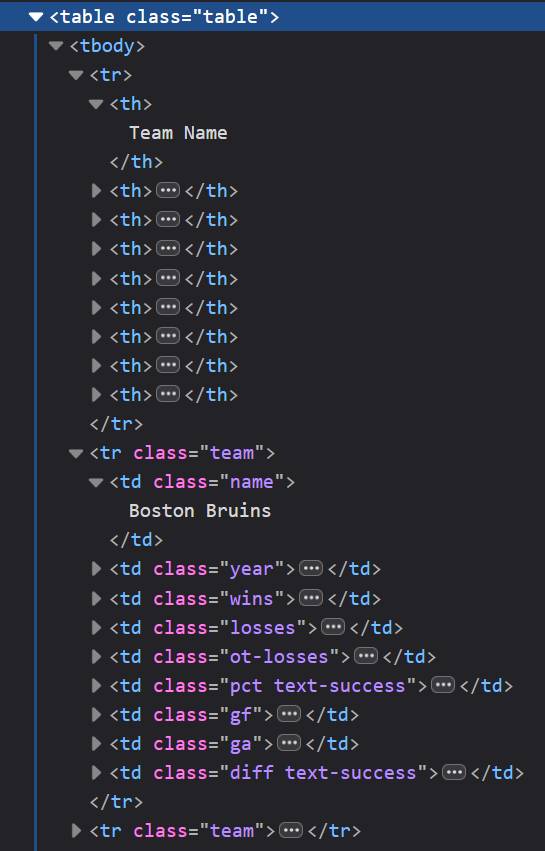
This table does not use a `` element. Its first `` contains the `| ` header cells, so select that row explicitly before parsing the team data.
```python
header_row: Tag | None = table.find("tr")
if header_row is None:
raise ValueError("Could not find the table header row.")
header_cells: list[Tag] = header_row.find_all(
"th",
recursive=False,
)
headers: list[str] = [
cell.get_text(" ", strip=True)
for cell in header_cells
]
if not headers:
raise ValueError("Could not find any table headers.")
print(headers)
```
The `recursive=False` argument limits the search to direct children of the header row. That prevents BeautifulSoup from collecting nested cells from unrelated markup.
This example also shows why you should inspect the real HTML before choosing selectors. Many tables place headers inside ``, but this one puts them in the first row of ` | `. The browser does not care much. Your scraper absolutely does.
Extracting the `` cells separately keeps the column names out of the body data. The next step can then target only `tr.team` rows and read their ` | ` cells.
### Step 5: Extract the team rows and data cells
The table marks every data row with `class="team"`. Select those rows directly so the header row is not mixed into the extracted records.
```python
data_rows: list[Tag] = table.select("tr.team")
if not data_rows:
raise ValueError("Could not find any team rows.")
records: list[dict[str, str]] = []
for row in data_rows:
cells: list[Tag] = row.find_all(
"td",
recursive=False,
)
values: list[str] = [
cell.get_text(" ", strip=True)
for cell in cells
]
if len(values) != len(headers):
raise ValueError(
"A team row has a different number of cells "
"than the header row: "
f"{len(values)} cells, {len(headers)} headers."
)
record: dict[str, str] = dict(
zip(headers, values, strict=True)
)
records.append(record)
if not records:
raise ValueError("The table contained no usable records.")
print(records[0])
```
This is the core BeautifulSoup scrape table pattern: extract the column names from the header row, select only the actual data rows, and combine each row's values with those column names.
The specific `tr.team` selector matters here. Using `tbody tr` would also select the first row containing the ` | ` headers. Since that row has no ` | ` cells, the scraper would see zero values and fail the column-count check.
The `recursive=False` argument reads only ` | ` elements that are direct children of each row. It prevents nested tables or unrelated markup from quietly sneaking extra cells into the result.
This page uses ` | ` consistently inside its team rows. Other sites may use a ` | ` as the first cell of each body row, often for a row label. A scraper that reads only ` | ` would then drop that value and shift the remaining data into the wrong columns.
### Step 6: Load the rows into a DataFrame
Pass the list of dictionaries into pandas:
```python
import pandas as pd
df: pd.DataFrame = pd.DataFrame(records)
print(df.shape)
print(df.head().to_string(index=False))
```
The DataFrame has the same 25 rows and nine columns as the `read_html()` version. The difference is that you controlled every extraction step.
This is the main reason to scrape a table from a website with Python and BeautifulSoup instead of using `read_html()`: you can decide exactly which rows count, which cells to read, and how to handle weird markup.
### Step 7: Save the table to CSV
Write the DataFrame to a CSV file:
```python
from pathlib import Path
output_file: Path = Path("hockey_teams_bs4.csv")
df.to_csv(output_file, index=False)
print(f"Saved {output_file}")
```
Use BeautifulSoup when you need precision. It will not run JavaScript, and it will not bypass advanced blocking by itself. But for static HTML with imperfect structure, it gives you the control that `read_html()` hides behind the curtain.
### Complete working script
This complete script sends the request, parses the table, handles headers separately, builds a list of dictionaries, creates a DataFrame, and writes the result to CSV.
```python
from pathlib import Path
from typing import Final
import pandas as pd
import requests
from bs4 import BeautifulSoup
from bs4.element import Tag
SOURCE_URL: Final[str] = (
"https://www.scrapethissite.com/pages/forms/"
)
OUTPUT_FILE: Final[Path] = Path("hockey_teams_bs4.csv")
REQUEST_HEADERS: Final[dict[str, str]] = {
"User-Agent": (
"Mozilla/5.0 "
"(Windows NT 10.0; Win64; x64) "
"AppleWebKit/537.36 "
"(KHTML, like Gecko) "
"Chrome/137.0.0.0 Safari/537.36"
)
}
def fetch_html(url: str) -> str:
"""Download a web page and return its HTML."""
response: requests.Response = requests.get(
url,
headers=REQUEST_HEADERS,
timeout=30,
)
response.raise_for_status()
return response.text
def extract_text(cell: Tag) -> str:
"""Return normalized text from an HTML table cell."""
return cell.get_text(" ", strip=True)
def parse_hockey_table(html: str) -> pd.DataFrame:
"""Parse the hockey table into a pandas DataFrame."""
soup: BeautifulSoup = BeautifulSoup(html, "html.parser")
table: Tag | None = soup.select_one("table.table")
if table is None:
raise ValueError("Could not find table.table.")
# This page does not use .
# Its first contains the | header cells.
header_row: Tag | None = table.find("tr")
if header_row is None:
raise ValueError("Could not find the table header row.")
header_cells: list[Tag] = header_row.find_all(
"th",
recursive=False,
)
column_names: list[str] = [
extract_text(cell)
for cell in header_cells
]
if not column_names:
raise ValueError("Could not find any table headers.")
# Actual data rows are explicitly marked with class="team".
data_rows: list[Tag] = table.select("tr.team")
if not data_rows:
raise ValueError("Could not find any team rows.")
records: list[dict[str, str]] = []
for row in data_rows:
cells: list[Tag] = row.find_all(
"td",
recursive=False,
)
values: list[str] = [
extract_text(cell)
for cell in cells
]
if len(values) != len(column_names):
raise ValueError(
"Table row has an unexpected number of cells. "
f"Expected {len(column_names)}, got {len(values)}."
)
record: dict[str, str] = dict(
zip(column_names, values, strict=True)
)
records.append(record)
if not records:
raise ValueError("The table contained no usable records.")
return pd.DataFrame(records)
def save_to_csv(
table: pd.DataFrame,
output_file: Path,
) -> None:
"""Save a DataFrame to CSV without its index."""
table.to_csv(output_file, index=False)
def main() -> None:
html: str = fetch_html(SOURCE_URL)
hockey_table: pd.DataFrame = parse_hockey_table(html)
row_count: int
column_count: int
row_count, column_count = hockey_table.shape
print(f"Rows: {row_count}")
print(f"Columns: {column_count}")
print()
print(hockey_table.head().to_string(index=False))
save_to_csv(hockey_table, OUTPUT_FILE)
print()
print(f"Saved {OUTPUT_FILE}")
if __name__ == "__main__":
main()
```
The values are strings because BeautifulSoup extracts text. You can convert numeric columns later with pandas, which we will do in the cleaning section.
## Method 3: Extract a table as JSON with ScrapingBee
ScrapingBee can render a JavaScript page and return an HTML table as structured JSON in one API call. Define an `extract_rules` rule with `output` set to `table_json`, and ScrapingBee handles the browser, page rendering, and table conversion. There is no BeautifulSoup parser to install and no ` | ` or `| ` loop to maintain.
This method is useful when `pandas.read_html()` and plain `requests` cannot see the table at all. It is the paid path, but it reaches JavaScript-rendered and some anti-bot-protected tables that the two free methods cannot access directly.
We will use the Oscar Winning Films demo page:
```
https://www.scrapethissite.com/pages/ajax-javascript/#2015
```
The initial HTML contains the table headers, but its film rows are loaded asynchronously with JavaScript after the page opens. Giving this URL to `read_html()` or downloading it with a normal `requests.get()` call will not return the rendered rows.
### Install Requests
The example calls the ScrapingBee HTML API directly with Requests:
```bash
pip install requests
```
You do not need `lxml`, BeautifulSoup, Selenium, or a local browser.
Create a free [ScrapingBee](https://dashboard.scrapingbee.com/account/register) account and store your API key in an environment variable named `SCRAPINGBEE_API_KEY`.
On Windows PowerShell:
```powershell
$env:SCRAPINGBEE_API_KEY="YOUR_API_KEY"
```
On macOS or Linux:
```bash
export SCRAPINGBEE_API_KEY="YOUR_API_KEY"
```
### Complete Python script
The following script renders the 2015 Oscar table, waits for its JavaScript-generated rows, and returns the table as JSON:
```python
from __future__ import annotations
import json
import os
from pprint import pprint
from typing import Final, TypedDict, cast
import requests
API_URL: Final[str] = "https://app.scrapingbee.com/api/v1/"
TARGET_URL: Final[str] = (
"https://www.scrapethissite.com/"
"pages/ajax-javascript/#2015"
)
FilmRow = TypedDict(
"FilmRow",
{
"Title": str,
"Nominations": str,
"Awards": str,
"Best Picture": str,
},
)
class ExtractionResponse(TypedDict):
films: list[FilmRow]
EXTRACT_RULES: Final[dict[str, object]] = {
"films": {
"selector": "table.table",
"output": "table_json",
}
}
def extract_oscar_table(api_key: str) -> ExtractionResponse:
"""Render the Oscar page and extract its table as JSON."""
params: dict[str, str] = {
"api_key": api_key,
"url": TARGET_URL,
"render_js": "true",
"wait_for": "tr.film",
"extract_rules": json.dumps(EXTRACT_RULES),
}
response: requests.Response = requests.get(
API_URL,
params=params,
timeout=150,
)
response.raise_for_status()
return cast(ExtractionResponse, response.json())
def main() -> None:
api_key: str | None = os.getenv("SCRAPINGBEE_API_KEY")
if not api_key:
raise RuntimeError(
"Set the SCRAPINGBEE_API_KEY environment variable."
)
result: ExtractionResponse = extract_oscar_table(api_key)
films: list[FilmRow] = result["films"]
print(f"Films extracted: {len(films)}")
pprint(films[:3])
if __name__ == "__main__":
main()
```
The demo page represents the Best Picture winner with an icon rather than text. Because `table_json` extracts cell text, that column may be empty in the returned table. The other columns require no cleanup or manual parsing.
This is the managed way to extract a table from HTML in Python. Your code defines the table selector and receives one dictionary per row. ScrapingBee handles the rendered Document Object Model (DOM) and the conversion to JSON.
### How the extraction rule works
The `extract_rules` value describes what ScrapingBee should return:
```python
extract_rules: dict[str, object] = {
"films": {
"selector": "table.table",
"output": "table_json",
}
}
```
The rule contains three important parts:
* `films` becomes the key in the API response.
* `selector` identifies the table with a CSS selector.
* `output: "table_json"` converts each row into a JSON object.
The rules must be serialized with `json.dumps()` when you send them through the HTML API:
```python
"extract_rules": json.dumps(EXTRACT_RULES)
```
See the official [extract_rules data extraction syntax](https://www.scrapingbee.com/documentation/data-extraction/) for the complete rule format.
### Why `render_js=true` matters
The URL fragment `#2015` tells the page's JavaScript to load films from 2015. The film rows appear only after that JavaScript runs.
This parameter enables browser rendering:
```python
"render_js": "true"
```
The script also waits until at least one generated row exists:
```python
"wait_for": "tr.film"
```
Without JavaScript rendering, the scraper receives the table shell and its headings, but not the film records. `pandas.read_html()` cannot execute the page script, and BeautifulSoup only parses the HTML that `requests` downloads. Neither tool can create rows that are not yet in the response.
ScrapingBee renders the page before applying `extract_rules`. That is the crucial difference. The scraper extracts the final table from the rendered DOM rather than the incomplete source HTML.
### Use `table_array` for irregular tables
`table_json` works best when the first table row contains reliable column names. Each row becomes a dictionary whose keys come from those headings.
For a table without usable headers, change the output to `table_array`:
```python
extract_rules: dict[str, object] = {
"films": {
"selector": "table.table",
"output": "table_array",
}
}
```
The response then contains a list of arrays:
```json
{
"films": [
["Spotlight", "6", "2", ""],
["Mad Max: Fury Road", "10", "6", ""],
["The Revenant", "12", "3", ""]
]
}
```
Use `table_json` when the table has a proper header row. Use `table_array` when its headings are missing, duplicated, or structurally unreliable.
> The guide on how to [extract a table's content in Python](https://www.scrapingbee.com/tutorials/how-to-extract-a-tables-content-in-python/) includes more examples of both output formats.
### Add a premium proxy for blocked tables
The Oscar demo needs JavaScript rendering, but it does not normally require a premium proxy. For a more restrictive public page, add `premium_proxy=true` to the same request:
```python
params: dict[str, str] = {
"premium_proxy": "true",
}
```
This does not guarantee access to every table. No proxy or scraping service can bypass every anti-bot system. It does give the request a premium proxy together with browser rendering, which can help when a target rejects basic data center traffic.
For especially difficult public pages, ScrapingBee also offers Stealth proxies:
```python
"stealth_proxy": "true"
```
Do not enable the expensive options automatically. Start with Classic rendering, then move to a premium or Stealth proxy only when the target requires it.
### ScrapingBee credit costs
ScrapingBee charges credits according to the features enabled:
| Request type | Credits per successful request |
| ------------------------------------------ | -----------------------------: |
| Classic proxy without JavaScript rendering | 1 |
| Classic proxy with `render_js=true` | 5 |
| Premium proxy without JavaScript rendering | 10 |
| `premium_proxy=true` with `render_js=true` | 25 |
| Stealth proxy | 75 |
The Oscar example uses Classic JavaScript rendering, so one successful call costs five credits. Adding `premium_proxy=true` raises that call to 25 credits. Stealth requests cost 75 credits and currently require JavaScript rendering.
By comparison, `read_html()` and BeautifulSoup are free libraries, but they cannot render this page's JavaScript-generated table by themselves. ScrapingBee charges for running the browser and managing the request infrastructure.
The free trial includes 1,000 API credits and does not require a credit card. That is enough for up to 200 successful Classic requests with JavaScript rendering, assuming each request costs five credits.
## Fixing the most common table-scraping errors
Most table-scraping errors come from one of five causes: the table is rendered by JavaScript, the server rejects the request, an HTML parser is missing, pandas selects the wrong table, or the scraper confuses ` | ` and ` | ` cells. Check the HTML response and the table structure before rewriting the entire scraper in a fit of spiritual collapse.
### `ValueError: No tables found`
This error usually means that `read_html()` did not find a `` element in the downloaded HTML. The table may be visible in your browser but injected by JavaScript after the initial page load.
The failing code often looks harmless:
```python
url: str = (
"https://www.scrapethissite.com/"
"pages/ajax-javascript/#2015"
)
tables: list[pd.DataFrame] = pd.read_html(url)
```
The URL fragment does not make pandas run the page's JavaScript. `read_html()` downloads the initial HTML response and searches that response for tables. It cannot wait for browser scripts to generate new rows.
Render the page first, then pass the rendered HTML to pandas:
```python
from io import StringIO
import pandas as pd
import requests
params: dict[str, str] = {
"api_key": "SCRAPINGBEE_API_KEY",
"url": (
"https://www.scrapethissite.com/"
"pages/ajax-javascript/#2015"
),
"render_js": "true",
"wait_for": "tr.film",
}
response: requests.Response = requests.get(
"https://app.scrapingbee.com/api/v1/",
params=params,
timeout=150,
)
response.raise_for_status()
tables: list[pd.DataFrame] = pd.read_html(
StringIO(response.text),
match="Title",
)
films: pd.DataFrame = tables[0]
print(films.head())
```
You can also use the `extract_rules` method from the previous section and receive the rendered table as JSON without calling `read_html()` at all.
Before choosing a rendering tool, inspect `response.text`. Some pages show data in a visual grid built from `` elements rather than a real HTML ` `. In that case, `read_html()` will not work even if JavaScript is not involved.
### `HTTP Error 403: Forbidden`
A `403 Forbidden` response means that the server received the request but refused to return the page. A common cause is pandas sending a basic `urllib` request that does not resemble a normal browser request.
This direct call can fail:
```python
url: str = "https://www.scrapethissite.com/pages/forms/"
tables: list[pd.DataFrame] = pd.read_html(url)
```
Send the request with a User-Agent header, check the response, and pass its HTML to `read_html()`:
```python
from io import StringIO
from typing import Final
import pandas as pd
import requests
URL: Final[str] = (
"https://www.scrapethissite.com/pages/forms/"
)
REQUEST_HEADERS: Final[dict[str, str]] = {
"User-Agent": (
"Mozilla/5.0 "
"(Windows NT 10.0; Win64; x64) "
"AppleWebKit/537.36 "
"(KHTML, like Gecko) "
"Chrome/137.0.0.0 Safari/537.36"
)
}
response: requests.Response = requests.get(
URL,
headers=REQUEST_HEADERS,
timeout=30,
)
response.raise_for_status()
tables: list[pd.DataFrame] = pd.read_html(
StringIO(response.text),
match="Team Name",
)
hockey_table: pd.DataFrame = tables[0]
print(hockey_table.shape)
```
`StringIO` wraps the downloaded HTML in a file-like object for pandas. Passing a raw literal HTML string directly to `read_html()` is deprecated in recent pandas versions.
A User-Agent can clear simple header-based blocking. It does not guarantee access to every site. A server may also inspect cookies, browser behavior, request frequency, proxy reputation, or other signals.
When you scrape table data from a web page in Python, always call `raise_for_status()` before parsing. Otherwise, you may spend half an hour debugging selectors against an access-denied page. The parser is innocent, buddy. It was given garbage.
### `ImportError: lxml not found, please install it`
This error means that pandas cannot find the HTML parser it tried to use. `read_html()` needs an external parsing engine because pandas itself does not parse raw HTML.
Install `lxml` to use the default fast path:
```bash
pip install lxml
```
Then rerun the original code.
You can explicitly use the BeautifulSoup parser instead:
```bash
pip install beautifulsoup4 html5lib
```
```python
import pandas as pd
tables: list[pd.DataFrame] = pd.read_html(
url,
flavor="bs4",
)
```
The `bs4` flavor uses BeautifulSoup together with `html5lib`. It may tolerate some imperfect markup differently from `lxml`, but it is not a cure for JavaScript-generated tables.
Older pandas environments have also raised the `lxml` import error instead of falling back automatically. See the pandas lxml dependency issue for a documented example.
### `read_html()` returns the wrong table or too many tables
`read_html()` returns every matching table as a list of DataFrames. If a page contains navigation tables, layout tables, statistics tables, and hidden tables, blindly selecting index zero may return the wrong one.
This code accepts every non-empty table:
```python
import pandas as pd
tables: list[pd.DataFrame] = pd.read_html(url)
print(f"Tables found: {len(tables)}")
df: pd.DataFrame = tables[0]
```
Use `match` to target text inside the desired table:
```python
tables: list[pd.DataFrame] = pd.read_html(
url,
match="Team Name",
)
df: pd.DataFrame = tables[0]
```
You can also inspect the returned tables before choosing an index:
```python
for index, table in enumerate(tables):
print(
f"Table {index}: "
f"shape={table.shape}, "
f"columns={table.columns.tolist()}"
)
```
Then select the correct index:
```python
df: pd.DataFrame = tables[1]
```
An index is acceptable when you control the page or know its structure is stable. `match` is safer when table order may change.
You can combine `match` with HTML attributes:
```python
tables: list[pd.DataFrame] = pd.read_html(
url,
match="Team Name",
attrs={"class": "table"},
)
```
This tells pandas what the table contains and what its `` element looks like.
### The `| ` versus ` | ` phantom-column trap
Some tables use ` | ` cells inside body rows as row labels. If you collect every ` | ` in the table, those labels become fake column names.
```python
from bs4 import BeautifulSoup
from bs4.element import Tag
html: str = """
| Rank |
Company |
Revenue |
| 1 |
Acme |
100 |
| 2 |
Globex |
90 |
"""
soup: BeautifulSoup = BeautifulSoup(html, "html.parser")
table: Tag = soup.find("table")
# Bug: collects column headers and body-row headers.
bad_headers: list[str] = [
cell.get_text(strip=True)
for cell in table.find_all("th")
]
print(bad_headers)
# ['Rank', 'Company', 'Revenue', '1', '2']
rows: list[Tag] = table.find_all("tr", recursive=False)
# Fix: read headers only from the first row.
headers: list[str] = [
cell.get_text(strip=True)
for cell in rows[0].find_all("th", recursive=False)
]
records: list[dict[str, str]] = []
for row in rows[1:]:
cells: list[Tag] = row.find_all(
["th", "td"],
recursive=False,
)
values: list[str] = [
cell.get_text(strip=True)
for cell in cells
]
records.append(
dict(zip(headers, values, strict=True))
)
print(records)
```
The fix is simple: extract column names from one known header row, then read both ` | ` and ` | ` from body rows. A broad `find_all("th")` selector cannot tell column headers from row headers, which is how an eight-column table can suddenly grow 60 phantom columns.
## Scraping JavaScript-rendered and blocked tables
Static tools return empty or incomplete results when JavaScript adds table rows after the initial HTML loads. `requests`, BeautifulSoup, and `pandas.read_html()` only see the HTML the server sends, not the rows created later in the browser.
Blocked pages create a second problem. Instead of the table, the server may return `403 Forbidden`, a CAPTCHA, or a challenge page.
You have two options:
| Approach | Best for | Trade-off |
| ---------------------- | ----------------------------------------------------- | ------------------------------------------------ |
| Playwright or Selenium | Local scripts and occasional scraping | Free, but requires browser setup and maintenance |
| Rendering API | JavaScript pages, proxy rotation, and blocked targets | Costs API credits |
A headless browser renders the page locally, after which you can pass the final HTML to BeautifulSoup or `read_html()`. A rendering API does the same work remotely and can combine `render_js=true` with a residential or Stealth proxy.
> For a broader comparison of browser automation and parsing tools, see [the best Python web scraping libraries](https://www.scrapingbee.com/blog/best-python-web-scraping-libraries/).
Neither option guarantees access to every site. Local browsers are heavier and easier to detect at scale, while managed APIs cost money but remove most browser and proxy plumbing.
### Option 1: Render the table locally with Playwright
Playwright opens the page in a real browser, waits for the JavaScript-generated rows, and returns the rendered HTML. You can then pass that HTML to `pandas.read_html()` or BeautifulSoup.
```python
from io import StringIO
import pandas as pd
from playwright.sync_api import sync_playwright
url: str = (
"https://www.scrapethissite.com/"
"pages/ajax-javascript/#2015"
)
with sync_playwright() as playwright:
browser = playwright.chromium.launch(headless=True)
page = browser.new_page()
page.goto(url, wait_until="domcontentloaded")
page.locator("tr.film").first.wait_for()
rendered_html: str = page.content()
browser.close()
films: pd.DataFrame = pd.read_html(
StringIO(rendered_html),
match="Title",
)[0]
```
The key step is waiting for `tr.film`, not sleeping for an arbitrary number of seconds. Once the rows exist in the rendered HTML, parsing works the same way as it does for a static table.
Playwright is free and gives you full browser control, but it also means managing Chromium, memory use, retries, and proxies yourself. For the complete setup and more browser automation examples, see [web scraping with Playwright](https://www.scrapingbee.com/blog/playwright-web-scraping/).
### Option 2: Render the page through the ScrapingBee API
A rendering API moves the browser out of your script. Your code sends one HTTP request, and ScrapingBee runs the browser, executes JavaScript, and returns the rendered HTML.
Install Requests if it is not already available:
```bash
pip install requests pandas lxml
```
Store your ScrapingBee API key in the `SCRAPINGBEE_API_KEY` environment variable, then run this script:
```python
from io import StringIO
import json
import os
from pathlib import Path
from typing import Final
import pandas as pd
import requests
API_URL: Final[str] = "https://app.scrapingbee.com/api/v1/"
TARGET_URL: Final[str] = (
"https://www.scrapethissite.com/"
"pages/ajax-javascript/#2015"
)
OUTPUT_FILE: Final[Path] = Path(
"oscar_films_scrapingbee.csv"
)
JS_SCENARIO: Final[dict[str, object]] = {
"instructions": [
{
"wait_for": "tr.film",
}
]
}
def fetch_rendered_html(
api_key: str,
target_url: str,
) -> str:
"""Render a JavaScript page through ScrapingBee."""
params: dict[str, str] = {
"api_key": api_key,
"url": target_url,
"render_js": "true",
"js_scenario": json.dumps(JS_SCENARIO),
}
response: requests.Response = requests.get(
API_URL,
params=params,
timeout=150,
)
response.raise_for_status()
return response.text
def parse_table(html: str) -> pd.DataFrame:
"""Parse the rendered Oscar table."""
tables: list[pd.DataFrame] = pd.read_html(
StringIO(html),
match="Title",
)
if not tables:
raise ValueError("Could not find the rendered table.")
table: pd.DataFrame = tables[0]
if table.empty:
raise ValueError("The rendered table contains no rows.")
return table
def main() -> None:
api_key: str | None = os.getenv(
"SCRAPINGBEE_API_KEY"
)
if not api_key:
raise RuntimeError(
"Set the SCRAPINGBEE_API_KEY "
"environment variable."
)
rendered_html: str = fetch_rendered_html(
api_key,
TARGET_URL,
)
films: pd.DataFrame = parse_table(rendered_html)
print(f"Shape: {films.shape}")
print()
print(films.head().to_string(index=False))
films.to_csv(OUTPUT_FILE, index=False)
print()
print(f"Saved {OUTPUT_FILE}")
if __name__ == "__main__":
main()
```
The `render_js=true` parameter tells ScrapingBee to load the target in a browser. The JavaScript scenario waits until the generated film rows appear. ScrapingBee then returns the rendered HTML. The rest of the parsing code is the same as in the Playwright example.
> See [the JavaScript scenario instructions](https://www.scrapingbee.com/documentation/js-scenario/) for actions such as waiting, clicking, scrolling, filling inputs, and running custom JavaScript.
### Handling tables that return 403 or challenge pages
JavaScript rendering and request blocking are separate issues. A page may need `render_js=true`, yet still reject the proxy or IP before the table loads.
Start with Classic rendering. Add `premium_proxy=true` only when standard traffic is blocked, and use `stealth_proxy=true` for harder targets. Do not enable premium and Stealth proxies together.
No browser or proxy guarantees access to every site. Check the response status and returned HTML before changing your table selectors.
### Which rendering option should you choose?
Use Playwright when you need local control, want to inspect the browser, or scrape a small number of JavaScript pages. It costs no API credits, but you own the browser setup, resource usage, proxy configuration, and maintenance.
Use a rendering API when you do not want to operate browser infrastructure yourself. The API costs credits, but one request can combine JavaScript rendering, waits or clicks, and managed proxies.
The parsing step does not fundamentally change. Once either method returns the final rendered HTML, you can scrape an HTML table in Python with the same tools used for static pages:
```
Rendered HTML → pandas read_html() or BeautifulSoup → DataFrame
```
## Handling messy tables: merged cells, nested tables, and pagination
Visual table cells do not always map one-to-one to HTML elements. Merged cells can shift columns, nested tables can add false rows, and pagination can hide most of the dataset.
### Merged cells with `colspan` and `rowspan`
A naive cell loop breaks when one cell covers several rows or columns. This helper expands merged cells into a rectangular grid before creating the DataFrame:
```python
from bs4 import BeautifulSoup
from bs4.element import Tag
import pandas as pd
HTML: str = """
| Region |
Quarter |
Revenue |
| North |
Q1 |
100 |
| Q2 total: 240 |
"""
def expand_spans(table: Tag) -> list[list[str]]:
"""Expand colspan and rowspan cells into a grid."""
rows: list[list[str]] = []
pending: dict[int, tuple[str, int]] = {}
table_rows: list[Tag] = [
row
for row in table.find_all("tr")
if row.find_parent("table") is table
]
for row in table_rows:
values: list[str] = []
column: int = 0
def add_pending() -> None:
nonlocal column
while column in pending:
value, rows_left = pending[column]
values.append(value)
if rows_left == 1:
del pending[column]
else:
pending[column] = (value, rows_left - 1)
column += 1
for cell in row.find_all(
["th", "td"],
recursive=False,
):
add_pending()
text: str = cell.get_text(" ", strip=True)
colspan: int = int(cell.get("colspan", 1))
rowspan: int = int(cell.get("rowspan", 1))
for offset in range(colspan):
value: str = text if offset == 0 else ""
values.append(value)
if rowspan > 1:
pending[column + offset] = (
value,
rowspan - 1,
)
column += colspan
add_pending()
rows.append(values)
return rows
soup: BeautifulSoup = BeautifulSoup(HTML, "html.parser")
table: Tag | None = soup.select_one("#sales")
if table is None:
raise ValueError("Could not find the sales table.")
rows: list[list[str]] = expand_spans(table)
df: pd.DataFrame = pd.DataFrame(
rows[1:],
columns=rows[0],
)
print(df.to_string(index=False))
```
The function carries `rowspan` values into later rows and pads extra `colspan` positions with empty strings. Other policies are possible, but you must choose one explicitly to keep the columns aligned.
See the MDN table element reference for the standard spanning behavior.
### Nested tables inside table cells
A broad `find_all("tr")` also collects rows from tables nested inside cells. Keep only rows whose nearest parent `` is the outer table, and remove nested tables before extracting cell text.
```python
from bs4 import BeautifulSoup
from bs4.element import Tag
HTML: str = """
| Product |
Status |
| Widget |
In stock
|
"""
def get_outer_text(cell: Tag) -> str:
"""Return cell text without nested table content."""
copy: BeautifulSoup = BeautifulSoup(
str(cell),
"html.parser",
)
for nested_table in copy.select("table"):
nested_table.decompose()
return copy.get_text(" ", strip=True)
soup: BeautifulSoup = BeautifulSoup(HTML, "html.parser")
table: Tag | None = soup.select_one("#orders")
if table is None:
raise ValueError("Could not find the orders table.")
rows: list[Tag] = [
row
for row in table.find_all("tr")
if row.find_parent("table") is table
]
parsed_rows: list[list[str]] = [
[
get_outer_text(cell)
for cell in row.find_all(
["th", "td"],
recursive=False,
)
]
for row in rows
]
print(parsed_rows)
```
The parent check removes nested rows, while `recursive=False` prevents nested cells from being counted as outer cells.
### Paginated tables
Paginated tables split the dataset across several URLs. The usual pattern is to loop through the page numbers, parse each table, and combine the DataFrames with `pd.concat()`.
```python
import pandas as pd
base_url: str = (
"https://www.scrapethissite.com/"
"pages/forms/?page_num={page}"
)
page_frames: list[pd.DataFrame] = []
for page in range(1, 25):
page_url: str = base_url.format(page=page)
table: pd.DataFrame = pd.read_html(
page_url,
match="Team Name",
storage_options={
"User-Agent": (
"Mozilla/5.0 "
"(compatible; table-scraping-tutorial/1.0)"
)
},
)[0]
page_frames.append(table)
all_teams: pd.DataFrame = pd.concat(
page_frames,
ignore_index=True,
)
```
This works when page numbers follow a predictable URL pattern. Other sites use a “Next” link, an offset parameter, or an API cursor, so the loop may need to follow links or tokens instead.
`ignore_index=True` creates one continuous index in the combined DataFrame. Add a short delay, retries, and duplicate checks for larger jobs.
## Cleaning and exporting your table data (CSV, JSON, SQL)
Scraped table cells usually arrive as strings, even when they contain prices, percentages, or counts. Remove formatting characters and footnote markers first, then convert the cleaned values with `pd.to_numeric()`. Once the DataFrame has usable data types, pandas can export it directly to CSV, JSON, or a SQL database.
No point scraping a perfect table only to preserve `$1,200.50[1]` as text forever. That is how databases develop trust issues.
### Clean numeric columns
Suppose the scraped DataFrame contains currency symbols, thousands separators, and footnote markers:
```python
import pandas as pd
df: pd.DataFrame = pd.DataFrame(
{
"Product": [
"Widget A",
"Widget B",
"Widget C",
],
"Revenue": [
"$1,200.50[1]",
"$980.00",
"$2,345.75†",
],
"Units": [
"1,250",
"980",
"2,100*",
],
}
)
print(df)
```
Clean the numeric columns before exporting them:
```python
numeric_columns: tuple[str, ...] = (
"Revenue",
"Units",
)
for column in numeric_columns:
cleaned_values: pd.Series = (
df[column]
.astype("string")
.str.replace(
r"[$,]|\[[^\]]*\]|[*†‡]",
"",
regex=True,
)
.str.strip()
)
df[column] = pd.to_numeric(
cleaned_values,
errors="coerce",
)
print(df)
print()
print(df.dtypes)
```
The regular expression removes:
* Dollar signs
* Thousands separators
* Footnotes such as `[1]`
* Common markers such as `*`, `†`, and `‡`
`errors="coerce"` converts invalid values into `NaN` instead of crashing the entire cleaning step. Inspect those missing values before saving the final dataset, because a failed conversion may reveal an unexpected label such as `N/A`, `Unknown`, or `Contact sales`.
### Export the table to CSV
If your goal is to scrape an HTML table to CSV with Python, use `to_csv()`:
```python
df.to_csv("products.csv", index=False)
```
The `index=False` argument prevents pandas from adding its numbered DataFrame index as an extra column.
### Export the table to JSON
Use `orient="records"` when an application or API expects one JSON object per table row.
```python
from pathlib import Path
import pandas as pd
output_file: Path = Path("products.json")
df: pd.DataFrame = pd.DataFrame(
{
"Product": [
"Widget A",
"Widget B",
"Widget C",
],
"Revenue": [
1200.50,
980.00,
2345.75,
],
"Units": [
1250,
980,
2100,
],
}
)
df.to_json(
output_file,
orient="records",
indent=2,
)
print(f"Saved {output_file}")
```
This writes a JSON array in which each DataFrame row becomes a separate object.
### Export the table to SQL
Install SQLAlchemy:
```bash
pip install sqlalchemy
```
Then create a SQLite database and write the DataFrame into a `products` table:
```python
import pandas as pd
from sqlalchemy import Engine, create_engine
df: pd.DataFrame = pd.DataFrame(
{
"Product": [
"Widget A",
"Widget B",
"Widget C",
],
"Revenue": [
1200.50,
980.00,
2345.75,
],
"Units": [
1250,
980,
2100,
],
}
)
engine: Engine = create_engine(
"sqlite:///scraped_tables.db"
)
df.to_sql(
"products",
con=engine,
if_exists="replace",
index=False,
)
print("Saved products to scraped_tables.db")
```
`if_exists="replace"` recreates the table on each run. Use `"append"` when new scrapes should add rows instead.
## When you should not scrape a table
Do not scrape an HTML table when the same data is available through an official API, CSV download, or another structured source. Those options are usually more stable and less likely to break when the page layout changes.
Check for download buttons, feeds, data portals, or documented endpoints first. Also review the site's `robots.txt` and terms of service, since rules vary by site and jurisdiction.
Never scrape behind a login or bypass access controls. Use reasonable request rates and avoid collecting personal data without a clear purpose.
HTML scraping is the fallback when no reliable structured source exists, not the default just because a table is visible.
### Let ScrapingBee handle the hard tables
`pandas.read_html()` and BeautifulSoup are great for static tables that already exist in the page HTML. When JavaScript creates the rows or the site blocks plain requests, the harder part is getting the rendered page, not parsing the cells.
ScrapingBee can run the browser, manage proxies, and return the table through `extract_rules` as structured JSON. You define the selector and skip the local browser setup, proxy plumbing, and manual `` and `` loop.
You can compare plans on the [ScrapingBee pricing](https://www.scrapingbee.com/pricing/) page. The free trial includes 1,000 API credits and does not require a credit card.
> **[Start scraping tables for free](https://app.scrapingbee.com/account/register)**
## Conclusion
The best way to scrape a table in Python depends on how the page delivers it. Use `pandas.read_html()` for regular static tables, BeautifulSoup when you need precise control over the markup, and a rendered extraction method when JavaScript or blocking stands between you and the rows.
Inspect the HTML first, choose the lightest tool that works, validate the column structure, and clean the data before exporting it. Once the table reaches a DataFrame, CSV, JSON, and SQL are only a few lines away.
The scraping part is rarely the hardest bit. The real trick is getting the table in the form your code thinks it already has.
## Frequently Asked Questions
### What is the easiest way to scrape a table in Python?
The easiest method for a clean static table is `pandas.read_html()`. Pass it a URL, and it returns every detected HTML table as a list of DataFrames. Use BeautifulSoup with `requests` when the markup is irregular or you need more control over individual rows and cells.
### How do I scrape an HTML table into a pandas DataFrame?
Call `pd.read_html(url)`, then select the required DataFrame from the returned list:
```python
tables = pd.read_html(url)
df = tables[0]
```
Use `match=` or `attrs=` to target a specific table. If JavaScript creates the table after page load, render the page first and pass the rendered HTML to `read_html()`.
### Why does pandas `read_html()` return “No tables found”?
This error usually means the downloaded HTML does not contain a `` element. The visible table may be inserted by JavaScript after the initial page loads. Render the page with Playwright, Selenium, or a rendering API, then parse the final HTML.
### How do I scrape a table that loads with JavaScript?
Load the page in a browser that can execute JavaScript. You can run Playwright or Selenium locally, wait for the table rows, and pass the rendered HTML to BeautifulSoup or `read_html()`. A scraping API with `render_js=true` can perform the same browser-rendering step remotely.
### How do I export a scraped table to CSV?
Once the table is stored in a pandas DataFrame, export it with:
```python
df.to_csv("table.csv", index=False)
```
Clean numeric columns before exporting. Remove currency symbols, commas, and footnote markers, then convert the values with `pd.to_numeric()`.
### Is it legal to scrape tables from a website?
Scraping publicly accessible data may be lower-risk than accessing restricted content, but the rules depend on the website, data, jurisdiction, and intended use. Review the site's terms of service and `robots.txt`, and never scrape behind a login or bypass access controls. Prefer an official API or downloadable dataset when one exists. This is not legal advice.
| | | | | | | |