Serverless scraping runs Puppeteer or Playwright inside a cloud function such as AWS Lambda, which scales with demand and bills per millisecond. Each library drives a headless Chromium build packaged for Lambda.
A script that works on a laptop usually deploys without errors. Each new execution environment then spends seconds unpacking Chromium before it loads a page, and many bot-protected sites return a challenge page.
This guide uses measurements from Lambda functions to show which steps cost time and money, which defaults to change, when to send a page to a scraping API, and what to return to an LLM.
TL;DR
- Unpack Chromium at build time. In a container image, that cut a 4.1 to 5.0 s ZIP cold start to 2.1 to 2.2 s.
- Kill the browser, and disable its graphics stack. browser.close() hung in 4 of 7 warm invocations on one page, and the default SwiftShader flags roughly doubled load-event times in a 6-page batch.
- Send pages that block Lambda to ScrapingBee's API. On 14 protected sites, 3 attempts each, Lambda's best setup loaded 13 of 42, and ScrapingBee's Auto-Mode loaded all 42.
- Return Markdown to an LLM. On 4 pages, ScrapingBee's Markdown cut 1.63M HTML tokens to 80,079.
What @sparticuz/chromium runs on Lambda
For Node.js, @sparticuz/chromium is an npm package that includes a compressed Chromium build plus the flags to launch it. The package works with puppeteer-core and playwright-core, which are the versions of each library that don't download a browser. If you need the basics of the AWS Serverless Application Model (SAM), IAM roles, and event sources first, our Python and Java guide to AWS Lambda scraping covers them.
The README covers installation. In version 153.0.0, the source and build files show these parts of the deployed browser:
| Part | What the repository shows | Why it matters |
|---|---|---|
| Browser build | The build imports Chromium's headless.gn config, so the binary is chrome-headless-shell, a separate headless browser, not full Chrome | It reports itself as HeadlessChrome |
| Packaging | chromium.br is a 67 MB Brotli archive that unpacks to a 209 MB executable in /tmp on the first call to executablePath() | That unpacking was the largest part of each measured cold start |
| Fonts | The font archive holds 3 Open Sans files | Every generic font family renders in Open Sans |
| Graphics | WebGL runs through SwiftShader, a CPU renderer, unless you disable graphics | Sites can read SwiftShader in the WebGL renderer string |
| Default flags | The list includes --single-process and --disable-web-security | The first can break browser contexts, and the second disables the same-origin policy |
The package's Chromium is also usually older than the browser version that your library expects. In these tests, the package included Chromium 153, while puppeteer-core 25.13.0 targets Chrome 155 and playwright-core 1.64.0 targets Chromium 156. Both libraries drove the older binary without version errors, but test your pages on it.
The numbers below come from Node.js 24 functions on x86_64 with those 3 versions. The timing tests ran in eu-north-1, and the protected-site tests ran in us-east-1. The code uses Puppeteer, and Playwright appears where it behaved differently. For pages that block the Lambda browser, the fallback design later in this guide sends those pages to ScrapingBee's API instead of the function's own Chromium.
Which parts of a cold start cost time and money
Most of a ZIP-packaged function's cold start is Chromium unpacking itself into /tmp. That cold start also includes the INIT phase, where Lambda loads your code before the first request. AWS bills that phase for ZIP-packaged functions as well as the handler time, so every second of a browser function's cold start is billed time. The REPORT line shows the billed INIT time:
REPORT Duration: 3276.70 ms Billed Duration: 4329 ms Memory Size: 2048 MB Max Memory Used: 591 MB Init Duration: 1052.19 ms
The billed duration is the handler duration plus the 1,052 ms INIT. The 4 cold starts at 2,048 MB, including this one, divide into these phases:
| Phase | Time |
|---|---|
| INIT (Node.js loads Puppeteer, Playwright, and the package) | 0.89 to 1.09 s |
| executablePath() unpacks Chromium into /tmp | 2.43 to 3.19 s |
| puppeteer.launch() | 0.12 to 0.18 s |
| First page (example.com) | 0.24 to 0.28 s |
| browser.close() | 0.15 to 0.37 s |
| Billed total | 4.1 to 5.0 s |
The unpacking is CPU-bound. Lambda allocates CPU in proportion to memory, so a larger memory size unpacks Chromium faster. At 1,769 MB, a function gets the equivalent of 1 vCPU. A cold start that loads a large documentation page shows the effect at 3 memory sizes:
| Memory | Unpack time | Billed cold start | GB-seconds per cold start |
|---|---|---|---|
| 1,024 MB | 5.13 s | 11.8 s | 11.84 |
| 1,769 MB | 3.70 s | 7.0 s | 12.07 |
| 3,008 MB | 2.21 s | 5.2 s | 15.20 |
Moving from 1,024 MB to 1,769 MB made the cold start 1.7x faster for 2% more GB-seconds. At 3,008 MB, the cold start was 2.3x faster than at 1,024 MB and cost 28% more. Start at 1,769 MB, and raise memory when latency matters more than cost.
Cold-start tuning matters most in fan-out bursts and on-demand requests, because a steady queue-driven batch reuses warm environments for most messages.
Start faster with a container image or SnapStart
A container image with Chromium unpacked at build time roughly halves the cold start at no extra charge, and SnapStart replaces INIT and the browser launch with a 0.49 to 0.97 s restore, for a restore charge. The unpacking happens because /tmp starts empty in each new environment, and either change removes that unpacking step. The first 2 rows loaded the same example.com page:
| Packaging | Billed cold start at 2,048 MB | What you pay for |
|---|---|---|
| ZIP package, unpacked at runtime | 4.1 to 5.0 s (4 cold starts) | INIT plus the unpacking |
| Container image, Chromium unpacked at build time | 2.1 to 2.2 s (4 cold starts) | INIT plus launch |
| Container image with SnapStart, browser launched during INIT | Restore 0.49 to 0.97 s (8 restores), then 1.3 to 1.8 s billed for the first books.toscrape.com page | A restore charge per GB and a snapshot cache charge |
Unpacking at build time adds no per-invocation charge. The image runs the package's own unpacking once during docker build and copies the result to /opt, so a cold start goes directly to launch.
SnapStart shortens startup and adds a charge. SnapStart supports container images and takes a snapshot of memory and disk after INIT, so a browser that starts during INIT is restored already running. In all 8 test restores, the browser's DevTools connection stayed open. Because AWS doesn't guarantee an open connection after a restore, the handler below includes a safeguard that exits if the browser disconnects.
At the example rates on the Lambda pricing page, one 2 GB restore costs about $0.00028, which is more than a full 4.5 s ZIP cold start at about $0.00015. Caching one 2 GB version adds about $7.80 for a 30-day month, and Lambda also bills INIT at publish time and whenever it re-runs INIT to patch the snapshot.
The container image uses this package.json:
{
  "type": "module",
  "dependencies": {
    "@sparticuz/chromium": "153.0.0",
    "puppeteer-core": "25.13.0"
  }
}
This Dockerfile unpacks Chromium at build time and adds the label that allows SnapStart:
FROM public.ecr.aws/lambda/nodejs:22
COPY package.json ${LAMBDA_TASK_ROOT}/
RUN cd ${LAMBDA_TASK_ROOT} && npm install --omit=dev
# Unpack Chromium once at build time instead of on every cold start.
RUN cd ${LAMBDA_TASK_ROOT} \
 && AWS_EXECUTION_ENV=AWS_Lambda_nodejs22.x node --input-type=module \
    -e "import c from '@sparticuz/chromium'; await c.executablePath();" \
 && mkdir -p /opt/chrome /opt/fonts \
 && cp -a /tmp/chromium /tmp/*.so* /tmp/*.json /tmp/al2023 /opt/chrome/ \
 && cp -a /tmp/fonts/. /opt/fonts/ \
 && chmod -R a+rX /opt/chrome /opt/fonts \
 && rm -rf /tmp/*
ENV HOME=/tmp CHROME_PATH=/opt/chrome/chromium \
    LD_LIBRARY_PATH=/opt/chrome/al2023/lib FONTCONFIG_PATH=/opt/fonts
LABEL com.amazonaws.lambda.feature.snapstart="Allow"
COPY index.mjs ${LAMBDA_TASK_ROOT}/
CMD ["index.handler"]
Each detail below prevents a crash that the Dockerfile hits without it:
- chmod -R a+rX. The package writes the binary with mode 0700, and container functions run as a non-root user. Without that permission change, launch fails with spawn /opt/chrome/chromium EACCES.
- HOME=/tmp. The base image leaves HOME at /, which the non-root user can't write to, so Chromium exits and Puppeteer reports Target closed.
- /tmp/*.json. If you copy only the .so files, vk_swiftshader_icd.json is missing, and Chromium fails with the same Target closed error.
- AWS_EXECUTION_ENV. The package unpacks its Amazon Linux 2023 libraries only when this variable is set to a supported Node.js runtime, and docker build doesn't set it.
The Dockerfile also uses the Node.js 22 base image deliberately. In testing, the Node.js 24 image restored and then exited with Missing required environment variables: AWS_LAMBDA_LOG_GROUP_NAME, AWS_LAMBDA_LOG_STREAM_NAME. Before you move to a newer base image, confirm that one restore of that image returns a page.
The handler launches the browser at module level:
import chromium from "@sparticuz/chromium";
import puppeteer from "puppeteer-core";

chromium.setGraphicsMode = false; // the SwiftShader WebGL stack slowed page loads, so turn it on only for pages that need WebGL
// --single-process can break browser contexts on this build. --disable-web-security disables the same-origin policy,
// and the other two flags weaken mixed-content and site-isolation protections.
const DROP = new Set(["--single-process", "--disable-web-security", "--allow-running-insecure-content", "--disable-site-isolation-trials"]);
const ARGS = chromium.args.filter((arg) => !DROP.has(arg));

// This code runs during INIT. With SnapStart, the running browser and its tab are saved in the snapshot.
const browser = await puppeteer.launch({
  args: ARGS,
  executablePath: process.env.CHROME_PATH ?? (await chromium.executablePath()),
  headless: "shell",
  defaultViewport: { width: 1920, height: 1080 },
});
const page = await browser.newPage(); // stays on about:blank, so no site data enters the snapshot
browser.on("disconnected", () => process.exit(1)); // Lambda replaces an environment whose process exits

export const handler = async ({ url }) => {
  const res = await page.goto(url, { waitUntil: "domcontentloaded", timeout: 20_000 });
  return { url, status: res?.status(), title: await page.title(), html: await page.content() };
};
Every restored environment starts from the same snapshot, so anything the tab loads during INIT, such as cookies, appears in every environment. Keep the tab blank during INIT. The tab keeps cookies between invocations, so this handler suits pages that may share state. Warm invocations reused the tab and billed 0.57 to 1.69 s for the books.toscrape.com page.
Replace the account ID and Region in these commands, and set the same Region in AWS_REGION or your AWS CLI profile:
aws iam create-role --role-name page-fetcher-role \
  --assume-role-policy-document '{"Version":"2012-10-17","Statement":[{"Effect":"Allow","Principal":{"Service":"lambda.amazonaws.com"},"Action":"sts:AssumeRole"}]}'
aws iam attach-role-policy --role-name page-fetcher-role \
  --policy-arn arn:aws:iam::aws:policy/service-role/AWSLambdaBasicExecutionRole
aws ecr create-repository --repository-name page-fetcher
aws ecr get-login-password | docker login --username AWS --password-stdin 123456789012.dkr.ecr.eu-north-1.amazonaws.com
docker build --platform linux/amd64 --provenance=false -t page-fetcher .
docker tag page-fetcher 123456789012.dkr.ecr.eu-north-1.amazonaws.com/page-fetcher:latest
docker push 123456789012.dkr.ecr.eu-north-1.amazonaws.com/page-fetcher:latest
aws lambda create-function --function-name page-fetcher-snap --package-type Image \
  --code ImageUri=123456789012.dkr.ecr.eu-north-1.amazonaws.com/page-fetcher:latest \
  --role arn:aws:iam::123456789012:role/page-fetcher-role \
  --architectures x86_64 --memory-size 2048 --timeout 60 \
  --snap-start ApplyOn=PublishedVersions
aws lambda wait function-active-v2 --function-name page-fetcher-snap
aws lambda publish-version --function-name page-fetcher-snap
SnapStart applies only to published versions, so invoke the version number or an alias, not $LATEST, for example aws lambda invoke --function-name page-fetcher-snap:1 --cli-binary-format raw-in-base64-out --payload '{"url":"https://books.toscrape.com/"}' out.json. The --provenance=false flag keeps Docker from adding an attestation manifest, which Lambda rejects.
Add SnapStart when a faster startup is worth the restore charge.
Use Google's official headless shell
Google's Chrome for Testing channel publishes chrome-headless-shell for Linux arm64 as well as x64, so the browser can match the Chrome version your puppeteer-core release targets. The official build links against a few system libraries that the Lambda base image doesn't include, and ldd lists them. This Dockerfile installs them and the arm64 build, with only puppeteer-core in package.json:
FROM public.ecr.aws/lambda/nodejs:24
# Libraries that chrome-headless-shell links against and the Lambda base image doesn't include
RUN dnf install -y unzip alsa-lib atk at-spi2-core dbus-libs expat mesa-libgbm nspr nss nss-util systemd-libs \
      libX11 libxcb libXcomposite libXdamage libXext libXfixes libxkbcommon libXrandr && dnf clean all
# 155.0.8059.79 is the Chrome that puppeteer-core 25.13.0 targets, so change both together
ADD https://storage.googleapis.com/chrome-for-testing-public/155.0.8059.79/linux-arm64/chrome-headless-shell-linux-arm64.zip /tmp/chs.zip
RUN cd /opt && unzip -q /tmp/chs.zip && rm /tmp/chs.zip && chmod -R a+rX /opt/chrome-headless-shell-linux-arm64 \
 && ! ldd /opt/chrome-headless-shell-linux-arm64/chrome-headless-shell | grep "not found"
ENV HOME=/tmp
COPY package.json ${LAMBDA_TASK_ROOT}/
RUN cd ${LAMBDA_TASK_ROOT} && npm install --omit=dev
COPY index.mjs ${LAMBDA_TASK_ROOT}/
CMD ["index.handler"]
The handler launches the official binary with 4 flags:
const browser = await puppeteer.launch({
  executablePath: "/opt/chrome-headless-shell-linux-arm64/chrome-headless-shell",
  args: ["--no-sandbox", "--no-zygote", "--disable-dev-shm-usage", "--disable-gpu"],
  headless: "shell",
});
To deploy it, run the image commands above with a new repository and function name, linux/arm64 in --platform, arm64 in --architectures, and no --snap-start. For the x64 build, add at-spi2-atk to the dnf install list. On Graviton at 2,048 MB, its cold starts billed 1.5 to 2.8 s, in the same range as the container image above. Choose the official build for a Chrome version that matches your library and for native arm64 support.
Graviton costs about 13% less per page. Arm64's GB-second price is 20% lower, and on the same documentation page, its median warm time was only slightly slower, 1.07 s compared with 0.98 s on x86_64. For arm64, use @sparticuz/chromium-min with the arm64 layer or remote pack that the README describes, or the official arm64 build above, because the tested npm package includes only x64 binaries.
When Puppeteer can't launch Chromium on Lambda
These launch errors appear often in the package's issue tracker. The table shows the messages that the tested versions printed:
| Error | Cause | Fix |
|---|---|---|
| The input directory "/var/bin" does not exist | A bundler such as esbuild or webpack moved the code away from the package's bin folder | Mark @sparticuz/chromium as external, as the package README shows, for example esbuild --external:@sparticuz/chromium |
| /tmp/chromium: cannot execute binary file, exit code 126 | The npm package's x64 binary on an arm64 function. Older Node.js versions report spawn Unknown system error -8 | Deploy as x86_64, use @sparticuz/chromium-min with the arm64 pack, or use Google's official arm64 build above |
| error while loading shared libraries: libnspr4.so or libnss3.so | The Amazon Linux 2023 libraries weren't unpacked, as in a docker build without AWS_EXECUTION_ENV | Set AWS_EXECUTION_ENV and LD_LIBRARY_PATH as in the Dockerfile above |
| browser.close() hangs | Close waits for work still running in the browser | Kill the browser process instead of closing it |
Inside a warm function: tabs, contexts, flags, and close
A warm invocation skips the unpacking, but coding patterns from desktop scripts still decide how many seconds each page costs. In a GitHub code search run for this guide, thousands of JavaScript and TypeScript files that use @sparticuz/chromium called browser.close() and passed the default flags. Fewer than 1 in 30 mentioned SIGKILL, and about 1 in 8 mentioned setGraphicsMode. These timings come from 3 pages at 2,048 MB:
| Operation | Measured time |
|---|---|
| Puppeteer newPage() after any tab in the browser was closed | 1.5 to 2.5 s |
| Playwright newContext() plus newPage() after a context was closed | 1.1 to 1.8 s |
| Launch a new browser and open its first tab | 0.17 to 0.21 s |
| page.goto() in a reused tab | 0.08 to 0.42 s, with one 4.5 s outlier |
| browser.close() | 0.14 to 2.1 s, and some calls hung until the timeout |
| browser.process().kill("SIGKILL") | 0 to 22 ms |
Reuse one tab, and avoid opening new tabs in a long-lived browser. The slow newPage() in the table happened even with another tab still open.
Isolate tasks only when they must not share state. A relaunched browser starts fast because Chromium is already unpacked in /tmp, but its first navigation took 1.1 to 1.2 s, about as long as the new Playwright context in the table. Either option costs about a second for each isolated task.
Remove --single-process. With the package's default flags, Puppeteer's first browser context failed with Target closed, and Playwright's second context couldn't open a page. Without the flag, Puppeteer opened 3 contexts and Playwright opened 6, and peak memory showed no clear difference over 2 runs each.
Disable the graphics stack unless a page needs WebGL. With the package's default SwiftShader flags, a warm browser that waited for each load event took 6.2 to 7.8 s for 6 pages, including an image-heavy listing. With chromium.setGraphicsMode = false, it took 2.7 to 3.2 s. When the browser waited only for domcontentloaded, as the handlers in this guide do, the difference was smaller, 3.0 to 3.2 s with one 6.3 s outlier, compared with 2.5 to 2.8 s, and both settings extracted the same elements.
Kill the process after you extract the data. browser.close() waits for work still in progress. On a large news page, it hung in 4 of 7 warm invocations, and each hang was billed for the full function timeout. With SIGKILL, 12 of 12 invocations on the same page finished.
The log of one hung invocation stops at the close call, and its REPORT line bills the whole 120 s timeout:
2026-10-14T08:34:38.024Z  INFO  PHASE title+pageclose
2026-10-14T08:34:38.202Z  INFO  PHASE done-page
2026-10-14T08:34:38.204Z  INFO  PHASE browser.close start
END RequestId: 90b4b675-a621-4174-a3fe-289e1509bd25
REPORT RequestId: 90b4b675-a621-4174-a3fe-289e1509bd25  Duration: 120000.00 ms  Billed Duration: 120000 ms  Memory Size: 2048 MB  Max Memory Used: 533 MB  Status: timeout
Clear core dumps from /tmp. The unpacked browser leaves about 300 MB free in the default 512 MB /tmp. Issue #512 reported teardown crashes on nodejs24.x that wrote core dumps of hundreds of megabytes, and those dumps can fill the remaining space. Deleting core.* files takes one directory listing, and killing the process skips the teardown where the issue reported the crash.
Keep the same-origin policy on. With the default flags, a script on example.com read 51,274 characters from books.toscrape.com through fetch(). Without --disable-web-security, --allow-running-insecure-content, and --disable-site-isolation-trials, the call failed and pages still loaded normally. Scraped pages run their own JavaScript, so with the policy disabled, a malicious page could read internal services when the function runs in a VPC.
What a protected site sees from Lambda
A protected site sees a headless browser on an AWS address, and both are common reasons that scrapers get blocked. The default Lambda browser reports these signals to a fingerprint test page:
| Signal | Lambda default | Note |
|---|---|---|
| User agent | HeadlessChrome/153.0.8010.0 | Client hints also contain HeadlessChrome |
| navigator.webdriver | true | Still true when --enable-automation is absent |
| Fonts | Monospace, serif, and sans-serif all 849 px wide | One font for every family |
| WebGL renderer | SwiftShader through ANGLE and Vulkan | A CPU renderer |
| Screen versus viewport | Screen 800 x 600, viewport 1920 x 1080 | Unusual on a real display |
| window.chrome | undefined | Real Chrome defines it |
| Plugins and media devices | 0 and 0 | |
| Notifications | denied in one API, prompt in the other | Real browsers report the same state in both |
| CPU and time zone | 2 cores, UTC | |
| Network origin | Amazon autonomous system numbers (AS16509, AS14618), reverse DNS in amazonaws.com |
A public detection page, bot.sannysoft.com, flagged the same values when the Lambda browser loaded it:
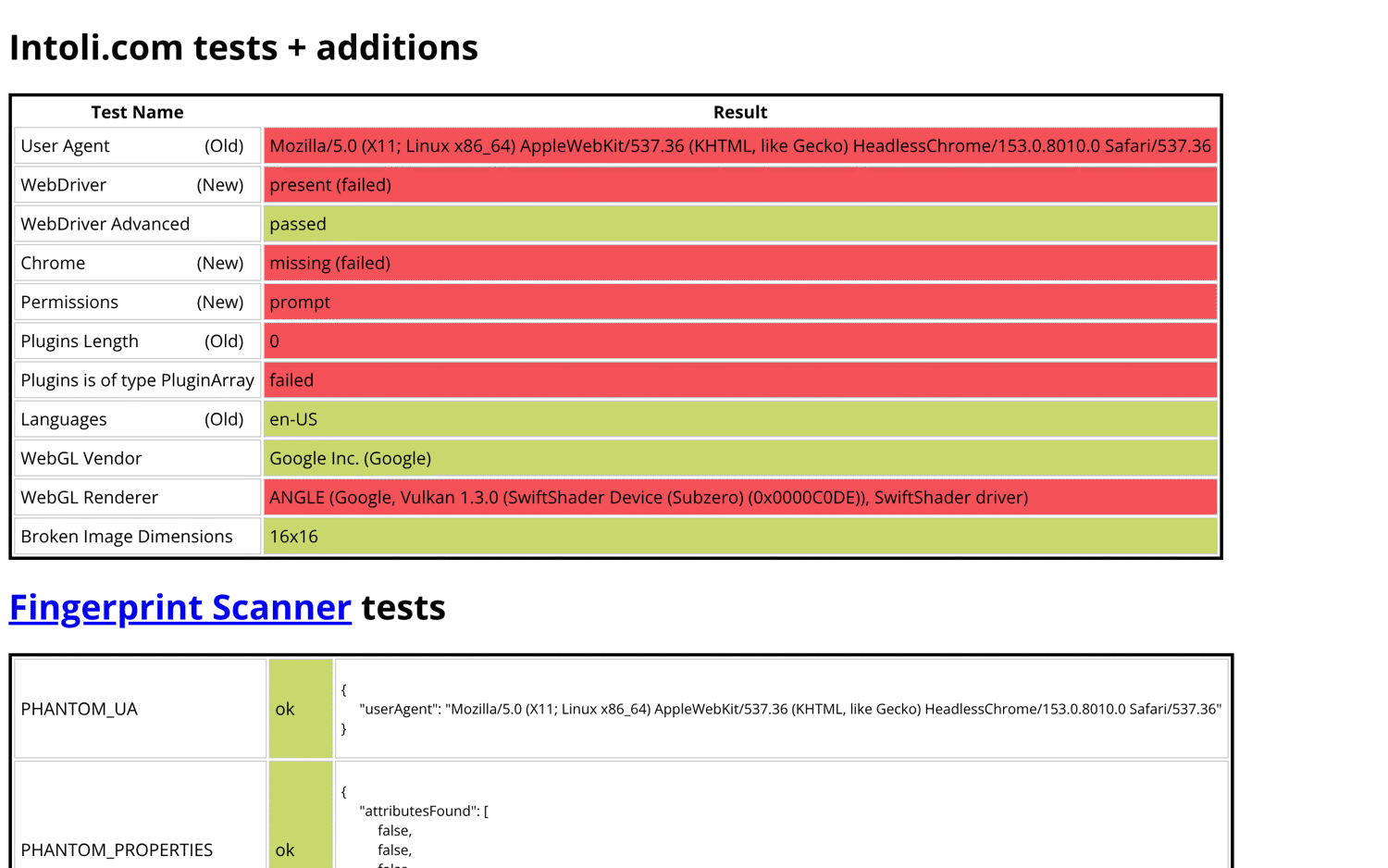
Indeed's Cloudflare block page for the Lambda browser in us-east-1 showed the AWS IP address:
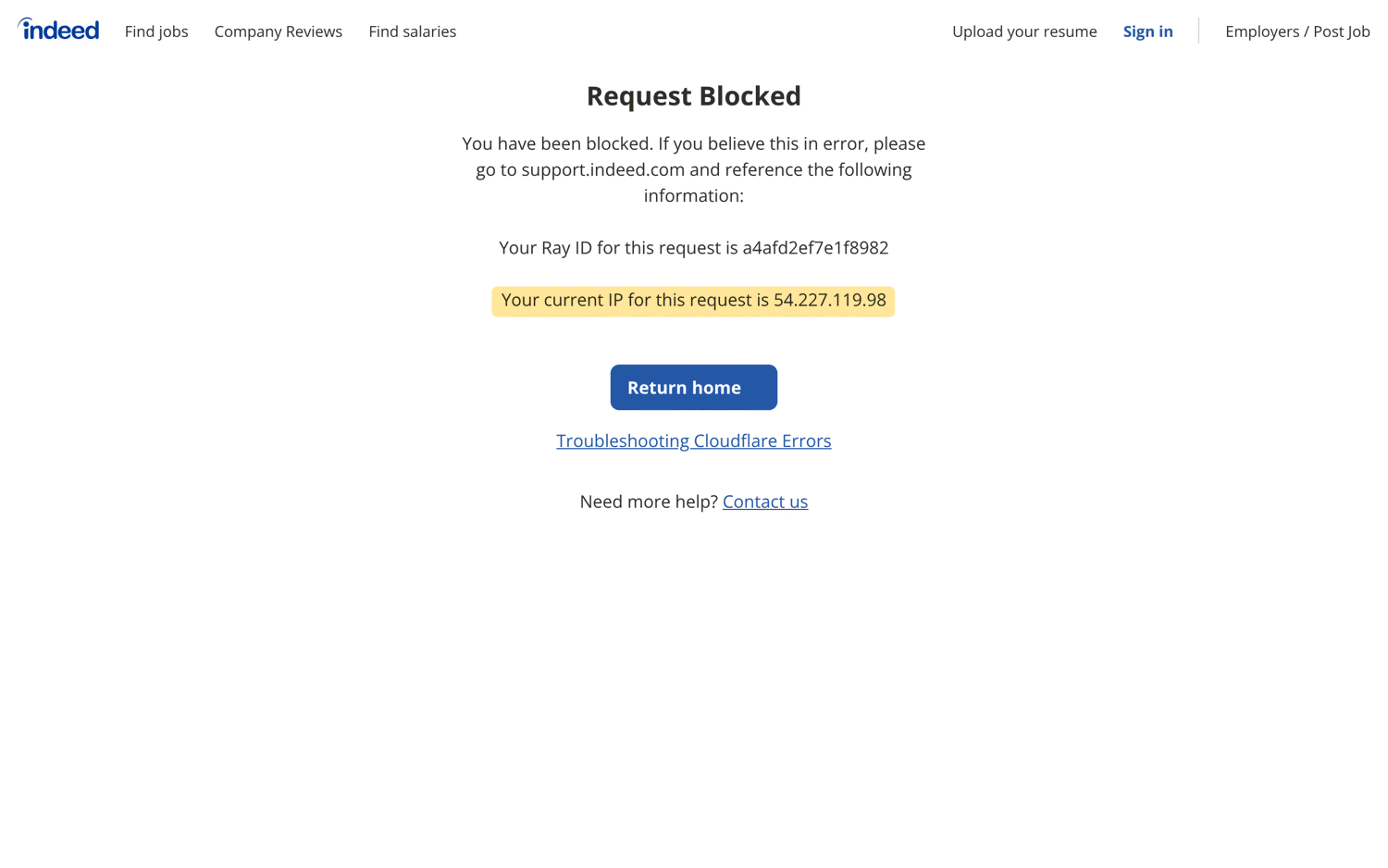
The TLS fingerprint was identical from Lambda and from a residential connection, with the same JA4 value t13d1516h2_8daaf6152771_806a8c22fdea. The TCP handshake was different.
Zardaxt is an open-source classifier, and its public endpoint identified Lambda's handshake as Linux. The classifier flagged the connection as a likely relay, such as a proxy, with a 0.97 score in 3 of 3 runs, even with a matching Linux user agent. The same user agents from the residential connection weren't flagged in any run.
At the protocol level, one well-known automation check no longer triggers. A DevTools Protocol client used to trigger a getter on Error.stack when it serialized console output. With the DevTools Protocol's Runtime domain enabled explicitly, the check triggered on Chrome 124 and didn't trigger on Chrome 155 or on Lambda's Chromium 153. The change removes one check, not every protocol-level signal.
Matching user-agent and client-hint values without the Headless token fixed only the user agent row. navigator.webdriver stayed true. Our Puppeteer stealth tutorial covers the plugins that mask these values. For pages that block the Lambda browser on these signals, ScrapingBee's API fetches them with its own browsers and proxies.
Fingerprint or IP? A test on 14 protected sites
Both the fingerprint and the IP decided the outcome, and 5 of the 14 sites blocked every do-it-yourself setup. To separate the IP from the fingerprint, one list of public pages went through 4 browser setups and through ScrapingBee:
- Targets. 14 listing, search, and profile pages behind Cloudflare, DataDome, HUMAN, Akamai, Kasada, or Amazon's own bot protection, plus 2 unprotected pages as a baseline.
- Browser setups. The same Chromium 153 binary ran from an AWS address in us-east-1 and from a residential connection in India. The residential machine had 8 CPU cores, compared with 2 on Lambda. On each network, the browser ran once with default settings and once with a consistent user agent, client hints, and Accept-Language header. Neither setup used a stealth plugin or a proxy service.
- API. ScrapingBee's Auto-Mode, which tries configurations from cheapest to most expensive within one request. Requests used mode=auto, plus country_code=us for the US-only Realtor.com page.
- Success. A page counted as loaded when it returned HTTP 200, or timed out after the content arrived, and contained the expected text in more than 5K characters with no challenge title. The same rule applied to every setup, including the API, and each site was tested 3 times.
The per-site results follow:
| Site | Auto-Mode | AWS IP, default settings | AWS IP, consistent headers | Residential IP, default settings | Residential IP, consistent headers |
|---|---|---|---|---|---|
| Nike | 3/3 | 3/3 | 3/3 | 3/3 | 3/3 |
| Best Buy | 3/3 | 3/3 | 3/3 | 0/3 | 0/3 |
| Walmart | 3/3 | 0/3 | 3/3 | 0/3 | 3/3 |
| Amazon | 3/3 | 0/3 | 3/3 | 0/3 | 3/3 |
| Indeed | 3/3 | 0/3 | 0/3 | 0/3 | 3/3 |
| Zillow | 3/3 | 0/3 | 0/3 | 0/3 | 3/3 |
| StockX | 3/3 | 0/3 | 0/3 | 0/3 | 3/3 |
| Tripadvisor | 3/3 | 0/3 | 1/3 | 0/3 | 1/3 |
| Leboncoin | 3/3 | 0/3 | 0/3 | 0/3 | 1/3 |
| Etsy | 3/3 | 0/3 | 0/3 | 0/3 | 0/3 |
| Home Depot | 3/3 | 0/3 | 0/3 | 0/3 | 0/3 |
| Crunchbase | 3/3 | 0/3 | 0/3 | 0/3 | 0/3 |
| Glassdoor | 3/3 | 0/3 | 0/3 | 0/3 | 0/3 |
| Realtor.com | 3/3 | 0/3 | 0/3 | 0/3 | 0/3 |
| Total | 42/42 | 6/42 | 13/42 | 3/42 | 20/42 |
Two results need context. Best Buy served a country selector to the residential connection, so its residential cells measure geography, not bot defense, and Realtor.com returned HTTP 429 to every browser setup. Both baseline pages loaded in every run, so each setup worked on unprotected pages.
The default fingerprint failed from both networks. Apart from Nike and the US-only Best Buy page, the default browser loaded nothing from either network.
The IP mattered once the headers were consistent. The Indeed, Zillow, and StockX pages loaded in every residential run with consistent headers and in no AWS run.
Each blocked attempt still bills Lambda time. With consistent headers, Lambda needed about 3 attempts for each loaded page, and with the defaults, it needed about 7. The residential column with consistent headers shows what one clean residential IP added to the same browser. That setup still loaded fewer than half of the attempts.
Some sites blocked every do-it-yourself setup. Etsy, Home Depot, Crunchbase, Glassdoor, and Realtor.com didn't load in any browser setup. The results show outcomes, but they don't show which signal each bot-protection vendor used.
ScrapingBee's Auto-Mode loaded every site in the test, including those 5.
Sometimes the cheapest successful configuration didn't use a browser. Auto-Mode tries configurations from cheapest to most expensive, stops at the first one that succeeds, and charges only for that configuration. For Zillow, its cheapest configuration, a plain HTTP request, loaded a page that the Lambda browser didn't load in any run.
Blocks depended on both the network and what the browser reported about itself. Handler changes help with the browser side, and the next section adds a route for the network side.
A fallback design that sends protected pages to ScrapingBee's API
Keep unprotected pages, internal tools, and screenshots or PDFs on your own Lambda browser, and send pages that block that browser to ScrapingBee's web scraping API, which runs the browsers and rotates proxies for you. The handler routes each URL like this:
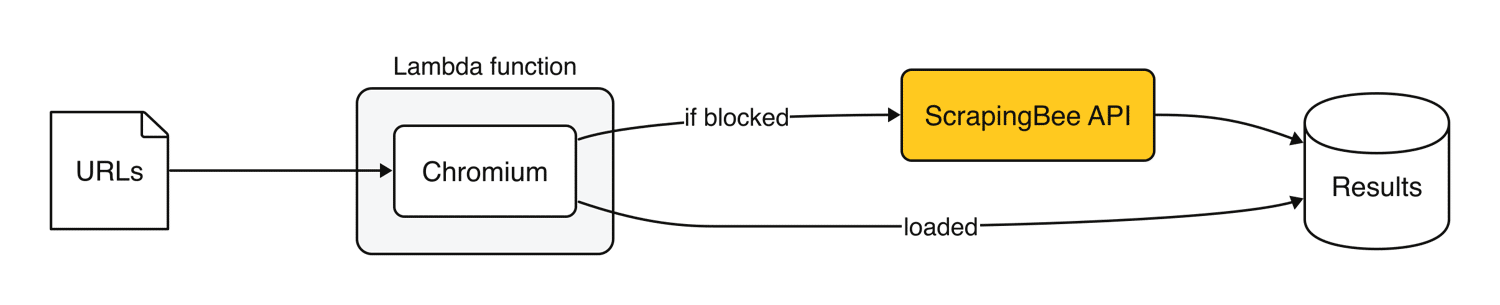
This handler applies the browser changes from the sections above and routes hosts that block the browser to Auto-Mode:
import chromium from "@sparticuz/chromium";
import puppeteer from "puppeteer-core";
import { SSMClient, GetParameterCommand } from "@aws-sdk/client-ssm";
import { readdir, rm } from "node:fs/promises";

chromium.setGraphicsMode = false; // the SwiftShader WebGL stack slowed page loads, so turn it on only for pages that need WebGL
// --single-process can break browser contexts on this build. --disable-web-security disables the same-origin policy,
// and the other two flags weaken mixed-content and site-isolation protections.
const DROP = new Set(["--single-process", "--disable-web-security", "--allow-running-insecure-content", "--disable-site-isolation-trials"]);
const ARGS = chromium.args.filter((arg) => !DROP.has(arg));
const BLOCK_STATUS = [403, 429, 503];
const BLOCK_TITLE = /just a moment|attention required|access denied|robot or human|captcha/i;
const API_CONCURRENCY = Number(process.env.API_CONCURRENCY ?? 5); // match the concurrency your plan includes
const apiHosts = new Set(); // hosts that blocked the browser, kept for the lifetime of this environment
const ssm = new SSMClient({});
let chromiumPath; // one shared unpack, so concurrent requests wait for it instead of launching a half-written binary
let apiKey; // read from Parameter Store once per environment

function getApiKey() {
  apiKey ??= ssm.send(new GetParameterCommand({ Name: process.env.SCRAPINGBEE_KEY_PARAM, WithDecryption: true }))
    .then((r) => r.Parameter.Value)
    .catch((e) => { apiKey = undefined; throw e; });
  return apiKey;
}

async function viaScrapingBee(url, deadline, markdown) {
  const params = new URLSearchParams({
    url,
    mode: "auto",
    ...(process.env.MAX_COST && { max_cost: process.env.MAX_COST }), // gives Auto-Mode a per-page credit budget
    ...(markdown && { return_page_markdown: "true" }),
  });
  for (let attempt = 1; ; attempt++) {
    const res = await fetch(`https://app.scrapingbee.com/api/v1/?${params}`, {
      headers: { Authorization: `Bearer ${await getApiKey()}` },
      signal: AbortSignal.timeout(Math.max(deadline - Date.now(), 1_000)),
    });
    // Back off and retry while time remains.
    if ((res.status === 429 || res.status >= 500) && attempt < 3 && deadline - Date.now() > 30_000) {
      await res.body?.cancel();
      await new Promise((resolve) => setTimeout(resolve, 2_000 * attempt));
      continue;
    }
    const html = await res.text();
    const title = html.match(/<title[^>]*>([^<]*)/i)?.[1]?.trim() ?? "";
    return { url, via: "scrapingbee", status: res.status, credits: Number(res.headers.get("spb-cost") ?? 0), title, html };
  }
}

// Runs fn over items with at most `limit` calls in flight, and never rejects.
async function mapLimit(items, limit, fn) {
  const settled = new Array(items.length);
  let next = 0;
  const worker = async () => {
    while (next < items.length) {
      const i = next++;
      settled[i] = await fn(items[i]).then((value) => ({ status: "fulfilled", value }), (reason) => ({ status: "rejected", reason }));
    }
  };
  await Promise.all(Array.from({ length: Math.min(limit, items.length) }, worker));
  return settled;
}

async function removeCoreDumps() {
  for (const name of await readdir("/tmp")) {
    if (name.startsWith("core")) await rm(`/tmp/${name}`, { force: true });
  }
}

export const handler = async ({ urls, markdown = false }, context) => {
  await removeCoreDumps();
  const browser = await puppeteer.launch({
    args: ARGS,
    // Clear the shared promise if the unpack fails, so the next request can try again.
    executablePath: process.env.CHROME_PATH ?? (await (chromiumPath ??= chromium.executablePath().catch((e) => { chromiumPath = undefined; throw e; }))),
    headless: "shell",
    defaultViewport: { width: 1920, height: 1080 },
  });
  const results = [];
  const blocked = [];
  try {
    const page = await browser.newPage(); // one tab, reused for every URL
    for (const url of urls) {
      if (!URL.canParse(url)) {
        results.push({ url, via: "none", status: 0, credits: 0, title: "", html: "" }); // an invalid URL fails on its own
        continue;
      }
      const host = new URL(url).hostname;
      if (apiHosts.has(host)) {
        blocked.push(url);
        continue;
      }
      const res = await page.goto(url, { waitUntil: "domcontentloaded", timeout: 20_000 }).catch(() => null);
      const title = await page.title().catch(() => "");
      if (res && (BLOCK_STATUS.includes(res.status()) || BLOCK_TITLE.test(title))) {
        apiHosts.add(host); // a clear block: skip the browser for this host from now on
        blocked.push(url);
      } else if (!res) {
        blocked.push(url); // a timeout is not proof of a block, so retry through the API once without remembering the host
      } else {
        results.push({ url, via: "browser", status: res.status(), credits: 0, title, html: await page.content() });
      }
    }
  } finally {
    browser.process()?.kill("SIGKILL"); // a graceful close can take longer than the page load
  }
  // The browser is gone, so the API calls run in parallel without competing for CPU.
  const deadline = Date.now() + context.getRemainingTimeInMillis() - 5_000;
  const settled = await mapLimit(blocked, API_CONCURRENCY, (url) => viaScrapingBee(url, deadline, markdown));
  settled.forEach((r, i) => {
    results.push(r.status === "fulfilled" ? r.value : { url: blocked[i], via: "scrapingbee", error: String(r.reason), credits: 0, title: "", html: "" });
  });
  // Log each URL's route and cost as one JSON line.
  return results.map(({ html, credits, ...meta }) => {
    console.log(JSON.stringify({ url: meta.url, via: meta.via, credits }));
    return { ...meta, length: html.length, looksBlocked: meta.status !== 200 || BLOCK_TITLE.test(meta.title) };
  });
};
The handler uses CHROME_PATH when it's set, so the same file also runs in the container image from the start-faster section and skips the unpacking. With the 2 unprotected test pages, its cold starts billed 2.7 to 3.0 s in the image and about 4.5 s from the ZIP package.
Block detection uses status codes and page titles, so add the challenge titles of your own targets to BLOCK_TITLE.
These details make sure that one failed URL doesn't fail the whole batch:
- Timeouts. A navigation timeout sends that URL to the API once, without marking the host as blocked.
- API_CONCURRENCY sets the number of concurrent API calls. Match it to your plan's concurrency, which the pricing page lists for each plan.
- One deadline. All API calls share the invocation's remaining time minus 5 seconds, so the batch returns every result before the function times out.
- Retries. Temporary responses get up to 2 more attempts, 2 and then 4 seconds apart, while enough time remains before the deadline.
- looksBlocked marks any result with a non-200 status or a challenge title.
The ScrapingBee API key is stored in Parameter Store as a SecureString, because with the default encryption key, anyone who can view the function's configuration can read an environment variable. The handler reads the key once per environment with the AWS SDK that the Node.js runtime includes.
MAX_COST is optional and gives Auto-Mode a per-page credit budget. Add it to the --environment variables, with a value from the Auto-Mode documentation.
Deploy and run the fallback handler
Save the handler as index.mjs in the same folder as this package.json, which is the same one that the container image uses:
{
  "type": "module",
  "dependencies": {
    "@sparticuz/chromium": "153.0.0",
    "puppeteer-core": "25.13.0"
  }
}
The ZIP package is about 78 MB, which is over the 50 MB limit for a direct upload, so the commands upload it through Amazon S3. Skip the first 2 commands, which create page-fetcher-role, if you already created it in the SnapStart section. Replace YOUR_API_KEY with the key from your ScrapingBee account, where new accounts start with free API credits, and set YOUR_BUCKET and the account ID:
aws iam create-role --role-name page-fetcher-role \
  --assume-role-policy-document '{"Version":"2012-10-17","Statement":[{"Effect":"Allow","Principal":{"Service":"lambda.amazonaws.com"},"Action":"sts:AssumeRole"}]}'
aws iam attach-role-policy --role-name page-fetcher-role \
  --policy-arn arn:aws:iam::aws:policy/service-role/AWSLambdaBasicExecutionRole
npm install --omit=dev
zip -qr function.zip index.mjs package.json node_modules
aws ssm put-parameter --name /page-fetcher/scrapingbee-api-key --type SecureString --value YOUR_API_KEY
aws iam put-role-policy --role-name page-fetcher-role --policy-name read-scrapingbee-key \
  --policy-document '{"Version":"2012-10-17","Statement":[{"Effect":"Allow","Action":"ssm:GetParameter","Resource":"arn:aws:ssm:*:123456789012:parameter/page-fetcher/*"}]}'
aws s3 mb s3://YOUR_BUCKET
aws s3 cp function.zip s3://YOUR_BUCKET/function.zip
aws lambda create-function --function-name page-fetcher \
  --runtime nodejs24.x --architectures x86_64 --handler index.handler \
  --memory-size 2048 --timeout 300 \
  --role arn:aws:iam::123456789012:role/page-fetcher-role \
  --code S3Bucket=YOUR_BUCKET,S3Key=function.zip \
  --environment "Variables={SCRAPINGBEE_KEY_PARAM=/page-fetcher/scrapingbee-api-key,API_CONCURRENCY=5}"
aws lambda wait function-active-v2 --function-name page-fetcher
A new IAM role can take a few seconds to become available to Lambda, so if create-function reports that the role can't be assumed, run that command again.
Save these 4 URLs as event.json. The list has 2 unprotected pages and 2 protected ones:
{"urls": ["https://books.toscrape.com/", "https://books.toscrape.com/catalogue/page-2.html", "https://www.indeed.com/q-python-developer-jobs.html", "https://www.zillow.com/seattle-wa/"]}
The function's timeout is 300 seconds, so --cli-read-timeout 0 in the invoke command prevents the AWS CLI from stopping at its own default timeout of 60 seconds:
aws lambda invoke --function-name page-fetcher --cli-binary-format raw-in-base64-out \
  --cli-read-timeout 0 --payload file://event.json out.json
The browser handled both unprotected pages, and the API returned both pages that blocked the browser:
[{"url":"https://books.toscrape.com/","via":"browser","status":200,"title":"All products | Books to Scrape - Sandbox","length":51275,"looksBlocked":false},{"url":"https://books.toscrape.com/catalogue/page-2.html","via":"browser","status":200,"title":"All products | Books to Scrape - Sandbox","length":50847,"looksBlocked":false},{"url":"https://www.indeed.com/q-python-developer-jobs.html","via":"scrapingbee","status":200,"title":"Now Hiring: 7,000 Python Developer Jobs | Indeed","length":1723540,"looksBlocked":false},{"url":"https://www.zillow.com/seattle-wa/","via":"scrapingbee","status":200,"title":"Seattle WA Real Estate - Seattle WA Homes For Sale | Zillow","length":663855,"looksBlocked":false}]
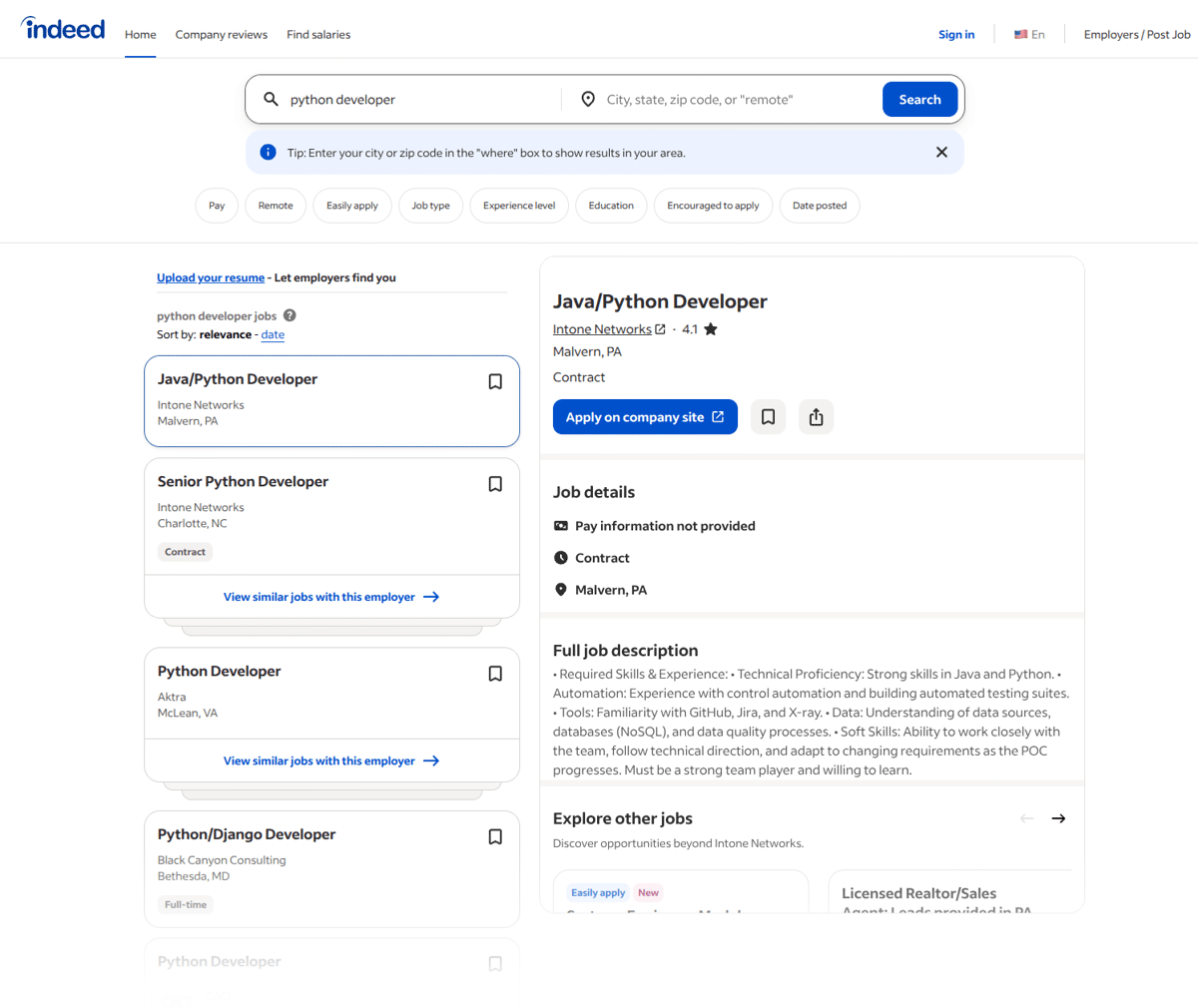
This screenshot comes from a separate request to ScrapingBee's screenshot API for the same Indeed URL, with premium proxies and JavaScript rendering enabled:
The same handler with Playwright
Playwright needs 3 changes, and the function deploys with the same commands. If the Puppeteer version is already deployed, skip the 2 role commands and put-parameter, and replace create-function with aws lambda update-function-code. Install playwright-core in the same project:
npm install --save-exact playwright-core@1.64.0
Replace the Puppeteer import with this line:
import { chromium as playwright } from "playwright-core";
Then replace the handler export, which uses launchServer() instead of launch():
export const handler = async ({ urls, markdown = false }, context) => {
  await removeCoreDumps();
  // launchServer exposes the browser process, so the handler can kill it instead of waiting for close().
  const server = await playwright.launchServer({
    args: ARGS,
    executablePath: process.env.CHROME_PATH ?? (await (chromiumPath ??= chromium.executablePath().catch((e) => { chromiumPath = undefined; throw e; }))),
    headless: true,
  });
  const results = [];
  const blocked = [];
  try {
    const browser = await playwright.connect(server.wsEndpoint());
    const page = await browser.newPage({ viewport: { width: 1920, height: 1080 } }); // one tab, reused for every URL
    for (const url of urls) {
      if (!URL.canParse(url)) {
        results.push({ url, via: "none", status: 0, credits: 0, title: "", html: "" }); // an invalid URL fails on its own
        continue;
      }
      const host = new URL(url).hostname;
      if (apiHosts.has(host)) {
        blocked.push(url);
        continue;
      }
      const res = await page.goto(url, { waitUntil: "domcontentloaded", timeout: 20_000 }).catch(() => null);
      const title = await page.title().catch(() => "");
      if (res && (BLOCK_STATUS.includes(res.status()) || BLOCK_TITLE.test(title))) {
        apiHosts.add(host);
        blocked.push(url);
      } else if (!res) {
        blocked.push(url);
      } else {
        results.push({ url, via: "browser", status: res.status(), credits: 0, title, html: await page.content() });
      }
    }
  } finally {
    await server.kill(); // kills the browser process and waits for it to exit
  }
  const deadline = Date.now() + context.getRemainingTimeInMillis() - 5_000;
  const settled = await mapLimit(blocked, API_CONCURRENCY, (url) => viaScrapingBee(url, deadline, markdown));
  settled.forEach((r, i) => {
    results.push(r.status === "fulfilled" ? r.value : { url: blocked[i], via: "scrapingbee", error: String(r.reason), credits: 0, title: "", html: "" });
  });
  return results.map(({ html, credits, ...meta }) => {
    console.log(JSON.stringify({ url: meta.url, via: meta.via, credits }));
    return { ...meta, length: html.length, looksBlocked: meta.status !== 200 || BLOCK_TITLE.test(meta.title) };
  });
};
With the same event, Playwright sent 2 pages through the browser and 2 through the API.
Run it at scale
Keep the 2,048 MB function for Chromium and process blocked URLs from an SQS queue with a 256 MB function that only calls the API. One such arm64 function sent all 16 pages from the protected-site test to Auto-Mode in parallel, so the API step runs on one-eighth of the browser function's memory. Enable ReportBatchItemFailures and return the message IDs of failed results, so only those messages go back to the queue. Set the event source mapping's maximum concurrency so that the number of running functions multiplied by API_CONCURRENCY matches your plan's concurrency.
Set the queue's visibility timeout to at least 6 times the function timeout, as AWS recommends, with a dead-letter queue after 5 failed receives. Write each page to S3 under a hash of its URL, because a synchronous response is limited to 6 MB. Skip URLs that are already stored, because standard queues can deliver a message twice. Keep apiHosts in a shared table such as DynamoDB, with a time-to-live on each entry so a host gets another browser attempt later.
The JSON line that the handler logs for each URL shows which hosts need the API. For spend, track cost per successful page, which is total Lambda and API spend divided by the pages you keep. That number shows when sending a host to the API costs less than retrying it in the browser.
Run it on Lambda Managed Instances
Lambda Managed Instances run functions on EC2 capacity in your account, and one environment serves many requests at once. For Node.js, the documented default is 64 concurrent requests per vCPU, all sharing /tmp. In the test, 6 simultaneous requests each loaded 2 unprotected pages in the fallback handler's browser, on a 2,048 MB function with 1 vCPU per environment. A first burst lands on new environments, where /tmp is empty:
| Burst | Result | Time per request |
|---|---|---|
| First burst, without chromiumPath | 3 of 6 Chromium launches failed with spawn ETXTBSY | 1.2 to 4.6 s, including the failed requests |
| Later bursts, without chromiumPath | 12 of 12 succeeded | 2.5 to 11.9 s |
| First burst, with chromiumPath | 6 of 6 succeeded | 4.4 to 14.6 s |
| Later burst, with chromiumPath | 6 of 6 succeeded | 3.1 to 10.4 s |
Unpack Chromium only once. The failures came from requests that launched /tmp/chromium while another request was still writing it. The chromiumPath variable makes concurrent requests in one Node.js worker wait for the same unpacking step. Node.js runs 1 worker per vCPU, and each worker has its own chromiumPath, so keep each environment at 1 vCPU, as in this test.
Limit concurrency to what the environment can render. Set PerExecutionEnvironmentMaxConcurrency to the number of browsers an environment can run. Pages routed to ScrapingBee's API leave that browser capacity free, because the API renders them with its own browsers.
Managed Instances also need a VPC with outbound access and a published version.
What to return when an LLM reads the page
Many scraped pages are sent to a model's context window, and raw HTML is usually the most expensive format to send there. Counted with the o200k_base tokenizer, 4 protected pages fetched through ScrapingBee show the difference:
| Page | HTML tokens | Markdown tokens | AI-extracted fields, tokens |
|---|---|---|---|
| Indeed search | 631,443 | 13,202 | 152 |
| Zillow city page | 240,898 | 3,698 | 160 |
| Walmart search | 443,512 | 9,214 | 324 |
| Amazon search | 309,194 | 53,965 | 317 |
| Total | 1,625,047 | 80,079 | 953 |
For Indeed, ScrapingBee's Markdown output is 48x smaller than the HTML. The HTML alone wouldn't fit in a 200K-token context window. ScrapingBee's return_page_markdown=true parameter returns Markdown, and its ai_extract_rules parameter returns only the fields you describe.
The fallback handler takes a markdown flag and passes it only to the API path. Save this event as event.json and run the same invoke command:
{"urls": ["https://books.toscrape.com/", "https://www.zillow.com/seattle-wa/"], "markdown": true}
The API returned Zillow as 9,761 characters of Markdown, compared with the 663,855 characters of HTML that it returned in the deploy step. The handler reads title from the HTML title tag, so that field stays empty for Markdown results:
[{"url":"https://books.toscrape.com/","via":"browser","status":200,"title":"All products | Books to Scrape - Sandbox","length":51275,"looksBlocked":false},{"url":"https://www.zillow.com/seattle-wa/","via":"scrapingbee","status":200,"title":"","length":9761,"looksBlocked":false}]
The Markdown for that page starts like this:
Seattle WA Real Estate & Homes For Sale
=======================================

3,104 results
-------------

Sort: Homes for You

* [$550,000](https://www.zillow.com/homedetails/1516-E-Republican-St-APT-10-Seattle-WA-98112/64947490_zpid/)

  + **1** bd
  + **1** ba
The browser path still returns HTML, so convert it with a library such as Turndown before you send it to a model. When an AI agent uses the output, ScrapingBee's remote MCP server exposes the same API as Model Context Protocol tools that the agent calls directly.
Lightpanda: a lightweight browser for pages that need no rendering
Lightpanda is an open-source browser written in Zig that supports the DevTools Protocol, so Puppeteer connects to it with puppeteer.connect(). These tests used version 1.0.0. Lightpanda skips graphical rendering, which makes it suitable for data extraction, while Chromium remains the better choice for pixel-accurate screenshots and PDFs.
Lightpanda's 188 MB binary fits in a ZIP-packaged function, and Lambda extracts the package before INIT, so nothing unpacks at runtime. Both browsers loaded the same 6 pages, including 1 page that JavaScript renders, in one function at 2,048 MB:
| Measurement | Chromium | Lightpanda |
|---|---|---|
| Cold start with one page, billed | 3.1 to 3.9 s | 0.92 to 0.98 s |
| 6 pages in a warm function, billed | 7.3 to 7.7 s | 2.2 to 2.4 s |
| Max memory used, 6 pages | 635 to 641 MB | 183 to 193 MB |
Both browsers extracted the same elements from all 6 pages. In a separate check, Indeed returned 403 to both browsers, so protected pages should still go to the ScrapingBee API path. At 512 MB, Lightpanda ran the 6 pages in 3.4 to 4.2 s, for about 8x fewer GB-seconds than Chromium at 2,048 MB.
The tested binary runs on Lambda with one extra step. It needs glibc 2.35, while Amazon Linux 2023, which Lambda's Node.js runtimes use, includes 2.34, so the downloaded binary exits with version `GLIBC_2.35' not found. If a later release starts without that error, skip the bundling. These commands download it and bundle a newer loader and libraries from Debian:
curl -sL -o lightpanda https://github.com/lightpanda-io/browser/releases/download/1.0.0/lightpanda-x86_64-linux
chmod 755 lightpanda
mkdir -p glibc
docker run --rm --platform linux/amd64 -v "$PWD/glibc":/out debian:bookworm-slim \
  cp -L /lib64/ld-linux-x86-64.so.2 /lib/x86_64-linux-gnu/libc.so.6 /lib/x86_64-linux-gnu/libm.so.6 /out/
npm install --save-exact puppeteer-core@25.13.0
zip -qr function.zip index.mjs package.json lightpanda glibc node_modules
The handler starts Lightpanda through that loader and connects Puppeteer:
import puppeteer from "puppeteer-core";
import { spawn } from "node:child_process";

export const handler = async ({ url }) => {
  // Amazon Linux 2023 has glibc 2.34 and Lightpanda 1.0.0 needs 2.35, so it starts through the bundled loader.
  const proc = spawn("./glibc/ld-linux-x86-64.so.2", ["--library-path", "./glibc", "./lightpanda", "serve", "--host", "127.0.0.1", "--port", "9222"], {
    env: { ...process.env, HOME: "/tmp", LIGHTPANDA_DISABLE_TELEMETRY: "true" },
    stdio: "ignore",
  });
  let browser;
  for (let i = 0; i < 100 && !browser; i++) {
    browser = await puppeteer.connect({ browserWSEndpoint: "ws://127.0.0.1:9222" }).catch(() => null);
    if (!browser) await new Promise((resolve) => setTimeout(resolve, 25));
  }
  if (!browser) throw new Error("Lightpanda did not start on port 9222");
  try {
    const page = await (await browser.createBrowserContext()).newPage();
    const res = await page.goto(url, { waitUntil: "load", timeout: 20_000 });
    return { url, status: res?.status(), title: await page.title(), html: await page.content() };
  } finally {
    proc.kill("SIGKILL");
  }
};
The ZIP package is about 60 MB, so it deploys through S3 with the fallback handler's commands and a new function name. For Lightpanda's other features, our Lightpanda guide goes into more depth. Check each target's output before switching. When a page's data is already in its HTML or available from one API call, our guide to loading dynamic content without a browser shows how to skip the browser entirely.
Final thoughts
Puppeteer and Playwright on Lambda drive @sparticuz/chromium, a specially packaged headless shell whose unpacking, tab lifecycle, and default flags decide most of its cost and behavior. On protected sites, even the best browser setup on Lambda's AWS address loaded 13 of 42 attempts in the 14-site test.
Unpack Chromium at build time, choose memory for CPU speed, reuse one tab, kill the process, and disable the default flags that slow pages, break contexts, or weaken security. For pages that still block the Lambda browser, ScrapingBee's Auto-Mode loaded all 42 test attempts, trying configurations from cheapest to most expensive and charging only for the one that succeeded. Start with the free API credits on ScrapingBee's pricing page, route the pages that block your function through the fallback handler, and request Markdown when an LLM reads the result.
FAQ
Can a website detect a headless browser running on AWS Lambda?
Yes. In testing, the default Lambda Chromium from @sparticuz/chromium reported a HeadlessChrome user agent, navigator.webdriver set to true, 1 font family, a SwiftShader WebGL renderer, and an Amazon IP address. With those defaults, it loaded 6 of 42 page attempts on 14 sites with bot protection, while ScrapingBee's Auto-Mode loaded all 42.
What are the disadvantages of using AWS Lambda for web scraping?
Each new execution environment starts with an empty /tmp, so a browser in a ZIP package unpacks Chromium on every cold start. AWS bills the INIT phase as well, so every cold start is billed time. With a consistent user agent and headers, a browser loaded 13 of 42 protected page attempts from AWS, while ScrapingBee's Auto-Mode loaded all 42.
Can you run headless Chrome on AWS Lambda?
Yes. Use a Chromium build that runs on Lambda, such as the @sparticuz/chromium npm package or Google's official headless shell in a container image, and drive it with puppeteer-core or playwright-core. Start at 1,769 MB or more, the equivalent of 1 vCPU. At 2,048 MB, a cold start with the ZIP package billed 4.1 to 5.0 seconds.
Does Playwright work on AWS Lambda?
Yes. In testing, playwright-core launched the @sparticuz/chromium binary on Lambda once the --single-process flag was removed from the package's defaults. With that flag, Playwright's second browser context couldn't open a page. Without it, 6 consecutive contexts worked on the Node.js 24 runtime.
Is chrome-aws-lambda still maintained?
No. The original chrome-aws-lambda package hasn't published a new version since 10.1.0. Its successor fork, @sparticuz/chrome-aws-lambda, is deprecated on npm, and its deprecation message directs users to @sparticuz/chromium. The @sparticuz/chromium package provides Chromium builds made for Lambda, with Lambda layers for x64 and arm64.
How much memory does Puppeteer need on Lambda?
Start at 1,769 MB, where Lambda gives the equivalent of 1 vCPU, because CPU sets the unpacking speed. Unpacking Chromium took 5.1 seconds at 1,024 MB and 3.7 seconds at 1,769 MB, for 2% more GB-seconds per cold start. At 3,008 MB, the cold start was faster again but cost 28% more.
How do you make Puppeteer start faster on Lambda?
Unpack Chromium at build time in a container image. At 2,048 MB, the billed cold start was 4.1 to 5.0 seconds with the ZIP package and 2.1 to 2.2 seconds with Chromium unpacked at build time. SnapStart restored a browser launched during INIT in 0.49 to 0.97 seconds, and each restore adds a charge.