Want to try web scraping with Playwright and Tesseract.js in Node.js? Instead of extracting data from HTML, you can take a screenshot of a webpage, use OCR to recognize the text, and turn it into structured JSON.
In this tutorial, we'll build a simple screenshot scraper that extracts product names, prices, ratings, and other details. We'll also see how to use text coordinates to organize OCR results, improve recognition accuracy, and figure out when visual web scraping is worth the extra effort.
Key takeaways
- Playwright + Tesseract.js lets you scrape webpage screenshots using OCR instead of extracting text directly from HTML.
- Higher-resolution screenshots improve OCR accuracy. In my tests, switching from 1× to 2× helped Tesseract.js recognize small text and product ratings correctly.
- Word coordinates help recover page structure. Playwright's
boundingBox()method lets you match recognized text to individual product cards. - OCR results still need processing. JavaScript and regular expressions can turn recognized text into structured JSON, even when some characters are misread.
- OCR can't recover hidden or truncated text. It can only recognize what's actually visible in the screenshot.
- Traditional scraping is usually faster and simpler. Screenshot scraping is worth considering when HTML is difficult to parse, content is rendered visually, or only screenshots are available.
What we're going to build with Playwright and Tesseract.js
Normally, when scraping a website, we'd grab some HTML, find the elements we need, and extract their text (ye olde web scraping, if you will). But what if the text is scattered across dozens of elements, or the page is just a pain to parse?
Here's another idea: take a screenshot and read the text straight from the image. That's exactly what we're going to try. We'll use Playwright to capture a product catalogue, pass the screenshot to Tesseract.js, and turn the recognized text into structured JSON containing product names, prices, ratings, and other details.
There's one interesting twist: Tesseract.js can recognize words, but it doesn't know which product they belong to. So we'll use Playwright to find the boundaries of each product card and match them with the OCR results using coordinates. We won't use CSS selectors to extract product information, although we'll still use them to locate the cards. All the actual product data will come from the screenshot.
One thing to keep in mind: this isn't a universal scraper that works with any website. Our extraction logic is tailored to this particular catalogue, so you'll need to adjust it for other layouts.
Playwright: Taking the screenshots
Playwright lets us control a real browser with JavaScript. We can open pages, click buttons, scroll around, wait for content to load, and do pretty much anything we'd normally do in a browser. It can also take screenshots, which is what we're interested in here.
We'll use Playwright with Node.js to load our test page and capture it as an image. We can also adjust the viewport size and decide whether to capture the whole page or just part of it.
Want to explore Playwright in more detail? We've got a separate Playwright web scraping tutorial covering the basics and some more advanced techniques.
Tesseract.js: Reading the screenshots
Now we have an image, but JavaScript can't magically tell us what's written in it. That's where Tesseract.js comes in. It's a JavaScript OCR library that can recognize text in images. Give it a screenshot, and it'll try to figure out what the text says.
And here's the useful bit: Tesseract.js can also tell us where it found each piece of text. With detailed OCR output, we can get bounding boxes containing the coordinates of recognized words. So instead of getting one giant string of text, we can figure out which words are next to each other. For example, if we find a product name and a price just below it, we can try pairing them together.
Of course, OCR isn't perfect. Small fonts, unusual layouts, and blurry images can cause trouble. We'll run into some of these issues and see what we can do about them.
So that's our setup: Playwright takes the screenshot, Tesseract.js reads it, and our JavaScript code puts the pieces together.
Setting up the Node.js project for OCR web scraping
Let's get our project ready. We'll use Node.js 22 or newer and npm. If you don't have Node.js installed yet, grab it from the official website.
First, create a new directory and initialize the project:
mkdir playwright-ocr-scraper
cd playwright-ocr-scraper
npm init -y
We'll use ES modules, so let's enable them in package.json:
npm pkg set type=module
Now install our two main dependencies:
npm install playwright tesseract.js
We also need a browser for Playwright to control. Chromium will do:
npx playwright install chromium
That's it for dependencies! We don't need to install the Tesseract OCR engine separately; Tesseract.js handles that for us.
Comparing Playwright and Selenium? Check out our dedicated guide: Playwright vs Selenium: Which is the best Headless Browser.
Finally, create an index.js file in the project directory. This is where we'll put our scraping code. For now, let's just import the following:
import { chromium } from 'playwright';
import { createWorker } from 'tesseract.js';
import { writeFile } from 'node:fs/promises';
Our project should now look something like this:
playwright-ocr-scraper/
├── node_modules/
├── package.json
├── package-lock.json
└── index.js
We'll run our script with node index.js as we build it.
How to capture a screenshot with Playwright
Time to put Playwright to work! We'll use the Northwind Supply demo catalogue, which has a bunch of products arranged in a grid. Each product has a name, manufacturer, price, rating, availability, and SKU. That's plenty of information for our OCR experiment.
First, we need to open the page and take a screenshot. Add the following code to index.js, after the imports:
const url = 'https://magicscraper.app/demo/catalogue';
const screenshotPath = 'catalogue-products.png';

const browser = await chromium.launch();

try {
  const context = await browser.newContext({
    viewport: { width: 1440, height: 1000 },
    deviceScaleFactor: 2,
  });

  const page = await context.newPage();

  await page.goto(url, { waitUntil: 'domcontentloaded' });

  const grid = page.locator('.grid:has(.product)').last();
  const products = grid.locator('.product');

  await products.first().waitFor({ state: 'visible' });

  const screenshot = await grid.screenshot({
    path: screenshotPath,
    scale: 'device',
    animations: 'disabled',
    style: `
      header,
      [role="banner"] {
        visibility: hidden !important;
      }
    `,
  });

  console.log('Screenshot dimensions:', {
    width: screenshot.readUInt32BE(16),
    height: screenshot.readUInt32BE(20),
  });

  console.log(`Found ${await products.count()} products`);
} finally {
  await browser.close();
}
Here's what the code does:
- Opens the page. Playwright waits for
domcontentloaded, then checks that at least one.productelement inside.gridis visible before taking the screenshot. - Captures the product grid. Using
grid.screenshot()instead ofpage.screenshot()lets Playwright determine the grid's dimensions automatically. No manual cropping or hardcoded screenshot height needed. - Increases the resolution.
deviceScaleFactor: 2combined withscale: 'device'produces a screenshot at twice the normal resolution. During my initial tests, Tesseract.js sometimes confused4.6with4.5or missed decimal points. Switching to 2× helped considerably. - Removes visual distractions. Disabling animations and temporarily hiding the sticky header prevents navigation links from appearing over product cards and confusing the OCR engine.
- Closes the browser. The
finallyblock makes sure Chromium shuts down even if something goes wrong.
Run the script:
node index.js
In my test, Playwright found nine products and saved a 1752 × 2340 pixel screenshot as catalogue-products.png.
Here's what it looks like:
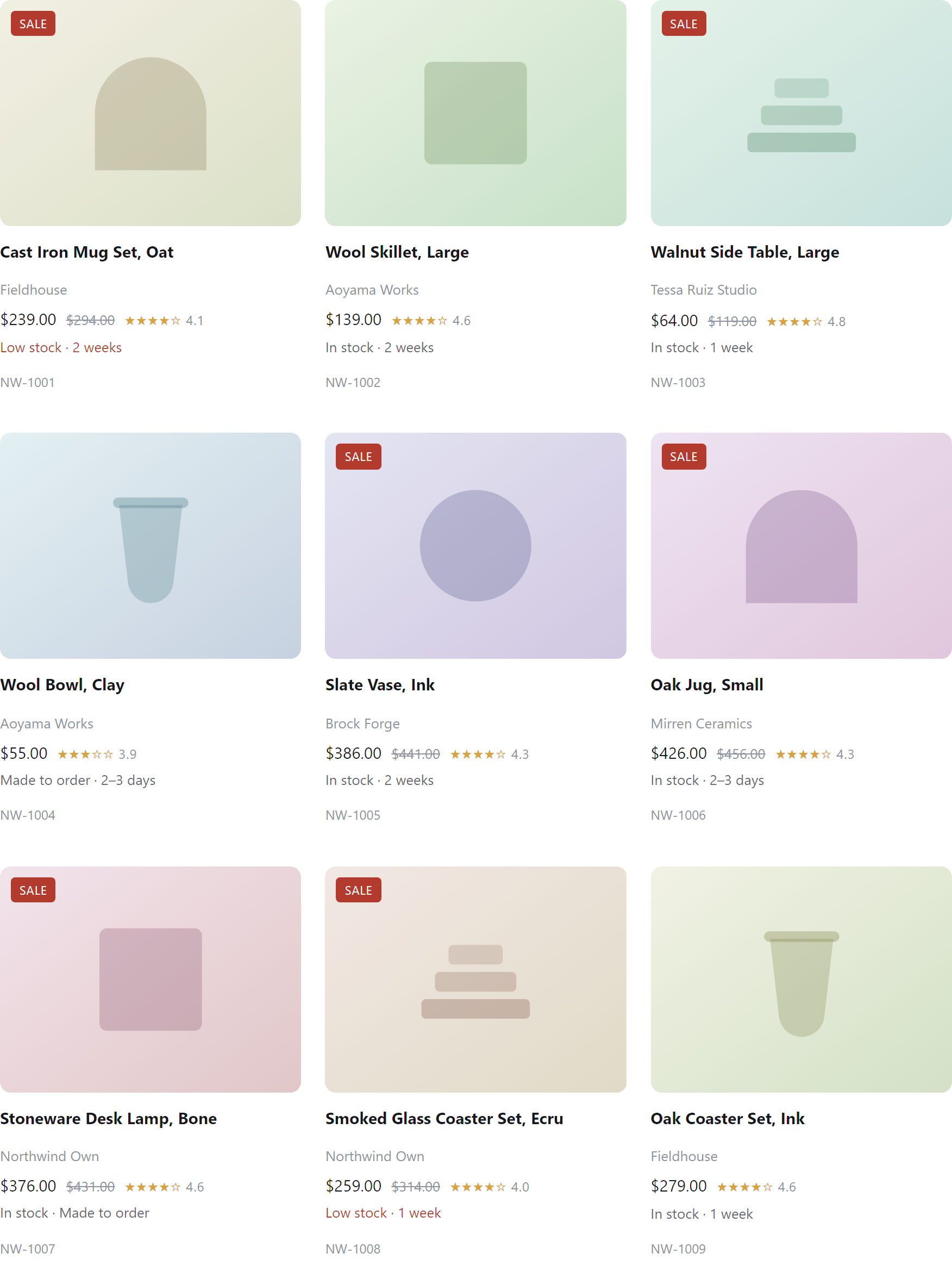
So, we've got all nine products in one image, including their names, prices, ratings, and other details. Next, let's hand this screenshot to Tesseract.js and see what it can read.
Check out the list of the best JavaScript web scraping libraries in our dedicated tutorial.
How to read the screenshot with Tesseract.js
We've got our screenshot. Let's pass catalogue-products.png to Tesseract.js and see what text it can recognize. But we're interested in more than just the text itself: we also want to know where each word appears in the image. Those coordinates will be required later to figure out which words belong to which product.
Luckily, Tesseract.js can give us both. Add the following code to index.js, after the Playwright code:
const SCALE = 2;
const worker = await createWorker('eng');

let words;

try {
  const { data } = await worker.recognize(
    screenshotPath,
    {},
    { blocks: true },
  );

  words = (data.blocks ?? []).flatMap(block =>
    block.paragraphs.flatMap(paragraph =>
      paragraph.lines.flatMap(line =>
        line.words.map(word => ({
          text: word.text.trim(),
          x0: word.bbox.x0 / SCALE,
          y0: word.bbox.y0 / SCALE,
          x1: word.bbox.x1 / SCALE,
          y1: word.bbox.y1 / SCALE,
          confidence: Math.round(word.confidence),
        })),
      ),
    ),
  );

  await writeFile(
    'ocr.json',
    JSON.stringify({ text: data.text, words }, null, 2),
  );

  console.log('\nRecognized text:\n');
  console.log(data.text);

  console.log('\nFirst 20 recognized words:\n');
  console.table(words.slice(0, 20));
} finally {
  await worker.terminate();
}
Let's see what's happening here.
First, createWorker('eng') creates an OCR worker using the English language model. We then call worker.recognize() with the path to our screenshot. The third argument, { blocks: true }, is important because by default, recent versions of Tesseract.js only return plain text. We also want the detailed results, so we explicitly enable the blocks output.
This gives us a structure that looks roughly like this:
blocks
  └── paragraphs
       └── lines
            └── words
                 └── symbols
That's quite a bit of information! Tesseract can even return individual characters, but we don't need to go that far. We use flatMap() to collect all recognized words into a single array.
Each word comes with a bounding box, described by four coordinates:
x0,y0: top-left cornerx1,y1: bottom-right corner
We divide these coordinates by SCALE because our screenshot was captured at 2× resolution. This converts the coordinates back to CSS pixels, which will make them easier to compare with Playwright's element positions later.
We also keep the confidence score, which tells us how confident Tesseract is about its recognition. It's useful for spotting questionable results, although a high score doesn't guarantee that a word was recognized correctly.
Finally, we save everything to ocr.json and terminate the worker to free its resources.
What did Tesseract actually recognize?
Run the script again:
node index.js
You'll get the recognized text in the terminal, along with a table showing the first 20 words and their coordinates. The complete results will also be available in ocr.json.
Here's something interesting from my initial tests. Tesseract recognized the names of the first three products like this:
Cast Iron Mug Set, Oat Wool Skillet, Large Walnut Side Table, Large
Wait a minute. That's three different product names mashed into one line! Actually, it makes sense. Tesseract sees text running horizontally across the image. It doesn't "know" that our catalogue has three separate product cards sitting next to each other.
Fortunately, the word coordinates tell a different story. Here's a small excerpt from one of my earlier OCR tests:
[
  { "text": "Cast", "x0": 16, "y0": 255, "x1": 48, "y1": 266 },
  { "text": "Wool", "x0": 315, "y0": 255, "x1": 350, "y1": 266 },
  { "text": "Walnut", "x0": 615, "y0": 255, "x1": 662, "y1": 266 }
]
See the difference? All three words appear at roughly the same vertical position (y0), but their horizontal coordinates (x0) are hundreds of pixels apart. That's because they belong to different product cards. So even though Tesseract mixes the product names together in its plain-text output, we can use the bounding boxes to put everything back where it belongs.
I also noticed a few OCR quirks during testing: the stars next to product ratings sometimes turned into random characters, and crossed-out prices weren't always recognized correctly. That's fine for now. We're not trying to make Tesseract perfect; we just need enough information to extract the fields we're interested in.
Next, let's use those coordinates to separate the recognized words into individual product cards.
How to group OCR text into product cards
So far, Tesseract.js has given us a bunch of words and their coordinates. The problem is that it doesn't understand our product grid. It sees text on the same horizontal line and happily combines three different product names into one. Let's fix that.
The idea is pretty simple: find out where each product card is located, then assign the recognized words to the right card. Playwright can help with the first part, and a bit of JavaScript will handle the rest.
Getting product card coordinates
Remember the .product elements from the previous section? Playwright can tell us exactly where they are using boundingBox(). The method returns the element's position and dimensions in CSS pixels:
{
  x: 100,
  y: 250,
  width: 280,
  height: 380
}
There's one little catch. These coordinates are relative to the browser's viewport, while our OCR coordinates are relative to the screenshot. Fortunately, the fix is easy: subtract the grid's position from each card's position.
Back in the Playwright part of index.js, declare let cardBoxes; before launching the browser. Then add this code after taking the grid screenshot, but before closing the browser:
const gridBox = await grid.boundingBox();

if (!gridBox) {
  throw new Error('Product grid not found');
}

const count = await products.count();
cardBoxes = [];

for (let i = 0; i < count; i++) {
  const box = await products.nth(i).boundingBox();

  if (!box) {
    throw new Error(`Product card ${i + 1} not found`);
  }

  cardBoxes.push({
    card: i + 1,
    x0: box.x - gridBox.x,
    y0: box.y - gridBox.y,
    x1: box.x + box.width - gridBox.x,
    y1: box.y + box.height - gridBox.y,
  });
}
Now cardBoxes contains the boundaries of all nine products, measured relative to our screenshot. Notice that there's no need to hardcode the number of columns, card widths, or row heights. Playwright gets the actual dimensions from the page.
And yes, we're technically looking at the DOM here, but only to find the card boundaries. Product names, prices, and other details will still come exclusively from OCR.
Assigning words to their cards
Now comes the fun part. Each OCR word has a bounding box, and so does each product card. All we need to do is check whether the center of a word falls inside a card. But there's another small problem to deal with: Tesseract.js gives us individual words, not necessarily the lines we want. Let's write a helper that groups words with similar vertical coordinates into rows.
Add this function to index.js:
function groupIntoLines(words) {
  const rows = [];

  const sorted = [...words].sort(
    (a, b) => (a.y0 + a.y1) - (b.y0 + b.y1),
  );

  for (const word of sorted) {
    const centerY = (word.y0 + word.y1) / 2;

    let row = rows.find(
      row => Math.abs(row.y - centerY) <= 12,
    );

    if (!row) {
      row = { y: centerY, words: [] };
      rows.push(row);
    }

    row.words.push(word);
    row.y = row.words.reduce(
      (sum, w) => sum + (w.y0 + w.y1) / 2,
      0,
    ) / row.words.length;
  }

  return rows
    .sort((a, b) => a.y - b.y)
    .map(row => ({
      y: row.y,
      text: row.words
        .sort((a, b) => a.x0 - b.x0)
        .map(word => word.text)
        .join(' ')
        .trim(),
    }));
}
The 12 here is a tolerance in CSS pixels. Words whose vertical centers are close enough get grouped into the same row. Then we sort the words from left to right and join their text together. It's a simple heuristic, not some fancy text-layout algorithm. For this catalogue, it does the job.
Time to combine everything. Add this code after the Tesseract.js recognition step:
const cards = cardBoxes.map(box => {
  const cardWords = words.filter(word => {
    const centerX = (word.x0 + word.x1) / 2;
    const centerY = (word.y0 + word.y1) / 2;

    return (
      centerX >= box.x0 &&
      centerX < box.x1 &&
      centerY >= box.y0 &&
      centerY < box.y1 &&
      word.y1 - word.y0 < 40
    );
  });

  const lines = groupIntoLines(cardWords)
    .map(line => line.text);

  return {
    card: box.card,
    lines,
  };
});

await writeFile(
  'ocr-cards.json',
  JSON.stringify(cards, null, 2),
);

console.dir(cards[0], { depth: null });
For each card, the script calculates the center of every recognized word and checks whether it's inside the card's boundaries.
There's also a small filter that ignores OCR results taller than 40 CSS pixels. During my early tests, Tesseract.js occasionally tried to recognize product illustrations as enormous characters. This filter helps get rid of those strange results.
Once the words are assigned to their cards, groupIntoLines() puts them back into readable lines.
Checking the results
Run the script again:
node index.js
The first product should now look something like this, based on my test output:
{
  card: 1,
  lines: [
    'Cast Iron Mug Set, Oat',
    'Fieldhouse',
    '$239.00 $294.80 xxxxs 41',
    'Low stock - 2 weeks',
    'NW-1001'
  ]
}
Much better! The product name, manufacturer, pricing information, availability, and SKU are all in the right place.
Of course, the pricing line still looks a bit ridiculous. The crossed-out price and rating stars confuse Tesseract, and it sometimes drops the decimal point in ratings. But the actual price is readable, and the rest of the information is in the expected order. The complete ocr-cards.json file contains the same structure for all nine products.
At this point, the hardest part is behind us. Instead of one giant pile of OCR text, we have separate product cards with their own lines. Next, we'll pick out the fields we actually need and turn everything into proper JSON objects.
How to extract structured product data
Our product cards are finally separated, and the text is in roughly the right order. Now it's time to turn those lines into something useful.
Looking at the catalogue, each card follows the same pattern: product name, manufacturer, pricing and rating, availability, and SKU. That makes our job much easier. There's no need to build a parser that understands every possible shopping website. We just need one that understands this particular layout.
The only tricky part is the pricing line. Remember this lovely mess from Tesseract.js?
$239.00 $294.80 xxxxs 41
The first price is correct, the crossed-out price is slightly wrong, the stars have turned into gibberish, and the rating has lost its decimal point. Not exactly beautiful, but there's enough information to work with.
We'll grab the first properly formatted price, ignore the old price and stars, and extract the rating from the end of the line.
Add this function to index.js:
function parseProduct(lines) {
  if (lines.length < 5) return null;

  const name = lines.slice(0, -4).join(' ');
  const [manufacturer, pricing, availability, sku] =
    lines.slice(-4);

  const priceMatch = pricing.match(/\$(\d+\.\d{2})/);
  const ratingMatch = pricing.match(/(?:^|\s)([0-5])\.?(\d)\s*$/);
  const skuMatch = sku.match(/NW-\d{4}/i);

  if (!name || !manufacturer || !priceMatch ||
      !ratingMatch || !availability || !skuMatch) {
    return null;
  }

  return {
    name,
    manufacturer,
    price: Number(priceMatch[1]),
    rating: Number(`${ratingMatch[1]}.${ratingMatch[2]}`),
    availability,
    sku: skuMatch[0].toUpperCase(),
  };
}
A couple of things are worth pointing out:
- For the name, we join everything before the last four lines. This also handles product names that happen to wrap onto multiple lines.
- For the price,
/\$(\d+\.\d{2})/finds the first dollar amount with two decimal places. On our catalogue, that's the current price. The crossed-out price comes afterward, so we can safely ignore it. - The rating needs a little extra attention. During my tests, Tesseract.js occasionally recognized
4.6as46. That's why the rating regex makes the decimal point optional. Since this catalogue uses ratings with one decimal place, we can put the missing point back when converting the result into a number. - The SKU gets its own regex, and the availability text is kept as-is. No need to complicate things further.
- If an important field is missing, the function returns
nullrather than producing a product with incomplete information. The failed card is skipped, so check the number of extracted products if completeness matters.
Saving the extracted products
Now let's run our parser against the cards from the previous section.
Add this at the end of index.js:
const products = cards
  .map(card => parseProduct(card.lines))
  .filter(Boolean);

await writeFile(
  'products.json',
  JSON.stringify(products, null, 2),
);

console.log('\nExtracted products:\n');
console.table(products);

if (products.length !== cardBoxes.length) {
  console.warn(
    `Expected ${cardBoxes.length} products, extracted ${products.length}.`,
  );

  for (const card of cards) {
    if (!parseProduct(card.lines)) {
      console.log(`Failed card ${card.card}:`, card.lines);
    }
  }
}
The script now produces a products.json file containing structured product data. Here's what the first three entries looked like in my successful test:
[
  {
    "name": "Cast Iron Mug Set, Oat",
    "manufacturer": "Fieldhouse",
    "price": 239,
    "rating": 4.1,
    "availability": "Low stock - 2 weeks",
    "sku": "NW-1001"
  },
  {
    "name": "Wool Skillet, Large",
    "manufacturer": "Aoyama Works",
    "price": 139,
    "rating": 4.6,
    "availability": "In stock - 2 weeks",
    "sku": "NW-1002"
  },
  {
    "name": "Walnut Side Table, Large",
    "manufacturer": "Tessa Ruiz Studio",
    "price": 64,
    "rating": 4.8,
    "availability": "In stock - 1 week",
    "sku": "NW-1003"
  }
]
And that's it! In my final test, the script successfully extracted all nine products on the first catalogue page, including their names, manufacturers, current prices, ratings, availability, and SKUs. Not bad for a scraper that reads product information from a screenshot instead of extracting the text from HTML.
Of course, this approach depends on the catalogue keeping roughly the same visual structure. A completely different layout would need different parsing rules. OCR can also make mistakes, so the result isn't guaranteed to be perfect on every run.
Still, for a page with a predictable layout, we've managed to turn a screenshot into useful structured data with just Playwright, Tesseract.js, and some JavaScript.
Learn how to perform web scraping without getting blocked in our dedicated tutorial.
What worked, what didn't, and what to watch out for
The scraper did its job, but getting there wasn't entirely smooth. Tesseract.js had a few surprises in store, and some of them are worth remembering if you're planning to try OCR-based scraping yourself.
A few lessons from testing
Here are the most interesting things I ran into:
Resolution matters. At 1× resolution, Tesseract.js struggled with small text. Ratings like
4.6sometimes turned into45, and decimal points went missing. Switching to 2× made a big difference: all nine ratings were correctly extracted in the final test. Larger images do take more time to process, though, so don't crank up the resolution without a reason.OCR doesn't understand page layouts. At first, Tesseract.js combined three product names into a single line. That makes sense: the names were sitting next to each other on the screenshot. Using word coordinates and Playwright's
boundingBox()method helped put everything back into the right cards.Some characters are just trouble. Crossed-out prices confused the OCR engine, and rating stars often became random characters like
xxx. Rather than fighting for perfect recognition, I ignored those parts and focused on the current prices and numeric ratings. Sometimes that's all you need.Sticky elements can sneak into screenshots. The catalogue's navigation bar occasionally overlapped the product grid, making Tesseract.js read menu links as product names. Hiding the header during screenshot capture fixed that. Cookie banners, chat widgets, and other floating elements can cause similar problems.
One important detail: this scraper isn't completely DOM-free. Playwright still uses .product elements to find card boundaries. Only the product information itself comes from OCR. For a canvas-based page without those elements, we'd need a different way to identify individual cards.
Learn how to scrape websites easily with LLaMA AI in our Scrapegraph AI tutorial.
What OCR can't fix
Even with a good screenshot and decent recognition results, there are limits.
Missing or hidden text stays missing. Take Books to Scrape, for example. Some catalogue titles are shortened, so A Light in the Attic appears as something like
A Light in the .... That's all Tesseract.js can read. It can't guess the rest of the title. You'd need to reveal it first, perhaps by opening the book's detail page. The same goes for collapsed sections and other content that isn't currently visible.Different layouts need different rules. Our parser expects a product name, manufacturer, pricing line, availability, and SKU in a particular order. That works for Northwind Supply, but another store might put those details elsewhere. There's no universal magic regex for every website.
OCR can still get things wrong. Better resolution helps, but it doesn't guarantee accuracy. Fonts, overlapping text, low contrast, and unusual formatting can all cause mistakes. Don't assume a high confidence score means the extracted value is correct.
It's more work than reading HTML. Running a browser, capturing screenshots, and processing them with OCR takes more resources than grabbing a few DOM elements. If ordinary CSS selectors or an API can get the data you need, use them.
Can AI help with OCR-based scraping?
Sure! So far, we've used regular expressions and coordinates to figure out which text belongs to which product. But what if the layout gets more complicated, or Tesseract.js starts mixing things up? An AI model could help make sense of the results instead of relying entirely on our parsing rules.
There are two ways to approach this:
- OCR + LLM. Let Tesseract.js recognize the text, then send the results (including word coordinates or grouped lines) to an LLM. Ask it to identify product names, prices, ratings, and other fields, and return structured JSON.
- Screenshot + vision model. Skip Tesseract.js altogether and send the screenshot to a multimodal model that can analyze images directly. It could identify product cards and extract their information in one step.
For example, with the first approach, the workflow might look like this:
Playwright → Screenshot → Tesseract.js
                               ↓
                     OCR text + coordinates
                               ↓
                        LLM + prompt
                               ↓
                       Structured JSON
The prompt could be something along these lines:
Extract product names, manufacturers, current prices, ratings, availability, and SKUs from the following OCR results. Group related text into individual products and return a JSON array. Ignore crossed-out prices and rating stars. If a value is missing or unclear, use null instead of guessing.
This could be particularly useful when OCR mixes unrelated text together or when the fields don't appear in a consistent order.
What's the catch?
Well, AI isn't a free upgrade. There are a few trade-offs:
- Extra costs. Using a hosted AI API generally means paying for tokens, image processing, or both. These costs can add up when scraping hundreds or thousands of pages.
- More processing time. Every model request adds latency, especially if you're sending large screenshots.
- Hardware requirements. Running a model locally avoids API fees, but you'll need enough RAM and computing power to handle it. Larger models may require a powerful GPU, and inference can still be slow, especially on modest hardware.
- Unreliable answers. AI can still confuse prices, associate fields with the wrong products, or invent missing information. You'll need to validate its output, even if you ask for a strict JSON structure.
There's also no guarantee that a vision model will read tiny text better than Tesseract.js. Testing both approaches on the same screenshots would be the sensible way to find out.
For our Northwind Supply example, AI would probably be overkill. A handful of JavaScript functions already extracted all nine products correctly in the final test, without any external AI API calls. Still, if you're dealing with messy or frequently changing layouts, adding an AI step might be worth experimenting with. Just make sure it solves a problem you actually have, rather than introducing a more expensive one.
You might also be interested in checking our tutorial: Computer Vision Web Scraping with Playwright and YOLO.
When should you use OCR for web scraping?
So, should you start taking screenshots of every website and feeding them to Tesseract.js? Probably not. As fun as this approach is, traditional web scraping is usually simpler and faster.
Still, there are situations where Playwright OCR can come in handy.
When screenshot scraping makes sense
- The page uses canvas or other visual elements. Some websites draw information directly onto a canvas instead of exposing it as regular HTML text. OCR can help extract what's visible on the screen, even when CSS selectors can't reach it.
- The HTML is a mess. If content is split across dozens of elements or wrapped in constantly changing markup, screenshot scraping might be easier than maintaining complicated selectors.
- You only have screenshots. Maybe you're working with archived pages, screenshots from another system, or images of dashboards. Tesseract.js can recognize the text without needing the original HTML.
- You need a visual fallback. A Node.js web scraping workflow could use regular DOM extraction first and switch to OCR when the expected elements aren't available.
When you should stick with traditional scraping
- The data is already in the HTML. If Playwright can grab a product name with a simple locator, there's little reason to involve OCR.
- The website exposes an API. Structured JSON is generally easier to process and less prone to recognition errors than text extracted from images.
- You need large amounts of data quickly. Browser rendering and OCR processing add overhead. For thousands of pages, a simpler HTTP-based scraper will often be more efficient.
- Accuracy is critical. OCR can misread digits, punctuation, and small text. If you're extracting financial figures or other sensitive values, direct access to structured data is preferable whenever possible.
A rule of thumb
Before building a Playwright + Tesseract.js scraper, check whether the information is available through an API or the page's HTML. If it is, start there.
If not, screenshot scraping is worth a try. Playwright handles the browser and screenshots, Tesseract.js recognizes the text, and your JavaScript code turns the results into structured data. Just don't make OCR do a job that a simple CSS selector could finish in two lines.
Getting blocked? Let ScrapingBee handle it
Screenshot scraping with Playwright and Tesseract.js is pretty neat, but there's one problem we haven't discussed yet: what if the website keeps blocking your requests?
That's where ScrapingBee can help. Its web scraping API handles proxy rotation, JavaScript rendering, and other anti-blocking measures, so you don't have to manage everything yourself. It also supports premium and stealth proxies for trickier websites.
And here's something particularly useful for our OCR approach: ScrapingBee can return webpage screenshots directly through its API. You can capture an entire page or target a specific element, then pass the image to Tesseract.js for recognition.
Want to skip the OCR part altogether? ScrapingBee also offers AI-powered data extraction. Just describe the information you need in plain English, such as product names, prices, and ratings, and let the API extract it from the page.
Ready to give it a shot? Try ScrapingBee for free and get 1,000 free API credits when you sign up. No credit card required!
Frequently asked questions
What is Playwright OCR web scraping?
Playwright OCR web scraping uses Playwright to capture webpage screenshots and an OCR tool like Tesseract.js to recognize text in those images. You can then process the recognized text with JavaScript and turn it into structured data.
How do you use Tesseract.js with Playwright in Node.js?
Use Playwright to open a webpage and take a screenshot. Then pass the image to Tesseract.js, which extracts text, word coordinates, and confidence scores. You can use those results to identify and organize the information you need.
When is screenshot scraping useful?
Screenshot scraping is useful when website content is difficult to extract from HTML, when information is rendered on a canvas, or when you only have screenshots rather than access to the original webpage.
What are the main challenges of OCR-based web scraping?
Common problems include misread characters, missing decimal points, overlapping text, and difficulty identifying which words belong together. Screenshot resolution, font size, and page layout can all affect OCR accuracy.
Is Tesseract.js better than traditional web scraping?
Not necessarily. Tesseract.js is useful for visual web scraping, but CSS selectors and APIs are usually faster and more reliable when the data is already available in HTML or a structured format. OCR works best as an alternative or fallback.
Can AI improve Playwright and Tesseract.js scraping?
Yes. An LLM can help organize OCR output into structured JSON, while a vision model can analyze screenshots directly. However, AI adds processing time, potential API costs or hardware requirements, and the risk of incorrect or invented data.

Ilya is an IT tutor and author, web developer, and ex-Microsoft/Cisco specialist. His primary programming languages are Ruby, JavaScript, Python, and Elixir. He enjoys coding, teaching people and learning new things. In his free time he writes educational posts, participates in OpenSource projects, tweets, goes in for sports and plays music.