Selenium Wire is a Python library that extends Selenium to give you direct access to the HTTP and HTTPS requests your browser makes. You can read response bodies, change headers on the fly, and route traffic through authenticated proxies, all from your existing Selenium code. One thing to know up front: the original project has been unmaintained since January 2024, so this guide also covers the maintained fork and your alternatives.
In this guide, you'll learn how to install Selenium Wire, capture requests and responses, modify traffic, work with proxies, and fix the most common issues developers run into. We'll also look at whether Selenium Wire still makes sense for new projects in 2026 and what to use if you need a maintained alternative.
Key Takeaways
- Selenium Wire captures, inspects, and modifies browser requests and responses. It also supports authenticated proxies.
- For a new project, install the maintained fork with
python -m pip install selenium selenium-wire-lw, then importwebdriverfromseleniumwire. - The original project was archived in January 2024 after its final October 2022 release. The maintained fork is
selenium-wire-lw. - A common failure in the archived package is the
blinker._safereferror. HTTPS warnings happen because the browser does not trust Selenium Wire’s interception certificate. - Use Playwright or SeleniumBase CDP Mode when you want maintained network interception. Use ScrapingBee Proxy Mode when the real problem is blocking, proxy rotation, or anti-bot handling.
What Is Selenium Wire?
Selenium Wire is an extension for Selenium's Python bindings that gives you access to the browser's network traffic. Regular Selenium controls the page, but it does not show the HTTP requests happening behind it. Selenium Wire fills that gap by running a background proxy between the browser and the website.
The split is pretty simple. Selenium in Python clicks buttons, fills forms, reads content, and manages tabs. Selenium Wire handles the network layer.
It works in both visible and headless sessions. A headless browser runs without opening a window, but it still loads pages, runs JavaScript, and sends requests normally.
Think of Selenium Wire as a checkpoint. Requests pass through it on the way to the website, and responses pass through it on the way back. Your code can inspect or change that traffic before it continues.
Python script
    |
    v
Selenium code
    |
    v
Browser (Chrome / Firefox)
    |
    v
Selenium Wire
(local background proxy)
    |
    v
Website / API server
The main use cases are:
- Inspect traffic: Read URLs, methods, headers, status codes, and response bodies.
- Modify requests: Add headers, change request data, or block selected calls.
- Use proxies: Route traffic through regular or authenticated proxies.
- Capture background calls: Record XMLHttpRequest (XHR) and
fetch()requests triggered by JavaScript.
You may see the name written as Selenium Wire, selenium-wire, or seleniumwire. Selenium Wire is the project name, selenium-wire is the package name, and seleniumwire is the Python import.
Is Selenium Wire Still Maintained in 2026?
No. The original Selenium Wire project was archived on 3 January 2024, and its last release, version 5.1.0, came out in October 2022. It still works for many scripts, but nobody is fixing new bugs or keeping it aligned with current Selenium and Python releases.
You can verify the dates in the archived GitHub repository and the PyPI release history. The repo is read-only, so the original package is basically frozen.
That does not mean old scripts suddenly stop working; a pinned setup may run for years. The fun usually starts when a fresh environment pulls newer dependencies that Selenium Wire was never tested with.
The blinker._saferef error is the classic example. You can pin an older Blinker version, but then you own that workaround.
For new projects, use selenium-wire-lw. It keeps the familiar seleniumwire imports, supports modern Python versions, and is still receiving releases. The original package is fine for quick experiments or an existing setup that already works. For anything you plan to keep, use the fork or migrate to a native alternative.
How to Install Selenium Wire (and Fix the blinker Error)
The least painful Selenium Wire install in 2026 is the maintained selenium-wire-lw fork. It works with Python 3.12 or newer and Selenium 4.10+, while keeping the same seleniumwire import used by the original package.
Start with a fresh virtual environment:
python -m venv .venv
source .venv/bin/activate
python -m pip install --upgrade pip
python -m pip install selenium selenium-wire-lw
On Windows, activate it with:
.venv\Scripts\activate
You also need Chrome installed. Current Selenium versions include Selenium Manager, which finds or downloads the matching ChromeDriver automatically, so you usually do not need to install it yourself.
The examples below use
selenium-wire-lw, not the archived original package. The two packages share the same imports, but some configuration APIs are different.
Create this script with a quick check against Quotes to Scrape, a public demo site:
from seleniumwire import webdriver

options = webdriver.ChromeOptions()
options.add_argument("--headless=new")

driver = webdriver.Chrome(options=options)

try:
    driver.get("https://quotes.toscrape.com/")

    request = next(
        r for r in driver.requests
        if r.response and "quotes.toscrape.com" in r.url
    )

    print(request.url)
    print(request.response.status_code)
finally:
    driver.quit()
Run with:
python main.py
You should see the page URL followed by a 200 status code. That confirms Selenium opened the browser and Selenium Wire captured the network response.
Installing the original package
Older tutorials use this command:
python -m pip install selenium selenium-wire
The import looks exactly the same:
from seleniumwire import webdriver
The problem is that a fresh install may crash before your browser even opens:
ModuleNotFoundError: No module named 'blinker._saferef'
This happens because the original Selenium Wire package does not pin its Blinker dependency. pip installs a newer Blinker release that no longer contains the private _saferef module Selenium Wire expects.
The better fix is to remove the archived package and install the maintained Selenium Wire fork:
python -m pip uninstall selenium-wire
python -m pip install selenium-wire-lw
Your Python imports do not need to change.
If you must stay on the original package, pin Blinker to the older version that still includes _saferef:
python -m pip install "blinker==1.7.0"
That fixes this specific import error, but it does not fix the bigger problem: the original package can keep breaking as Python, Selenium, and its other dependencies move on.
Capturing Requests and Responses
Once Selenium Wire is running, captured browser requests are available on driver.requests. Each request object exposes its URL, method, and headers, while request.response gives you the status code, response headers, and body. To read a JSON API response, iterate driver.requests, match the URL you care about, and decode request.response.body (it is raw bytes, so decompress and decode it). This is how you pull data the page loaded over XHR.
XMLHttpRequest (XHR) is one way JavaScript loads data in the background without refreshing the page. Modern sites often use fetch() instead, but Selenium Wire captures both in the same way.
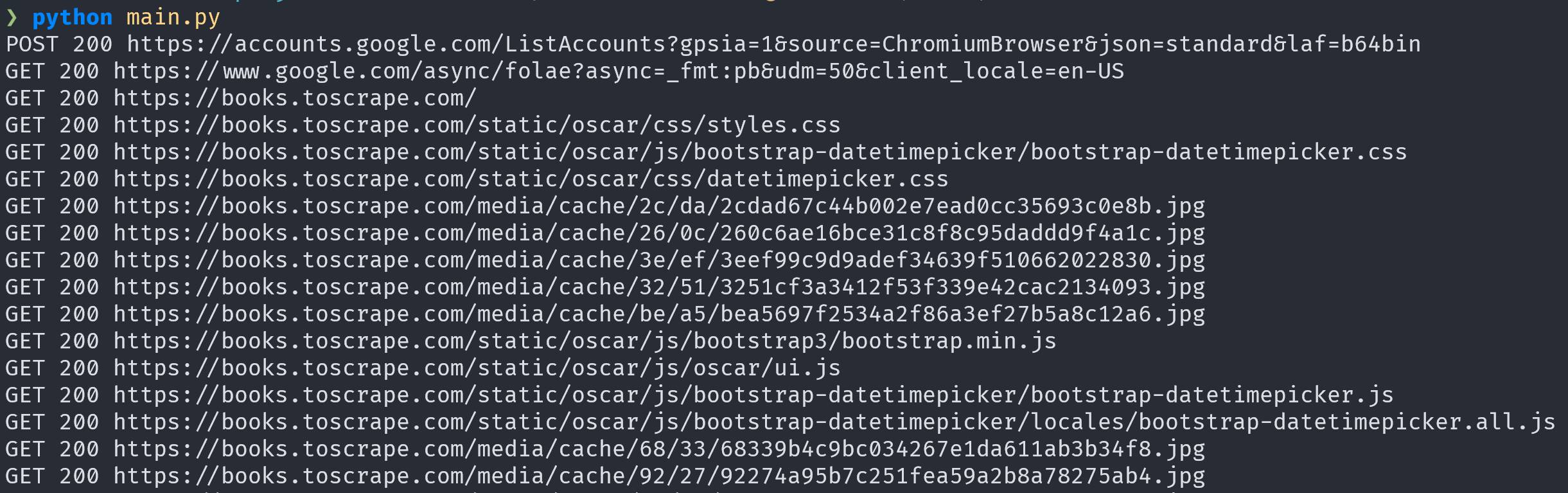
Here is the basic capture loop:
from seleniumwire import webdriver

options = webdriver.ChromeOptions()
options.add_argument("--headless=new")

driver = webdriver.Chrome(options=options)

try:
    driver.get("https://books.toscrape.com/")

    for request in driver.requests:
        if request.response:
            print(
                request.method,
                request.response.status_code,
                request.url,
            )
finally:
    driver.quit()
The output includes the main HTML page, stylesheets, images, fonts, and other browser traffic. That list can get noisy fast. Nothing is broken, browsers simply make more requests than you usually notice.
Each captured request gives you the useful bits directly:
print(request.url)
print(request.method)
print(request.headers)

print(request.response.status_code)
print(request.response.headers)
print(request.response.body)
request.response can be None when the server never returned a response, so check it before reading the status or body.
Reading a JSON XHR Response
For asynchronous calls, wait_for_request() is easier than repeatedly scanning the whole list. This example asks a public product API for three items:
import json

from seleniumwire import webdriver
from seleniumwire.utils import decode

options = webdriver.ChromeOptions()
options.add_argument("--headless=new")

driver = webdriver.Chrome(options=options)

try:
    driver.get("https://dummyjson.com/")

    # Ignore requests made while opening the page.
    del driver.requests

    # Pretend the page triggered an API call.
    driver.execute_script("fetch('/products?limit=3')")

    request = driver.wait_for_request(
        r"/products\?limit=3",
        timeout=10,
    )

    response = request.response
    body = decode(
        response.body,
        response.headers.get("Content-Encoding", "identity"),
    )
    data = json.loads(body.decode("utf-8"))

    print("Captured request:", request.url)
    print("Method:", request.method)
    print("Status:", response.status_code)
    print("Content type:", response.headers.get("Content-Type"))
    print("Products returned:", len(data["products"]))
    print("Products available:", data["total"])

finally:
    driver.quit()
Key things to note:
- The script runs Chrome in headless mode, so no browser window appears.
- It then opens the demo site and clears the requests captured during the initial page load.
- Next,
execute_script()triggers afetch()request from inside the browser.wait_for_request()waits until Selenium Wire captures that specific API call. - The response body arrives as raw bytes and may be compressed.
decode()handles the content encoding,decode("utf-8")converts the bytes to text, andjson.loads()turns the JSON into a Python dictionary. - The printed output confirms that Selenium Wire captured the request and gives you access to its URL, HTTP method, status code, headers, and response data.
Here's the sample output (the total count and product details may change when the demo dataset is updated):
Captured request: https://dummyjson.com/products?limit=3
Method: GET
Status: 200
Content type: application/json; charset=utf-8
Products returned: 3
Products available: 194
This works the same in a visible browser and a headless browser.
Modifying Requests with an Interceptor
A request interceptor lets you edit a browser request before Selenium Wire sends it to the website. Assign a function to driver.request_interceptor before opening the page. You can use it to add headers, replace existing headers, change query parameters, or block requests you do not need.
This example adds a custom header and updates the browser's User-Agent. Instead of relying on a public header-echo service, it reads the modified request directly from driver.requests.
from seleniumwire import webdriver

def modify_request(request):
    if request.host != "example.com":
        return

    request.headers["X-Demo-Header"] = "selenium-wire"

    current_user_agent = request.headers.get(
        "User-Agent",
        "Mozilla/5.0",
    )

    if "User-Agent" in request.headers:
        del request.headers["User-Agent"]

    request.headers["User-Agent"] = (
        f"{current_user_agent} SeleniumWireGuide/2026"
    )

options = webdriver.ChromeOptions()
options.add_argument("--headless=new")

driver = webdriver.Chrome(options=options)
driver.request_interceptor = modify_request

try:
    driver.get("https://example.com/")

    request = next(
        request
        for request in driver.requests
        if (
            request.host == "example.com"
            and request.path == "/"
            and request.response
        )
    )

    print("Status:", request.response.status_code)
    print(
        "X-Demo-Header:",
        request.headers.get("X-Demo-Header"),
    )
    print(
        "User-Agent:",
        request.headers.get("User-Agent"),
    )

finally:
    driver.quit()
The output should contain a 200 status, the custom X-Demo-Header, and a User-Agent ending in SeleniumWireGuide/2026.
Status: 200
X-Demo-Header: selenium-wire
User-Agent: Mozilla/5.0 (Windows NT 10.0; Win64; x64) AppleWebKit/537.36 (KHTML, like Gecko) HeadlessChrome/149.0.0.0 Safari/537.36 SeleniumWireGuide/2026
Selenium Wire allows duplicate header names. When replacing an existing header such as User-Agent, delete the old value first. Otherwise, the request may contain two versions of the same header. The interceptor must also be assigned before driver.get(). Requests that already left the browser cannot be changed afterward.
For simpler jobs, you can skip the User-Agent part and add only your custom header. Changing the User-Agent is useful for testing, but it is not a reliable fix for sites that block automated browsers.
Inspecting and Filtering Traffic (Scopes)
Selenium Wire captures a lot of browser traffic by default. A single page can generate requests for images, fonts, analytics, stylesheets, and API calls. URL scopes let you keep only the requests you actually care about.
The original Selenium Wire called this feature driver.scopes. The maintained selenium-wire-lw fork uses driver.include_urls and driver.exclude_urls instead. Both accept regular expressions and must be configured before the request happens.
This Selenium Wire example captures only product API calls:
import json

from seleniumwire import webdriver
from seleniumwire.utils import decode

options = webdriver.ChromeOptions()
options.add_argument("--headless=new")

driver = webdriver.Chrome(options=options)

try:
    # Capture product API calls only.
    driver.include_urls = [
        r"https://dummyjson\.com/products.*"
    ]

    driver.get("https://dummyjson.com/")
    del driver.requests

    # The browser sends two requests, but only one matches our filter.
    driver.execute_async_script("""
        const done = arguments[0];

        Promise.all([
            fetch("/products?limit=3"),
            fetch("/users?limit=3")
        ])
        .then(() => done())
        .catch(error => done(error.toString()));
    """)

    captured = [
        request
        for request in driver.requests
        if request.response
    ]

    print(f"Captured requests: {len(captured)}")

    for request in captured:
        response = request.response
        body = decode(
            response.body,
            response.headers.get("Content-Encoding", "identity"),
        )
        data = json.loads(body.decode("utf-8"))

        print(f"\n{request.method} {request.url}")
        print(f"Status: {response.status_code}")
        print(f"Content type: {response.headers.get('Content-Type')}")
        print("Products:")

        for product in data["products"]:
            print(f"- {product['title']} (${product['price']})")

    users_captured = any(
        "/users?" in request.url
        for request in captured
    )

    print(f"\nUser API captured: {users_captured}")

finally:
    driver.quit()
The browser sends requests to both /products and /users. However, driver.include_urls tells Selenium Wire to store only URLs that match the product pattern.
The output should show one captured request, three product records, and User API captured: False. This confirms that the filter removes unrelated traffic instead of merely filtering the printed output afterward.
Captured requests: 1

GET https://dummyjson.com/products?limit=3
Status: 200
Content type: application/json; charset=utf-8
Products:
- Essence Mascara Lash Princess ($9.99)
- Eyeshadow Palette with Mirror ($19.99)
- Powder Canister ($14.99)

User API captured: False
You can also capture everything and filter the results afterward:
for request in driver.requests:
    if request.response is None:
        continue

    content_type = request.response.headers.get("Content-Type", "")

    if "application/json" in content_type:
        print(request.method, request.url)
Always check request.response first. It can be None when a request is still in progress, failed, or never received a response.
Captured traffic accumulates during long browser sessions. Use URL filters to reduce the noise, and run del driver.requests between separate actions when you no longer need the older requests.
Using Proxies with Selenium Wire (Including Authenticated Proxies)
A Selenium Wire proxy setup sends browser traffic through an upstream proxy while keeping authentication inside your Python code. With the maintained selenium-wire-lw fork, you configure it through SeleniumWireOptions and ProxyConfig when creating the browser.
This is where Selenium Wire is handier than plain Selenium. It sits between the browser and the website, so it can attach the proxy username and password before the request leaves. That means no awkward browser authentication popup and no extra extension just to enter credentials.
Here is a basic authenticated proxy setup:
from selenium.webdriver.common.by import By
from seleniumwire import ProxyConfig, SeleniumWireOptions, webdriver

proxy_url = "http://username:password@proxy.example.com:8000"

options = webdriver.ChromeOptions()
options.add_argument("--headless=new")

wire_options = SeleniumWireOptions(
    upstream_proxy=ProxyConfig(
        http=proxy_url,
        https=proxy_url,
    ),
    exclude_hosts=["localhost", "127.0.0.1"],
)

driver = webdriver.Chrome(
    options=options,
    seleniumwire_options=wire_options,
)

try:
    driver.get("https://api.ipify.org?format=json")

    body = driver.find_element(By.TAG_NAME, "body").text

    print("Response through proxy:")
    print(body)

finally:
    driver.quit()
Replace the hostname, port, username, and password with the credentials from your proxy provider.
The same proxy_url is passed to both http and https. This does not mean HTTPS traffic becomes unencrypted. It means Selenium Wire connects to the same upstream proxy for both HTTP and HTTPS browser requests.
The maintained fork currently expects one upstream proxy endpoint per browser session. If the http and https values point to different servers or ports, it raises this error:
ValueError: Different settings for http and https proxy servers not supported
Using one proxy_url variable makes that requirement harder to miss.
The exclude_hosts option tells Selenium Wire not to route local traffic through the proxy. This is useful when your script talks to services running on localhost or 127.0.0.1.
The test page returns the public Internet Protocol (IP) address it sees:
{"ip":"203.0.113.10"}
Run the script once without the proxy and once with it. If the returned IP changes, the browser traffic is going through the proxy.
For setups that rotate proxy sessions or change locations, see how to set up a rotating proxy with Python Selenium.
Using ScrapingBee Proxy Mode
ScrapingBee also provides a proxy-compatible front end to its scraping-as-a-service API. This lets you keep the Selenium Wire browser setup while ScrapingBee handles the outbound request and the API parameters you enable.
In ScrapingBee Proxy Mode, the credentials work differently:
- The username is your ScrapingBee API key.
- The password contains API parameters.
- The proxy endpoint is
proxy.scrapingbee.com:8886.
Here is the same IP test through ScrapingBee:
import os

from selenium.webdriver.common.by import By
from seleniumwire import ProxyConfig, SeleniumWireOptions, webdriver

api_key = os.environ["SCRAPINGBEE_API_KEY"]
parameters = "render_js=False"

proxy_url = (
    f"http://{api_key}:{parameters}"
    "@proxy.scrapingbee.com:8886"
)

wire_options = SeleniumWireOptions(
    upstream_proxy=ProxyConfig(
        http=proxy_url,
        https=proxy_url,
    ),
    verify_ssl=False,
    exclude_hosts=["localhost", "127.0.0.1"],
)

options = webdriver.ChromeOptions()
options.add_argument("--headless=new")

driver = webdriver.Chrome(
    options=options,
    seleniumwire_options=wire_options,
)

try:
    driver.get("https://api.ipify.org?format=json")

    body = driver.find_element(By.TAG_NAME, "body").text

    print("Response through ScrapingBee:")
    print(body)

finally:
    driver.quit()
Each browser request sent through Proxy Mode becomes a ScrapingBee API request, including images, fonts, and scripts. Block resources you do not need to avoid wasting credits.
Store the API key in an environment variable instead of pasting it directly into the script.
On macOS or Linux:
export SCRAPINGBEE_API_KEY="YOUR-API-KEY"
python main.py
On Windows PowerShell:
$env:SCRAPINGBEE_API_KEY="YOUR-API-KEY"
python main.py
We use render_js=False because Selenium already runs JavaScript inside Chrome. Asking ScrapingBee to render the page too would usually repeat work that the browser is already doing.
You can add more API parameters to the proxy password by joining them with &:
parameters = "render_js=False&premium_proxy=True"
Proxy Mode changes how the request reaches ScrapingBee. The rest of your Selenium Wire code can stay the same.
Fixing the “Your Connection Is Not Secure” SSL Error
Selenium Wire may show a “Not Secure” warning because it intercepts HTTPS traffic through a local man-in-the-middle proxy. It decrypts each response, inspects it, and creates a replacement certificate signed by its own certificate authority (CA). Your browser does not trust that CA by default.
This is expected behavior, not a broken HTTPS connection. Your script may still work normally, especially in headless mode. You only need to fix it if the browser shows a warning page or refuses to load the site.
For selenium-wire-lw, trust only the CA generated in your own .seleniumwire directory. The original package ships a shared ca.crt, which is another reason to prefer the maintained fork. You can make that location predictable:
from seleniumwire import SeleniumWireOptions, webdriver

wire_options = SeleniumWireOptions(
    storage_base_dir="./seleniumwire-data"
)

driver = webdriver.Chrome(
    seleniumwire_options=wire_options,
)

driver.get("https://example.com")
driver.quit()
Run the browser once, then open:
seleniumwire-data/.seleniumwire/
Import mitmproxy-ca-cert.p12 on Windows. On macOS, Linux, or browsers with their own certificate store, import mitmproxy-ca-cert.pem. On Windows, import it into Trusted Root Certification Authorities. In browsers with their own certificate store, import it under Authorities, then restart the browser.
After importing the certificate, restart the browser and run the script again. Only trust a CA generated by your own Selenium Wire installation. Anyone with the matching private key could intercept traffic trusted by that certificate.
If you are still using the archived package, migrate to selenium-wire-lw or configure your own ca_cert and ca_key instead of trusting a shared certificate.
Common Selenium Wire Errors and Fixes
Most Selenium Wire problems fall into two groups: dependency drift in the archived package, or normal capture, filtering, and certificate configuration issues.
| Symptom | Cause | Fix |
|---|---|---|
ModuleNotFoundError: No module named 'blinker._saferef' | The original package allows pip to install a newer, incompatible Blinker version. | Install selenium-wire-lw, or pin Blinker if you must keep the original package. |
| “Your connection is not secure” | The browser does not trust the certificate authority Selenium Wire uses to inspect HTTPS traffic. | Import Selenium Wire’s CA certificate into the browser’s Authorities or the operating system’s trusted roots. |
driver.requests is empty | The request has not finished, or your URL filters exclude it. | Use wait_for_request(), check the pattern, and widen include_urls or the original scopes. |
| Import errors with Selenium 4.x | The archived package relies on Selenium behavior that has changed since its last release. | Replace the original package with the maintained selenium-wire-lw fork. |
| Installation breaks on Python 3.12+ | Old dependencies or removed Python APIs no longer match the archived package. | Use selenium-wire-lw in a fresh virtual environment. |
When debugging, start with a fresh virtual environment. It is much easier than untangling old Selenium, Blinker, and proxy dependencies inside an existing project.
Selenium Wire Alternatives: What to Use Now
If you need request capture today, your best options are: the maintained fork selenium-wire-lw if you want to keep the Selenium Wire API; SeleniumBase CDP Mode for native, maintained interception inside a popular framework; Playwright, which has first-class network interception built in; or a managed scraping API if your real problem is sites blocking you rather than reading traffic.
Choose selenium-wire-lw for the easiest migration
The maintained fork is the closest Selenium Wire alternative. It keeps the familiar seleniumwire imports and request objects, so existing scripts need fewer changes.
Pick it when your current code already works and you mainly want newer Python, Selenium, and dependency support. Just watch for API changes such as SeleniumWireOptions, ProxyConfig, and include_urls.
Choose SeleniumBase CDP Mode to stay near Selenium
SeleniumBase CDP Mode uses the Chrome DevTools Protocol (CDP) to control Chromium and work with browser events without placing a man-in-the-middle proxy between the browser and the site.
Install it with:
pip install seleniumbase
SeleniumBase previously offered Wire Mode, which depended on Selenium Wire, but that integration was removed. CDP Mode is now the maintained path for capturing and intercepting network traffic.
Choose Playwright for built-in network controls
Playwright network interception can monitor, block, modify, and mock HTTP and HTTPS requests. It handles XMLHttpRequest (XHR) and fetch() calls directly and supports both synchronous and asynchronous Python APIs.
Playwright is a strong choice for a new browser automation project where network interception is a core feature. The tradeoff is migration work because its browser and element APIs differ from Selenium. See Playwright vs Selenium before switching an existing test suite.
Choose mitmproxy for proxy-level control
Use mitmproxy when you care more about raw traffic than browser automation. It can inspect and modify requests from browsers, scripts, mobile apps, and other clients, but you must manage the browser separately.
Choose ScrapingBee when blocking is the real problem
Request interception does not solve IP blocks, rate limits, or anti-bot challenges by itself. When getting a response is harder than reading it, a managed scraping API such as ScrapingBee may be the better tool.
Choose by your blocker: maintenance problems go to selenium-wire-lw, browser-network features go to Playwright or SeleniumBase, and repeated blocking points to a managed scraping API. Tools such as undetected-chromedriver are another option, but they do not replace network interception.
Conclusion
Selenium Wire is still useful when you need to inspect browser traffic, capture XHR responses, modify requests, or add authenticated proxies to Selenium.
The catch is simple: the original project is archived and should not be your default choice in 2026. Use selenium-wire-lw if you want the same general workflow with fewer migration headaches.
For new projects, Playwright or SeleniumBase CDP Mode may be a better long-term fit. And if your real problem is blocking rather than traffic inspection, use ScrapingBee Proxy Mode or another managed scraping setup instead of piling more patches onto Selenium.
Getting blocked is the real bottleneck?
Selenium Wire is still useful for reading and shaping the traffic behind your Selenium scripts, just run it from the maintained fork. But if your real problem is getting blocked, handling proxies, rendering, and anti-bot systems yourself gets old fast.
ScrapingBee does that part for you, and it plugs straight into Selenium Wire through Proxy Mode. You keep your browser automation code, while ScrapingBee handles the harder network side.
Start with 1,000 free credits, no credit card required.
Frequently Asked Questions
Is Selenium Wire deprecated?
The original Selenium Wire project is no longer maintained. Its repository was archived in January 2024, and its last release was version 5.1.0 in October 2022. For current projects, use the maintained selenium-wire-lw fork or move to a native alternative.
What is the difference between Selenium and Selenium Wire?
Selenium controls the browser. It opens pages, clicks elements, fills forms, and runs JavaScript. Selenium Wire adds access to the HTTP and HTTPS traffic behind those browser actions, including requests, responses, headers, bodies, and proxies.
What is the best alternative to Selenium Wire?
The best option depends on what you need. Use selenium-wire-lw for the easiest migration, Playwright for built-in network interception, SeleniumBase CDP Mode to stay closer to Selenium, or mitmproxy for proxy-level traffic control.
Why won’t Selenium Wire install?
Fresh installs often fail because the original package depends on older versions of libraries such as Blinker. The common blinker._saferef error comes from dependency drift. Installing selenium-wire-lw in a fresh virtual environment is usually the quickest fix.
How do I fix “Your connection is not secure” in Selenium Wire?
The warning appears because Selenium Wire decrypts HTTPS traffic with its own certificate authority. Import its generated CA certificate into the browser’s Authorities or your operating system’s trusted root store. Only trust a certificate generated by your own installation.
How do I use an authenticated proxy with Selenium Wire?
With selenium-wire-lw, create a ProxyConfig containing a proxy URL such as http://user:password@host:port. Pass it through SeleniumWireOptions when creating the driver. Use the same upstream endpoint for both HTTP and HTTPS traffic.

Ilya is an IT tutor and author, web developer, and ex-Microsoft/Cisco specialist. His primary programming languages are Ruby, JavaScript, Python, and Elixir. He enjoys coding, teaching people and learning new things. In his free time he writes educational posts, participates in OpenSource projects, tweets, goes in for sports and plays music.