Microsoft does not provide an official Playwright Ruby client. Instead, Ruby developers opt for the community-maintained playwright-ruby-client gem, which exposes the same Node.js Playwright engine through a Ruby API.
This tutorial shows how to use Playwright in Ruby, covering installation, scraping JavaScript-heavy pages, defining Rails system tests, how to reduce blocking, and when a web scraping API is a more viable option.
Key takeaways
- Playwright has no official Ruby bindings. Use the community playwright-ruby-client gem, which controls the Node.js Playwright engine. Note that Node.js is also required.
- Keep the gem and Node.js Playwright versions in sync. Pin the compatible driver version to avoid runtime failures and broken CI builds after Playwright updates.
- Playwright’s locators and auto-waiting reduce flaky automation. One Rails developer reported cutting his system test failure rate from around 30% under Selenium to under 5% after switching to Playwright.
- Use playwright-ruby-client for browser automation and scraping. Choose capybara-playwright-driver when replacing Selenium in existing Rails system tests.
- Playwright Ruby handles browser automation, not scraping infrastructure. For large-scale scraping, consider a managed web scraping API instead of maintaining browser fleets, rotating proxies, and anti-bot evasion yourself.
Is Playwright available in Ruby?
No, Playwright does not have an official Ruby client. Microsoft maintains Playwright libraries for Node.js, Python, Java, and .NET, but Ruby is not supported. Also, Microsoft has not announced plans to release a native Ruby library.
Instead, Ruby developers rely on playwright-ruby-client as the Playwright Ruby library. This community gem wraps the Node.js Playwright engine and exposes a Ruby API for browser automation. Learn more in the official docs.
playwright-ruby-client is actively maintained by Yusuke Iwaki and tracks Playwright releases closely. As of July 2026, playwright-ruby-client 1.61.0 pins Playwright 1.61.1, while the Node package is already on 1.62 — the gem typically trails by one minor release.
For local automation, Rails system tests, and moderate scraping, the gem is reliable and battle-tested. Still, weigh the single-maintainer risk against your project’s criticality before adopting it.
Set up playwright-ruby-client
Unlike the JavaScript version, playwright-ruby-client does not include the Playwright driver. Instead, the Ruby gem controls the Node.js Playwright driver. You must now be wondering, “So, do I need Node for Playwright Ruby?” The short answer is “Yes!”
Note: As of July 2026, based on my tests, I found that the manual Playwright driver installation method described in the official documentation to avoid a local Node.js setup no longer works.
Assume you already have Ruby 2.4+ and the latest Node.js LTS release installed locally. Start by adding the playwright-ruby-client gem to your Gemfile:
gem "playwright-ruby-client"
Install the Playwright Ruby dependency with:
bundle install
Next, install the Playwright Node.js package via npm:
npm install playwright
Execute the playwright install script to download the browser binaries required by Playwright:
./node_modules/.bin/playwright install
Finally, tell the Ruby client where to find the Playwright CLI by populating the playwright_cli_executable_path argument:
require "playwright"

Playwright.create(
  playwright_cli_executable_path: "./node_modules/.bin/playwright"
) do |playwright|
  browser = playwright.chromium.launch
  page = browser.new_page

  page.goto("https://example.com")
  puts page.title

  browser.close
end
The above script launches a Chromium instance, navigates to https://example.com, extracts the page title, and prints it to the terminal. If the installation is correct, the output will be:
Example Domain
This matches the title of the target page, confirming that the Playwright Ruby client setup is correct.
Alternative: Connect to a Playwright server
If your application runs in an environment where browsers cannot be installed locally, run a Playwright server on a separate machine or container and connect to it remotely.
Start by installing Playwright and launching the server:
npx playwright install
npx playwright run-server --port 8080 --path /ws
Next, add the required websocket-driver gem to your Gemfile:
gem "websocket-driver"
Install the dependencies:
bundle install
Finally, connect to the Playwright server via WebSocket from your Ruby script:
require "playwright"

Playwright.connect_to_browser_server("ws://localhost:8080/ws") do |browser|
  page = browser.new_page
  page.goto("https://example.com")
  puts page.title
  browser.close
end
When you use Playwright.connect_to_browser_server, you do not need to set playwright_cli_executable_path. The Playwright Ruby client will communicate with the remote Playwright server over WebSocket, instead of relying on your local environment.
Troubleshooting: Pin the compatible Playwright version
One of the most common setup issues with playwright-ruby-client is a version mismatch with the Node Playwright package. That occurs because the gem is designed to work with a specific Playwright release.
To avoid that, install the Node.js Playwright version exposed by the Playwright::COMPATIBLE_PLAYWRIGHT_VERSION constant:
VERSION=$(ruby -e 'require "playwright"; puts Playwright::COMPATIBLE_PLAYWRIGHT_VERSION')
npm install "playwright@$VERSION"
./node_modules/.bin/playwright install
Pinning the driver version is especially important in CI, where it prevents builds from breaking after a new Playwright release.
How to scrape a page with Playwright in Ruby (step by step)
Playwright lets you scrape modern websites from Ruby by controlling a real browser, loading JavaScript-rendered content, and extracting data through browser locators. Here, you will learn how to use Playwright in Ruby through the playwright-ruby-client gem.
The following sections will use a public Zara product listing page as the target page to extract product data, simulate scrolling, and more. Always check a website’s terms of service and scrape public data responsibly.
Launch a browser and open a page
A Playwright script starts by creating a Playwright instance and then:
- launching a browser, which is the Chromium process controlled by Playwright;
- creating a browser context, which is the isolated session with its own cookies, storage, and settings;
- opening a page, which is the browser tab where you navigate and interact with the website.
Achieve all those steps with the Playwright Ruby example below:
require "playwright"

Playwright.create(
  playwright_cli_executable_path: "./node_modules/.bin/playwright"
) do |playwright|
  # Launch a Chromium browser instance in headful mode and open a new page
  browser = playwright.chromium.launch(headless: false)
  context = browser.new_context
  page = context.new_page

  # Visit the target page and wait for the DOM content to be loaded
  page.goto(
    "https://www.zara.com/us/en/man-all-products-l7465.html",
    waitUntil: "domcontentloaded"
  )

  # Print the page title
  puts page.title # Output: "Men's Clothes | ZARA United States"

  # Close the browser and release its resources
  browser.close
end
playwright_cli_executable_path points the Ruby client to the Node.js Playwright driver installed earlier. Without this driver, playwright-ruby-client cannot launch browsers.
By default, playwright.chromium.launch() starts a Ruby headless browser instance. That is the preferred option for servers and automated workflows because it reduces resource usage. In this case, the browser was started in headful mode because the Zara website is known to use advanced anti-bot protections that automatically block headless browser sessions.
Also, notice that page.goto() accepts the waitUntil option. This controls when Playwright considers the navigation complete. Setting it to domcontentloaded makes Playwright wait for the DOMContentLoaded event, which fires once the initial HTML document has been fully parsed.
Find elements with locators and auto-waiting
Inspect the Zara product cards:
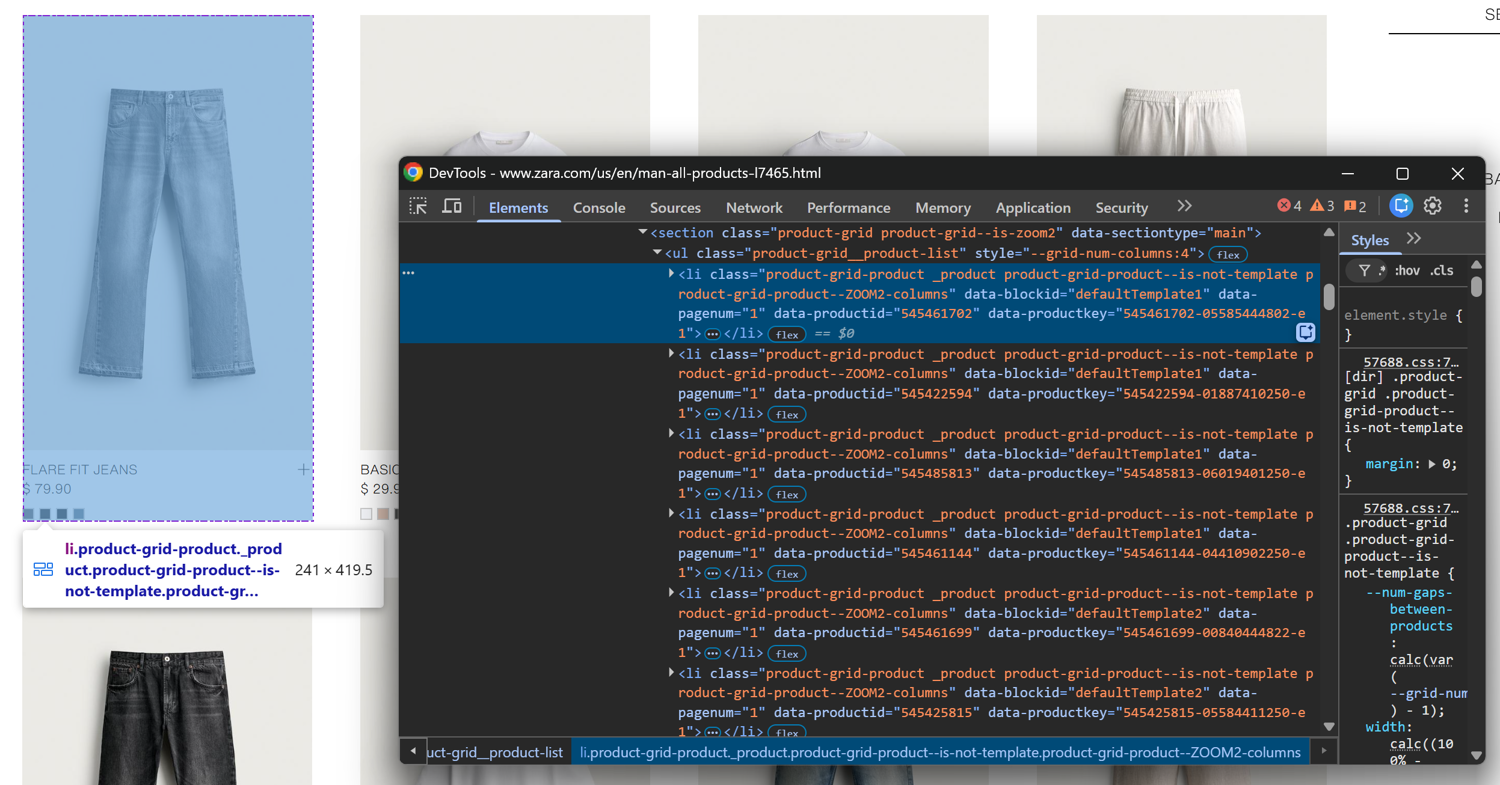
Notice that you can select them all via the li.product-grid-product CSS selector.
Get all product cards with this Playwright locator:
products = page.locator("li.product-grid-product")
A locator does not immediately fetch an element. Instead, Playwright keeps track of the selector and resolves it when needed, which makes it more reliable on pages where content loads asynchronously.
Alternatively, if you need to retrieve all matching elements immediately, call the query_selector_all() method:
product_handles = page.query_selector_all("li.product-grid-product")
This returns an array of ElementHandle objects, where each handle represents a DOM element inside the page.
Locators are usually preferred over ElementHandle objects because they are designed for dynamic web applications. For example, assume you want to click the first product card:
products.first.click
Since products.first returns a Locator, Playwright applies its built-in auto-waiting mechanism and performs actionability checks. Before performing the click, it verifies that the target element is in a usable state. The element must be visible, stable, able to receive pointer events, and enabled.
These automatic checks prevent common issues that lead to flaky behavior and runtime errors. Compared to Selenium, Playwright Ruby needs far fewer explicit synchronization checks.
Scroll and load dynamic content
Most JavaScript-rendered pages load new data after the initial page load. Playwright can execute JavaScript directly in the browser, wait for new elements to appear, and simulate the interactions required to reveal more content.
The Playwright Ruby client provides the same core Playwright API, including methods for simulating user actions such as clicks, keyboard input, and mouse movements. For anything not covered by the API, you run custom JS in the page context with the page.evaluate() method.
For example, Zara uses infinite scrolling to load more products when you reach the bottom of a page. Trigger the same behavior in Playwright by scrolling with a JavaScript script:
page.evaluate(
  "window.scrollTo(0, document.body.scrollHeight)"
)
After this action, the page sends an AJAX request, retrieves additional products, and adds them to the DOM:
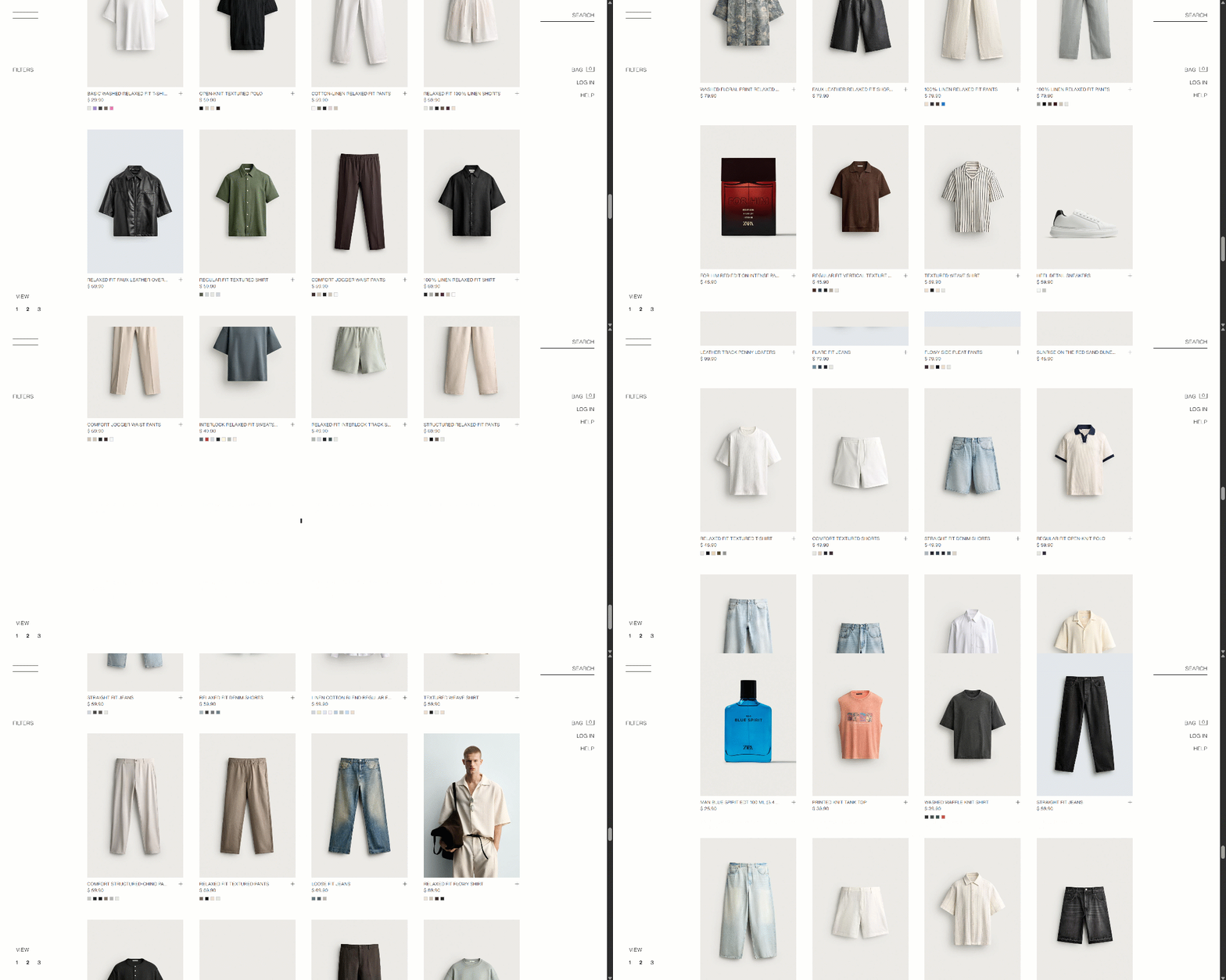
The new product cards will have the custom data-pagenum attribute set to the retrieved page (2, in this case):
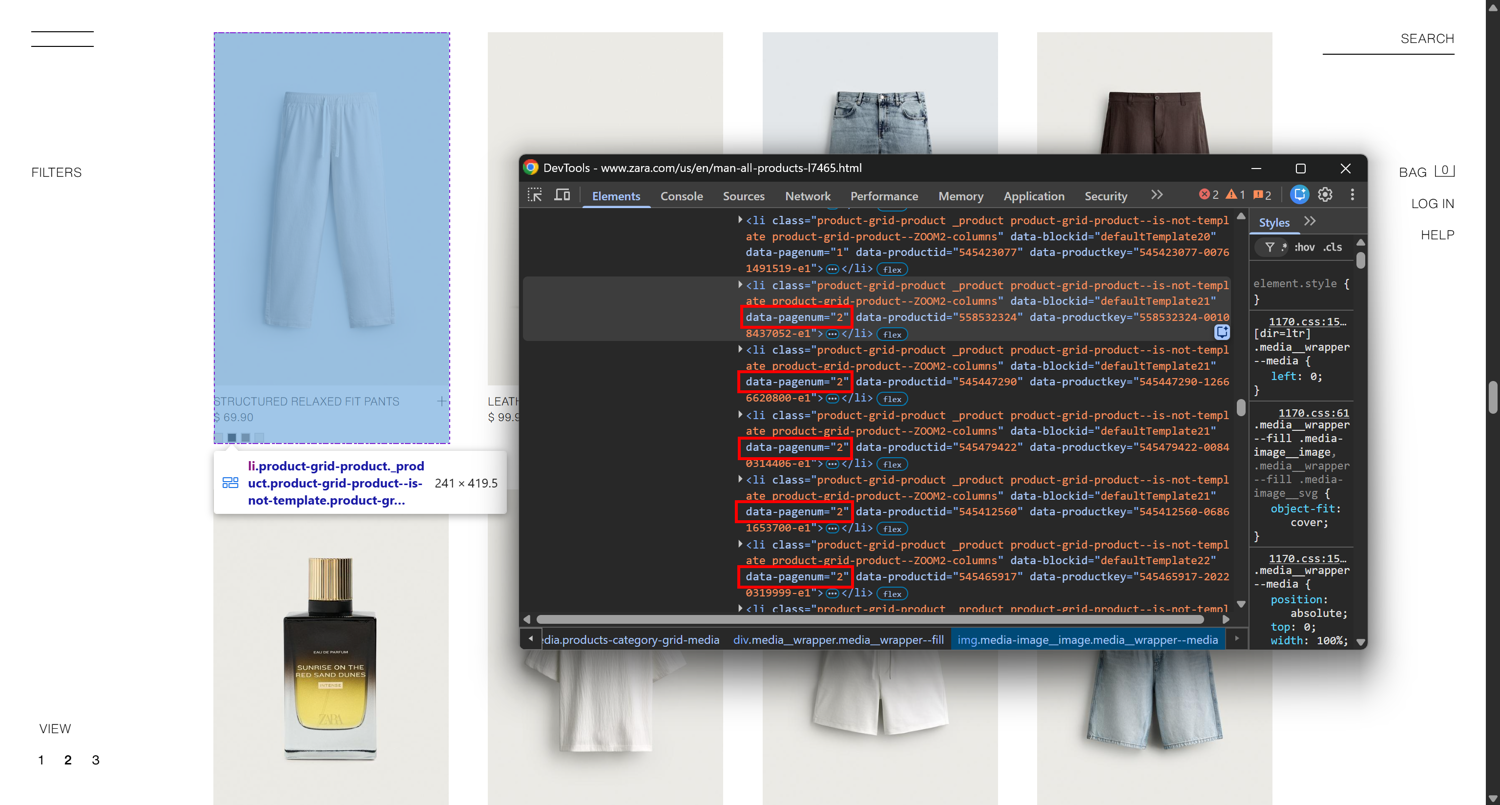
Instead of adding fixed delays, wait up to 5 seconds for the specific elements to be on the page with wait_for_selector():
page.wait_for_selector("li.product-grid-product[data-pagenum='2']", timeout: 5_000)
Playwright also provides page.wait_for_load_state("networkidle"), which waits until there are no active network connections for at least 500 milliseconds. Nevertheless, calling it is not a best practice. That is because modern websites tend to keep background requests open, causing networkidle to take longer than expected or never complete.
For dynamic pages, waiting for a specific selector is generally more reliable because it targets the exact content your scraper needs.
Combine the above logic in a loop to handle infinite scrolling on the Zara product listing page:
num_scrolls = 3

num_scrolls.times do |i|
  puts "Scroll iteration #{i + 1}"

  # Scroll to bottom
  page.evaluate("window.scrollTo(0, document.body.scrollHeight)")

  # Wait for new products to appear
  page.wait_for_selector("li.product-grid-product[data-pagenum=\"#{i + 2}\"]", timeout: 5_000)

  # Brief pause to avoid hammering the server
  sleep 1
end
This loop repeats the scroll-and-load process three times, allowing Playwright to collect products that appear only after user interaction.
Extract the data and save to CSV
Once the product cards are loaded, you can extract the individual fields with Playwright locators and store them in standard Ruby data structures.
Start by inspecting the HTML structure of a single product card:
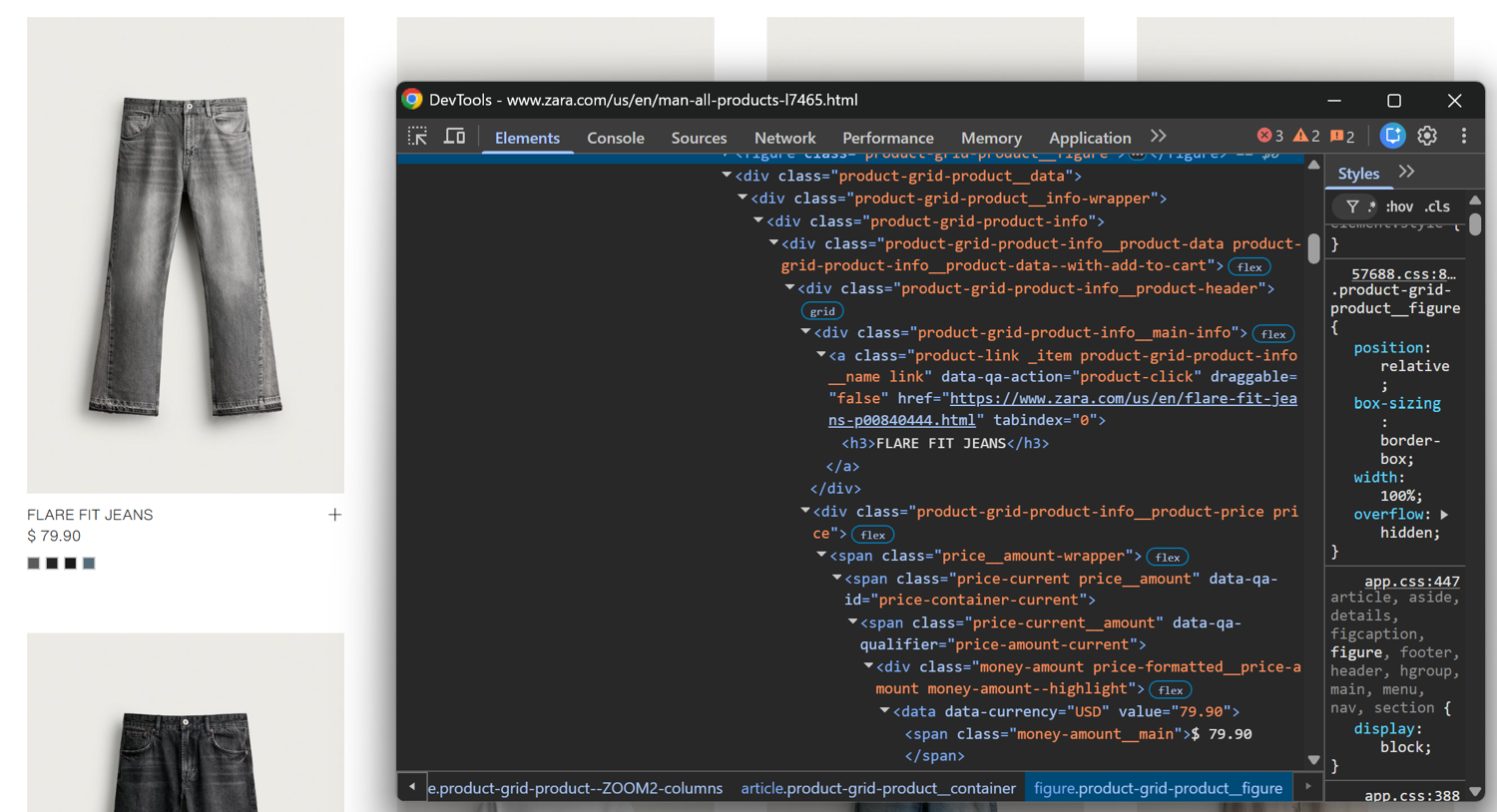
The information you can scrape from a product card is:
- Product URL from the href attribute of the a.product-link element.
- Product name from the
<h3>element. - Current price from the .price-current__amount node.
The following Ruby Playwright snippet extracts these fields from every product card:
products = []

items = page.locator("li.product-grid-product")

items.count.times do |index|
  item = items.nth(index)

  products << {
    url: item.locator("a.product-link").first.get_attribute("href"),
    name: item.locator("h3").first.text_content.strip,
    price: item.locator(".price-current__amount").first.text_content.strip
  }
end
The products array now contains one Ruby hash per product. You can inspect the extracted data before exporting it:
products.each do |product|
  pp product
end
The output will be:
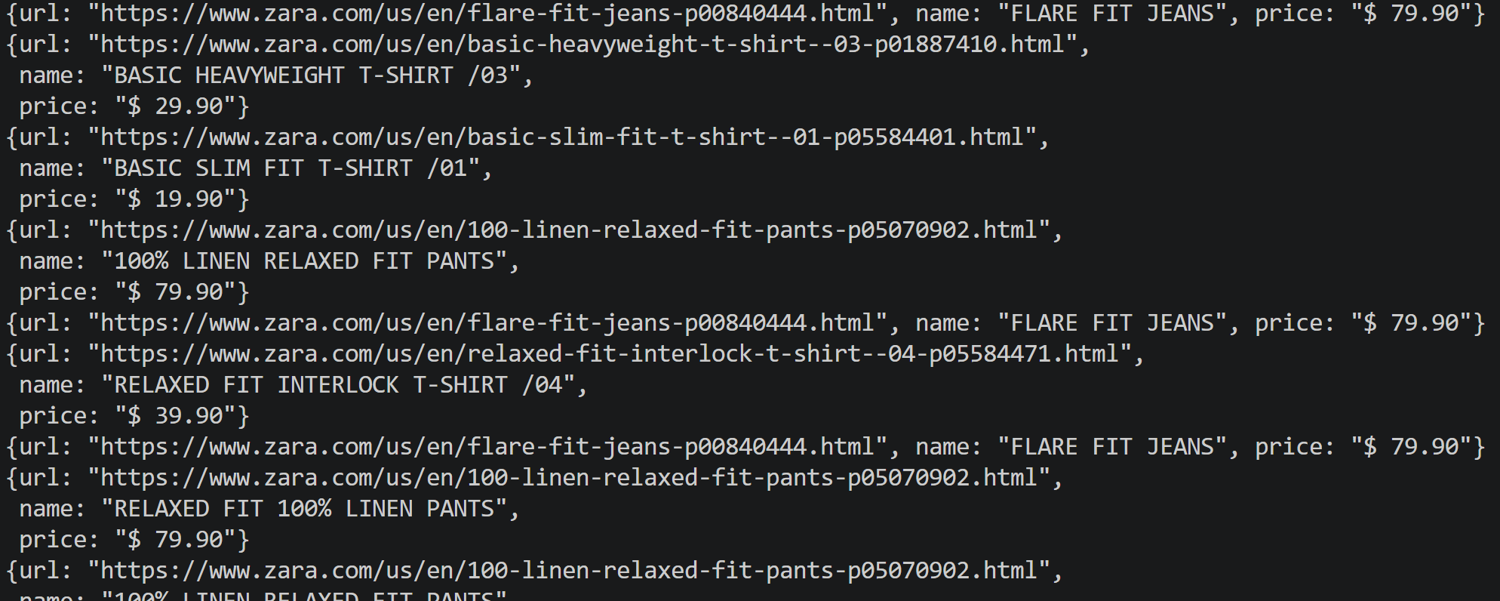
To export the scraped data to a CSV file, use Ruby’s built-in csv library:
require "csv"

# Playwright Ruby scraping logic ...

CSV.open("zara_products.csv", "w") do |csv|
  csv << ["URL", "Name", "Price"]

  products.each do |product|
    csv << [
      product[:url],
      product[:name],
      product[:price]
    ]
  end
end
The resulting zara_products.csv file contains 80 products in a structured format:
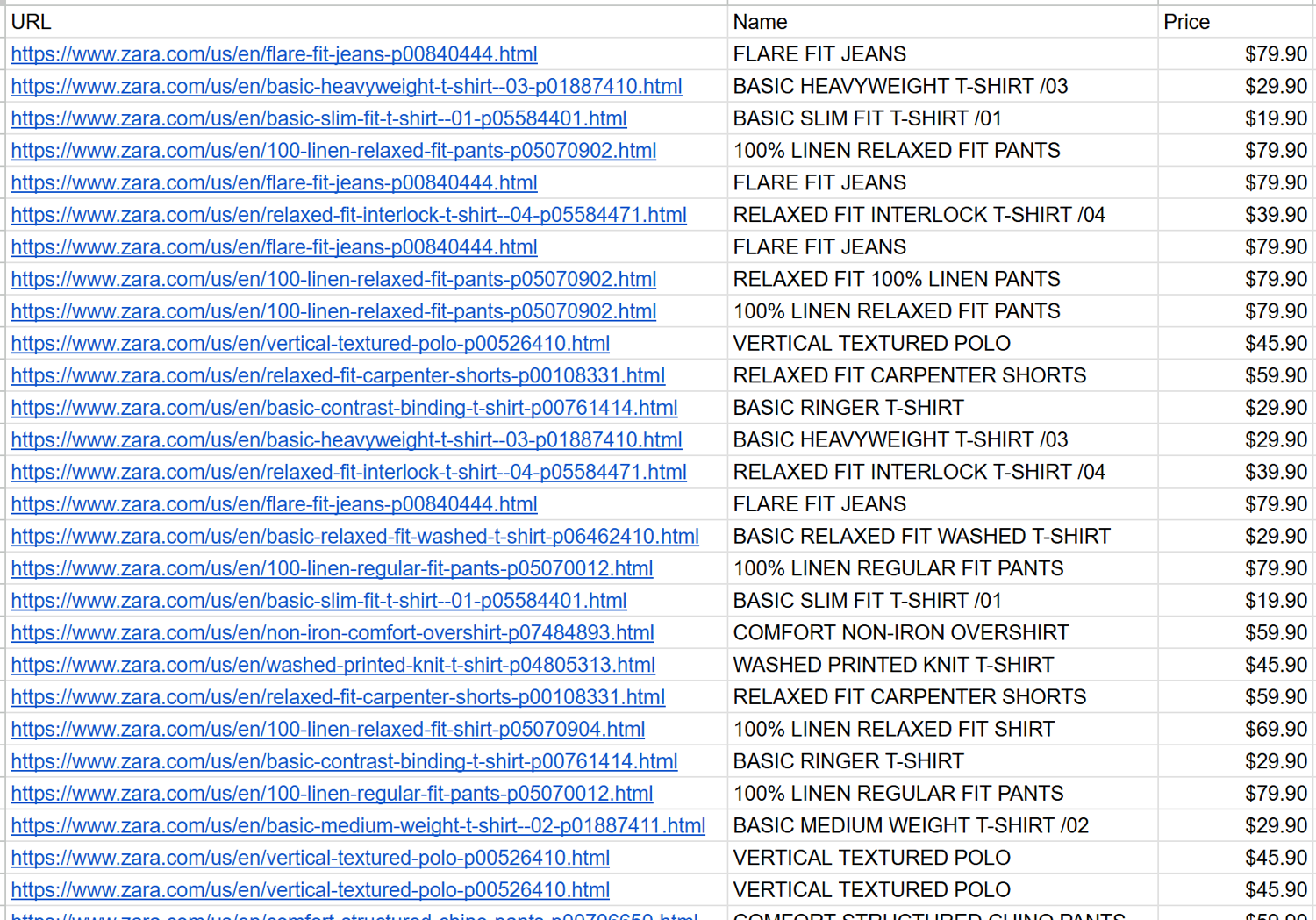
Note how the scraped data corresponds to the information shown on the Zara product page.
Put everything together, and you will get the following Playwright-powered web scraping Ruby scraper:
require "playwright"
require "csv"

Playwright.create(
  playwright_cli_executable_path: "./node_modules/.bin/playwright"
) do |playwright|
  # Launch Chromium
  browser = playwright.chromium.launch(headless: false)

  # Create a browser context and page
  context = browser.new_context
  page = context.new_page

  # Open the target page
  page.goto(
    "https://www.zara.com/us/en/man-all-products-l7465.html",
    waitUntil: "domcontentloaded"
  )

  # Extract product data
  products = []

  items = page.locator("li.product-grid-product")

  items.count.times do |index|
    item = items.nth(index)

    products << {
      url: item.locator("a.product-link").first.get_attribute("href"),
      name: item.locator("h3").first.text_content.strip,
      price: item.locator(".price-current__amount").first.text_content.strip
    }
  end

  # Export the data to CSV
  CSV.open("zara_products.csv", "w") do |csv|
    csv << ["URL", "Name", "Price"]

    products.each do |product|
      csv << [
        product[:url],
        product[:name],
        product[:price]
      ]
    end
  end

  puts "Saved #{products.count} products to zara_products.csv"

  browser.close
end
Note that the above script collects the first page of results only. Add the scroll loop logic presented in the previous section to scrape more products.
If you run the browser in headless mode, Zara is likely to block the session immediately. The approach shown here works well for small scraping jobs, but it is not suitable for large-scale scraping. If you need to scrape real-world sites and do not want to orchestrate browser fleets and manage proxies yourself, a managed web scraping API is often the recommended choice.
Learn more about how to perform data extraction in Ruby via ScrapingBee.
Take screenshots
Capture the current browser view in playwright-ruby-client with page.screenshot():
page.screenshot(
  path: "zara-page.png"
)
By default, screenshot() grabs only the visible viewport. The output will be a zara-page.png file showing:
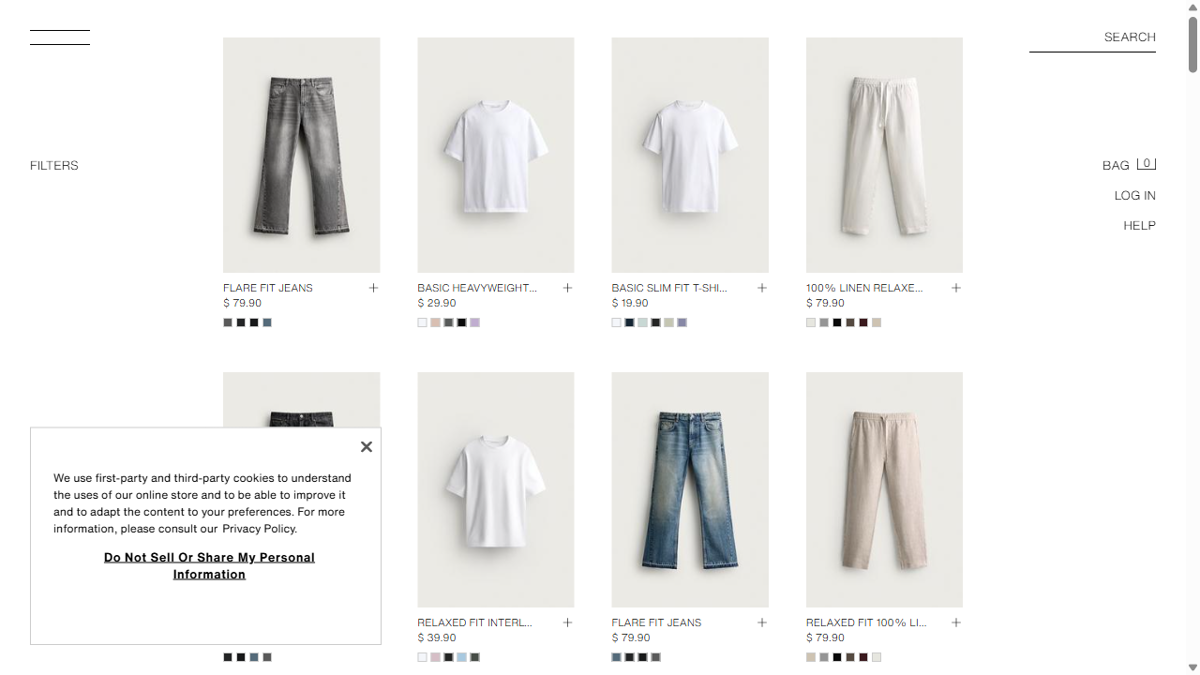
To get the entire page, including content outside the current viewport, set the fullPage option to true:
page.screenshot(
  path: "zara-page.png",
  fullPage: true
)
This time, you will see:
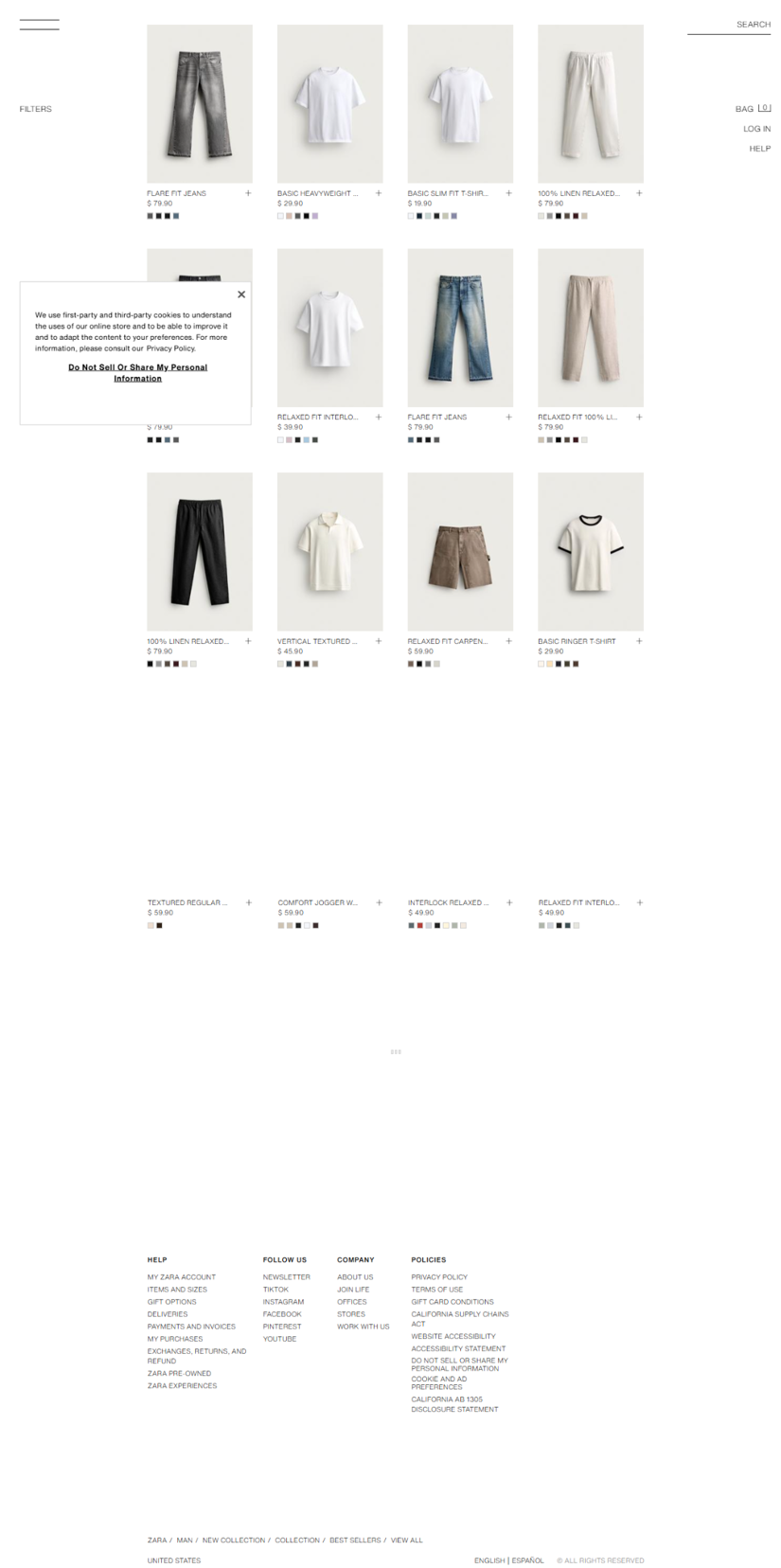
The Ruby Playwright screenshot feature is useful for visual regression testing, competitor monitoring, and debugging.
Reuse a session by storing and loading the browser state
Playwright browser contexts store cookies, local storage, and other session data. By saving this state, you can reuse an existing browser session across runs instead of repeating the same setup steps every time.
For instance, the Zara product page displays a text message signup banner when you first visit:
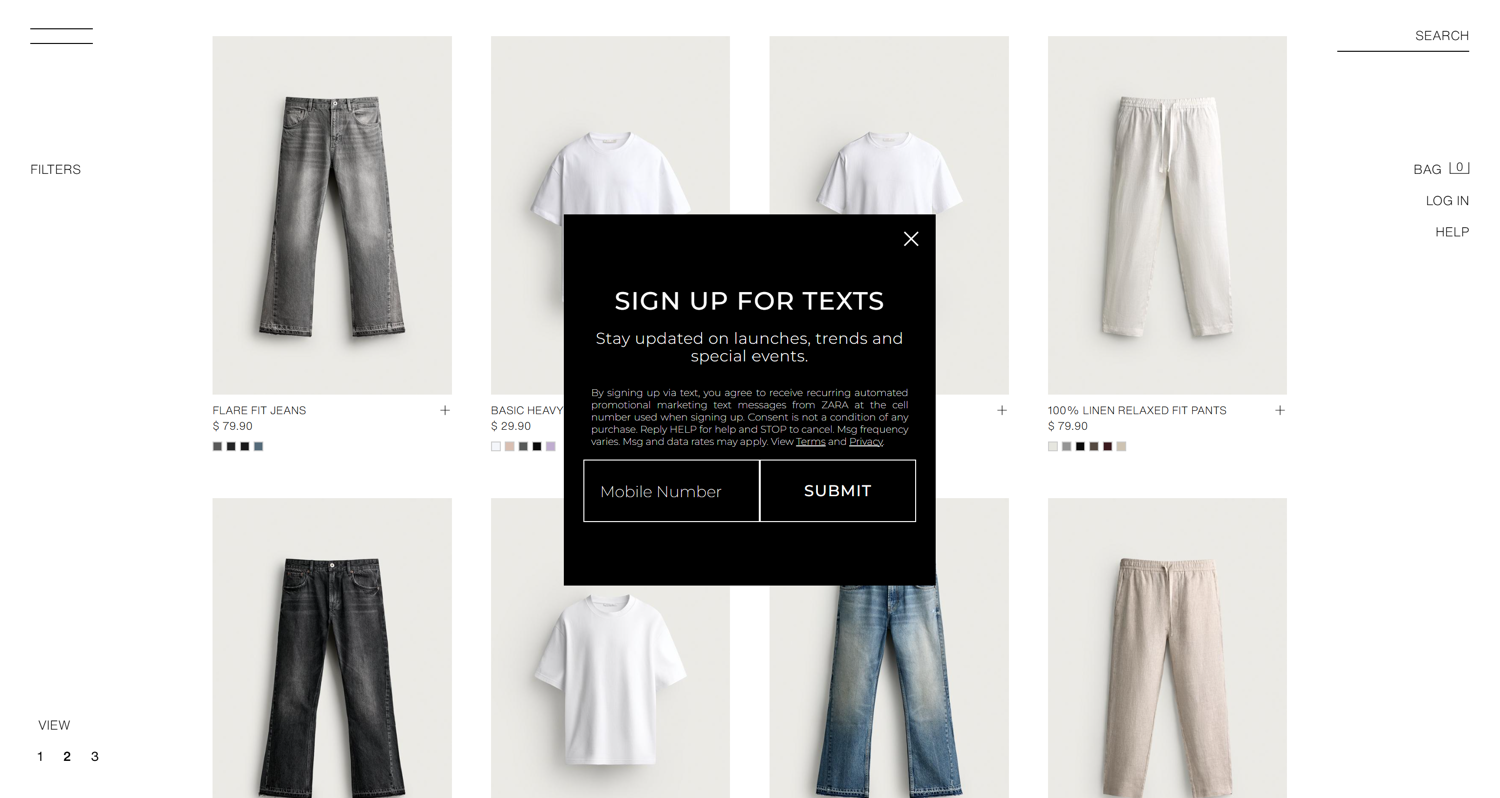
This modal blocks page interactions until you close it. Since it typically appears after spending some time on the page, it can become a problem during longer scraping or automation workflows.
After interacting with the popup, Zara stores some information in the browser session so that it does not show it again in the future. Reusing that browser state allows future scraper runs to skip the same interaction.
First, add logic to close the banner automatically:
begin
  # Target the close button in the text message iframe
  close_button = page.frame_locator("#attentive_creative")
                      .locator("#closeIconContainer")

  # Wait for the close button to be on the page before clicking it
  close_button.wait_for(timeout: 15_000)

  # Close the SMS signup modal
  close_button.click

  puts "Dismissed text message signup modal"
rescue StandardError => e
  # Continue scraping if the modal does not appear
  puts "Modal did not appear or was already dismissed: #{e.message}"
end
The Zara text message signup modal is rendered inside an iframe:
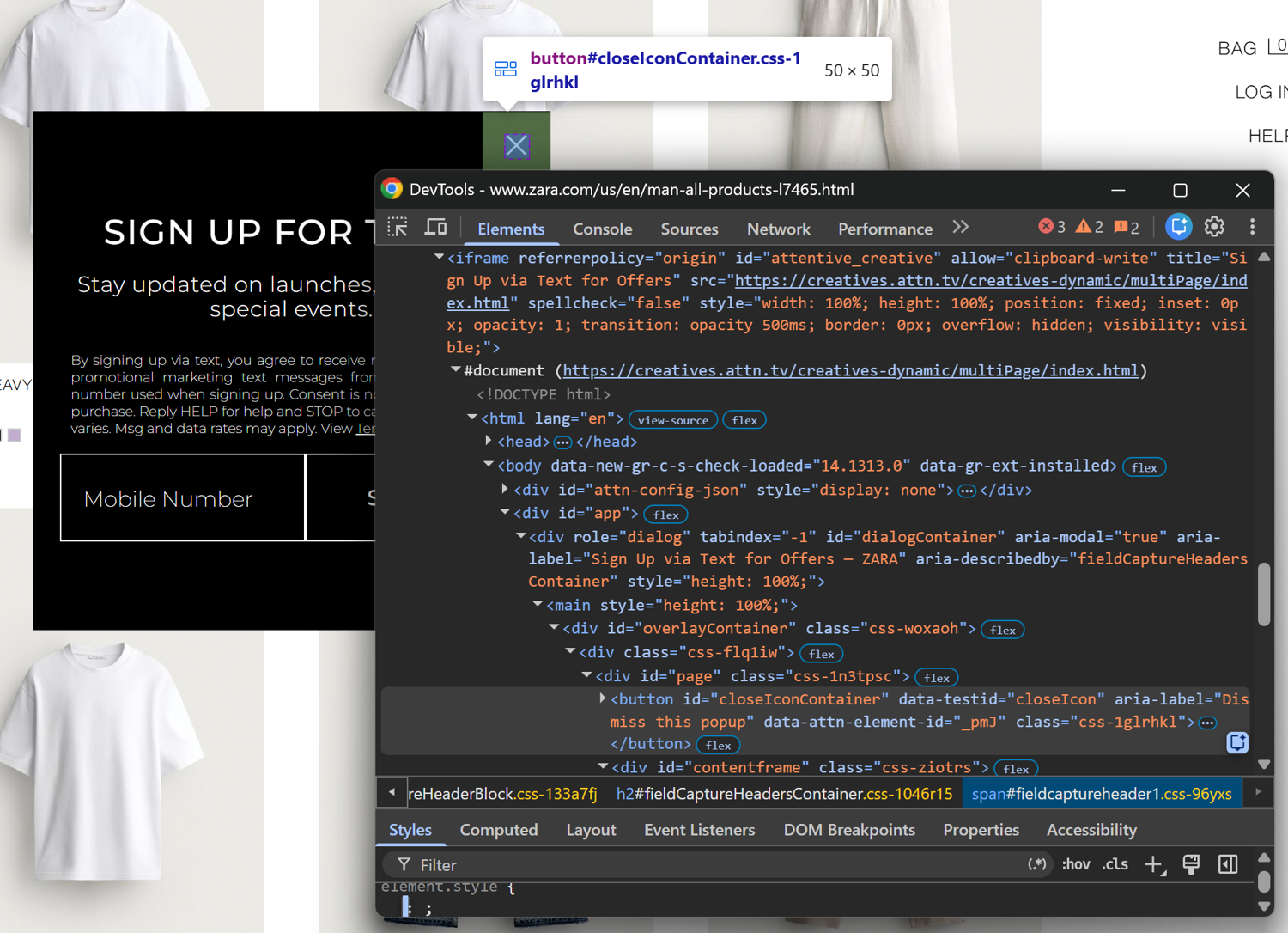
Regular locators only search the main page DOM, so they cannot directly access elements inside embedded documents. page.frame_locator() changes the search context to the iframe identified by #attentive_creative. After that, you can use standard locators to find and interact with elements inside the frame.
The begin/rescue block makes the scraper more resilient. Pop-ups can depend on cookies, previous sessions, location, or timing, so treating them as optional elements prevents the entire workflow from failing.
Next, after closing the modal, save the browser context state:
context.storage_state(
  path: "zara-session.json"
)
This creates a zara-session.json file containing the current browser state in JSON format.
In a later run, load the saved state when creating a new context:
context = browser.new_context(
  storageState: "zara-session.json"
)
This approach is useful for authenticated applications, cookie consent flows, and any automated workflow where you need to preserve browser state between runs. For more details, see the guide on saving and loading cookies in Playwright.
Handle errors
When scraping multiple pages, add error handling around navigation and extraction logic. A single timeout, temporary network issue, or unexpected page change should not stop the entire Ruby scraping job.
Catch Playwright Ruby client errors and continue processing other URLs:
begin
  page.goto(
    "https://www.zara.com/us/en/man-all-products-l7465.html",
    waitUntil: "domcontentloaded",
  )

  page.wait_for_selector(
    "li.product-grid-product",
    timeout: 10_000
  )

  puts "Page loaded successfully"

rescue Playwright::Error => e
  puts "Failed to scrape page: #{e.message}"
end
The rescue Playwright::Error block handles errors raised by Playwright, such as navigation timeouts or failed browser operations. Instead of stopping the entire script, you can log the failure and continue with the next page.
For larger scraping workflows, consider adding retry logic for temporary failures:
max_retries = 3

max_retries.times do |attempt|
  begin
    page.goto(
      "https://www.zara.com/us/en/man-all-products-l7465.html",
      waitUntil: "domcontentloaded",
      timeout: 15_000
    )

    break
  rescue Playwright::Error => e
    puts "Attempt #{attempt + 1} failed: #{e.message}"
    sleep 2
  end
end
Performance optimization also matters for production scraping. Techniques like blocking unnecessary resources (e.g., images and fonts) and running multiple browser sessions in parallel can reduce time and costs. Read the article on making Playwright scripts faster for more guidance.
Use Playwright for Rails system tests
Most Capybara setups use Selenium as the browser driver for Rails system tests. With capybara-playwright-driver, you can replace Selenium with Playwright while keeping your existing Capybara test suite.
Compared to Selenium, Playwright provides automatic actionability checks. These help reduce common causes of flaky system tests. One well-known Rubyist reported reducing their system test failure rate from around 30% with Selenium to under 5% simply by switching to Playwright.
More broadly, the Playwright vs Selenium Ruby comparison shows that Playwright can help reduce flaky tests, shorten debugging time, and lower the maintenance effort.
Below, you will see how to get started with the Capybara Playwright Driver.
Configure Capybara Playwright Driver
Begin by adding capybara-playwright-driver to the :test group in your Gemfile:
group :test do
  # Other test dependencies...
  gem "capybara-playwright-driver"
end
Update the dependencies:
bundle install
Next, create spec/support/capybara.rb and register the Playwright driver with Capybara:
# spec/support/capybara.rb

require "capybara"
require "capybara/playwright"

# Configure Capybara
Capybara.server = :webrick
Capybara.default_max_wait_time = 15
Capybara.save_path = "tmp/capybara"

# Rails 6.1+ reserves :playwright for its built-in integration.
# Register the capybara-playwright-driver under a custom name instead.
Capybara.register_driver(:customized_playwright) do |app|
  Capybara::Playwright::Driver.new(
    app,
    browser_type: :chromium,
    headless: ENV.fetch("HEADLESS", "true") == "true"
  )
end

# Use Playwright for all system tests
Capybara.default_driver = :customized_playwright
Capybara.javascript_driver = :customized_playwright
This configuration registers a Playwright driver for Chromium and makes it the default browser for your Rails system tests.
Finally, load the Capybara configuration from spec/rails_helper.rb and configure RSpec to use the :customized_playwright driver for all Rails system tests:
# spec/rails_helper.rb

require_relative "support/capybara"

RSpec.configure do |config|
  # ...
  config.before(:each, type: :system) do
    driven_by :customized_playwright
  end

  # ...
end
Write Playwright Rails system tests
After configuring the Playwright driver, you can write Capybara system tests exactly as you would with Selenium. For example:
# spec/system/user_authentication_spec.rb

require "rails_helper"

describe "User Authentication", type: :system do
  before { visit root_path }

  it "logs in a user with valid credentials" do
    user = User.create!(name: "Test User", email: "user@example.com", password: "password123")

    visit login_path
    fill_in "Email", with: "user@example.com"
    fill_in "Password", with: "password123"
    click_button "Sign In"

    expect(page).to have_content "Logged in successfully"
    expect(current_path).to eq user_path(user)
  end

  it "shows error for invalid credentials" do
    visit login_path
    fill_in "Email", with: "user@example.com"
    fill_in "Password", with: "wrong"
    click_button "Sign In"

    expect(page).to have_content "Invalid email or password"
    expect(current_path).to eq login_path
  end
end
Assuming your Rails application exposes a login page, run the test with:
bundle exec rspec spec/system/
RSpec should report that both Playwright Rails system tests passed:

Limitations of capybara-playwright-driver
capybara-playwright-driver works well for most Rails system tests, but there are a few limitations to be aware of:
- Rails 5.x and 6.0 still expect the selenium-webdriver gem to be installed, even if Playwright is your active driver. If you encounter dependency errors during setup, keep selenium-webdriver in your Gemfile but continue using the Playwright driver for your tests.
- The driver is a Capybara wrapper rather than the full Playwright API. It supports most Capybara DSL methods, but not every Playwright feature is covered. For instance, low-level page APIs and Playwright-native methods are only available through with_playwright_page or the playwright-ruby-client gem.
- Playwright follows stricter browser actionability rules than Selenium. It will not click hidden or disabled elements. Plus, some Selenium-specific testing patterns like handling a dialog after clicking a button must be rewritten to follow Playwright’s execution model.
Approaches to getting past blocks
A Playwright-controlled headless browser exposes automation signals like default viewport and locale settings, a special User-Agent, and other browser environment differences.
If you are using Playwright in Ruby for web scraping and want to avoid getting blocked, you need to limit the cues that make your browser session look automated. Start by setting a realistic user-agent, viewport, locale, and timezone:
context = browser.new_context(
  userAgent: "Mozilla/5.0 (Windows NT 10.0; Win64; x64) AppleWebKit/537.36 (KHTML, like Gecko) Chrome/151.0.0.0 Safari/537.36",
  viewport: { width: 1920, height: 1080 },
  locale: "en-US",
  timezoneId: "America/New_York"
)
Also, use persistent browser contexts, avoid creating a new browser session for every request, and add realistic delays between actions. More protected websites might require rotating residential proxies. By replacing the snippet above with the plain browser.new_context() calls and following these recommendations, you may be able to avoid relying on headed browser sessions, as done previously.
For small projects, custom tweaks can help decrease blocking instances. However, no technique can guarantee that a DIY Playwright Ruby scraper will bypass every anti-bot solution.
The reason is that modern anti-bot systems analyze many different signals, including mouse behavior, network patterns, and IP reputation. As a result, they can still block incoming requests directly or display CAPTCHAs when they detect suspicious automation patterns.
On top of that, maintaining your own scraping infrastructure is complex at scale. Running browser instances, managing the Node Playwright driver, configuring rotating proxies, and adapting to continuously evolving bot detection challenges all add operational overhead.
In these cases, a managed web scraping API like ScrapingBee can be a practical alternative. ScrapingBee offers JavaScript rendering, anti-bot bypass, and proxy management behind a single API endpoint. Access it with your favorite HTTP client in Ruby or any other programming language.
If a managed web scraping API better fits your requirements, review ScrapingBee pricing to compare available plans.
Playwright-Ruby or a scraping API: which to use
When comparing Playwright Ruby vs scraping API services, the right choice depends on how much browser control and infrastructure you need.
First, remember that Playwright is just one option among several Ruby headless browser automation tools. Ferrum is a native Ruby option with simpler setup because it does not depend on Node.js. However, it does not offer the same level of capabilities as Playwright. Selenium remains a popular choice, but it involves more manual handling of waits and actionability checks.
Overall, the Ruby Playwright library remains the recommended option for browser automation and scraping in Ruby. That is particularly true when you need direct browser control, such as for local automation, Rails system tests, or small-to-medium scraping projects. It is also a good fit if you are comfortable managing the browser runtime, Node.js dependencies, and Playwright updates.
A managed web scraping API is a better fit when you need to collect data at scale or prefer to avoid maintaining browser instances, proxies, and anti-bot handling. This approach lets your Ruby application send HTTP requests while the scraping infrastructure runs separately.
Scrape JS-heavy sites from Ruby without the browser fleet
Playwright Ruby is a great choice for browser automation, testing, and smaller scraping projects. Yet, using it to scrape JavaScript-heavy websites at scale requires managing the Node.js Playwright driver, browser instances, proxies, and the surrounding infrastructure.
ScrapingBee is a web scraping API that handles JavaScript rendering, anti-bot challenges, and proxy rotation. With a simple Ruby HTTP request, you can collect web data without maintaining your own browser fleet. Start with 1,000 free API credits, no credit card required.
Playwright in Ruby FAQs
Is Playwright available in Ruby?
No, Microsoft does not maintain a Ruby Playwright client. Playwright is officially supported for Node.js, Python, Java, and .NET, while Ruby support comes from the community-maintained playwright-ruby-client gem. The gem provides a Ruby API that controls the Node.js Playwright engine.
Is playwright-ruby-client official?
No, playwright-ruby-client is not an official Microsoft package. It is a community gem maintained by Yusuke Iwaki that tracks Playwright releases and provides Ruby bindings for browser automation. Since it is a single-maintainer project, consider this when choosing it for long-term critical systems.
Do I need Node.js to use Playwright in Ruby?
Yes, you usually need Node.js to use Playwright in Ruby. The playwright-ruby-client gem does not include the Playwright driver, so you need to install the Node.js Playwright package and browser binaries separately. You can keep Node.js off the machine running your Ruby code by connecting to a remote Playwright server, but Node.js still has to run on that server.
Playwright vs Selenium in Ruby: which is better?
Playwright is generally a better choice for new Ruby browser automation projects because it provides built-in auto-waiting and smarter element handling. These features greatly reduce the stale-element flakiness that plagues Selenium. On the other hand, Selenium is officially supported and widely documented in Ruby, so it remains a reasonable default for existing test suites.
Can I use Playwright for Rails system tests?
Yes, you can use Playwright for Rails system tests via capybara-playwright-driver. This gem provides a Capybara Playwright driver for RSpec or Minitest system tests. As a Capybara wrapper around Playwright, some browser automation features still involve using the playwright-ruby-client directly. Also, some older Rails setups still require the selenium-webdriver gem to be present.
How do I keep the gem and Node driver versions in sync?
Pin the playwright-ruby-client and Node.js Playwright versions together. The Ruby gem targets a specific Playwright release, and installing a different npm package version can cause compatibility issues. Use the Playwright::COMPATIBLE_PLAYWRIGHT_VERSION constant to install the matching Playwright version, especially in CI/CD pipelines.