GoSpider is a web crawling CLI tool known for its speed. It is written in Go and can crawl a target in parallel, discover multiple URLs, and handle several requests and domains at the same time.
The project lives on GoSpider on GitHub, but the important thing to understand is that GoSpider is a crawler, not a full web scraper. It can help you find internal links in a page, but if you want product names, prices, article text, or tables, you will usually pass the crawled URLs into another scraper like Colly.
In this guide, you'll learn how to set up GoSpider, start crawling websites, filter useful URLs, scrape the discovered pages, and reduce 403 blocks with ScrapingBee.
Key Takeaways (TL;DR)
- GoSpider is a free, MIT-licensed CLI crawler written in Go.
- Install it with
go install github.com/jaeles-project/gospider@latest. - The main flags are
-s,-o,-d,-c,-q,--subs, and--other-source. - GoSpider finds URLs, but it does not extract structured data or render JavaScript.
- Pair GoSpider with Colly when you need to scrape data from discovered pages.
- For protected sites that return 403 errors, route GoSpider through ScrapingBee.
What is GoSpider?
GoSpider is a fast, MIT-licensed command-line web spider written in Go that crawls targets in parallel to discover URLs. The project is available on GitHub, and it was originally built for security reconnaissance as part of the Osmedeus engine.
It is designed to be lightweight and fast, making it popular with developers, security researchers, and bug bounty hunters because it is ideal for quickly discovering URLs and mapping website structures.
At its core, GoSpider helps you quickly map a website by collecting links and other crawlable resources. It can discover normal URLs, links inside JavaScript files, subdomains, AWS S3 bucket references, sitemap URLs, and archive URLs from third-party sources.
GoSpider features
Some of the main GoSpider features include:
- Fast web crawling for single websites
- Parallel crawling (concurrency)
- sitemap.xml and robots.txt parsing
- JavaScript link parsing
- Subdomain discovery
- AWS S3 bucket detection
- Advanced filtering
- Proxy support
- Customisable crawl options (custom headers, cookies, user agents, and timeouts)
- Debug and verbose modes
How to install GoSpider
Prerequisites
Since GoSpider is a Go-based tool, you need to have a Go environment set up on your system before installing it.
To follow along in this tutorial, make sure you have:
To verify that Go is installed, run:
go version
If Go is installed correctly, you should see output similar to this:
go version go1.24.1
The exact version and architecture may be different depending on your machine, but if the command returns a Go version, you are good to continue.
Next, create a new project folder and navigate into it from your terminal:
mkdir gospider-project
cd gospider-project
Now, you are ready to install GoSpider and use it for web crawling.
Install GoSpider
After confirming that Go is installed, you can install GoSpider with the go install command. This compiles and installs GoSpider globally on your machine:
go install github.com/jaeles-project/gospider@latest
After installation, verify that GoSpider is available by running:
gospider -h
This should display the help menu with an overview of the commands and options available in GoSpider.
You should see output similar to this:
Flags:
  -s, --site string               Site to crawl
  -S, --sites string              Site list to crawl
  -p, --proxy string              Proxy (Ex: http://127.0.0.1:8080)
  -o, --output string             Output folder
  -u, --user-agent string         User Agent to use
                                        web: random web user-agent
                                        mobi: random mobile user-agent
                                        or you can set your special user-agent (default "web")
      --cookie string             Cookie to use (testA=a; testB=b)
  -H, --header stringArray        Header to use (Use multiple flag to set multiple header)

... truncated for brevity
If your terminal says gospider: command not found, your Go binary directory may not be available in your system PATH.
On macOS or Linux, you can usually fix this by running:
export PATH="$PATH:$(go env GOPATH)/bin"
Then try the help command again:
gospider -h
Once the help menu appears, GoSpider is installed and ready to use.
GoSpider commands and flags: the basics
The general GoSpider syntax looks like this:
gospider [flags]
You pass one or more flags to tell GoSpider what site to crawl, how deep to go, where to save the output, whether to use a proxy, and how much output to show in your terminal.
The flags you will use most often are:
| Flag | What it does | Default |
|---|---|---|
-s, --site | Crawl one site | – |
-S, --sites | Read target sites from a file | – |
-o, --output | Save output to a folder | – |
-q, --quiet | Suppress extra output and show URLs only | false |
-d, --depth | Set maximum recursion depth | 1 |
-c, --concurrent | Set concurrent requests per matching domain | 5 |
-t, --threads | Crawl multiple sites in parallel | 1 |
-k, --delay | Add delay between requests in seconds | 0 |
--robots | Crawl robots.txt | true |
--js | Enable link finding in JavaScript files | true |
--subs | Include subdomains | false |
-a, --other-source | Pull URLs from third-party sources | false |
--json | Emit JSON output | false |
-p, --proxy | Send requests through a proxy | – |
If you're new to GoSpider, the easiest way to get started is by running one shallow crawl and seeing what it discovers.
gospider -s https://books.toscrape.com/ -o output -q
This command tells GoSpider to crawl https://books.toscrape.com/, save the result in the output folder, and print cleaner URL-only output.
If you want to see the full tag structure in your terminal, remove -q:
gospider -s https://books.toscrape.com/ -o output
The terminal output looks like this:
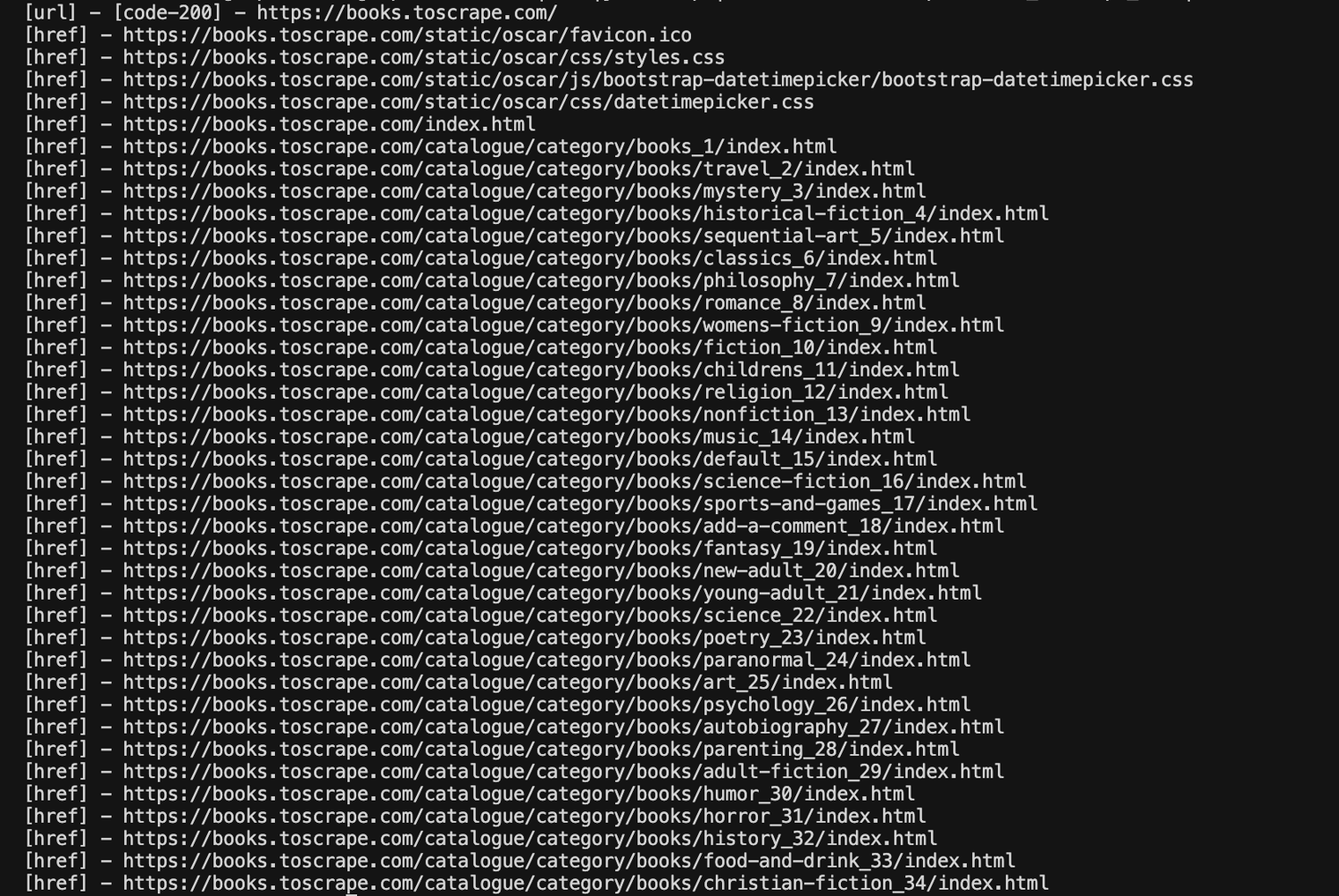
Here is what the common tags mean:
- [url] means GoSpider requested that page or asset.
- [href] means GoSpider found the link in the HTML.
- [javascript] means GoSpider found a JavaScript file URL.
- [linkfinder] means GoSpider found a URL-like string inside JavaScript.
GoSpider also has a default blacklist for requesting common static assets like jpg, png, and css, although those links may still appear when discovered in the page HTML.
Web Crawling with GoSpider: Step-by-Step Guide
In this section, you will learn how to use GoSpider to crawl a live website, collect useful links, and prepare those links for scraping.
Our target today is Product Hunt. This platform is used by founders, creators, and developers to launch their new tech products, software, and apps to the public.
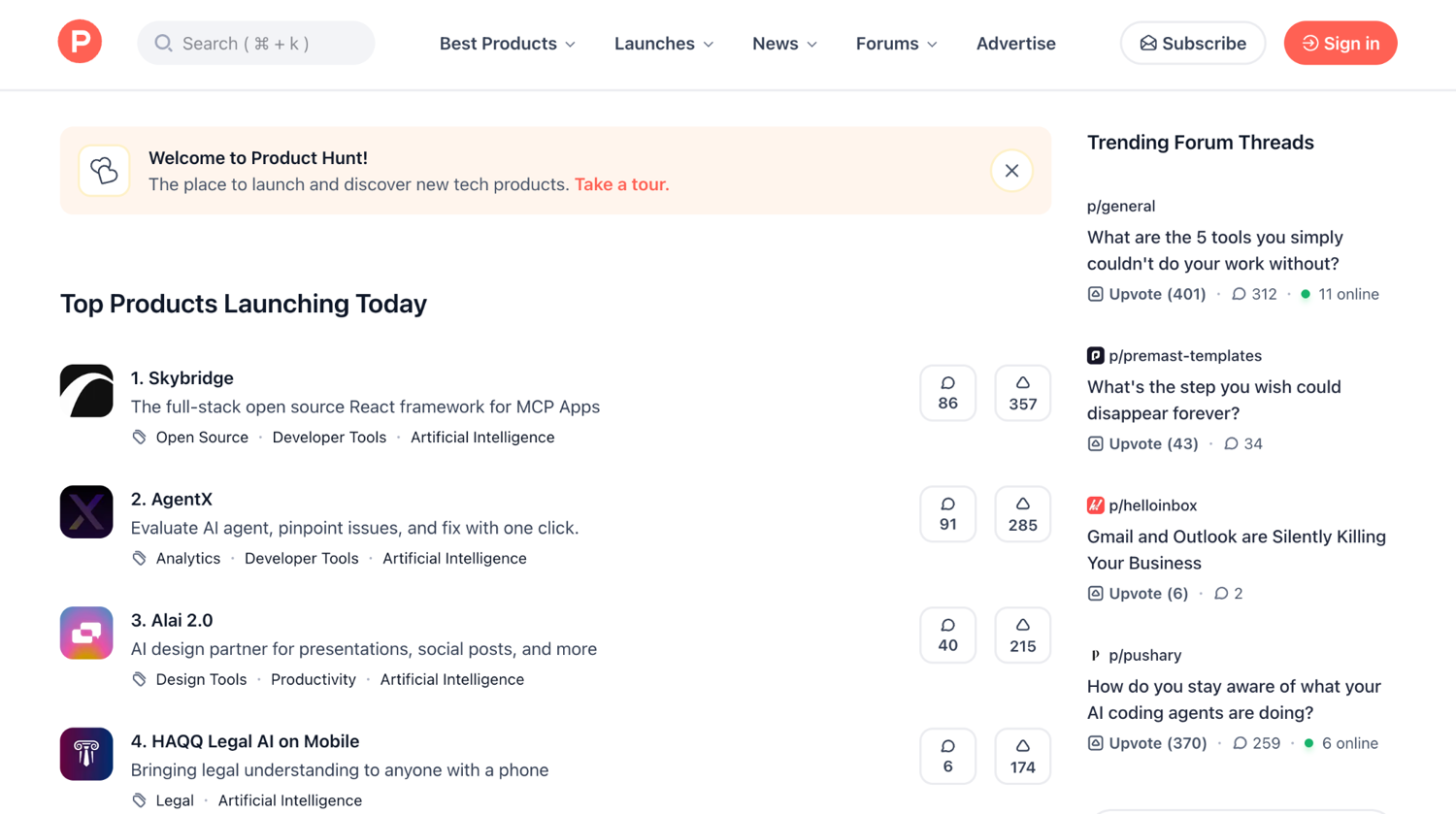
This is a good example for GoSpider because we're not going to extract product data just yet. Our first task however, is to find and follow the product URLs on the website.
Step 1: Crawl the Product Hunt leaderboard page
The first step is to run GoSpider against the Product Hunt leaderboard page:
gospider -s https://www.producthunt.com/leaderboard/daily/2026/6/22 \
  -o output \
  -d 1 \
  -c 2 \
  -t 1 \
  -m 20 \
  -B
This command crawls the Product Hunt leaderboard page and saves the results to the output folder. The -d 1 flag limits the crawl to one level deep, which is enough because the product links are already on the page. The -c 2 and -t 1 flags keep concurrency low, -m 20 sets a 20-second timeout, and -B focuses on the base HTML content.
Starting with a shallow crawl is usually safer than using -d 0, which enables infinite recursion and can quickly expand across large sites. For larger authorized crawls, consider adding delays with -k or -K to reduce server load. GoSpider also respects robots.txt by default, which is generally the recommended setting.
After the command runs, your project folder should look like this:
gospider-project/
├── go.mod
├── go.sum
└── output/
    └── www_producthunt_com
The output/www_producthunt_com file contains the URLs and assets GoSpider discovered during the crawl.
Step 2: Inspect the GoSpider output
Open the saved output file and you should see lines similar to these:
[url] - [code-200] - https://www.producthunt.com/leaderboard/daily/2026/6/22
[href] - https://www.producthunt.com/products/skybridge
[href] - https://www.producthunt.com/products/agentx
[href] - https://www.producthunt.com/products/alai
[href] - https://www.producthunt.com/products/readywhen
[javascript] - https://www.producthunt.com/_next/static/chunks/14v~u0d6yc091.js
The [url] line shows that GoSpider request was successful and the [href] lines show the links GoSpider found. In this case, those links include product pages.
This is where GoSpider shows its practicality, it has already found product URLs that can be used in the next scraping step. But the raw output file can still contain links you do not need, such as JavaScript files, navigation links, static assets, or other page references.
So before scraping, you should turn the raw crawler output into a clean list of product URLs.
Step 3: A quick note on --whitelist and --blacklist
GoSpider also has built-in filtering flags like --whitelist and --blacklist, which control which URLs GoSpider is allowed to request during the crawl.
In our test with GoSpider v1.1.6 (latest release at the time), we noticed that these flags did not always stop matching links from appearing in the output as discovered [href] entries.
So if GoSpider finds a blacklisted URL in the page HTML, that URL may still show up as an [href], even though GoSpider does not follow it as a [url] request.
To get around this, we'll use a custom filter.go script that gives us the clean product page URLs before we pass them into Colly.
Step 4: Filter only the product URLs
The next step is to keep only URLs that match Product Hunt's product page format:
https://www.producthunt.com/products/product-slug
Create a file called filter.go:
package main

import (
	"bufio"
	"fmt"
	"net/url"
	"os"
	"regexp"
	"strings"
)

var productURLPattern = regexp.MustCompile(`https://www\.producthunt\.com/products/[A-Za-z0-9][A-Za-z0-9-]*`)

func main() {
	seen := map[string]bool{}
	urls := []string{}

	scanner := bufio.NewScanner(os.Stdin)
	for scanner.Scan() {
		for _, raw := range productURLPattern.FindAllString(scanner.Text(), -1) {
			u, err := url.Parse(raw)
			if err != nil {
				continue
			}

			u.RawQuery = ""
			u.Fragment = ""

			parts := strings.Split(strings.Trim(u.Path, "/"), "/")
			if len(parts) != 2 || parts[0] != "products" {
				continue
			}

			item := u.String()
			if !seen[item] {
				seen[item] = true
				urls = append(urls, item)
			}
		}
	}

	if err := scanner.Err(); err != nil {
		fmt.Fprintln(os.Stderr, err)
		os.Exit(1)
	}

	for _, item := range urls {
		fmt.Println(item)
	}
}
This code reads the GoSpider output from standard input. It then uses a regular expression to find URLs that match Product Hunt product pages. After that, it parses each URL, removes query strings and fragments, checks that the path follows the expected /products/slug structure, and deduplicates the result.
Run the filter like this:
go run filter.go < output/www_producthunt_com > product_urls.txt
This command reads from output/www_producthunt_com, runs the URL filtering logic, and writes the cleaned result into product_urls.txt.
Open product_urls.txt and you should see something like this:
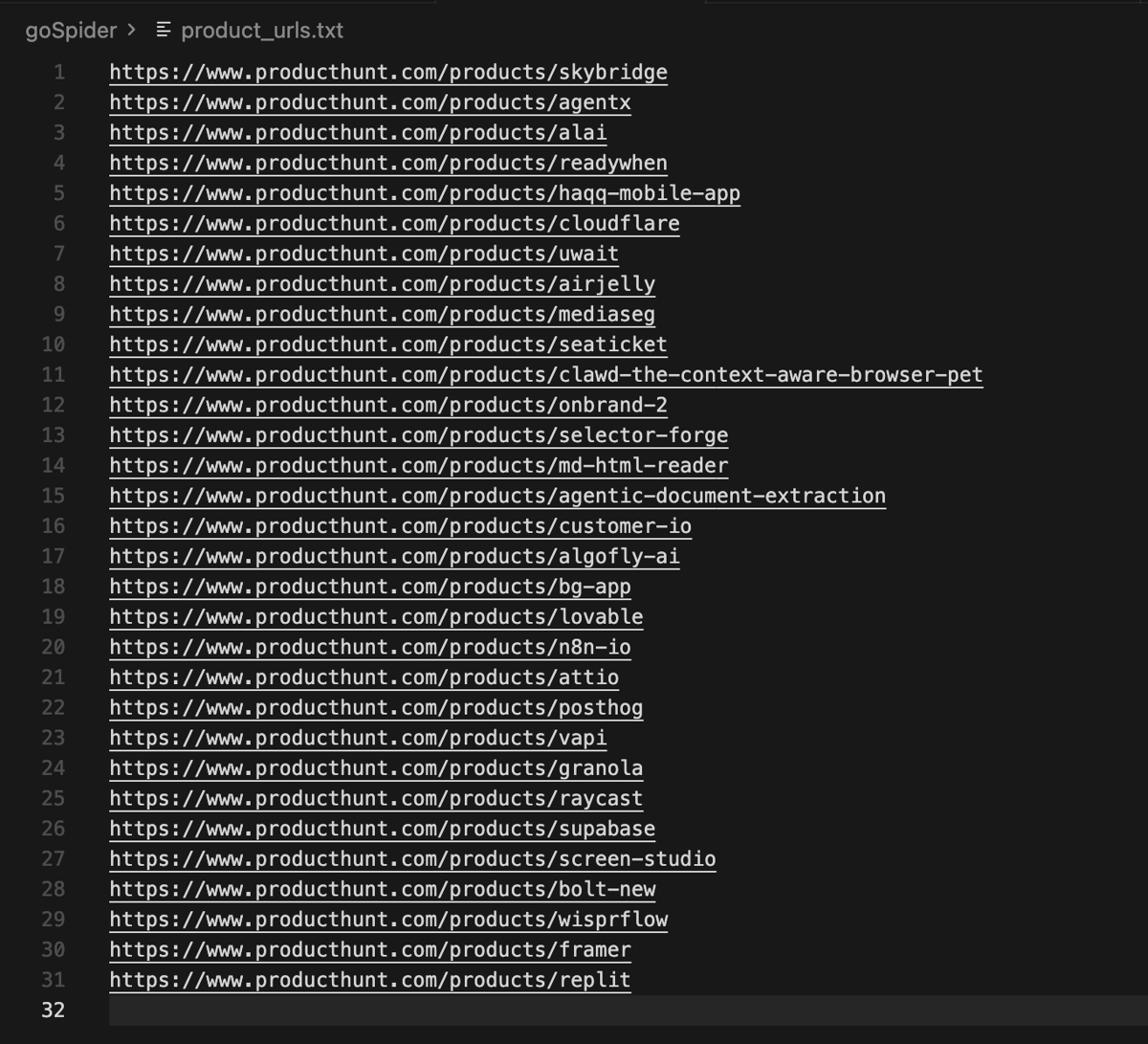
At this point, GoSpider has done its job. The next step is to feed those URLs into a scraper so you can extract structured product data.
Turn crawled URLs into data with GoSpider and Colly
The next step is to visit each URL and extract structured data from the page. This is where GoSpider has to hand over to a scraper. It is a powerful tool but it does not have built-in data extraction capabilities.
To do that, we will use Colly, a Go scraping framework that makes it easy to visit pages, handle responses, and extract data from HTML.
Because Product Hunt is protected by Cloudflare and it also uses dynamic rendering, a plain request will simply not cut it.
Instead of trying to manage proxies, browser rendering, and blocking issues manually, we will use ScrapingBee to fetch the page so we don't have to worry about getting blocked or flagged.
For a deeper look at Colly, see our guide on how to scrape data in Go with Colly. You can also read our broader guide to web scraping in Go.
Create the product scraper
Create a file called scrape.go in the same project folder.
This script does four things. First, it reads the product URLs and checks whether a ScrapingBee API key is set in your environment. Then it uses Colly to request each page, proceeds to parse the HTML and writes the extracted product data to a CSV file.
package main

import (
	"bufio"
	"encoding/csv"
	"flag"
	"fmt"
	"log"
	"net/url"
	"os"
	"regexp"
	"strconv"
	"strings"
	"time"

	"github.com/gocolly/colly/v2"
)

type Product struct {
	Name     string
	Tagline  string
	Website  string
	Score    string
	Comments string
	URL      string
}

func main() {
	inputPath := flag.String("input", "product_urls.txt", "input file")
	outputPath := flag.String("output", "products.csv", "output CSV file")
	limit := flag.Int("limit", 1, "max product URLs to scrape")
	flag.Parse()

	urls, err := readURLs(*inputPath, *limit)
	if err != nil {
		log.Fatal(err)
	}
	if len(urls) == 0 {
		log.Fatalf("no product URLs found in %s", *inputPath)
	}

	apiKey := os.Getenv("SCRAPINGBEE_API_KEY")
	var rows []Product

	c := colly.NewCollector(
		colly.UserAgent("Mozilla/5.0 (compatible; GoSpiderArticleBot/1.0)"),
		colly.AllowedDomains("www.producthunt.com", "app.scrapingbee.com"),
	)
	c.SetRequestTimeout(45 * time.Second)

	c.OnResponse(func(r *colly.Response) {
		originalURL := r.Ctx.Get("original_url")
		item := parseProduct(string(r.Body), originalURL)
		if item.Name == "" {
			return
		}
		rows = append(rows, item)
	})

	c.OnError(func(r *colly.Response, err error) {
		log.Printf("failed %s: %v", r.Request.URL.String(), err)
	})

	for _, productURL := range urls {
		visitURL := productURL
		if apiKey != "" {
			visitURL = scrapingBeeURL(apiKey, productURL)
		}

		ctx := colly.NewContext()
		ctx.Put("original_url", productURL)
		if err := c.Request("GET", visitURL, nil, ctx, nil); err != nil {
			log.Printf("request failed %s: %v", productURL, err)
		}
	}

	if err := writeCSV(*outputPath, rows); err != nil {
		log.Fatal(err)
	}
}

func readURLs(path string, limit int) ([]string, error) {
	file, err := os.Open(path)
	if err != nil {
		return nil, err
	}
	defer file.Close()

	var urls []string
	seen := map[string]bool{}
	scanner := bufio.NewScanner(file)
	for scanner.Scan() {
		item := strings.TrimSpace(scanner.Text())
		if item == "" || seen[item] {
			continue
		}
		if !strings.HasPrefix(item, "https://www.producthunt.com/products/") {
			continue
		}
		seen[item] = true
		urls = append(urls, item)
		if limit > 0 && len(urls) >= limit {
			break
		}
	}
	return urls, scanner.Err()
}

func scrapingBeeURL(apiKey, target string) string {
	values := url.Values{}
	values.Set("api_key", apiKey)
	values.Set("url", target)
	values.Set("render_js", "true")
	values.Set("premium_proxy", "true")
	values.Set("wait", "3000")
	return "https://app.scrapingbee.com/api/v1?" + values.Encode()
}

func parseProduct(html, originalURL string) Product {
	slug := slugFromURL(originalURL)
	item := Product{URL: originalURL}

	productRe := regexp.MustCompile(`"slug":"` + regexp.QuoteMeta(slug) + `","name":"([^"]+)","tagline":"([^"]*)","cleanUrl":"([^"]*)","websiteUrl":"([^"]*)"`)
	if match := productRe.FindStringSubmatch(html); len(match) == 5 {
		item.Name = clean(match[1])
		item.Tagline = clean(match[2])
		item.Website = clean(match[4])
	}

	scoreRe := regexp.MustCompile(`"latestScore":(\d+),"launchDayScore":\d+,"commentsCount":(\d+)`)
	if match := scoreRe.FindStringSubmatch(html); len(match) == 3 {
		item.Score = match[1]
		item.Comments = match[2]
	}

	return item
}

func slugFromURL(raw string) string {
	u, err := url.Parse(raw)
	if err != nil {
		return ""
	}
	parts := strings.Split(strings.Trim(u.Path, "/"), "/")
	if len(parts) != 2 {
		return ""
	}
	return parts[1]
}

func clean(value string) string {
	value = strings.ReplaceAll(value, `\u0026`, "&")
	value = strings.ReplaceAll(value, `\u003c`, "<")
	value = strings.ReplaceAll(value, `\u003e`, ">")
	value = strings.ReplaceAll(value, `\"`, `"`)
	return strings.TrimSpace(value)
}

func writeCSV(path string, rows []Product) error {
	file, err := os.Create(path)
	if err != nil {
		return err
	}
	defer file.Close()

	writer := csv.NewWriter(file)
	defer writer.Flush()

	writer.Write([]string{"name", "tagline", "score", "comments", "website", "url"})
	for _, row := range rows {
		if _, err := strconv.Atoi(row.Score); row.Score != "" && err != nil {
			return fmt.Errorf("invalid score for %s: %s", row.Name, row.Score)
		}
		writer.Write([]string{
			row.Name,
			row.Tagline,
			row.Score,
			row.Comments,
			row.Website,
			row.URL,
		})
	}
	return writer.Error()
}
The code starts with a Product struct, which defines the fields that will be saved for each Product Hunt page. In this case, the output fields are Name, Tagline, Website, Score, Comments, and URL.
The readURLs() function opens product_urls.txt, removes empty lines, skips duplicates, and only keeps URLs that start with https://www.producthunt.com/products/. This prevents unrelated links from being scraped.
The Colly collector is created inside main() with a browser-like user agent and two allowed domains: www.producthunt.com and app.scrapingbee.com.
The OnResponse() callback runs whenever Colly receives a page response. It reads the original Product Hunt URL from the request context, passes the HTML into parseProduct(), and appends the result to the rows slice when a product name is found.
Add ScrapingBee to handle the page fetch
Product Hunt product pages can be trickier to scrape than most static sites. They are protected by Cloudflare, which means simple crawler requests may get blocked before you can access the product data reliably.
Luckily, ScrapingBee already handles the heavy lifting for cases like this. It can render JavaScript, route requests through premium proxies, and return the page HTML through one API request.
To get your API key, sign up for ScrapingBee, then open your dashboard and copy the API key from your account.
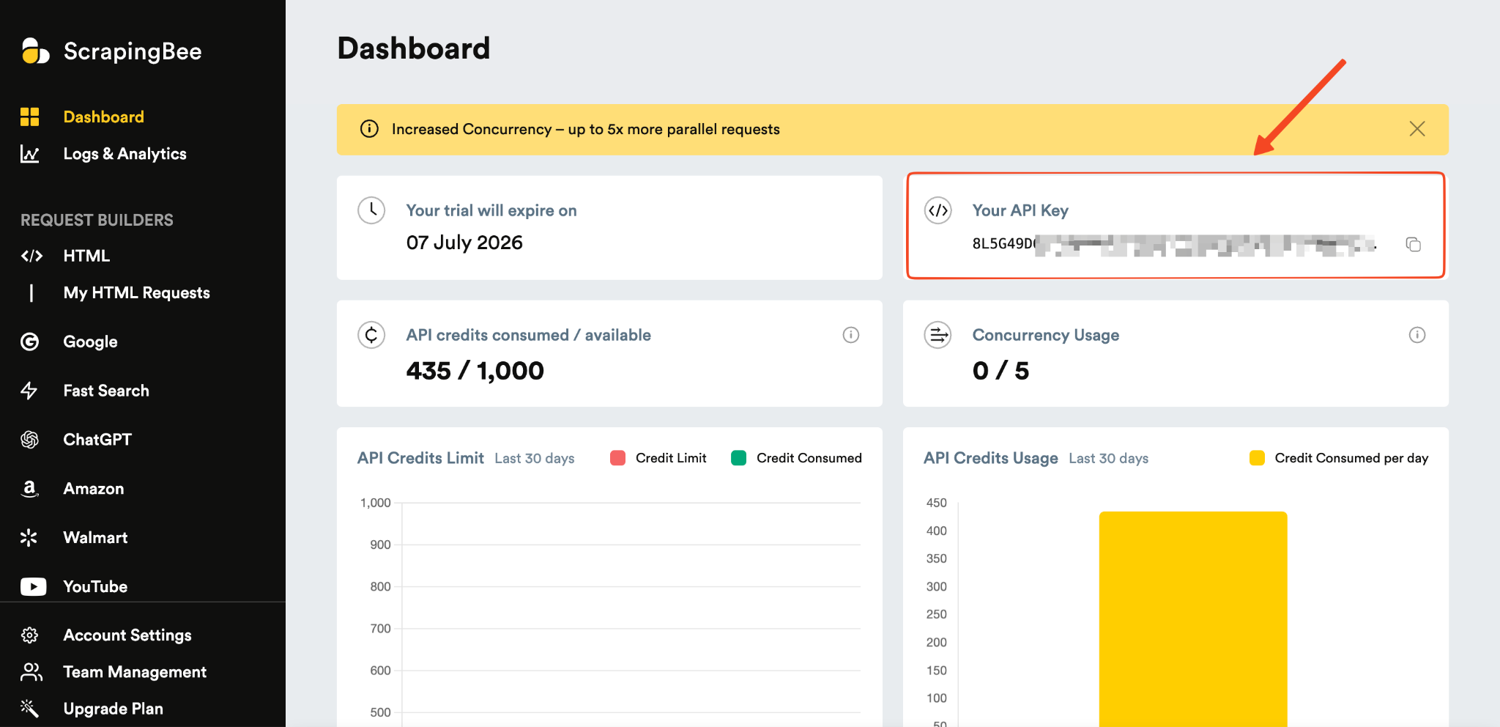
New accounts get 1,000 free API credits for testing. After copying your key, export it in your terminal:
export SCRAPINGBEE_API_KEY="your-api-key"
With your API key, you can now route your requests through this function:
func scrapingBeeURL(apiKey, target string) string {
	values := url.Values{}
	values.Set("api_key", apiKey)
	values.Set("url", target)
	values.Set("render_js", "true")
	values.Set("premium_proxy", "true")
	values.Set("wait", "3000")
	return "https://app.scrapingbee.com/api/v1?" + values.Encode()
}
This function builds a ScrapingBee API request from the original Product Hunt URL. The render_js=true parameter tells ScrapingBee to render JavaScript. The premium_proxy=true parameter uses premium proxies for the request.
This request uses premium_proxy=true with render_js=true, which costs 25 API credits per request. For comparison, premium proxies without JavaScript rendering cost 10 credits, and Stealth Mode costs 75 credits for the hardest-to-scrape sites.
Parse the product data
The parseProduct() function extracts the product details from the returned HTML.
func parseProduct(html, originalURL string) Product {
	slug := slugFromURL(originalURL)
	item := Product{URL: originalURL}

	productRe := regexp.MustCompile(`"slug":"` + regexp.QuoteMeta(slug) + `","name":"([^"]+)","tagline":"([^"]*)","cleanUrl":"([^"]*)","websiteUrl":"([^"]*)"`)
	if match := productRe.FindStringSubmatch(html); len(match) == 5 {
		item.Name = clean(match[1])
		item.Tagline = clean(match[2])
		item.Website = clean(match[4])
	}

	scoreRe := regexp.MustCompile(`"latestScore":(\d+),"launchDayScore":\d+,"commentsCount":(\d+)`)
	if match := scoreRe.FindStringSubmatch(html); len(match) == 3 {
		item.Score = match[1]
		item.Comments = match[2]
	}

	return item
}
Product Hunt pages include product data inside the returned page source. The parser uses the product slug from the original URL to find the matching product record, then extracts the name, tagline, website URL, score, and comments count.
The clean() helper handles escaped characters and trims extra whitespace before the data is written to CSV.
Run the full pipeline
Now run the complete workflow from crawl to CSV. First, crawl the Product Hunt leaderboard page:
gospider -s https://www.producthunt.com/leaderboard/daily/2026/6/22 \
  -o output \
  -d 1 \
  -c 2 \
  -t 1 \
  -m 20 \
  -B
Next, filter the raw GoSpider output into a clean product URL list:
go run filter.go < output/www_producthunt_com > product_urls.txt
Finally, run the scraper:
go run scrape.go -input product_urls.txt -output products.csv -limit 1
The -limit 1 flag keeps the first run small and easy to inspect. Once the output looks correct, you can increase the limit or remove it depending on your use case.
Open products.csv and you should see a row like this:
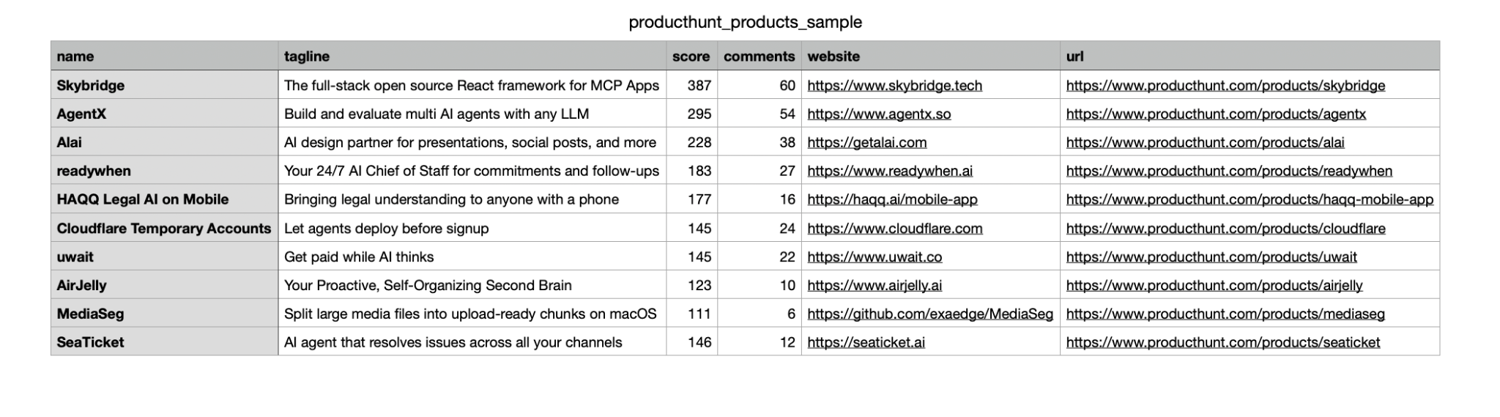
At this point, the full pipeline is working.
Discover more URLs: subdomains, sitemaps, and third-party sources
So far, the GoSpider examples have focused on links found from one page. But GoSpider can also discover links beyond the ones present in the HTML.
GoSpider has a few flags that help with this. The --sitemap flag checks sitemap URLs, while --robots crawls paths listed in robots.txt. For subdomains, --subs includes subdomains found from the target page, and -w expands that further by including subdomains found from third-party sources.
One of the more useful flags here is probably the -a or --other-source. This pulls URLs from sources like the Wayback Machine, Common Crawl, VirusTotal, and AlienVault. That can help you find older URLs, archived paths, and endpoints that may no longer be linked from the current version of the site.
GoSpider can also find AWS S3 bucket references from response sources, and you can pass custom headers or cookies directly with -H and --cookie.
GoSpider vs hakrawler: which crawler should you use?
GoSpider and hakrawler are both fast Go-based crawlers, but they still have their differences.
Now hakrawler is the simpler option. It fits nicely into shell pipelines, so you can pipe URLs in, grab the output, and move on.
GoSpider leans more toward feature depth, with options for pulling from external sources and advanced parsing support on external sources in a single run.
In practice, a lot of people just run both. There's some overlap in what they find, and it's pretty common for one to pick up URLs the other misses.
| Dimension | GoSpider | hakrawler |
|---|---|---|
| Written in | Go | Go |
| Third-party sources | Yes | not the main focus |
| Subdomain discovery | Yes | scope-driven |
| JavaScript link finding | Yes | more minimal |
| Output format | Tagged text, quiet URLs, JSON | pipe-friendly URLs |
| Ease of piping | Good with -q, noisier by default | very good |
| Known gotcha | Large crawls need manual limits | fewer built-in discovery knobs |
In summary, use hakrawler when you want quick endpoint discovery in a pipeline. Use GoSpider when you want a wider crawl with more discovery sources.
Why GoSpider gets blocked (and how to fix it)
GoSpider can get blocked when a website thinks your request doesn't look like it's coming from a real browser. This happens a lot on sites protected by Cloudflare or similar anti-bot systems, where the server checks things like your user agent, cookies, browser fingerprint, and your IP reputation.
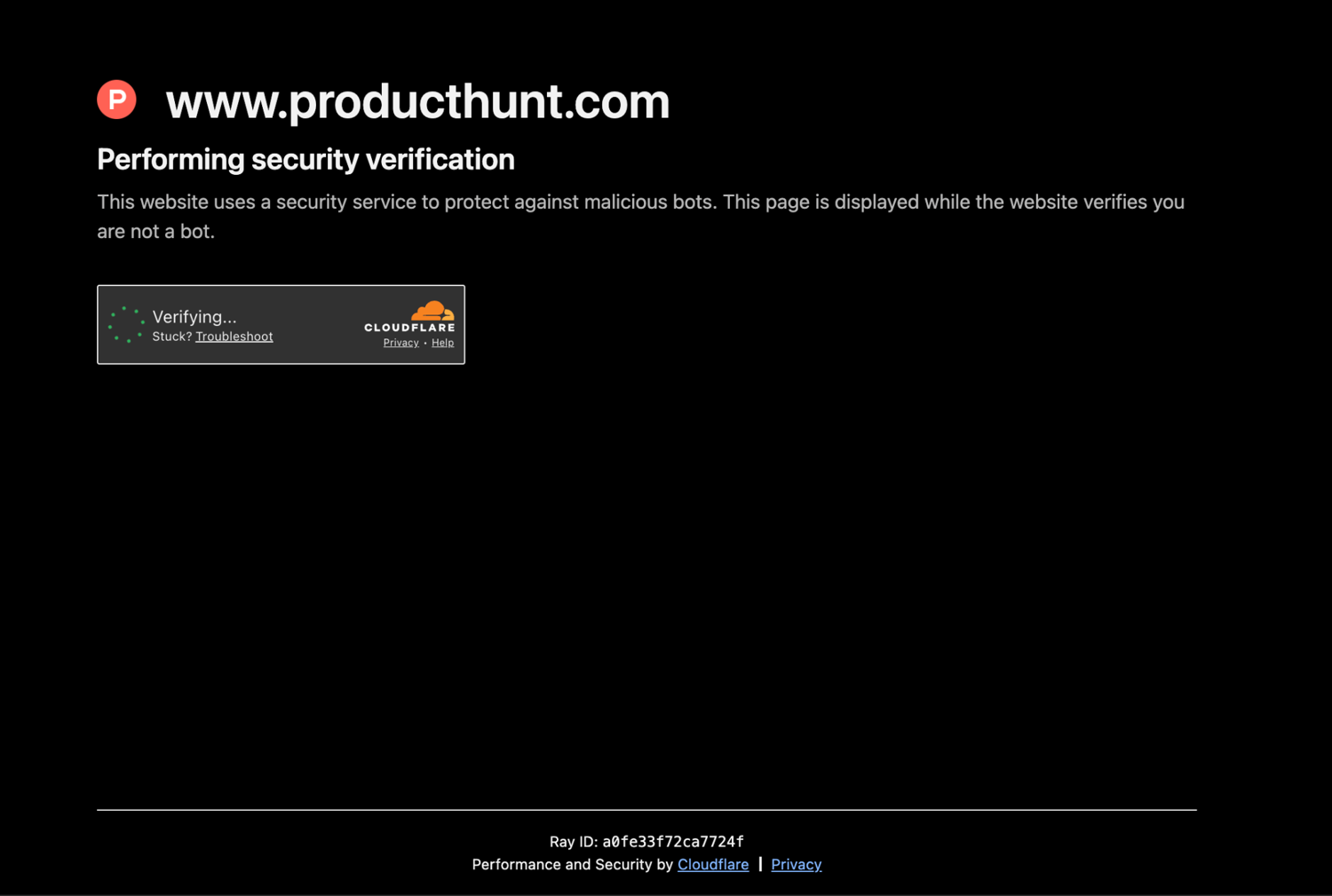
Take Product Hunt as an example. It's protected by Cloudflare, so if your request doesn't look like a real user, it'll get blocked.
Our earlier crawl got through because GoSpider's default -u web setting sends a random browser-like user agent. To show what a block looks like, we force a bot-like user agent with -u 'curl/8.7.1':
gospider -s https://www.producthunt.com/leaderboard/daily/2026/6/22 \
  -d 1 -c 1 -t 1 -m 20 -B -u 'curl/8.7.1' --debug
The failed request returns a 403 response:
DEBUG Error request: https://www.producthunt.com/leaderboard/daily/2026/6/22 - Status code: 403 - Error: Forbidden
[url] - [code-403] - https://www.producthunt.com/leaderboard/daily/2026/6/22
In other words, simply changing the target URL or rerunning the same crawl usually won't help, because it's the request itself that's being flagged.
The first fix is to route GoSpider through a proxy. GoSpider supports this with the -p flag, and ScrapingBee's Proxy Mode lets you send those crawler requests through ScrapingBee while keeping the GoSpider command almost the same.
gospider -s https://www.producthunt.com/leaderboard/daily/2026/6/22 \
  -d 1 -c 1 -t 1 -m 30 -B -u 'curl/8.7.1' \
  -p "http://$SCRAPINGBEE_API_KEY:render_js=False&premium_proxy=True@proxy.scrapingbee.com:8886"
The same URL can now return a successful response:
[url] - [code-200] - https://www.producthunt.com/leaderboard/daily/2026/6/22
[href] - https://www.producthunt.com/products/skybridge
However, some sites are a bit trickier and might need a little bit more to bypass the blocks. If you're dealing with harder Cloudflare-protected targets, see our guide on how to bypass Cloudflare when scraping.
When to use GoSpider and when to reach for an API
GoSpider is a good fit when the job is mainly about discovery. If you need a fast go web crawler to map public URLs, inspect links, or prepare a URL list for another scraper, GoSpider is usually enough.
The limitation is that GoSpider does not render JavaScript. Its --js flag can find links inside JavaScript files, but it does not execute those files or load the page like a browser. So if the content only appears after client-side rendering, GoSpider may miss it.
That is where a scraping API becomes useful. Use GoSpider to find the pages, then use ScrapingBee when you need to render JavaScript, bypass blocking, or fetch pages more reliably.
| Scenario | GoSpider alone | Add a scraping API |
|---|---|---|
| Static public site | Good fit for URL discovery | Usually not needed |
| JS-rendered SPA | Bad fit | Needed to render JavaScript |
| Cloudflare or DataDome-protected page | Often blocked | Use Premium or Stealth proxies |
| Need structured data | Not enough by itself | Great at scale |
| Discovery | Good for discovery | Add API for blocked or rendered pages |
Conclusion
GoSpider is excellent when you need fast URL discovery, but its limits show up around anti-bot blocking and JavaScript-rendered pages. When that happens, the next step is to use ScrapingBee to handle these challenges.
Start with 1,000 free API credits, no credit card required.
Frequently Asked Questions
What is GoSpider used for?
GoSpider is used for fast URL and asset discovery. It can help you crawl targets, find links for further scraping or testing.
Is GoSpider free?
Yes. GoSpider is free and open source. It is MIT-licensed, so you can install it locally and use it from your terminal.
What is the difference between GoSpider and hakrawler?
Both are fast Go-based crawlers, but hakrawler is simpler and more pipe-friendly, while GoSpider offers broader discovery features.
Does GoSpider render JavaScript?
No. GoSpider does not render JavaScript or run pages like a browser. Its --js flag only finds links inside JavaScript files, so client-rendered content can still be missed.
Why does GoSpider return a 403 error?
A 403 error usually means the target refused the request. This can happen because of anti-bot checks, bad IP reputation, or a host of other factors. The usual fix is to use a proxy, or fetch the page through a scraping API.