Sooner or later, every tutorial you follow will say, "Open a terminal and type." A command line interface (CLI) lets you control your computer or a program by typing commands instead of clicking buttons.
In this guide, we’ll explore the depth of the CLI on Mac, Windows and Linux and learn to read and chain commands into small workflows. You’ll also get a 31-task cheat sheet I ran in zsh, bash, PowerShell 7.6, Windows PowerShell 5.1 and Command Prompt, with the test script public on GitHub.
We finish with a pipeline that pulls web data with curl, jq and the CLI for a web scraping API (application programming interface).

Key takeaways:
- A CLI is any program you control by typing. The terminal is the window, and the shell runs your commands.
- New Macs use zsh, most Linux distributions use bash, and Windows 11 opens PowerShell inside Windows Terminal.
- Pipes, redirection and exit codes turn single commands into workflows, so learn them before memorizing more commands.
- In my test, only 1 of 30 everyday bash commands ran unchanged in all five shells. PowerShell 7.6 accepted 15; Command Prompt 3.
- Read destructive commands before you run them, whether you typed them or an AI coding agent suggested them.
What is a command line interface (CLI)?
A command line interface (CLI) is a text-based way to run programs. In a CLI, you type a command, press Enter, and the program prints its result as text. Every major operating system (OS) ships with one, and many tools such as git, cURL and cloud clients are CLIs themselves.
For repeated work, it beats a graphical interface because you can save, script and combine commands.
It's also not a niche skill. In the Stack Overflow 2026 Developer Survey, 51.3% of respondents said they had done extensive development work in Bash/Shell over the past year, and 24.6% said the same about PowerShell. That's up from 48.7% and 23.2% in 2025.
Terminal vs shell vs console vs CLI
You open a terminal, which starts a shell that runs your commands, including other CLI tools such as git and curl. "Console" is the older word for that text window, and you'll still see it on Windows.
Here is how they differ at a glance:
| Term | What it is | Examples |
|---|---|---|
| Terminal | The window app you type into | Terminal on macOS, Windows Terminal, Ptyxis on Ubuntu |
| Shell | The program inside the window that reads and runs your commands | zsh, bash, PowerShell, Command Prompt |
| Console | The older, mostly Windows word for the text window | The classic Windows console host |
| CLI | Any program you control by typing commands | git, curl, docker, the shell itself |
One thing to know: when a command works in one window and fails in another on the same machine, the terminal is rarely the cause. A different shell is.
What is the difference between CLI and GUI?
A graphical user interface (GUI) is easier for one-off tasks and anything you need to see, like editing images or browsing a folder of photos. A CLI wins when you repeat a task, work with many files at once, automate something, or log in to a server that has no screen.
Here is how they differ at a glance:
| Task | Better in a GUI | Better in a CLI |
|---|---|---|
| Rename 300 files to a pattern | Only with a dedicated renaming app | One loop, done in a second, and repeatable |
| Check one setting, once | Faster to click than to look up the command | Slower unless you already know it |
| Download 50 URLs | Fifty clicks and fifty save dialogs | One command reading a list of URLs |
| Crop and color-correct a photo | You need to see the result | Possible, but painful |
| Run a report every night at 2 a.m. | Needs an app that schedules itself | A one-line cron entry or scheduled task |
I reach for the GUI when I need to see something, and for the command line the moment I catch myself doing the same thing a second time.
Command line on Mac, Windows and Linux
Learning how to use a terminal starts with finding it. Each system ships a terminal and a default shell, and the defaults have changed a lot in the last few years.
This table is what you get out of the box on the versions I tested: macOS 26.6.2, Windows 11 (build 26200) and Ubuntu 26.04.1 LTS (long-term support):
| macOS 26 | Windows 11 | Ubuntu 26.04 LTS | |
|---|---|---|---|
| How to open it | Cmd+Space, type "Terminal" | Right-click Start, choose Terminal | Ctrl+Alt+T |
| Default terminal app | Terminal | Windows Terminal | Ptyxis |
| Default shell | zsh 5.9 | Windows PowerShell 5.1 (install PowerShell 7.6 alongside it) | bash 5.3 |
| Package manager | Homebrew (third-party) | winget | apt |
| Shell config file | ~/.zshrc | $PROFILE | ~/.bashrc |
| Run something as administrator | sudo command | Right-click Terminal, Run as administrator, or sudo on 24H2 and later | sudo command |
Terminal on macOS
On macOS, press Cmd+Space, type "Terminal," and press Enter. Since macOS Catalina, new accounts use zsh as the default shell, while accounts carried over from older versions may still use bash.
One detail surprised me when I checked versions for this guide. macOS 26.6.2 still ships bash 3.2.57, from a version first released in 2006, next to zsh 5.9. Linux distributions run bash 5.x. If a bash tutorial fails on your Mac, check bash --version first.
Most command line tools on a Mac come from Homebrew.
This is the install command from brew.sh on the day I wrote this:
/bin/bash -c "$(curl -fsSL https://raw.githubusercontent.com/Homebrew/install/HEAD/install.sh)"
/bin/bash -c "$(curl -fsSL https://raw.githubusercontent.com/Homebrew/install/HEAD/install.sh)"
The installer ends with "Next steps" that add Homebrew to your PATH.
Windows Terminal on Windows 11
Right-click the Start button and choose Terminal, or search for "Terminal" in the Start menu. Windows Terminal has been the default command line experience on Windows 11 since version 22H2, and it opens a PowerShell tab by default.
Windows gives you three shells, and it helps to know which one you're in:
- Command Prompt (cmd): The oldest Windows shell, inherited from MS-DOS. It still runs batch files and old scripts, but it lacks many everyday tools, such as a way to show the last lines of a file.
- Windows PowerShell 5.1: Built into current versions of Windows 10 and 11. It's stable and installed everywhere, but it gets fixes, not new features.
- PowerShell 7: The current, open-source, cross-platform version that also runs on macOS and Linux. It installs next to 5.1 and doesn't replace it.
Install PowerShell 7.6. It's the LTS release since March 18, 2026, and PowerShell 7.4 and 7.5 reach end of support on November 10, 2026. Microsoft's install page gives a one-line winget command that installs the MSIX package, and a Windows Installer (MSI) package is available too. I tested 7.6.6, the current patch at the time of testing.
Two more Windows features are worth knowing about. WSL (Windows Subsystem for Linux), which Microsoft open-sourced in May 2025, runs a real Linux shell such as bash on Windows.
And Windows 11 version 24H2 and later has an optional sudo command. You turn it on in Settings > System > Advanced, and it stays off until you do.
A terminal on Linux
Most desktop distributions open a terminal with Ctrl+Alt+T, and bash is the usual default shell. Package managers differ by family: apt on Ubuntu and Debian, dnf on Fedora.
Ubuntu 26.04 also swapped some defaults under the hood. Its release notes list Ptyxis as the new terminal, sudo-rs as sudo, and rust-coreutils for core commands such as ls. You'll mostly notice the last one in slightly different error messages.
How to read and run CLI commands
Every command you'll ever type follows a handful of conventions. The conventions come from the POSIX (Portable Operating System Interface) utility syntax guidelines and GNU's long options, so implementations as different as git, cURL and CLI behave alike.
The Command Line Interface Guidelines collect the same conventions for people who build CLIs, and they're a good read once you start writing scripts of your own.
First, here are the terminal commands, bash commands and PowerShell cmdlets for everyday work.
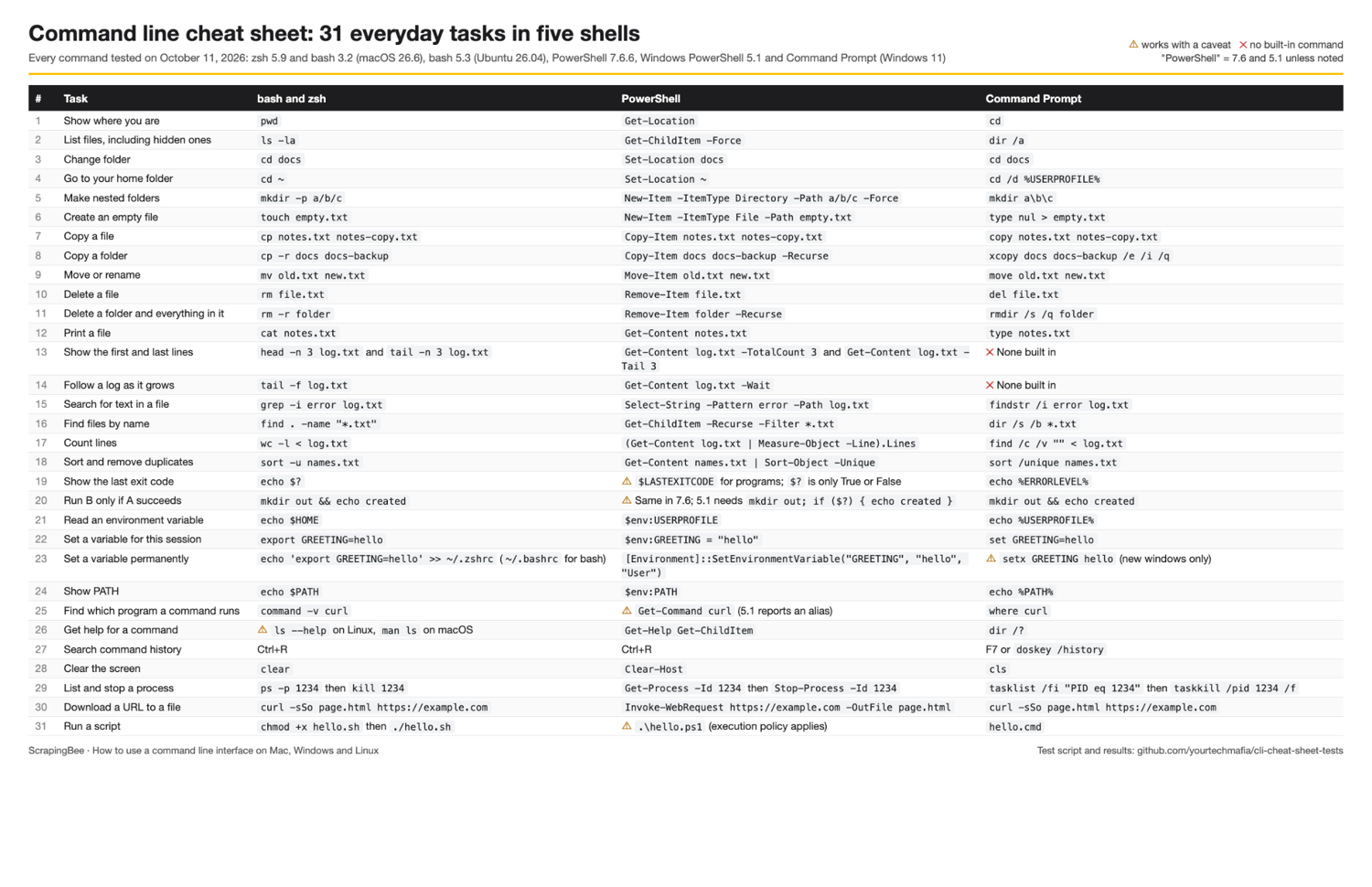
The test script, the CI workflow and the raw results are in my cli-cheat-sheet-tests repository.
1. Break a command into program, subcommand, options and arguments
Most commands follow the same pattern: the program name, sometimes a subcommand, then options that change its behavior and arguments that tell it what to work on.
This example creates a commit in a throwaway repository:
git init -q practice-repo
cd practice-repo
echo "hello" > README.md
git add README.md
git commit -m "Fix typo"
Git answers with the new commit:
[main (root-commit) ff98e92] Fix typo
 1 file changed, 1 insertion(+)
 create mode 100644 README.md
In git commit -m "Fix typo", git is the program, commit is the subcommand, -m is an option and "Fix typo" is the option's value. The quotes keep the two words together as one value. Remove them, and git reads typo as a separate argument.
PowerShell uses the same idea with different names. In Get-ChildItem -Path docs -Recurse, Get-ChildItem is a cmdlet (PowerShell's word for a built-in command), -Path is a parameter with the value docs, and -Recurse is a switch that takes no value.
2. Use short options, long options and --
Short options are one dash and one letter, and you can often stack them.
Long options are two dashes and a word:
grep -i -c error log.txt
grep --ignore-case --count error log.txt
Both count the lines that contain "error" in any case:
2
2
Long options aren't universal, though. On macOS, ls --all fails with "ls: unrecognized option '--all'", because Apple ships the BSD version of ls, which knows almost no long options. Linux ships the GNU-compatible one, which knows both.
PowerShell lets you shorten parameter names as long as the result stays unambiguous, and it has short aliases for common cmdlets.
For instance, these two lines are the same command:
Get-ChildItem -Recurse -Filter *.md | Select-Object -ExpandProperty Name
gci -r -fi *.md | Select-Object -ExpandProperty Name
The double dash -- means "options end here; everything after it is an argument". You need it the day a file name starts with a dash.
I created a file called -oops.txt to show why:
touch -- -oops.txt
ls -oops.txt
ls -- -oops.txt
rm -- -oops.txt
Without --, ls treats the file name as a bundle of options. With it, it treats the file as a file.
This is macOS; Ubuntu words the error differently:
ls: invalid option -- .
usage: ls [-@ABCFGHILOPRSTUWXabcdefghiklmnopqrstuvwxy1%,] [--color=when] [-D format] [file ...]
-oops.txt
PowerShell doesn't help you here with --. I tried, and its parser still split -oops.txt into a parameter called -oops and a stray .txt.
Instead, you should quote the name:
New-Item -ItemType File "-oops.txt" | Out-Null
Get-ChildItem -oops.txt
Get-ChildItem "-oops.txt" -Name
Remove-Item "-oops.txt"
Unquoted, the name is a parameter. Quoted, it's a file name:
Get-ChildItem:
Line |
   2 |  Get-ChildItem -oops.txt
     |                ~~~~~
     | A parameter cannot be found that matches parameter name 'oops'.
-oops.txt
Command Prompt has no such problem, because its switches start with /. dir /b -oops.txt lists the file without complaint.
3. Get help inside the command line
You don't need to memorize options, because every shell can show you its own manual.
On Linux, most tools answer --help:
ls --help | head -n 4
Ubuntu 26.04 printed the first lines of the help text:
List directory contents.
Ignore files and directories starting with a '.' by default

Usage: ls [OPTION]... [FILE]...
On macOS, ls --help fails for the same BSD reason as --all.
Use the manual page instead, which works for nearly every command on macOS and Linux (press q to leave it):
man ls
In PowerShell, Get-Help shows a cmdlet's documentation, and -Examples jumps straight to working examples. Windows ships only partial help, so download the full text once with Update-Help.
In PowerShell 7, -Scope CurrentUser (its default) avoids needing an administrator window (Windows PowerShell 5.1 has no -Scope here, so run it from an administrator window without it):
Update-Help -Scope CurrentUser
Get-Help Get-ChildItem -Examples
Get-Help printed the cmdlet's name, its synopsis and the first example:
NAME
    Get-ChildItem

SYNOPSIS
    Gets the items and child items in one or more specified locations.

    --------- Example 1: Get child items from a file system directory ---------
In Command Prompt, add /? to a command, as in dir /?. Watch the exit code, though: dir /? prints its help and then exits with code 1, so a script that checks for success treats asking for help as a failure.
4. Move faster with shortcuts and aliases
Here are a few keys to do most of the work:
- Tab completes file names, folder names and, in PowerShell, parameter names.
- Up arrow brings back the previous command so you can edit and rerun it.
- Ctrl+R searches your history as you type. PowerShell gets this from its PSReadLine module. In Command Prompt, press F7 for a history list.
- Ctrl+C stops the command that's running.
- Ctrl+L, or clear (Clear-Host in PowerShell, cls in Command Prompt), clears the screen.
An alias is a short name for a command you type often.
In zsh, add the alias to ~/.zshrc (in bash, which most Linux systems use, write the same line to ~/.bashrc):
echo "alias ll='ls -la'" >> ~/.zshrc
A new terminal picks it up, and ll notes.txt printed the long listing. Aliases only work where you type, though. The same ll inside a script failed with "command not found" in both zsh and bash, because scripts don't load your interactive settings. Put the full command in scripts.
PowerShell aliases can't take arguments, so use a small function in your $PROFILE file:
if (!(Test-Path -Path $PROFILE)) { New-Item -ItemType File -Path $PROFILE -Force | Out-Null }
Add-Content -Path $PROFILE -Value 'function ll { Get-ChildItem -Force @args }'
The profile file doesn't exist until you create it, and this check creates it without overwriting one you already have.
Command Prompt has doskey ll=dir /a $*, but its macros only exist in the window where you defined them. The same macro inside a .cmd file failed with "'ll' is not recognized as an internal or external command".
How to chain CLI commands with pipes, redirection and exit codes
Every command has three streams (input, standard output and standard error). A pipe (|) sends one command's output into the next command, and redirection (>, >>, 2>) sends output to a file.
When a command finishes, it returns an exit code: 0 means success, and anything else means something went wrong or didn't match.
1. Pipe one command's output into the next
A pipe connects two small programs into a bigger one.
For example, this line finds the error lines in the log and counts them:
grep ERROR log.txt | wc -l
It prints 2 (macOS pads the number with spaces; Linux doesn't).
In PowerShell, Select-String finds the lines, and Measure-Object counts them:
Select-String -Path log.txt -Pattern ERROR | Measure-Object | Select-Object -ExpandProperty Count
In Command Prompt, find /c /v "" counts the lines that come out of findstr:
findstr ERROR log.txt | find /c /v ""
Both print 2. The bigger difference sits under the syntax. In bash and zsh, a pipe carries plain text, and each command has to parse what the previous one printed. In PowerShell, a pipe carries objects with named properties, so you sort and select by name instead of by column position.
This line lists the three largest text files:
Get-ChildItem *.txt | Sort-Object Length -Descending | Select-Object -First 3 Name, Length
PowerShell returns a table built from the Name and Length properties:
Name      Length
----      ------
log.txt      222
names.txt     33
notes.txt     12
The bash version needs ls to sort by size and head to cut the list, and you get whatever columns ls prints:
ls -lS *.txt | head -n 3
On macOS, that's the full long listing, with permissions, owner and date you didn't ask for:
-rw-r--r--  1 you  staff  222 Oct 11 12:19 log.txt
-rw-r--r--  1 you  staff   33 Oct 11 12:19 names.txt
-rw-r--r--  1 you  staff   12 Oct 11 12:19 notes.txt
Neither model is better everywhere. Text pipes work with every program ever written, while object pipes save you from parsing. Knowing which one you're in explains most of the "this worked in bash" confusion on Windows.
2. Redirect output and errors to files
> writes output to a file and replaces what was there, >> appends, 2> sends error output to its own file, and 2>&1 merges errors into normal output.
This bash example asks ls for one file that exists and one that doesn't:
ls notes.txt missing.txt > out.txt 2> errors.txt
cat out.txt
cat errors.txt
echo "first" > report.txt
echo "second" >> report.txt
cat report.txt
ls notes.txt missing.txt > all.txt 2>&1
cat all.txt
On macOS, the output and the error went to separate files, the second echo appended instead of replacing, and 2>&1 put both in one file:
notes.txt
ls: missing.txt: No such file or directory
first
second
ls: missing.txt: No such file or directory
notes.txt
PowerShell and Command Prompt use the same four operators, with two Windows-only traps.
In Command Prompt, echo first > report.txt writes the space before > into the file. My file was 8 bytes instead of 7. Write echo first> report.txt when trailing spaces matter, for example, in a file another program reads.
In Windows PowerShell 5.1, > writes UTF-16 text, not UTF-8. This line writes "hi" and prints the bytes of the file:
"hi" > hi.txt
[System.IO.File]::ReadAllBytes("$PWD\hi.txt") -join ' '
PowerShell 7.6 printed 104 105 13 10, which is plain UTF-8. Windows PowerShell 5.1 printed 255 254 104 0 105 0 13 0 10 0: a byte order mark and two bytes per letter. Many Linux tools and some Python scripts choke on that file.
In 5.1, Out-File -Encoding utf8 gets you UTF-8, though still with a byte order mark that some tools trip over, so PowerShell 7 is the cleaner fix.
3. Read exit codes in every shell
Each shell stores the last exit code in a different place: $? in bash and zsh, $LASTEXITCODE for programs in PowerShell, and %ERRORLEVEL% in Command Prompt.
This bash script triggers four common codes on purpose (hello.sh exists but isn't executable yet):
grep zzz log.txt
echo "grep found nothing: $?"
nosuchcommand
echo "command not found: $?"
./hello.sh
echo "not executable: $?"
sh -c 'kill -INT $$'
echo "stopped by Ctrl+C (SIGINT): $?"
Here is what bash printed on Ubuntu 26.04:
grep found nothing: 1
bash: line 3: nosuchcommand: command not found
command not found: 127
bash: line 5: ./hello.sh: Permission denied
not executable: 126
stopped by Ctrl+C (SIGINT): 130
These numbers come from the GNU Bash manual: 127 when a command isn't found, 126 when it's found but can't run, and 128 plus the signal number when a signal stops it. Ctrl+C sends signal 2, which is why an interrupted command usually ends with 130. zsh returned the same codes with its own wording, such as "zsh: command not found: nosuchcommand".
The first line deserves a second look. grep returns 1 when it finds nothing, so a non-zero code doesn't always mean an error. Codes also differ between versions of the same tool. ls missing.txt exited with 2 on Ubuntu, and with 1 on macOS, so a script that checks for one specific number can pass on one machine and fail on the other.
PowerShell keeps two variables. $LASTEXITCODE holds the number a program returned, and $? holds True or False for the last command of any kind:
findstr zzz log.txt
"findstr exit code: $LASTEXITCODE"
nosuchcommand
"last command succeeded: $?"
PowerShell 7.6 printed the exit code, then the error, then False:
findstr exit code: 1
nosuchcommand:
Line |
   3 |  nosuchcommand
     |  ~~~~~~~~~~~~~
     | The term 'nosuchcommand' is not recognized as a name of a cmdlet, function, script file, or executable program.
Check the spelling of the name, or if a path was included, verify that the path is correct and try again.
last command succeeded: False
Command Prompt has its own number for a missing command:
findstr zzz log.txt
echo findstr exit code: %ERRORLEVEL%
nosuchcommand
echo command not found: %ERRORLEVEL%
It's 9009, not 127:
findstr exit code: 1
'nosuchcommand' is not recognized as an internal or external command,
operable program or batch file.
command not found: 9009
The lesson for scripts: check for success (0), not for one specific failure number, because the same failure is 127 in bash, 9009 in Command Prompt, and 1 or 2 depending on whose ls you run.
4. Run commands only if the previous one succeeded or failed
&& runs the next command only if the previous one succeeded, and || runs it only if the previous one failed.
I ran the same line twice, so the second mkdir fails because the folder exists:
mkdir out && echo "created" || echo "failed"
mkdir out && echo "created" || echo "failed"
The first line created the folder, and the second fell through to ||:
created
mkdir: out: File exists
failed
The identical line works in PowerShell 7 (which added && and || in version 7.0) and in Command Prompt, where you'd drop the quotes, because its echo prints them.
Windows PowerShell 5.1 rejects it before running anything:
At line:1 char:11
+ mkdir out && echo "created"
+           ~~
The token '&&' is not a valid statement separator in this version.
In 5.1, check $? yourself:
mkdir out | Out-Null; if ($?) { "created" } else { "failed" }
That's one of the clearest reasons to install PowerShell 7, because tutorials written for bash take && for granted.
Using variables, PATH, quotes and wildcards on the command line
Before a program sees your command, the shell rewrites it. It swaps variables for their values, finds the program in the folders on your PATH, and expands wildcards into file names. Quotes decide which of those rewrites happen.
Environment variables
Environment variables are named settings every program you start can read, such as your home folder or an API key.
In bash and zsh, export is what hands a variable to those programs:
GREETING="hello"
bash -c 'echo "child sees: [$GREETING]"'
export GREETING
bash -c 'echo "child sees: [$GREETING]"'
The child shell only sees the variable after export:
child sees: []
child sees: [hello]
PowerShell's $env:GREETING = "hello" and Command Prompt's set GREETING=hello need no extra step (in Command Prompt, no spaces around =, or the name gets a trailing space). All of them vanish when you close the window.
To keep a variable, add the export line to ~/.zshrc or ~/.bashrc and source the file. On Windows, a user-level variable lives in the registry, and the current window doesn't see the change:
[Environment]::SetEnvironmentVariable("GREETING", "hello", "User")
[Environment]::GetEnvironmentVariable("GREETING", "User")
"this session: [$env:GREETING]"
The value is saved, and the current session is still empty:
hello
this session: []
Command Prompt's setx has the same trap plus a 1,024-character limit: my 1,100-character test value came back "truncated to 1024 characters". So never run setx PATH "%PATH%;C:\tools" on a long PATH. Edit PATH in Settings instead.
PATH
PATH is the list of folders the shell searches when you type a command, and a missing folder is the usual reason for "command not found". This line lists them in bash and zsh ($env:PATH -split ';' in PowerShell):
echo $PATH | tr ':' '\n'
Then ask which program a name runs. command -v answers in bash and zsh, where in Command Prompt, and Get-Command in PowerShell:
Get-Command curl | Format-Table CommandType, Name, Definition -AutoSize
The answer depends on which PowerShell you're in. PowerShell 7.6 found C:\Windows\system32\curl.exe, the real program, while Windows PowerShell 5.1 found its alias first, which is why you type curl.exe there:
CommandType Name Definition
----------- ---- ----------
      Alias curl Invoke-WebRequest
Homebrew on an Apple silicon Mac is the classic case: it installs into /opt/homebrew/bin, which isn't on a new Mac's PATH. I reproduced it on my Mac with a stock PATH, then ran the installer's two "Next steps" lines:
brew --version
echo 'eval "$(/opt/homebrew/bin/brew shellenv zsh)"' >> ~/.zprofile
eval "$(/opt/homebrew/bin/brew shellenv zsh)"

brew --version
The first brew failed. The echo line saves the fix in ~/.zprofile for future windows, and eval applies it now, so the second one worked:
zsh: command not found: brew
Homebrew 7.0.8
Expect the same pattern after installing almost any command line tool: a "not on your PATH" warning and a line to add.
Using quotes
Quotes tell the shell which parts of a command belong together. In bash and zsh, single quotes keep text exactly as written, while double quotes still expand variables:
echo 'Home is $HOME'
echo "Home is $HOME"
The first line keeps the dollar sign, and the second prints the folder:
Home is $HOME
Home is /Users/you
PowerShell follows the same rule. Command Prompt doesn't treat single quotes as quotes at all, so they end up in the output. To escape one character inside double quotes, use a backslash in bash and zsh (\$5) or a backtick in PowerShell (`$5); Command Prompt's caret (^) only works outside quotes.
JSON is where the shells split. This command sends a small JSON body and shows what the server received:
curl -s https://httpbin.org/anything --json '{"title":"h1"}' | grep '"data"'
I sent the same JSON from every shell, typing curl.exe in PowerShell, because in Windows PowerShell 5.1, curl is an alias for Invoke-WebRequest:
| Shell | What the server received | Why |
|---|---|---|
| zsh, bash, PowerShell 7.6 | {"title":"h1"} | Single quotes protect the inner double quotes |
| Windows PowerShell 5.1 | {title:h1} | 5.1 drops embedded double quotes when it calls a program. PowerShell 7.3 fixed this |
| Command Prompt | '{title:h1}' | Single quotes are ordinary characters, so they reach the server too |
In Command Prompt, double quotes with backslash-escaped inner quotes worked:
curl -s https://httpbin.org/anything --json "{\"title\":\"h1\"}" | findstr /c:"data"
In Windows PowerShell 5.1, build the data as an object and let ConvertTo-Json and Invoke-RestMethod handle the quoting, or use PowerShell 7.
Wildcards
In bash and zsh, the shell expands * and ? into file names before the program runs, and quotes stop it:
echo *.txt
echo "*.txt"
echo *.zzz
bash printed the matching names, the quoted pattern as text, and the pattern that matched nothing, unchanged:
file.txt log.txt names.txt notes.txt old.txt
*.txt
*.zzz
zsh refused the third line ("no matches found"), the same protection that blocked the unquoted URL. PowerShell and Command Prompt leave wildcards to each command, so echo *.txt prints *.txt while dir *.txt lists files.
Writing, running and scheduling command-line scripts
A script is a text file of commands you'd otherwise type. Once a task works at the prompt, saving it as a script is the step that turns it into something you can schedule, share and stop thinking about.
Bash script
This is hello.sh (the first line, called a shebang, tells the system which program runs the file):
#!/usr/bin/env bash
echo "Hello from bash"
These four lines try to run it before and after adding the execute permission:
./hello.sh
chmod +x hello.sh
./hello.sh
hello.sh
Here, bash on Ubuntu 26.04 printed:
bash: line 1: ./hello.sh: Permission denied
Hello from bash
bash: line 4: hello.sh: command not found
The first try failed with "permission denied" (exit code 126) because new files aren't executable. chmod +x fixed that. The last line failed because the current folder isn't on PATH, which is why you type ./: it tells the shell exactly where the file is.
PowerShell script
PowerShell scripts end in .ps1.
This is hello.ps1:
Write-Output "Hello from PowerShell"
PowerShell also refuses to run scripts from the current folder by name, and asks for .\:
hello.ps1
.\hello.ps1
PowerShell 7.6 rejected the first line and ran the second:
hello.ps1: The term 'hello.ps1' is not recognized as a name of a cmdlet, function, script file, or executable program.
Check the spelling of the name, or if a path was included, verify that the path is correct and try again.
Hello from PowerShell
Command Prompt is the odd one out: it searches the current folder before PATH, so hello.cmd (two lines, @echo off and echo Hello from Command Prompt) runs without .\.
The second gate is the execution policy. Windows PowerShell 5.1 defaults to Restricted on Windows 10 and 11, which blocks every script, while PowerShell 7 documents RemoteSigned as its default on Windows.
With the policy set to Restricted, Windows PowerShell 5.1 printed:
.\hello.ps1 : File C:\Users\you\practice\hello.ps1 cannot be loaded because running scripts is disabled on this system. For more information, see about_Execution_Policies at https:/go.microsoft.com/fwlink/?LinkID=135170.
The fix most developers use is RemoteSigned for your own user account. It runs scripts you wrote and requires a signature on scripts downloaded from the internet. PowerShell asks you to confirm the change:
Set-ExecutionPolicy -ExecutionPolicy RemoteSigned -Scope CurrentUser
Don't set it to Unrestricted or Bypass to make an error go away. The policy isn't a security boundary, but it's a useful speed bump against a script you didn't mean to run.
Scheduling with cron, launchd or Task Scheduler
A script earns its keep when it runs without you. Every system has a scheduler built in: cron on Linux and macOS, with launchd as Apple's own option, and Task Scheduler on Windows. I tested a cron entry on Ubuntu 26.04 and both Windows methods on Windows 11.
Linux and macOS cron
On Linux and macOS, cron runs commands on a schedule.
To start, open your schedule with crontab -e and add one line:
0 8 * * * /home/you/scripts/hello.sh >> /home/you/hello.log 2>&1
This one runs a script every morning at 8:00 and logs its output.
The five fields are minute, hour, day of month, month and day of week, and * means "every". Use full paths, because cron starts with a minimal PATH and doesn't read your ~/.zshrc.
macOS runs cron too, but Apple's own scheduler is launchd, which uses an XML file in ~/Library/LaunchAgents and catches up on jobs the Mac slept through. For one personal script, cron is simpler.
Windows Task Scheduler
On Windows, Task Scheduler does the same job. Command Prompt's schtasks creates a daily 8:00 task in one line. The escaped quotes around the path keep it working if a folder name contains spaces:
schtasks /create /tn "HelloScript" /tr "\"%CD%\hello.cmd\"" /sc daily /st 08:00 /f
schtasks /query /tn "HelloScript"
schtasks /delete /tn "HelloScript" /f
The task was created, queried and deleted:
SUCCESS: The scheduled task "HelloScript" has successfully been created.

Folder: \
TaskName                                 Next Run Time          Status
======================================== ====================== ===============
HelloScript                              10/11/2026 8:00:00 AM  Ready
SUCCESS: The scheduled task "HelloScript" was successfully deleted.
PowerShell builds the same task from objects, which reads better once the options grow:
$action = New-ScheduledTaskAction -Execute "pwsh.exe" -Argument "-File `"$PWD\hello.ps1`""
$trigger = New-ScheduledTaskTrigger -Daily -At 8am
Register-ScheduledTask -TaskName "HelloScript" -Action $action -Trigger $trigger | Select-Object TaskName, State
Unregister-ScheduledTask -TaskName "HelloScript" -Confirm:$false
Register-ScheduledTask reported the task as ready before the last line removed it:
TaskName    State
--------    -----
HelloScript Ready
Whichever scheduler you use, give it full paths and send its output to a log file, because a scheduled job has no terminal to show you its errors.
How to pull web data from the command line with curl, jq and an API
Everything comes together in one small pipeline: fetch JSON, pick out the fields you need, and run a batch of pages through a scraping API like ScrapingBee, without writing a program.
You need three CLI tools:
- cURL to make HTTP requests
- jq to read JSON
- ScrapingBee CLI to fetch pages through ScrapingBee's API
Once you have these installed, you can proceed.
1. Fetch JSON with curl and read one field with jq
Start by checking what you have, because the versions your system ships with can lag far behind:
curl --version | head -n 1
jq --version
My Mac's built-in versions trail the current releases: curl 8.22.0 (September 2, 2026) and jq 1.8.2 (June 20, 2026):
curl 8.7.1 (x86_64-apple-darwin25.0) libcurl/8.7.1 (SecureTransport) LibreSSL/3.3.6 zlib/1.2.12 nghttp2/1.68.1
jq-1.7.1-apple
On a Mac, brew install curl jq gets both, though Homebrew installs its curl next to Apple's and prints the PATH line to make it the default.
On Ubuntu, sudo apt install jq adds jq. Windows 11 already ships curl.exe, and jq's download page lists a winget package.
This command asks GitHub's API for curl's latest release and keeps two fields:
curl -s https://api.github.com/repos/curl/curl/releases/latest | jq -r '.tag_name, .published_at'
jq printed the tag and the date as plain text, which is what -r does:
curl-8_22_0
2026-09-02T05:59:35Z
PowerShell doesn't need jq for this. Invoke-RestMethod parses JSON into objects on its own:
Invoke-RestMethod https://api.github.com/repos/curl/curl/releases/latest | Select-Object tag_name, published_at
PowerShell 7.6 even turned the date string into a date object (5.1 keeps it as text):
tag_name    published_at
--------    ------------
curl-8_22_0 9/2/2026 5:59:35 AM
One run taught me a jq lesson. On a shared CI runner, the same curl command printed null twice, because GitHub's API had rate-limited the runner and sent back an error message instead of release data.
jq prints null for a missing field and still exits with 0, so a script would carry on with bad data. Add -e, and jq exits with 1 when the result is null:
echo '{"message":"API rate limit exceeded"}' | jq -er '.tag_name'
echo $?
It still prints null, but the exit code is now 1, so && and set -e can stop the script.
2. Use an API with a CLI that returns JSON
The ScrapingBee CLI wraps ScrapingBee's API in commands. It needs Python 3.10 or later, and two commands install it and store your API key (pip install scrapingbee-cli works too if you don't use uv):
uv tool install scrapingbee-cli
scrapingbee auth
If uv's tool folder (~/.local/bin by default) isn't on your PATH yet, uv says so and prints the line to fix it, the same pattern as Homebrew. scrapingbee auth saves the key to ~/.config/scrapingbee-cli/.env. I used the other supported route, a SCRAPINGBEE_API_KEY environment variable, and tested version 1.6.0.
scrapingbee usage returns your account's credits and concurrency as JSON, which makes it a good citizen in a pipeline. This line computes what's left:
scrapingbee usage | jq '{used: .used_api_credit, limit: .max_api_credit, left: (.max_api_credit - .used_api_credit)}'
My test account answered:
{
  "used": XXXX,
  "limit": XXXXX,
  "left": XXXXX
}
PowerShell reads the same JSON with ConvertFrom-Json:
scrapingbee usage | ConvertFrom-Json | Select-Object used_api_credit, max_api_credit
Either way, you don't need to screen-scrape human-friendly text.
3. Scrape a list of URLs in one batch and filter the results with jq
To go further, let’s put one URL per line in urls.txt. I used five book pages from books.toscrape.com, a site built for scraping practice:
https://books.toscrape.com/catalogue/a-light-in-the-attic_1000/index.html
https://books.toscrape.com/catalogue/tipping-the-velvet_999/index.html
https://books.toscrape.com/catalogue/soumission_998/index.html
https://books.toscrape.com/catalogue/sharp-objects_997/index.html
https://books.toscrape.com/catalogue/sapiens-a-brief-history-of-humankind_996/index.html
This command scrapes every URL in the file, extracts the title and price with Cascading Style Sheets (CSS) selectors, and writes one JSON object per line (NDJSON) to books.ndjson.
Options take space-separated values, so JavaScript rendering is off with --render-js false, and the JSON rules sit in single quotes:
scrapingbee scrape --input-file urls.txt --render-js false --extract-rules '{"title": "h1", "price": "p.price_color"}' --output-format ndjson > books.ndjson
The terminal still showed progress because the CLI writes progress to stderr and only the data to stdout. That's the stream split from the redirection section paying off:
Batch: 5 items, concurrency 5 (from usage API)
  [1/5] | 1 req/s | ETA 3s
  [2/5] | 2 req/s | ETA 1s
  [3/5] | 3 req/s | ETA 0s
  [4/5] | 3 req/s | ETA 0s
  [5/5] | 1 req/s
Batch complete: 5 succeeded, 0 failed. Output: <stdout>
Each line of books.ndjson is one page's result, with the HTTP status in status_code, any failure in error, and the extracted fields in body. This jq line reads all the lines, sorts the books by price as a number, and prints a price list:
jq -rs 'sort_by(.body.price | ltrimstr("£") | tonumber)[] | [.body.price, .body.title] | @tsv' books.ndjson
Five books, five prices, in one command:
£47.82	Sharp Objects
£50.10	Soumission
£51.77	A Light in the Attic
£53.74	Tipping the Velvet
£54.23	Sapiens: A Brief History of Humankind
The batch cost five credits, one per page, because the pages didn't need rendering. --input-file - reads URLs from standard input instead of a file, so the whole thing also works as a single pipe. This one skips one book with grep -v:
grep -v sapiens urls.txt | scrapingbee scrape --input-file - --render-js false --extract-rules '{"title": "h1", "price": "p.price_color"}' --output-format ndjson | jq -r '.body.title'
After its own progress block (4 items this time), it printed the four remaining titles, in the order the pages finished:
A Light in the Attic
Soumission
Sharp Objects
Tipping the Velvet
The scrape command also works unchanged in PowerShell 7, because single quotes protect the JSON there too. I ran it in PowerShell 7.6.6 on my Mac, and it wrote the same NDJSON. On Windows 11, PowerShell 7.6 passed single-quoted JSON to curl.exe intact in my tests, so expect the same there.
In Command Prompt, escape the inner quotes as the quoting section shows; in Windows PowerShell 5.1, run the command in PowerShell 7 instead.
To read the results, ConvertFrom-Json parses the file line by line:
Get-Content books.ndjson | ConvertFrom-Json | ForEach-Object body | Sort-Object price | Format-Table price, title
PowerShell 7.6 printed the same five books. Windows PowerShell 5.1 printed £47.82, because it reads files without a byte order mark as the old Windows code page instead of UTF-8. Add -Encoding UTF8 to Get-Content in 5.1, and the pound signs come back.
The CLI can also schedule runs and post-process results, but those features execute shell commands and need extra opt-in setup, so they're out of scope here.
If you want to go further from here, these posts pick up where this pipeline stops:
- Web scraping from the terminal covers the ScrapingBee CLI in depth.
- The CLI's interactive mode helps you build commands without memorizing options.
- Showing response headers with curl explains the flags for debugging a request.
- The curl converter turns a curl command into code for your language.
- Web scraping with Linux and bash builds scrapers from classic Unix tools.
Run web data pipelines from your terminal with ScrapingBee
You wanted a price list, not a weekend spent on proxies, headless browsers and the next CAPTCHA. The pipeline above stays this short only when the "fetch the page" step is somebody else's problem. The moment you point it at sites that block scrapers, render with JavaScript or change layouts, curl alone stops being enough.
Here’s how ScrapingBee keeps the fetch step to one command, from any shell:
- One CLI for every shell: The same scrapingbee commands run in zsh, bash and PowerShell 7, and print JSON any shell can read.
- Batch from a file or a pipe: --input-file takes a list of URLs or standard input, with concurrency set from your plan.
- Rendering when you need it: Turn JavaScript rendering on for dynamic pages, or off to save credits on static ones.
- Extraction without parsing: CSS rules or AI extraction return the fields you asked for, not raw HTML.
- Proxies handled for you: Rotating and premium proxies sit behind the same command, so you never manage an IP pool.
Start with 1,000 free API credits and run the batch above on your own URLs. No credit card required.
Frequently asked questions about the command line interface
Should I learn bash, zsh or PowerShell first?
Learn the shell your computer already opens. That's zsh on a Mac, bash on most Linux distributions, and PowerShell on Windows 11. zsh and bash share most everyday commands, so learning one teaches you the other. If you work with servers, containers or CI pipelines, learn bash as well, since most Linux documentation assumes it.
Why do I get "command not found"?
The shell searched every folder on your PATH and found no program with that name. The usual causes are a typo, a tool that isn't installed, or a new tool whose folder isn't on PATH yet. Check with command -v on macOS and Linux or Get-Command in PowerShell. bash reports exit code 127, and Command Prompt reports 9009.
Why do I get "permission denied"?
You tried to run or change something your account isn't allowed to. A script you created needs its execute permission first, so run chmod +x on it. System files may need sudo on macOS and Linux, or a terminal opened as administrator on Windows. In bash, a command it found but couldn't run returns exit code 126.
How do I stop a running command?
Press Ctrl+C. It sends an interrupt signal that stops most commands, and in bash the stopped command usually reports exit code 130. If a program ignores it, close the terminal tab, or find the process ID and end it with kill on macOS and Linux or Stop-Process in PowerShell.
How do I set an environment variable permanently?
Write it into a file your shell reads at startup: an export line in ~/.zshrc for zsh or ~/.bashrc for bash, then source the file. In PowerShell, use your $PROFILE or [Environment]::SetEnvironmentVariable with the User scope. On Windows, the current window won't see the change, so open a new one.
Can I break my computer with the command line?
You can do real damage, because commands act at once and deleted files skip the Trash. rm -rf removes folders permanently, and sudo or an administrator window lifts the protections that normally stop you. Read a command before pressing Enter, test destructive ones in a practice folder, and be extra careful with commands an AI agent suggests.
What are the first commands to learn?
Command-line basics start with moving around and reading files: pwd, ls, cd, mkdir, cp, mv and cat, or their PowerShell equivalents. Then learn --help, pipes with |, redirection with >, and checking exit codes. Those cover most tutorials you'll follow and are enough to start automating small, repetitive tasks.

Ismail is a Senior Managing Editor and Senior AI Workflow Engineer. For a decade, he has turned the trickiest corners of web scraping, Python, content marketing, and AI infrastructure into guides readers keep open in a second tab. He builds the tools before he documents them, breaks them, and reports back with the scars.