Scraping ZoomInfo data means dealing with premium proxy requirements, aggressive fingerprinting, and strict legal limits. If you're trying to extract company profiles at scale, you can only access public data. That includes company name, description, headquarters, employee count, stock symbol, and listed phone numbers. Contact-level data (emails, individual phone numbers, tech stacks) is behind a login wall, and automating access to it violates ZoomInfo's Terms of Service and anti-hacking laws like the CFAA.
In this guide, we cover what parts of ZoomInfo you can legally scrape and what's off-limits behind login walls. For the public data, we show two approaches using the ScrapingBee API: one using CSS selectors to parse HTML, and another using AI extraction that adapts to page structure changes. If you decide to scrape ZoomInfo's public company profiles, you can use either method to handle the technical barriers without crossing legal boundaries.
Quick Answer (TL;DR)
ZoomInfo hides most valuable data behind a login wall. Accessing it with automation violates their Terms of Service and risks prosecution under the CFAA. You can scrape public company profiles without login: company name, description, stock symbol, headquarters, employee count, and public phone numbers. Even this public data requires premium proxies and anti-bot bypass to access reliably. The ScrapingBee API handles proxy rotation, fingerprinting, and rendering so you get structured data without managing infrastructure:
import requests

resp = requests.get(
    "https://app.scrapingbee.com/api/v1/",
    params={
        "api_key": "YOUR_API_KEY",
        "url": "https://www.zoominfo.com/c/tesla-inc/104333869",
        "premium_proxy": "true",
    },
)

print(resp.status_code, len(resp.text))
What Makes Scraping ZoomInfo Data Hard
ZoomInfo is much harder to scrape compared to scraping an ecommerce site or individual company sites themselves, as the data on the ZoomInfo site itself is their product and core offering, unlike other sites where the data is about their products/services. Hence their servers and dedicated security teams do everything they can to prevent their data from being resold or mirrored elsewhere.
To protect their data, ZoomInfo employs an array of measures such as technical barriers as well as login-gating most of their valuable data. Accessing any data behind a login wall through the use of unauthorized means can lead to serious legal consequences and we do not recommend attempting that. We will only focus on publicly available ungated data.
Login Walls and Auth Checks
ZoomInfo puts its most valuable data such as contact-level emails, phone numbers and company tech stack behind a login wall, and these can be accessed only via authenticated sessions. Only the high level data like company name, description, categories, stock symbol, etc. is available without a login.
So if you are looking to get contact-level data, you will necessarily need to use a paid account and login into the website with that account. Scraping any of the paid content will count as a violation of ZoomInfo's Terms of Service and may result in legal consequences under the CFAA (Computer Fraud and Abuse Act) in the US and similar laws in other jurisdictions.
Bot Detection and Fingerprinting
ZoomInfo extensively utilizes bot detection mechanisms to deter automated traffic as its teams see fit. This could include blocking certain IPs, fingerprinting your browser, checking for the presence of certain features such as canvas, WebGL and navigator properties and blocking you if the fingerprint matches with automated browsers. With IP addresses, data center IPs and free proxies are prone to getting blocked easily as they are well known as sources of automated traffic, so you will have to use a premium residential proxy to appear like a regular user.
If ZoomInfo suspects your traffic for any reason, it might show CAPTCHAs or other challenges requiring human intervention to bypass, and hence stop automated requests. This causes most DIY approaches to fail at scale, as one needs clean browser fingerprints and a pool of residential IPs, which can be demanding to set up and maintain.
What Public Data Can You Actually Scrape from ZoomInfo?
Now that we've discussed why only publicly available data can be scraped from ZoomInfo, it's important to bear in mind what is actually publicly available. The picture below shows the first fold of a ZoomInfo company page as it appears without login:
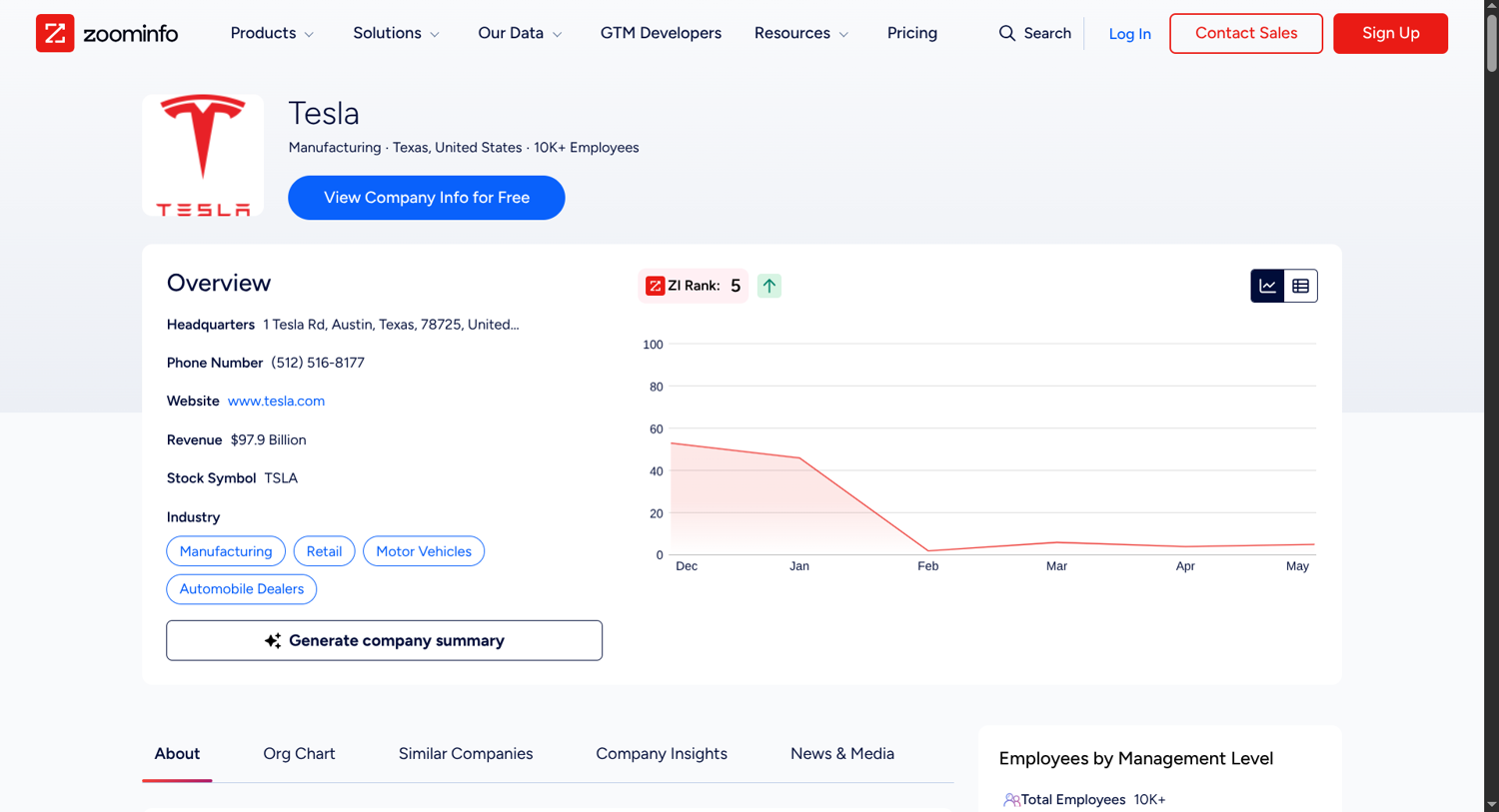
Publicly available on company profiles without login:
- Company Name
- One Paragraph About the Company
- Location and Headquarters Address
- Number of Employees
- Public Company Phone Number
- Link to Company Website
- Stock Symbol
NOT Available Without Login:
- Contact details (emails/phone numbers) of any individuals in the company
- Tech Stack Data
- Detailed Financials
As you can see, the important data is behind a login. Hence if you are looking to build a contact list, scraping is not a good idea to go about it.
How to Scrape ZoomInfo Step by Step
Now that you know what data you can get via scraping from ZoomInfo, let's look at the steps involved to get this data. Make sure to not login or use your credentials at any point, and scrape only the data available without a login.
Identify Target URLs
The first thing you'd want to do is to make a list of the company URLs you want to scrape. They are typically of the pattern https://zoominfo.com/c/{company-name}/{unique-id}. Keep in mind that the unique ID is what actually identifies the company uniquely in their database. The company name is in the URL only for readability and will not work on its own or with a wrong ID. For example, all 3 of the URLs below will give you the same Tesla page as the ID is the same:
https://www.zoominfo.com/c/tesla-inc/104333869https://www.zoominfo.com/c/tesssssla-inc/104333869https://www.zoominfo.com/c/uber/104333869
So instead of guessing the URLs using company names, you will have to source them from somewhere reliable.
Set Up Your Environment
In this guide, we use Python with the ScrapingBee API to demonstrate how to scrape the publicly available ZoomInfo. You will need the scrapingbee and beautifulsoup4 python packages, which you can install with pip or uv:
pip install scrapingbee beautifulsoup4
OR:
uv add scrapingbee beautifulsoup4
Finally, to use the ScrapingBee API, you will need an API key. If you haven't already, you can sign up for a trial with 1000 free scraper credits to get an API key and try this out.
Code To Scrape ZoomInfo Company Pages
We're demonstrating this bit using the ScrapingBee API. As we discussed earlier, scraping ZoomInfo requires premium proxies and typical data center IPs may get blocked. ScrapingBee handles all of this with a simple API call. Using the API, we can either fetch the HTML content and extract the data using CSS selectors with the help of BeautifulSoup, or extract the data by simply supplying AI prompts. When you use AI prompts, ScrapingBee will automatically pass them through an LLM with the context of the fetched page. You can see both of these methods below, followed by a comparison of the two methods.
Scraping ZoomInfo Public HTML With BeautifulSoup And CSS Selectors
To scrape a ZoomInfo company page using the BeautifulSoup and CSS selectors, you will first need to get the HTML content. This is where you will use the ScrapingBee API to fetch the HTML using a premium proxy. Next, you can parse the HTML into a soup object and extract all the required fields such as company name, description, website, etc. from that into a JSON object. We've shown the Python function to extract structured data for a given company page below, demonstrating it with the URL for Tesla Inc.
import json
from scrapingbee import ScrapingBeeClient
from bs4 import BeautifulSoup

sb_client = ScrapingBeeClient(api_key='YOUR_API_KEY')


def scrape_zoominfo_company(company_url):

    # Fetch HTML content of the URL
    resp = sb_client.get(company_url, params={
        # Use premium proxy to avoid detection
        "premium_proxy": "true",
    })

    # Checks to ensure you didn't get blocked
    if resp.status_code != 200:
        return None, 'API Call Status Error'
    if resp.headers['spb-initial-status-code'] != '200':
        return None, 'No Initial 200'

    soup = BeautifulSoup(resp.text, "html.parser")
    data = {}

    # Extract the fields using different CSS selectors.
    name_element = soup.select_one("h1.company-name-wrapper .company-name")
    if name_element is not None:
        data['Name'] = name_element.text
    else:
        return None, "Name Element Not Found"

    description_element = soup.select_one("#company-description-text-content")
    if description_element is not None:
        data['Description'] = description_element.text
    else:
        return None, "Description Element Not Found"

    overview_divs = soup.select('.top-data-wrapper .icon-text-container')
    if len(overview_divs) > 0:
        for div in overview_divs:
            key = div.select_one('.icon-label').text
            if key == 'Website':
                data[key] = div.select_one('.website-link').text
            else:
                data[key] = div.select_one('.content').text.strip()
    else:
        return None, "Overview Elements Not Found"

    industry_elements = soup.select('#company-chips-wrapper .record-link')
    if len(industry_elements) > 0:
        data['Industries'] = [a.text.strip() for a in industry_elements]
    else:
        return None, "Industry Elements Not Found"

    return data


company_url1 = 'https://www.zoominfo.com/c/tesla-inc/104333869'
result = scrape_zoominfo_company(company_url1)
if type(result) is dict:
    print(json.dumps(result, indent=2))
else:
    print("Error:", result[1])

'''
OUTPUT:
{
  "Name": "Tesla",
  "Description": "Tesla designs, develops, manufactures, and sells electric vehicles and energy storage products globally. Founded in 2003, the company operates through two main segments: Automotive, which produces sedans and sport utility vehicles, and Energy Generation and Storage, which offers rechargeable lithium-ion battery systems for residential, commercial, and utility applications. Tesla also designs and sells solar energy systems and renewable electricity to customers. The company markets its products through company-owned stores, galleries, and online channels, while providing service through its network of service centers and mobile technicians. Originally known as Tesla Motors, the company rebranded to Tesla in 2017 to reflect its expanded focus beyond automotive manufacturing.Explore more",
  "Headquarters": "1 Tesla Rd, Austin, Texas, 78725, United...",
  "Phone Number": "(512) 516-8177",
  "Website": "www.tesla.com",
  "Revenue": "$97.9 Billion",
  "Stock Symbol": "TSLA",
  "Industries": [
    "Manufacturing",
    "Retail",
    "Motor Vehicles",
    "Automobile Dealers"
  ]
}
'''
You can see that the above code extracts the publicly available company data from the page, showing the name, description, public company phone number and other details. At the time of publishing, these CSS selectors are working, but they might change if you are running this over a long time. Hence, you'd want to check the CSS selectors manually once in a while to ensure that the scraper works reliably.
Scraping ZoomInfo Public Company Data With ScrapingBee AI Scraping
If you'd not like to mess around with CSS selectors, you can also use the ScrapingBee AI web scraping API instead. Here you just pass in the URL of the page and specify the fields you wanted in your structured output, with a description of each field for the AI model. ScrapingBee does the heavy lifting of fetching the URL, having AI read and parse it into the format you specified, giving you neat, readily usable results. Let's see the Python function for this below, running on the same Tesla Inc. URL:
import json
from scrapingbee import ScrapingBeeClient

sb_client = ScrapingBeeClient(api_key='YOUR_API_KEY')


def scrape_zoominfo_company_ai(company_url):

    resp = sb_client.get(company_url, params={
        "premium_proxy": "true",
        "ai_selector": "main",
        "ai_query": "Extract the company details from the web page",
        "ai_extract_rules": {
            "Name": {
                "description": "Name of the company",
                "type": "string"
            },
            "Description": {
                "description": "Description of the company",
                "type": "string"
            },
            "Headquarters": {
                "description": "Address of company headquarters",
                "type": "string"
            },
            "Phone Number": {
                "description": "Phone Number contact of company",
                "type": "string"
            },
            "Website": {
                "description": "Website link of company",
                "type": "string"
            },
            "Revenue": {
                "description": "Revenue of company as mentioned on website",
                "type": "string"
            },
            "Stock Symbol": {
                "description": "The stock symbol of the company",
                "type": "string"
            },
            "Industries": {
                "description": "List of industry categories this company falls under",
                "type": "list"
            }
        }
    })

    if resp.status_code != 200:
        return None, 'API Call Status Error'
    if resp.headers['spb-initial-status-code'] != '200':
        return None, 'No Initial 200'
    return resp.json()


company_url1 = 'https://www.zoominfo.com/c/tesla-inc/104333869'
result = scrape_zoominfo_company_ai(company_url1)
if type(result) is dict:
    print(json.dumps(result, indent=2))
else:
    print("Error:", result[1])

'''
OUTPUT:
{
  "Name": "Tesla",
  "Description": "Tesla, founded in 2003 and trading under NASDAQ: TSLA, is a pioneering force in the electric vehicle (EV) and sustainable energy sectors. The company designs, develops, manufactures, and sells a range of electric sedans, sport utility vehicles, and energy storage products globally. Tesla's commitment to accelerating the world's transition to sustainable energy is evident in its integrated approach, encompassing automotive manufacturing and renewable energy solutions.",
  "Headquarters": "1 Tesla Rd, Austin, Texas, 78725, United States",
  "Phone Number": "(512) 516-8177",
  "Website": "www.tesla.com",
  "Revenue": "$97.9 Billion",
  "Stock Symbol": "TSLA",
  "Industries": [
    "Manufacturing",
    "Retail",
    "Motor Vehicles",
    "Automobile Dealers"
  ]
}
'''
If you see the above code, you'll notice that we haven't used CSS selectors anywhere. We haven't even imported the BeautifulSoup library. We have only called the ScrapingBee API with a structured natural language description of the output we'd like to get from the page. The API returns all the data we requested in a structured format, with only very minor differences from the previous CSS selectors methods. Can you spot these differences?
CSS Selectors vs. ScrapingBee AI Extract: Which One To Use?
Scraping ZoomInfo with CSS selectors is more deterministic, meaning when the code works, it is surely giving us accurate data. The downside is that CSS selectors might change on the ZoomInfo website and you'd need to periodically check and ensure that the selectors are working as expected, or change them.
Scraping with AI can be quick to set up and easier to maintain, given that there are no CSS selectors. However, LLMs are not deterministic, and hence there may be an occasional error or a missing field. Simple validation and sanity checks should take care of this in most cases.
Alternatives to Scraping ZoomInfo Directly
Scraping ZoomInfo data, even with a managed API can be challenging, or simply might not give you all the data you need. If that is the case, you can also consider these other alternatives to get data about companies:
- The Official ZoomInfo API: With a paid subscription, you can conveniently and legally access all their company data, including contact level data.
- Google Search Scraping: You can scrape a limited amount of the company profile information from Google search results, using queries with site filters and search terms such as 'site:zoominfo.com/c/ Austin Texas' for companies in Austin, Texas. You could also use the ScrapingBee Google Search API for this.
- LinkedIn and Other Sources: You can also get company information from other sources such as LinkedIn, and use that independently or to supplement whatever you could get from ZoomInfo.
- Job Posting Data: Job Postings data of a company often contains growth signals, and have some information about the company, sometimes including contact details for applicants to reach out to. Depending on your use case, scraping this data using a Jobs scraper might just be sufficient.
Legal and Ethical Considerations
ZoomInfo at its core sells the company data as its business and any attempt to get this data for free without their consent might lead to legal action, as seen in some legal cases that have been filed earlier. Their Terms of Service explicitly prohibit using automated means to harvest any data from their site, and scraping violates these terms, prompting them to take any responsive action they have at their disposal - technical or legal.
While the hiQ vs LinkedIn case offers some precedent of protection for scraping publicly available data, scraping anything behind a login wall, paid or free content puts you at significant risk under the CFAA and other laws. This is because you are not authorized to view these data points without a license. Moreover, scraping and storing contact-level data can put you under trouble for violating privacy laws such as GDPR, with ZoomInfo themselves having faced litigation from individuals for displaying their personal contact information on the website.
If at all you decide to scrape the data, our guidance would be that you scrape only publicly accessible pages, and use the data only for internal purposes. Reselling or publishing the data can get you into trouble, and it's best to consult a lawyer with your use case for further clarity.
Build a Reliable ZoomInfo Scraper Today
With the right understanding of what you can and cannot get from ZoomInfo by scraping, you can build the right data pipeline that works for your use case. Here are some pointers to summarize what we've discussed so far.
- If you only need the publicly available company level data, you can use the ScrapingBee API based scraper we've described above.
- If you need contact-level details with emails and phone numbers, you need to get the subscription to their service as this is simply not available without a login.
- For scraping publicly available data, the ScrapingBee API handles the residential proxies and other technical requirements, allowing you to even skip the CSS selectors using AI prompts instead, if you desire.
Using these pointers, you can build an automated scraper to collect company level data that is publicly accessible and integrate it into your data workflow.
Frequently Asked Questions (FAQs)
Is it legal to scrape ZoomInfo?
Scraping publicly accessible company level information falls under a legal gray area with some precedent cases in favor of scraping. However, scraping anything that is behind a login wall, especially individual contact details, subjects you to the ZoomInfo terms of services which prohibit that, and also anti-abuse laws such as CFAA and privacy protection laws such as GDPR.
Can I scrape ZoomInfo without logging in?
Yes, but only a small subset of the data, which includes basic company information such as name, description, size, address, etc. The most valuable data such as individual emails and phone numbers of company employees are behind a login wall requiring a subscription, strictly off limits for scraping.
Why does my ZoomInfo scraper get blocked?
ZoomInfo typically blocks suspicious IP addresses such as data center IPs and may also employ other methods to detect and block automated browsers and scrapers. Overcoming all of this requires a residential proxy and a browser that appears like a human operated one, which is readily provided and managed by an API service such as ScrapingBee.
What data should I avoid scraping from ZoomInfo?
Avoid scraping anything behind a login wall. This includes individual contact details of the company employees, the company tech stack, and financials among other things. Scraping high volumes of data within a short span can also be seen as a denial-of-service (DoS) attack. So stick to only the publicly accessible data and follow reasonable rate limits.