Web scraping Yellow Pages can unlock access to a rich database of business listings. With minimal technical knowledge, our approach to scraping HTML content extracts data that you can use for lead generation, market research, or local SEO.
Like most online platforms rich with useful coding data, Yellow Pages present JavaScript-rendered content and anti-scraping measures, which often stop traditional scraping efforts. Our HTML API is built to export data while automatically handling restrictions by loading dynamic content and implementing smart proxy rotation to ensure consistent access with minimal coding skills.
Whether you're a developer building a business directory or just automating data collection for internal use, this guide will help you build a Yellow Pages scraper using Python to extract key details like business names, addresses, phone numbers, and websites from Yellow Pages using our beginner-friendly Python SDK.
Let's get to work!
Quick Answer (TL;DR)
You can scrape Yellow Pages using Python with our API by making a single API call with JavaScript rendering, stealth proxy configurations, and a few CSS selectors. That's it! Our tools help you automatically bypass anti-bot protections, and extract business data like names, phone numbers, addresses, and categories in a clean format.
Scrape Yellow Pages Listings Using ScrapingBee
Manually copying business listings from Yellow Pages is a path to madness. This guide gives you a fully annotated script to programmatically extract business details from Yellow Pages, so you can keep your data clean and your sanity intact.
With our tools, you can forget about most scraping headaches. We handle proxy management, JavaScript rendering, and smart request routing for you. That means you can focus entirely on collecting business names, phone numbers, addresses, and website URLs—delivered in a clean, readable format.
Yellow Pages load dynamically through JavaScript, and scraping Yellow Pages can be difficult because anti-bot measures often block basic scrapers. Let's dissect these features by building a Yellow Pages scraper from scratch. If you want to learn more about how our services handle scraping connections and avoid anti-scraping measures despite restrictions within the target URL, check out our blog article on Web Scraping Without Getting Blocked.
Get Started with Python on Your Device
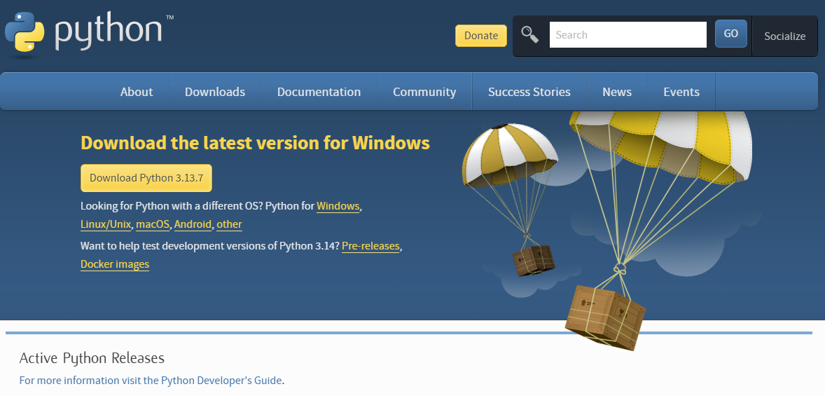
Start by installing a current Python 3 release on your machine. You can download it from python.org or install it from the Microsoft Store by searching for Python.
Python makes it easy to install and use external libraries. To use its package manager pip, open your Terminal (Command Prompt for Windows) and type pip install <package name>. For Yellow Pages scraping, here are the main packages you will need to scrape data with our HTML API:
- scrapingbee – our Python Software Development Kit (SDK) that can send API calls, handle headless browsers, route connections through remote proxy IPs, and interact with JavaScript elements on the site.
- pandas – a powerful toolkit for data analysis and manipulation, featuring structures like DataFrames that reorganize business information from HTML content into a readable and understandable format.
To install these packages, open your Terminal, or Command Prompt on Windows devices, and enter this pip command:
pip install scrapingbee pandas
If it doesn't work you can always try with pip3
pip3 install scrapingbee pandas
Set Up ScrapingBee and Your Environment
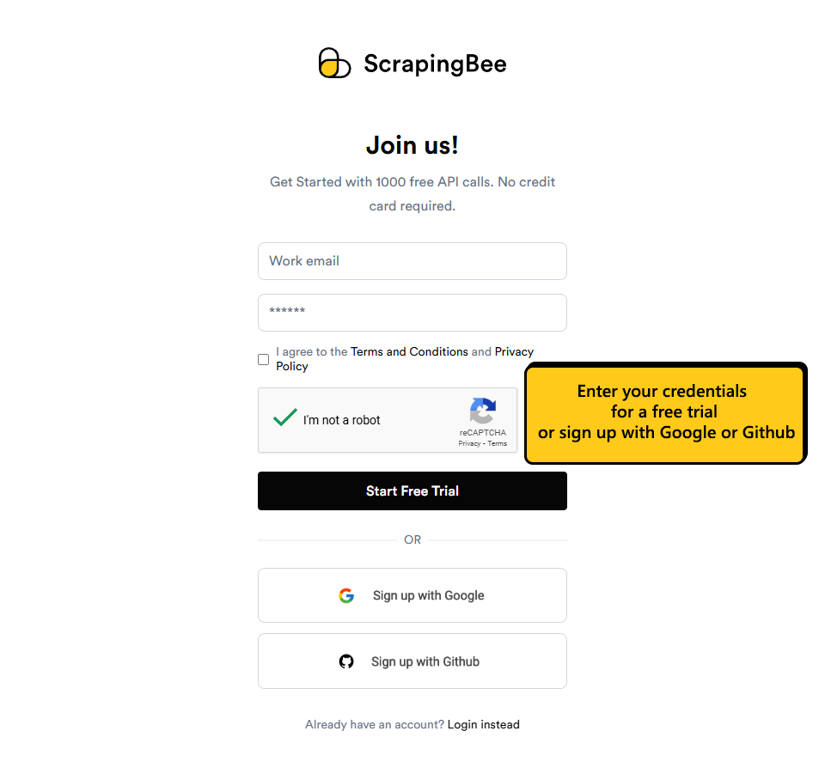
Now, head over to our website to create or log in to your ScrapingBee account to retrieve the API key. After first registration, you will receive 1,000 free credits as a 7-day free trial to test your web scraping skills, plus scale connection requests and explore additional features.
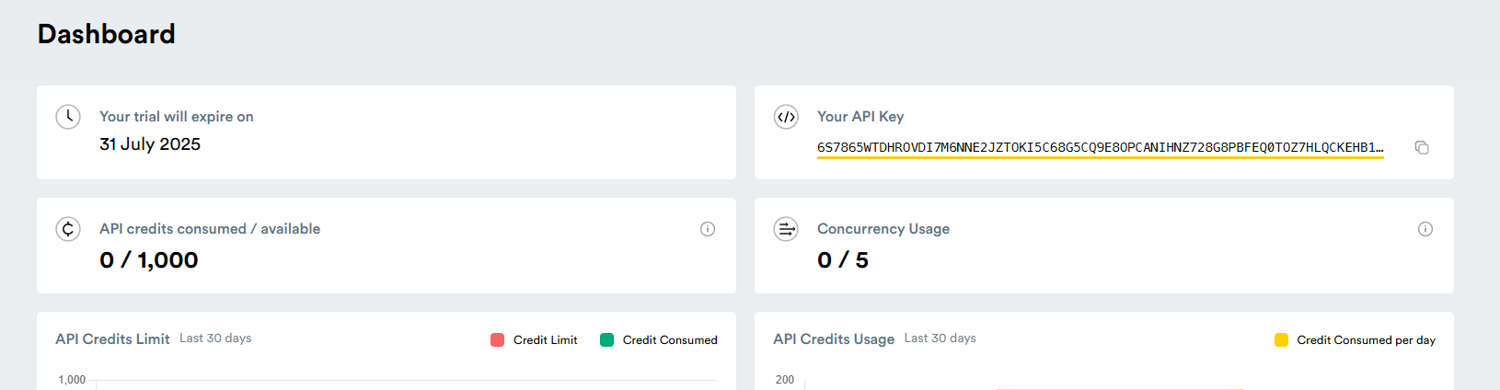
Once that is taken care of, you will be greeted by our dashboard that displays available resources and usage data tied to your account. Copy the API key – we will attach it to a Python variable which will activate our API in your script.
For our next step, pick an appropriate folder for your project, and create a text file that will store our web scraping logic, for example Yellow_pages_scraper.py, with the extension indicating that it is a Python file.
Note: Python files can be configured on any text editor, but we highly recommend using a dynamic IDE like VSCode, where you can download the IntelliSense to track your code mistakes in real time – a great way to learn coding and only send properly structured API requests to not waste credits.
Then, begin your script by importing the downloaded external libraries. We also added the urllib.parse module for a more comfortable conversion and generation of desired URLs (more on URLs in the Pagination section).
# Importing the ScrapingBee HTML API Client
from scrapingbee import ScrapingBeeClient

# Importing Pandas for data formatting
import pandas as pd

# A built-in library to safely encode search parameters into URL strings
from urllib.parse import urlencode
Note: Python comment lines, starting with a hash symbol or triple quotes, are ignored by the interpreter. Our code examples use them to explain and clarify written code.
After that, we created a "client" variable which initializes our scraping client and the previously copied key to authorize access to the API. Then, we added a base URL that will be configured based on your search query:
# Initializing the API client
client = ScrapingBeeClient(api_key='YOUR_API_KEY')

# Base search URL
base_url = "https://www.yellowpages.com/search"
Note: Remember to replace 'YOUR_API_KEY' with the actual string from your dashboard.
If you want to learn more about how each of our tools and parameters work, check out ScrapingBee Documentation. Once the setup is in order, we can start working on the actual scraping logic and sending the first API requests.
Make an API Call to Yellow Pages
Because Yellow Pages stores the search query directly in the URL, we can start by asking the user for a search term and location, then saving those values into variables.
# Prompt the user to dynamically enter the profession/entity and target location
search_term = input("Search term (e.g., Dentist): ").strip()
location_term = input("Location (e.g., Denver): ").strip()

# Ask for the total pages to scrape (Yellow Pages displays 30 listings per page)
Pagination = int(input("How many pages to scrape? "))
Note: Ignore the Pagination variable for now. We will come back to it after building a simple scraper that first retrieves the rendered HTML for a single page.
After collecting the input, the next step is to build the target search URL.
# Format search and location parameters
params = {"search_terms": search_term, "geo_location_terms": location_term}

# Construct the full URL
url = f"{base_url}?{urlencode(params)}"
For example, if you enter Dentist as the search term and Denver as the location, the final URL will look like this:
https://www.yellowpages.com/search?search_terms=Dentist&geo_location_terms=Denver
With the search URL ready, let's make a first request and inspect the rendered HTML response before we start extracting structured fields. To account for dynamic content, we will use a js_scenario that waits 2 seconds before returning the page source.
# Instruct the headless browser to wait 2000 ms (2 seconds) so dynamic content can load
js_scenario = {
    "instructions": [
        {"wait": 2000}
    ]
}

# Send a GET request to the target URL
response = client.get(
    url,
    params={
        "js_scenario": js_scenario,
        "stealth_proxy": True
    }
)

# Print the rendered HTML response
result = response.text
print(result)
The stealth_proxy parameter helps the request get through common anti-bot protections that may block a normal scraper. In many cases, this is enough to load the page successfully without any extra setup.
At this stage, the output is still raw HTML. That is useful for confirming that the page loaded correctly, but it is not convenient to analyze directly. The next step is to define extract_rules so the API returns only the business fields we care about in structured JSON.
To do that, open Yellow Pages in your browser, inspect the page, and identify the CSS selectors that match the organic business listing cards and the fields inside them. For this page, a good selector for the organic results is:
div.search-results.organic div.v-card
Now we can define the extraction rules:
# Define CSS selectors to isolate and extract specific data points from each organic listing card
extract_rules = {
    "Page list": {
        "selector": "div.search-results.organic div.v-card",
        "type": "list",
        "output": {
            "Title": "h2",
            "Categories": "div.categories",
            "Phone number": "div.phones.phone.primary",
            "Address": "div.adr",
            "Experience": "div.years-in-business"
        }
    }
}
Once extract_rules are added, we can send the request again and parse the result as JSON.
# Send a new GET request that includes extraction rules
response = client.get(
    url,
    params={
        "js_scenario": js_scenario,
        "stealth_proxy": True,
        "extract_rules": extract_rules
    }
)

# Parse the structured JSON response and print it
result = response.json()
print(result)
Now the response contains structured data instead of raw HTML. That makes it much easier to read, transform, and export.
Next, we can load the extracted results into a Pandas DataFrame:
# Convert the extracted JSON 'Page list' array into a structured Pandas DataFrame
df = pd.DataFrame(result["Page list"])
print(df)
And finally, export the data to a CSV file:
# Export the formatted DataFrame into a CSV file
df.to_csv("YellowPages_extraction.csv", index=False)
At this point, you should have a clean CSV file containing the business data extracted from the Yellow Pages search results.
Handle Pagination and Anti-Bot Protections
Now that we can scrape one Yellow Pages results page and export the data, the next step is to support pagination.
The Pagination variable from earlier tells the script how many results pages to scrape. We can use it to build a list of target URLs, starting with the first search page and then appending &page= for every additional page.
# Start the URL list with the first search results page
url_list = [url]

# If the user wants multiple pages, generate the remaining page URLs
if Pagination > 1:
    for i in range(2, Pagination + 1):
        next_url = f"{url}&page={i}"
        url_list.append(next_url)

print(url_list)
If the user enters 2, the list will contain:
[
  "https://www.yellowpages.com/search?search_terms=Dentist&geo_location_terms=Denver",
  "https://www.yellowpages.com/search?search_terms=Dentist&geo_location_terms=Denver&page=2"
]
We can now reuse the same js_scenario and extract_rules from the previous section, but instead of sending one request, we loop through each URL and collect the extracted results page by page.
# Initialize an empty list to store the DataFrame from each page
Pages_list = []

# Loop through each generated Yellow Pages URL
for current_url in url_list:
    response = client.get(
        current_url,
        params={
            "js_scenario": js_scenario,
            "stealth_proxy": True,
            "extract_rules": extract_rules
        }
    )

    # Parse the JSON response and convert the current page into a DataFrame
    result = response.json()
    df = pd.DataFrame(result["Page list"])
    Pages_list.append(df)
At this point, Pages_list contains one DataFrame for each scraped page. The final step is to merge them into one combined dataset and export the result.
# Merge all page DataFrames into one master dataset
Pages_DataFrame = pd.concat(Pages_list, ignore_index=True)
print(Pages_DataFrame)

# Export the final combined dataset to CSV
Pages_DataFrame.to_csv("YellowPages_extraction.csv", index=False)
This gives you one CSV file containing business data from all requested result pages instead of just the first one.
If everything is working correctly, you can now test the scraper with different search terms, locations, and page counts. For example, scraping two pages of dentists in Miami should produce a single CSV file that combines both result pages into one structured dataset.
Full Code Example (Python)
And finally we are done! The following section contains the full code used in this tutorial, including for loops for targeting multiple pages at once and exporting connected results in one organized data set. Feel free to copy it and make adjustments.
# Import the ScrapingBee client, pandas for data formatting,
# and urlencode for query parsing
from scrapingbee import ScrapingBeeClient
import pandas as pd
from urllib.parse import urlencode

# Initialize the API client and define the base search URL
client = ScrapingBeeClient(api_key="YOUR_API_KEY")
base_url = "https://www.yellowpages.com/search"

# Prompt the user to enter the business type and target location
search_term = input("Search term (e.g., Dentist): ").strip()
location_term = input("Location (e.g., Denver): ").strip()

# Ask how many pages to scrape
Pagination = int(input("How many pages to scrape? "))

# Format search and location parameters
params = {
    "search_terms": search_term,
    "geo_location_terms": location_term
}

# Construct the full search URL
url = f"{base_url}?{urlencode(params)}"

# Start the URL list with the first search results page
url_list = [url]

# If the user wants multiple pages, generate the remaining page URLs
if Pagination > 1:
    for i in range(2, Pagination + 1):
        next_url = f"{url}&page={i}"
        url_list.append(next_url)

print(url_list)


def scrape_yellow_pages():
    # Define CSS selectors to extract specific data points
    # from each organic listing card
    extract_rules = {
        "Page list": {
            "selector": "div.search-results.organic div.v-card",
            "type": "list",
            "output": {
                "Title": "h2",
                "Categories": "div.categories",
                "Phone number": "div.phones.phone.primary",
                "Address": "div.adr",
                "Experience": "div.years-in-business"
            }
        }
    }

    # Wait 2 seconds so dynamic content has time to load
    js_scenario = {
        "instructions": [
            {"wait": 2000}
        ]
    }

    # Store one DataFrame per scraped page
    pages_list = []

    # Loop through each generated Yellow Pages URL
    for current_url in url_list:
        response = client.get(
            current_url,
            params={
                "js_scenario": js_scenario,
                "stealth_proxy": True,
                "extract_rules": extract_rules
            }
        )

        # Parse the structured JSON response
        result = response.json()

        # Convert the current page results into a DataFrame
        df = pd.DataFrame(result["Page list"])
        pages_list.append(df)

    # Merge all page DataFrames into one master dataset
    pages_dataframe = pd.concat(pages_list, ignore_index=True)
    print(pages_dataframe)

    # Export the final combined dataset to CSV
    pages_dataframe.to_csv("YellowPages_extraction.csv", index=False)


# Execute the scraper
scrape_yellow_pages()
If you want to extract data from other pages, you can apply the same principles from this example, while we will take care of JS rendering and anti-bot bypass measures for you!
What Data Can You Extract From Yellow Pages
Yellow Pages aggregates business information into a digital directory that's valuable for competitive analysis, lead generation, and market research, amongst other use cases. Each listing is a collection of business-reported and verified information, providing a relatively reliable, accurate dataset at scale.
The data you can scrape fall into a few main categories:
- Contact information,
- Location data,
- Operational details, and
- Social proof data (ratings and customer reviews).
Once retrieved, you can export this data as CSV or JSON, or directly to a database for downstream use.
Business Profile Fields
Yellow Pages listings and business profiles share consistent fields, allowing you to extract data across multiple businesses within the same category or location. The main data points in a business profile include:
Business name: the official name of the business, as it appears in a registered document or provided by the business.
URL: a link to the business's official website or a relevant web resource. This is a common target for scrapers building market research or analysis tools.
Category: the business type or industry classification, for example, "Dental Clinics", and "Cosmetic Dentistry."
Address: the business's physical location, including street name and number, city, and zip code.
Phone number: the primary call support number. Some listings contain secondary numbers classified as "Extra Phones."
Rating: Yellow pages listings also include star ratings, which reflect the business's overall reputation and are calculated from customer reviews.
Review count: the number of customer reviews per listing.
Opening hours: working days and hours, provided in a structured format (for example, Mon - Friday, 7:00 am to 4:00 pm).
Description: an "about the business" or bio field often written by the business owner.
Export Formats and Data Use
Regardless of your data fields of interest, you can export scraped Yellow Pages data into multiple formats, depending on your use case. The most common formats, CSV, Excel, and JSON, often fulfill different needs.
CSV and Excel formats are the more popular choices, especially for data analysis use cases, such as importing leads into CRMs, building market research reports, human analysis, and data visualization.
Start Scraping Business Leads Today
Why struggle with JavaScript rendering and anti-bot challenges when you can let our API handle it for you? With our tools, you can scrape pages fast, cleanly, and without the usual headaches — no headless browsers, no CAPTCHAs, no wasted time. Whether you need one page or a hundred, go to ScrapingBee Signup Page and start using the optimal solutions for reliable business lead extraction!

Kevin worked in the web scraping industry for 10 years before co-founding ScrapingBee. He is also the author of the Java Web Scraping Handbook.