Camoufox is an open-source, Firefox-based anti-detect browser for Python that spoofs browser fingerprints inside Firefox's C++ code, not through injected JavaScript. Pair it with a residential proxy and a matching geolocation, and it presents an identity that anti-bot systems struggle to distinguish from a real visitor.
In this guide, we install Camoufox in Python, build a first scraper, set up proxies and geoip the way they work today, and scrape Crunchbase past Cloudflare Turnstile and Google Maps with map panning.
Key takeaways:
- As of September 2026, run
camoufox0.5.6 with the Firefox 152 browser on Python 3.10 or newer, and pin the build withcamoufox setbecause behavior changes between releases. - Give each concurrent worker its own Camoufox process, because opening parallel pages inside one browser hung in my async tests.
- Pair Camoufox with a residential proxy whose timezone, locale, and WebRTC IP match the exit IP, then add
disable_coop=Trueso a click can reach Cloudflare Turnstile widgets. - Camoufox doesn't spoof TLS or HTTP/2 fingerprints and ships no CAPTCHA solver, so for Akamai, hard DataDome deployments, or high-volume jobs, a managed API such as ScrapingBee's
stealth_proxycovers the last mile.
What is Camoufox?
Camoufox is an open-source Firefox build that patches fingerprints at the C++ engine level, so spoofed values look native to JavaScript inspection and Playwright's automation traces stay hidden from the page.
It spoofs fingerprint properties such as navigator, screen, WebGL, fonts, audio, and geolocation inside Firefox's C++ code, and ships a Python library that speaks the standard Playwright API.
If you already have Playwright code, you can change the launcher and keep the rest.
The engine-level approach is why Camoufox exists. In our earlier test of stealth tools against CreepJS, Camoufox came out on top. For this update, I reran a narrower version of that check on the current release: Camoufox, stock Playwright Firefox, and stock Playwright Chromium, all launched headless on the same machine and the same IP.
Camoufox scored 0% on CreepJS's headless check, against 33% for stock Playwright Firefox and 100% for stock Playwright Chromium. The headless-mode section later in this guide breaks those numbers down.
What’s the difference between Camoufox, Nodriver, Patchright, SeleniumBase UC, and Playwright stealth?
Camoufox is one of several open-source tools that try to make an automated browser look human, and they make different trade-offs:
| Tool | Browser engine | How it's driven | Latest release (as of Sep 2026) | Strength | Best for |
|---|---|---|---|---|---|
| Camoufox | Firefox (patched) | Playwright API over Juggler | 0.5.6, Sep 6, 2026 | Engine-level fingerprint spoofing | Fingerprint-heavy targets, a Firefox identity |
| Patchright | Chromium | Drop-in Playwright replacement | 1.62.3, Sep 2, 2026 | Patches Playwright's CDP leaks with no API changes | Existing Playwright code that needs a Chrome identity |
| Nodriver | Chrome | Async, direct CDP, no WebDriver | 0.50.3, May 13, 2026 | Lean async control of a real Chrome | Async Chrome scraping where you manage the IP layer |
| SeleniumBase UC Mode | Chrome | Selenium-based, with a newer CDP Mode for stealth | 4.54.4, Sep 13, 2026 | Built-in CAPTCHA click helpers | Checkbox CAPTCHAs, teams already on Selenium |
| Playwright stealth plugins | Mostly Chromium | JavaScript patches over Playwright | Python playwright-stealth 2.0.3, Apr 2026 | Easiest to add to existing code | Low-protection targets |
To be clear, I tested Camoufox, checked release dates and documented features for the others in September 2026.
Some familiar names are missing on purpose. undetected-chromedriver hasn't had a PyPI release since February 2024, and the JavaScript puppeteer-extra-plugin-stealth and playwright-extra packages last shipped in March 2023.
Treat them as legacy. If you're maintaining code built on them, our undetected-chromedriver and Puppeteer stealth tutorials explain how they work.
Where Camoufox sits among anti-detect browsers in 2026
"Anti-detect browser" covers two different kinds of tools:
- Commercial anti-detect browsers like Multilogin, GoLogin, Dolphin Anty, Octo Browser, Kameleo, and AdsPower are built for people. They give you a desktop app full of browser profiles, each with its own fingerprint and proxy, so a team can run dozens of ad accounts or storefronts by hand without linking the accounts. You pay per seat or per profile.
- Camoufox is the developer-side counterpart. There is no profile manager, GUI workflow, or subscription. It is a Python library and a patched browser that you drive from code, for scrapers and AI agents that need to look human at scale.
The technical difference from Chromium stealth tools is in how automation is wired. Playwright controls Chromium through the Chrome DevTools Protocol (CDP), which leaves traces a page can look for. For Firefox, Playwright uses a separate protocol called Juggler.
Camoufox patches Juggler so that Playwright works on an isolated copy of the page. The page cannot see the helpers Playwright would normally inject, and input events go through Firefox's native handlers. Stealth plugins for Chromium try to hide the same traces with JavaScript after the fact, which is itself detectable.
Key features of Camoufox
Camoufox bundles its stealth work into the browser and a thin Python layer on top.
Here is what you get after a pip install:
- Engine-level fingerprint spoofing: Navigator, screen, WebGL, canvas, audio, fonts, speech voices, and geolocation are set in C++, so overridden properties still report as native code.
- Statistically realistic fingerprints: BrowserForge generates device profiles that follow real-world traffic distributions, so your fleet does not suddenly look 50% Linux.
- Real fingerprint presets: New in the 0.5.x library,
fingerprint_preset=Trueswaps generated fingerprints for bundled presets taken from real devices. - Per-context identities: Also new in 0.5.x,
NewContext()gives each browser context its own fingerprint, proxy, and timezone inside one running browser. - Hidden automation layer: The sandboxed Juggler agent keeps Playwright's page helpers invisible to site scripts.
- Humanized cursor:
humanize=Truemoves the mouse along natural, distance-aware paths instead of teleporting between coordinates. - GeoIP alignment: The
geoipextra derives timezone, locale, coordinates, and WebRTC IP from your proxy's exit IP. - Virtual display on Linux:
headless="virtual"runs a real headful browser inside Xvfb, so there is no headless mode to detect. - Version manager:
camoufox set,list, andfetchlet you follow the stable channel or pin an exact browser build. - Bundled uBlock Origin: Ads and trackers are blocked by default, which saves bandwidth on metered proxies, and you can exclude it when a target breaks without its scripts.
Knowing what ships in the box is half the setup. The other half is installing it without inheriting the stale defaults that older tutorials still pin.
How to install Camoufox in Python
Installing Camoufox requires two downloads. pip brings in the Python library, and a separate fetch command downloads the patched Firefox build, where all the stealth work lives.
If you want the short version for your terminal, it's three commands:
pip install -U "camoufox[geoip]"installs the library and the GeoIP extra.python -m camoufox fetchdownloads the Camoufox browser.python -m camoufox versionconfirms which library and browser you ended up with.
Let’s go into the installation process.
1. Install the package and the geoip extra
Start in a fresh virtual environment on Python 3.10 or newer:
python -m venv .venv
source .venv/bin/activate
pip install -U "camoufox[geoip]"
The [geoip] extra adds the pieces Camoufox needs to turn a proxy's exit IP into a matching timezone, locale, and location. The lookup database itself (MaxMind GeoLite2, 43.4 MB on my machine) is downloaded alongside the browser in the next step.
You can skip the extra if you never plan to use a proxy, but a scraper that never uses a proxy rarely needs an anti-detect browser.
One warning I’d give you here: check your Python version before you install. Camoufox 0.5.x requires Python 3.10, but the old 0.4.11 release accepts Python 3.8 and up.
I asked pip to resolve camoufox for both interpreters:
| Your Python | What pip install camoufox gives you |
|---|---|
| 3.9 | camoufox 0.4.11, from January 2025 |
| 3.10 or newer | camoufox 0.5.6, from September 2026 |
There is no error and no warning on 3.9. You get a library from before the version manager, fingerprint presets, NewContext, and every fix in the 0.5.x line, and nothing tells you. If python -m camoufox version later reports 0.4.11, your interpreter is the reason.
One more trap: install camoufox, not cloverlabs-camoufox. Both write to the same camoufox import, so whichever you installed last wins.
2. Fetch the browser and pin a version
Next, download the browser:
python -m camoufox fetch
Budget for it. The macOS build unpacks to 639 MB and the Linux build to 1.2 GB, and on my connection the macOS fetch took a little over 30 minutes. Run it once per machine or bake it into your Docker image, never at scraper startup.
Then check what you have:
python -m camoufox version
From your output, the lines to read are Camoufox under Python Packages and Current browser.
On my fresh install as of this writing, you can see v0.5.6 and v152.0.4-beta.30, following the official/stable channel.
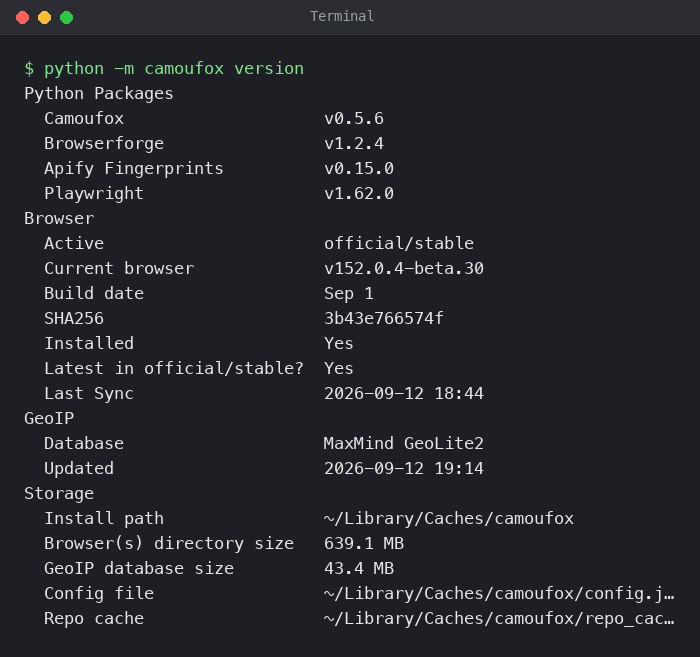
Since the 0.5.x line, fetch installs whatever is newest in the channel you follow, which is great for staying current but less great when a new build changes behavior under a scraper that worked yesterday.
For production, feel free to pin the exact build you tested:
camoufox set official/stable/152.0.4-beta.30
camoufox active
The first command replies Pinned: official/stable/152.0.4-beta.30 (installed), and camoufox active confirms it. When you are ready to test a newer build, run camoufox set official/stable to switch back to the channel, and camoufox list all shows every version you can move to.
Pin the Python side the same way in your requirements.txt:
camoufox[geoip]==0.5.6
With both halves pinned, a new browser build can't change how your scraper behaves until you decide to test it.
3. Install Linux dependencies for servers and Docker
On a desktop, the browser runs as-is. On a slim Linux server or container, it needs a handful of GIMP Toolkit (GTK), X11, and audio libraries, plus Xvfb (a virtual X display) if you want the headless="virtual" mode, which is covered later in this guide.
Here is the Dockerfile I built and tested on Debian bookworm:
FROM python:3.12-slim-bookworm

RUN apt-get update && apt-get install -y --no-install-recommends \
    libgtk-3-0 libx11-xcb1 libasound2 xvfb ca-certificates \
    && rm -rf /var/lib/apt/lists/*

RUN pip install --no-cache-dir -U "camoufox[geoip]"
RUN python -m camoufox fetch
# fetch can exit 0 without installing anything (for example, on a GitHub API rate limit)
RUN python -m camoufox version | grep -E "Installed +Yes"

WORKDIR /app
I used those four packages to pull in everything else Camoufox needed, and the browser launched in both headless=True and headless="virtual" modes inside the container. Putting fetch in its own layer means Docker caches the browser download, so rebuilding after a code change does not cost you another gigabyte.
The line after fetch is there because of an unexpected failure. fetch looks up releases through GitHub's API, and when that API rate-limits you (60 anonymous requests an hour per IP, easy to hit on shared CI runners), it can exit successfully without installing a browser. Docker then caches that empty layer.
On one rebuild, camoufox version in that cached layer reported Current browser: Not installed, and only the grep check stopped the build. If you build often, set a GITHUB_TOKEN for the fetch step, which Camoufox uses for its GitHub API calls.
On Arch-based systems, the Camoufox virtual display docs list xorg-server-xvfb as the Xvfb package.
Every command in this section ran on September 12, 2026, on macOS (Apple Silicon, Python 3.14) and in the Debian container above (Python 3.12), both with camoufox 0.5.6 and browser v152.0.4-beta.30.
With a working install, the fastest way to see what Camoufox does differently is to point it at a page whose whole job is catching bots.
How to build your first Camoufox scraper in Python
Camoufox uses the Playwright API, so if you have written Playwright code before, you already know everything below except the launcher. If you haven't, our Playwright for Python guide covers locators and waits in more depth.
The target for this first scraper is BrowserScan's bot detection page, which runs a set of automation checks (WebDriver, Selenium, headless Chrome, CDP, and more) and labels each one "Normal" or "Robot."
The scraper below reads 17 of them. It's a better first target than a quotes site because the data you scrape is the verdict on your own browser.
1. Launch Camoufox with the sync API
To get started, here is the whole scraper:
import json

from browserforge.fingerprints import Screen
from camoufox.sync_api import Camoufox

URL = "https://www.browserscan.net/bot-detection"


def read_bot_checks(page):
    results = {}
    for heading in page.locator("h3").all():
        # Each check is a card: an <h3> name, then an icon and a status <span>
        card = heading.locator("xpath=ancestor::div[.//span][1]")
        status = card.locator("svg + span")
        if status.count():
            results[heading.inner_text().strip()] = status.first.inner_text().strip()
    return results


with Camoufox(
    headless=True,
    os=["windows", "macos"],
    screen=Screen(max_width=1920, max_height=1080),
    humanize=True,
) as browser:
    page = browser.new_page()
    page.goto(URL)
    page.get_by_role("heading", name="Selenium", exact=True).wait_for()
    page.wait_for_timeout(3000)  # let the late checks finish writing results

    checks = read_bot_checks(page)
    flagged = [name for name, status in checks.items() if status != "Normal"]

    print(json.dumps({
        "user_agent": page.evaluate("navigator.userAgent"),
        "checks_run": len(checks),
        "flagged": flagged,
    }, indent=2))
The launcher is the only Camoufox-specific part, and each argument earns its place:
headless=Trueruns without a window. Camoufox patches Firefox's headless mode so it doesn't advertise itself, which CreepJS measures in the headless-mode section.os=["windows", "macos"]tells Camoufox which operating systems it may impersonate. It picks one per launch and generates a matching user agent, platform, fonts, and GPU.screen=Screen(max_width=1920, max_height=1080)caps the generated screen size so you don't render a 4K layout on a scraper.humanize=Truemoves the mouse along human-like paths whenever your code clicks or hovers.
Notice what is missing: no user agent string, navigator values, window size or config dictionary. Camoufox generates those as one consistent set. The old habit of hardcoding them is the fastest way to break that consistency.
By the way, two things tripped me up while building this:
- BrowserScan's class names are hashed (
_gtrg9a,_1ilbs9b), so they will change on the next deployment. The scraper anchors on the<h3>text of each check and walks up to its card instead. Visible text and ARIA roles survive redesigns far better than generated class names. - My first wait failed with a strict mode violation.
get_by_role("heading", name="Selenium")matched two elements because an FAQ heading further down also contains the word "Selenium." Addingexact=Truefixed it.
Now, you can run it:
python first_scraper.py
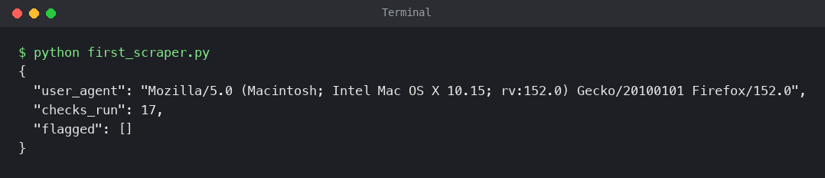
As you can see, seventeen checks, nothing flagged, and a Firefox 152 user agent that matches the engine underneath it. Your run may show Windows instead of macOS, since the OS is picked at random from the list.
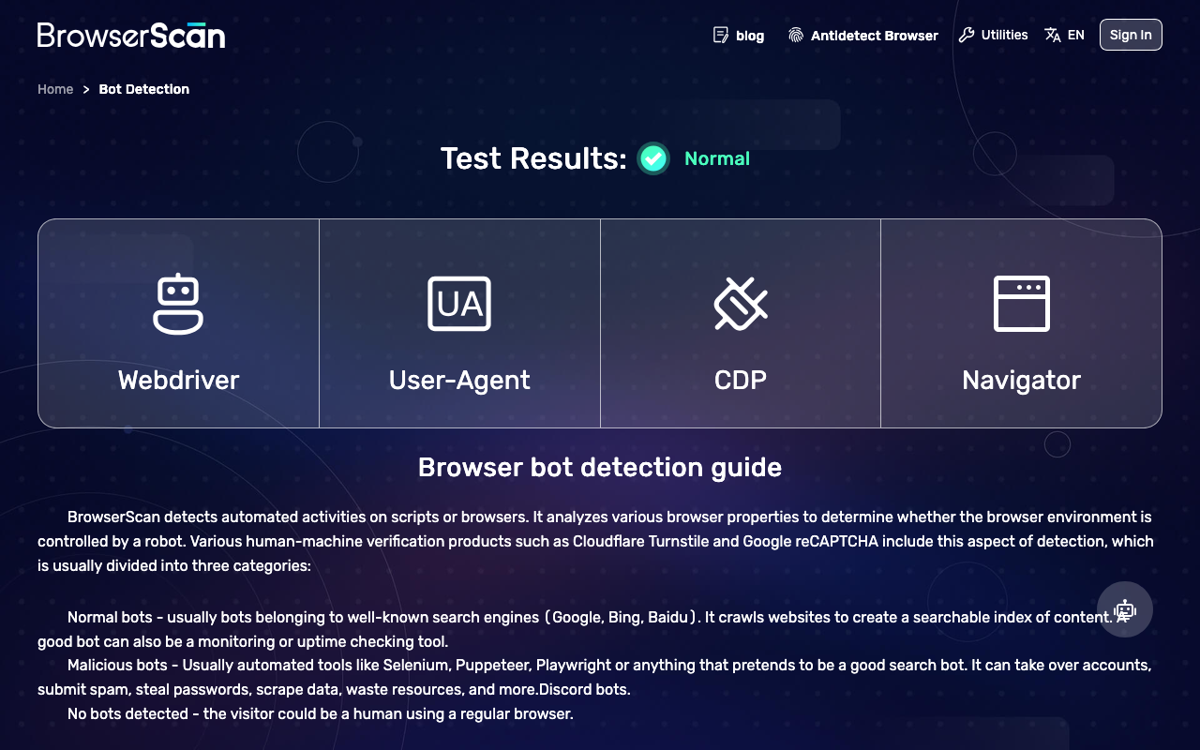
For contrast, I ran the same read_bot_checks() function through stock Playwright, headless, from the same machine. Both Playwright Firefox and Playwright Chromium came back with WebDriver: Robot.
I checked the property behind that flag directly: navigator.webdriver returned true in both stock browsers and false in Camoufox. It's the oldest automation tool there is, and Camoufox removes it at the engine level instead of patching it over with JavaScript.
If your existing stack is built on a Playwright-based framework, you don't have to rewrite it around this launcher. camoufox.launch_options() returns the executable path, arguments, preferences, and fingerprint environment as a dictionary you can pass to playwright.firefox.launch().
I tested that dictionary with plain Playwright and got the same Firefox 152 fingerprint. It's also the dictionary to hand to Playwright-based tools like scrapy-playwright as their launch options (I haven't run it through Scrapy myself).
Crawlee for Python also has a ready-made Camoufox example if you want request queues and retries handled for you.
2. Scale out with the async API
The async API has the same launcher under a different import, AsyncCamoufox, and it's the right starting point if you plan to scrape more than a handful of pages or run Camoufox inside FastAPI or aiohttp.
This is also where Camoufox differs from the Playwright habits you may already have, and I learned it by breaking three versions of this example.
(1) Attempt one was the textbook pattern: one browser, asyncio.gather() over a list of URLs, each coroutine calling browser.new_page(). The first navigation hung until it hit the 30-second timeout. Creating pages from parallel coroutines stalls Camoufox's automation pipe, a known problem tracked in open issue #553.
(2) Attempt two opened the pages one at a time, then navigated them concurrently. On my Mac, five tabs scraped ten JavaScript-rendered pages in 2.4 seconds. In a Debian container, the same code timed out on every page, even after raising Docker's shared memory to 2 GB.
A related open report, issue #719, describes Camoufox's Juggler automation pipe going unresponsive in a Debian container while the browser process stays alive, and every tab's commands travel over that one pipe.
(3) Attempt three is the version that worked on both machines every run.
Each worker gets its own Camoufox process and one page:
import asyncio
import sys
import time

from camoufox.async_api import AsyncCamoufox

URLS = [f"https://quotes.toscrape.com/js/page/{n}/" for n in range(1, 11)]
WORKERS = int(sys.argv[1]) if len(sys.argv) > 1 else 3


async def worker(queue, results, failed):
    # One Camoufox process per worker: its own Juggler pipe, its own fingerprint
    async with AsyncCamoufox(headless=True, os="windows") as browser:
        page = await browser.new_page()
        while True:
            url = await queue.get()
            try:
                await page.goto(url, wait_until="domcontentloaded", timeout=20_000)
                await page.locator(".quote").first.wait_for(timeout=20_000)
                for quote in await page.locator(".quote").all():
                    results.append({
                        "text": await quote.locator(".text").inner_text(),
                        "author": await quote.locator(".author").inner_text(),
                    })
            except Exception as exc:
                failed.append((url, type(exc).__name__))
            finally:
                queue.task_done()


async def main():
    queue, results, failed = asyncio.Queue(), [], []
    for url in URLS:
        queue.put_nowait(url)

    start = time.perf_counter()
    tasks = [asyncio.create_task(worker(queue, results, failed)) for _ in range(WORKERS)]
    await queue.join()
    elapsed = time.perf_counter() - start
    for task in tasks:
        task.cancel()
    await asyncio.gather(*tasks, return_exceptions=True)

    print(f"{len(results)} quotes from {len(URLS) - len(failed)}/{len(URLS)} pages in {elapsed:.1f}s with {WORKERS} browsers")
    if failed:
        print("failed:", failed)


asyncio.run(main())
The except block looks like boilerplate, and it isn't. In an earlier version, one timed-out page was raised inside the worker, the worker task died, and queue.join() waited forever for URLs nobody was left to process.
Catching the failure per URL keeps the worker alive and gives you a list of what to retry.
Run it with one browser, then three:
python async_multi.py 1
python async_multi.py 3
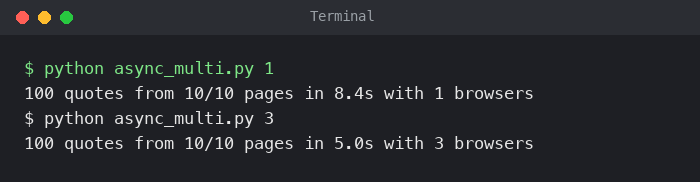
Here are the timings from both machines, including browser launch time:
| Browsers | macOS (Apple Silicon) | Debian container |
|---|---|---|
| 1 | 8.4s | 8.4s |
| 3 | 5.6s | 5.0s to 5.3s |
| 5 | 6.7s | 5.3s |
Every run returned all 100 quotes from all 10 pages. The speedup flattens past three browsers on a job this small because each extra browser costs a few seconds to launch. On a real crawl of thousands of pages, the launch cost disappears into the noise, and memory becomes the limit instead, so size the worker count to your RAM.
Separate processes are heavier than tabs, and I'd still pick them for Camoufox. They also match how you should think about stealth: one browser, one fingerprint, one proxy. The proxy section builds directly on that idea.
How to set up a Camoufox proxy with geoip=True
A proxy changes your IP address. It does not change anything else the page can read about where you are, and that gap is where most proxied scrapers get caught.
My first Camoufox run for this update had no proxy. The fingerprint claimed Windows and US English, while Intl.DateTimeFormat() reported my real timezone, Africa/Lagos. Put a US proxy in front of that browser, and you have a Windows machine in Ohio with a clock set to West Africa. No human browser looks like that.
Everything location-flavored has to agree with the exit IP: the timezone, the Intl locale, the Accept-Language header, geolocation coordinates, and the IP that WebRTC reports. Camoufox's geoip option lines those up for you, and Camoufox prints a warning if you pass a proxy without it.
The setup is three steps:
- Install Camoufox with the
geoipextra:pip install -U "camoufox[geoip]". - Pass your proxy as a dictionary:
proxy={"server": ..., "username": ..., "password": ...}. - Set
geoip=True(or the exit IP), then confirm the timezone the page returns matches the exit IP.
Step three is not a formality. I tested the proxy setup on the September 2026 build through a US residential proxy, a local proxy, and in a Linux container, and one piece of the geoip alignment didn't land on its own.
The sections below show you the steps to get this working, with the exact errors I hit along the way.
1. Pass an authenticated HTTP proxy and align geoip
The canonical pattern from the Camoufox GeoIP docs is short:
with Camoufox(
    geoip=True,
    proxy={
        "server": "http://gate.example.com:7000",
        "username": "your-username",
        "password": "your-password",
    },
) as browser:
    page = browser.new_page()
With geoip=True, Camoufox sends a request through your proxy to a public "what's my IP" service, looks that IP up in its local GeoIP database, and sets the locale, coordinates, and WebRTC IP to match.
When I checked the result from inside the page, Camoufox computed the right timezone (America/New_York for a New York exit), but the page kept reporting the machine's own timezone. That happened headless and headful on macOS and again in a Debian container, where the page said UTC.
The same value passed as Playwright's timezone_id applied immediately. An older report of this mismatch was closed in July pending a retest on the new builds, and it still reproduces on v152.0.4-beta.30.
So until that's fixed, look up the exit IP once, feed it to geoip, and pass the timezone yourself:
import os

from camoufox.geolocation import get_geolocation
from camoufox.ip import Proxy, public_ip
from camoufox.sync_api import Camoufox

PROXY = {
    "server": os.environ["PROXY_SERVER"],      # e.g. http://gate.example.com:7000
    "username": os.environ["PROXY_USERNAME"],
    "password": os.environ["PROXY_PASSWORD"],
}

# 1. Look up the exit IP through the proxy (the same lookup geoip=True runs)
exit_ip = public_ip(Proxy(**PROXY).as_string())
geo = get_geolocation(exit_ip)

# 2. Launch with geoip pinned to that IP: locale, coordinates, and WebRTC IP follow it
with Camoufox(headless=True, proxy=PROXY, geoip=exit_ip) as browser:
    # 3. Pass the timezone explicitly, because geoip alone didn't apply it in my tests
    page = browser.new_page(timezone_id=geo.timezone)
    page.goto("https://ipinfo.io/json")

    info = page.evaluate("JSON.parse(document.body.innerText)")
    print("exit IP:", info["ip"], info.get("city"), info.get("timezone"))
    print("browser:", page.evaluate("Intl.DateTimeFormat().resolvedOptions().timeZone"))
Two details make this reliable:
(1) Pinning geoip to the IP you looked up means the fingerprint can't drift if the lookup and the launch take different routes.
(2) A sticky proxy session (more on that below) also ensures the IP you looked up is the IP your page loads from.
My test gateway re-signs HTTPS, which trips up public_ip() (the first row of the error table below), so for the US run I resolved the exit IP with a separate request and kept the launch code identical.
Through a New York residential exit, the page and the proxy finally agreed:
exit IP: 68.173.x.x New York City America/New_York
browser: America/New_York
To see it the way a site does, I loaded BrowserScan through a sticky US residential session from the same gateway. That run exited from Arizona rather than New York, which is why the screenshot shows America/Phoenix.
The IP timezone matched the browser timezone, the language came through as US English, and both the "Proxy" and "Bot Detection" rows read "No":
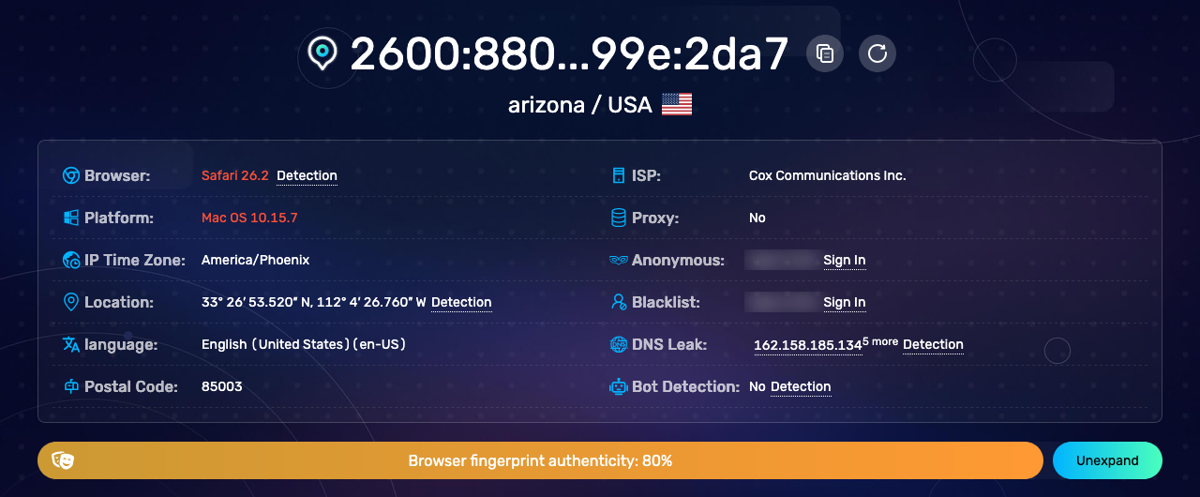
It also scored the fingerprint at 80% authentic rather than 100% (a repeat run scored 75%), with deductions for "UserAgent is different" and "Different operating systems." The red values are BrowserScan's guess at the underlying browser, and it doesn't match the spoofed user agent.
That is the ceiling of any fingerprint spoofing, and the limitations section later in this guide comes back to it.
2. Use SOCKS5 proxies, and know the authentication limit
SOCKS5 works with Camoufox, but there is one limit you should know about.
I ran two SOCKS5 proxies side by side, one open and one requiring a username and password:
| SOCKS5 setup | Result |
|---|---|
No authentication (socks5://127.0.0.1:1090) | Page loaded through the proxy |
| Username and password | BrowserType.launch: Browser does not support socks5 proxy authentication |
The browser refuses to launch with SOCKS5 credentials.
If your provider gives you an authenticated SOCKS5 endpoint, you have three ways around it:
- Use the provider's HTTP endpoint instead (almost every residential provider offers one)
- Switch the account to IP allowlisting so no credentials are needed
- Run a small unauthenticated SOCKS5 forwarder on
127.0.0.1that authenticates to the provider for you
The other SOCKS5 worry is WebRTC. WebRTC sends User Datagram Protocol (UDP) traffic that browsers don't route through an HTTP proxy, and SOCKS5 UDP support is patchy, so historically a page could ask a Session Traversal Utilities for NAT (STUN) server for your real public IP and get it.
The Firefox 152 release notes (v152.0.4-beta.26 and beta.27) say the leak is fixed, so I checked what a page sees, using a STUN request run from inside the page:
| Setup | IP the page learned over WebRTC |
|---|---|
| No proxy | My real public IP |
| HTTP proxy with geoip set | The proxy's exit IP |
| SOCKS5 proxy with geoip set | The proxy's exit IP |
| HTTP proxy without geoip | No public candidate at all |
block_webrtc=True | RTCPeerConnection does not exist |
On this build, geoip protects you because it tells Camoufox which IP to report. block_webrtc=True also stops the leak, but a browser with no WebRTC API is unusual, so treat it as a fallback for proxies you can't geolocate rather than a default.
3. Give each context its own proxy and fingerprint with NewContext
Launching a whole browser per proxy is heavy. The 0.5.x library added NewContext(), which creates a browser context with its own fingerprint and its own proxy inside a single Camoufox process.
It also looks up the exit IP through that proxy and sets the context's timezone for you, which sidesteps the geoip timezone issue above. One caveat from the source: if that lookup fails, NewContext() carries on silently with no timezone or WebRTC IP set, so check the timezone from inside the page, as the script below does.
It has its own trap. Unlike Camoufox(), NewContext() doesn't default ff_version to the running browser, and the BrowserForge dataset used to generate fingerprints stops at Firefox 150.
When I launched a context without extra arguments, it reported a Firefox/150.0 user agent on a Firefox 152 engine. A version mismatch like that is precisely the kind of inconsistency fingerprinting scripts look for.
The fix is ff_version, and the format matters. ff_version="152" produced a correct Firefox/152.0 user agent. ff_version="152.0" produced Firefox/152.0.0, which no real Firefox sends.
Reading the major version from the running browser avoids both mistakes:
import os

from camoufox.sync_api import Camoufox, NewContext

PROXY = {
    "server": os.environ["PROXY_SERVER"],
    "username": os.environ["PROXY_USERNAME"],
    "password": os.environ["PROXY_PASSWORD"],
}

with Camoufox(headless=True) as browser:
    firefox_major = browser.version.split(".")[0]  # "152", never "152.0"

    context = NewContext(
        browser,
        proxy=PROXY,
        os="windows",
        ff_version=firefox_major,
        ignore_https_errors=True,  # only if your proxy re-signs HTTPS
    )
    page = context.new_page()
    page.goto("https://ipinfo.io/json")

    info = page.evaluate("JSON.parse(document.body.innerText)")
    browser_side = page.evaluate("""() => ({
        tz: Intl.DateTimeFormat().resolvedOptions().timeZone,
        ua: navigator.userAgent,
    })""")
    print("exit IP:", info["ip"], info["city"], info["timezone"])
    print("browser:", browser_side["tz"], browser_side["ua"])
Through the same New York exit, the whole script took 5.3 seconds, including the browser launch:

The ignore_https_errors=True line is there because my test proxy re-signs HTTPS traffic, which some scraping proxy gateways do. Leave it out for a standard residential proxy. If you plan to open several contexts in one browser, create them one at a time, for the same pipe-contention reason covered in the async section.
4. Choose residential or mobile IPs, and sticky or rotating sessions
A flawless fingerprint on a bad IP still gets blocked. Anti-bot systems like Cloudflare and DataDome score the IP's reputation and its network owner (the ASN) separately from what the browser reports, and cloud data center ranges start with a low score.
Here's how the common proxy types fit Camoufox work:
| Proxy type | Where the IPs come from | Fit for Camoufox |
|---|---|---|
| Datacenter | Cloud and hosting providers | Unprotected sites and testing only; flagged by ASN on most protected targets |
| ISP (static residential) | Residential ISP ranges hosted in data centers | Logins and long sessions that need one stable, clean IP |
| Residential | Real home connections | The default for Cloudflare- and DataDome-protected targets |
| Mobile | Carrier networks, often shared by many real users behind one IP | Hardest targets; blocking one IP risks blocking real customers |
For a deeper comparison of providers and pricing models, see our guides to rotating and residential proxies, choosing a proxy for scraping, and ISP proxies.
The second decision is whether the IP stays put. Many residential gateways rotate by default and hold an IP when you add a session identifier to the credentials.
Four requests through the same US gateway showed the difference plainly:
| Session setting | Exit IPs across 4 requests |
|---|---|
| Rotating (no session ID) | 4 different IPs |
| Sticky (session ID set) | The same IP, 4 times |
With a browser, the rule is to rotate between identities, not within one:
- Use sticky sessions whenever state is tied to the IP: logins, Cloudflare clearance cookies, multi-step flows, and any launch where you looked up the exit IP for geoip. A clearance cookie earned on one IP and replayed from another is a fast way to get challenged again.
- Rotate between contexts or browsers, giving each identity its own sticky IP, when you are scraping many independent pages like listings or search results.
- Avoid per-request rotation inside a browser. A single page load pulls dozens of resources, and a page whose images arrive from five different cities doesn't look human.
One bandwidth note, since residential traffic is billed per gigabyte. The obvious saving is block_images=True, but Camoufox pushes back with a warning about web application firewalls (WAFs), the anti-bot layer in front of many sites.
Enabling it prints "Blocking image requests has been reported to cause detection issues on major WAFs." Save it for targets you know don't care, and lean on the bundled uBlock Origin to trim ads and trackers instead.
Once the proxy and location layers agree, the next thing a site compares is the device itself.
How to configure Camoufox fingerprints, humanization, and headless mode
Many Camoufox setups still configure the browser by hand: a dictionary of navigator and window values, a hardcoded user agent, and i_know_what_im_doing=True to quiet the warnings. That pattern made sense on older builds. On Firefox 152, it works against you, and the rest of this section covers what to do instead.
Three settings cover almost everything you'll tune: how the fingerprint is generated, which headless mode you run, and how the browser interacts with challenge widgets.
1. Let BrowserForge generate the fingerprint, or use a real preset
I ran a hand-written configuration dictionary like that, with a Firefox 125 user agent, against Camoufox 0.5.6 with the warning silencer removed.
Camoufox printed four warnings before the page even loaded:
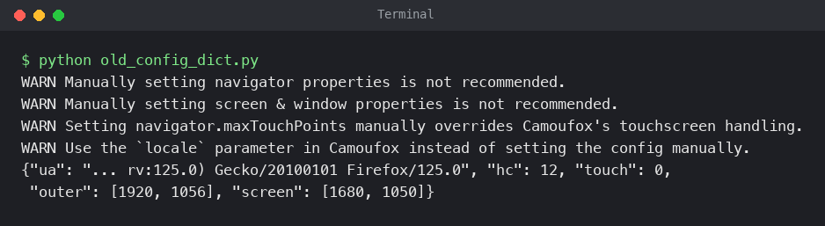
Then the page reported what the dictionary had done:
- The user agent said Firefox 125 while the engine underneath was Firefox 152. Any script that compares the user agent with engine features sees the mismatch.
- The window was bigger than the screen. The dictionary forced an outer window of 1920 by 1056 pixels onto a generated screen of 1680 by 1050. No physical monitor produces that.
hardwareConcurrencywas forced to 12, a value picked by hand rather than drawn from real device data.maxTouchPoints: 10was silently dropped, so the page read 0.
Part applied, part ignored, and the applied parts contradict each other. Consistency is the whole game for fingerprint spoofing, and a hand-rolled dictionary is the fastest way to lose it.
The replacement is shorter.
Tell Camoufox which operating systems you are willing to impersonate and how big a screen to allow, then let BrowserForge generate everything else as one consistent device:
from browserforge.fingerprints import Screen
from camoufox.sync_api import Camoufox

with Camoufox(
    os=["windows", "macos", "linux"],
    screen=Screen(max_width=1920, max_height=1080),
) as browser:
    page = browser.new_page()
    page.goto("https://browserleaks.com/javascript")
BrowserForge picks from real-world traffic distributions, so across many launches your fleet looks like a normal mix of devices instead of a thousand identical machines.
If you'd rather use fingerprints captured from real devices, the 0.5.x library adds a switch for that:
with Camoufox(fingerprint_preset=True) as browser:
    page = browser.new_page()
My preset launched as a macOS machine with 8 CPU cores and a matching Firefox/152.0 user agent.
A few more knobs are worth knowing, along with how Camoufox reacts to each:
| Option | What it does | What I saw |
|---|---|---|
webgl_config=("Apple", "Apple M1, or similar") with os="macos" | Pins a WebGL vendor and renderer pair | The page reported exactly that pair. Only use combinations valid for the chosen OS |
exclude_addons=[DefaultAddons.UBO] (with from camoufox import DefaultAddons) | Removes the bundled uBlock Origin | Launched cleanly, no warning. Useful when a site breaks without its scripts |
block_webgl=True | Disables WebGL | Warning: "Many WAFs will check if WebGL is enabled" |
block_images=True | Skips image downloads | Warning: "reported to cause detection issues on major WAFs" |
window=(1280, 720) | Fixes the window size | Camoufox's docs warn that a fixed size can lead to fingerprinting; keep it for debugging |
When Camoufox warns you, take it seriously. The warnings map almost one-to-one to things anti-bot vendors check.
For the background on how fingerprinting scripts catch spoofed values, our CreepJS and browser fingerprinting guide goes deeper, and BrowserLeaks and CreepJS are the two pages I keep open while tuning.
2. Pick the right headless mode for your server
Camoufox has three headless settings, and on today's build the detection difference between them is smaller than most guides suggest.
I ran CreepJS against each one I could, on macOS and in a Debian container:
| Setting | Where it runs | CreepJS "headless" score in my runs | When to use it |
|---|---|---|---|
headless=False | Any desktop | 0% (macOS) | Debugging and solving a challenge by hand the first time |
headless=True | macOS, Windows, Linux | 0% (macOS and Linux) | Most scraping, anywhere |
headless="virtual" | Linux only | 0% (Linux) | Linux servers, as insurance against future headless detection |
All three scored 6% "like headless" and 0% "headless" in every run. Camoufox patches Firefox's headless mode so it reports itself like a windowed browser, and that patch holds on CreepJS.
So why does headless="virtual" exist? It runs a real, windowed Firefox inside Xvfb, a virtual display in memory, so no headless code path is left to detect.
Camoufox's own documentation recommends it because headless patches "may still be detectable in the future." On a Linux server, it costs you one apt package and nothing else, so it's the setting I'd ship with. The browser spawns and cleans up Xvfb automatically.
Don't copy a Linux config to your Mac, though. On macOS, headless="virtual" stops the launch with VirtualDisplayNotSupported: Virtual display is only supported on Linux. If the same code runs on both, choose the mode based on sys.platform.
3. Click Cloudflare Turnstile with disable_coop and humanize
Cloudflare's Turnstile checkbox lives inside a cross-origin iframe. Firefox's Cross-Origin-Opener-Policy (COOP) handling keeps automation from interacting with that frame properly, and disable_coop=True turns the handling off so a click can reach the checkbox.
That explanation is easy to repeat and hard to believe without seeing it, so I tested it on a live Cloudflare challenge.
The NopeCHA Cloudflare demo sits behind a real managed challenge with a "Verify you are human" checkbox:
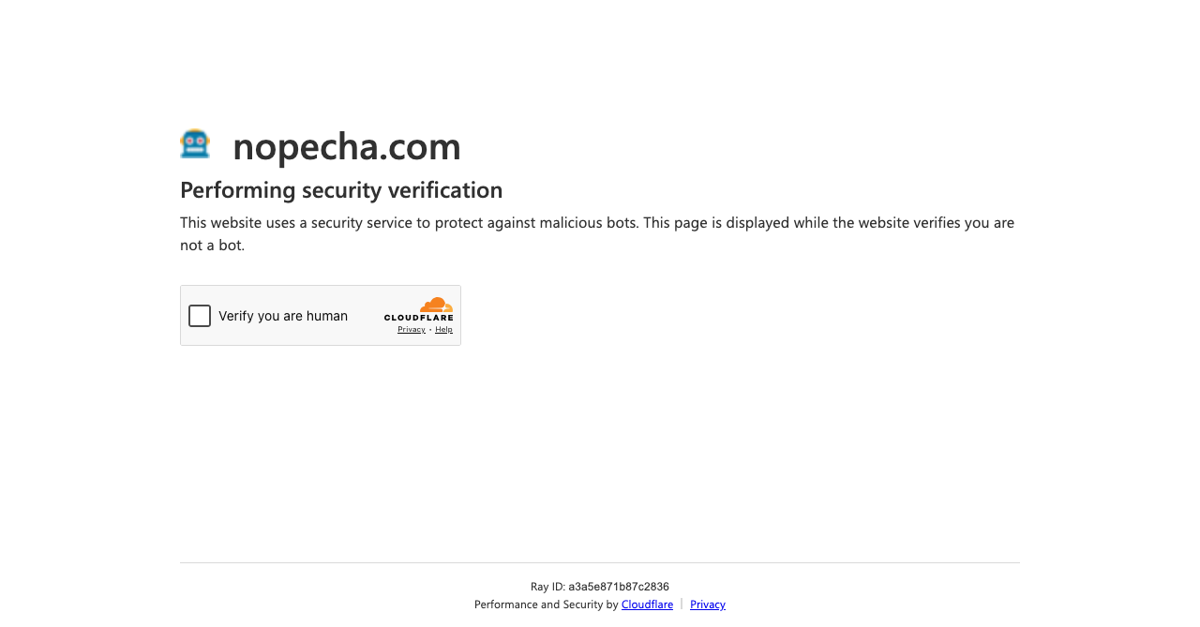
For this A/B test, I used an earlier version that clicked fixed coordinates, with humanize=True and a fixed 1280-by-720 window.
I ran it seven times, changing only disable_coop:
disable_coop | Mode | Runs | Passed the challenge | cf_clearance cookie |
|---|---|---|---|---|
| True | Headless and headful | 4 | 4 of 4, in 1.9 to 2.3 seconds | Set every time |
| Not set | Headless and headful | 3 | 0 of 3, still on "Just a moment..." after 30 seconds | Never set |
That is about as clean an A/B result as live anti-bot testing gets.
The docs' example clicks fixed coordinates, and my first working version did too, with a fixed window=(1280, 720). Fixed coordinates depend on a fixed window, and a fixed window is its own fingerprinting risk.
Without it, Camoufox generates a new window size each launch, and I watched the checkbox frame's position move from x=378 to x=659.5 between runs.
So the version I'd use finds the challenge frame and clicks relative to it:
import time

from camoufox.sync_api import Camoufox

URL = "https://nopecha.com/demo/cloudflare"


def click_turnstile(page, timeout_s=15):
    """Find the Cloudflare challenge iframe and click its checkbox."""
    deadline = time.monotonic() + timeout_s
    while time.monotonic() < deadline:
        for frame in page.frames:
            if "challenges.cloudflare.com" in frame.url:
                page.wait_for_timeout(4000)  # the widget renders a beat after its frame attaches
                box = frame.frame_element().bounding_box()
                print("box:", box)
                if box and box["width"] > 0:
                    # The checkbox sits near the left edge, vertically centered
                    page.mouse.click(box["x"] + 30, box["y"] + box["height"] / 2)
                    return True
        page.wait_for_timeout(500)
    return False


# humanize stays off for this click: in my runs it didn't change the outcome and sometimes hung mouse.click()
with Camoufox(headless=True, humanize=False, disable_coop=True, i_know_what_im_doing=True) as browser:
    page = browser.new_page()
    page.goto(URL)
    start = time.perf_counter()
    clicked = click_turnstile(page)
    try:
        page.wait_for_function("() => document.title !== 'Just a moment...'", timeout=30_000)
        passed = True
    except Exception:
        passed = False
    has_clearance = any(c["name"] == "cf_clearance" for c in page.context.cookies())
    print(f"clicked={clicked} passed={passed} cf_clearance={has_clearance} in {time.perf_counter() - start:.1f}s")
Two back-to-back runs show both the success and the reason for locating the frame instead of trusting coordinates.
Same page, same code, and the checkbox frame landed at x=263.5 in one run and x=494 in the next:
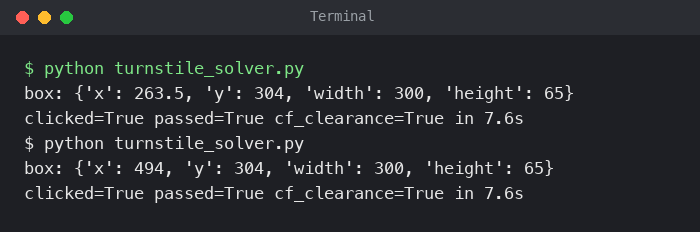
The 4-second wait matters more than it looks. My first frame-locating version clicked the instant the challenge frame attached, before the widget inside it was ready, and it passed 1 out of 4 runs. With the wait, the script passed every run.
The part I didn't expect was humanize. You'd assume human-like cursor movement helps with a "verify you are human" checkbox.
On this challenge, it didn't affect whether the click passed, but it did cause a failure I couldn't catch with a timeout.
I ran the final script 13 times with humanize=True and 11 times with humanize=False:
humanize | Runs | Passed | Hung inside mouse.click() |
|---|---|---|---|
| False | 11 | 11 | 0 |
| True | 13 | 10 | 3 |
In the three hung runs, the log stopped between "click start" and "click done," and none of Playwright's 30-second timeouts ever fired. I had to kill the process from outside. The v152.0.4-beta.26 release notes list a fix that "Stops synthetic mouse input from stalling under heavy load," so this may be an edge case of the same problem.
My takeaway: keep humanize=False for a single checkbox click like this. Turn it on for multi-step flows on sites that score mouse behavior, and when you do, run the job under a watchdog that can kill the whole process, because a stalled click won't raise.
Also note that disable_coop=True isn't free. Camoufox warns that disabling COOP handling "can potentially be detected by sophisticated WAFs," which is why the snippet passes i_know_what_im_doing=True. Turn it on for the pages where you need to click a challenge, not for every launch.
A demo page is the easy version of this problem. On a production target, you want to come back again and again without solving the challenge on every run, and that is where persistent profiles come in.
How to scrape Crunchbase past Cloudflare Turnstile with Camoufox
Demo pages help isolate one behavior. Crunchbase is where you find out whether the pieces hold together, and it's the target the original version of this article used.
In September 2026, Crunchbase still sends a fresh Camoufox browser to a Cloudflare page before it shows ScrapingBee's company profile.
The first request came back with HTTP 403 and this:
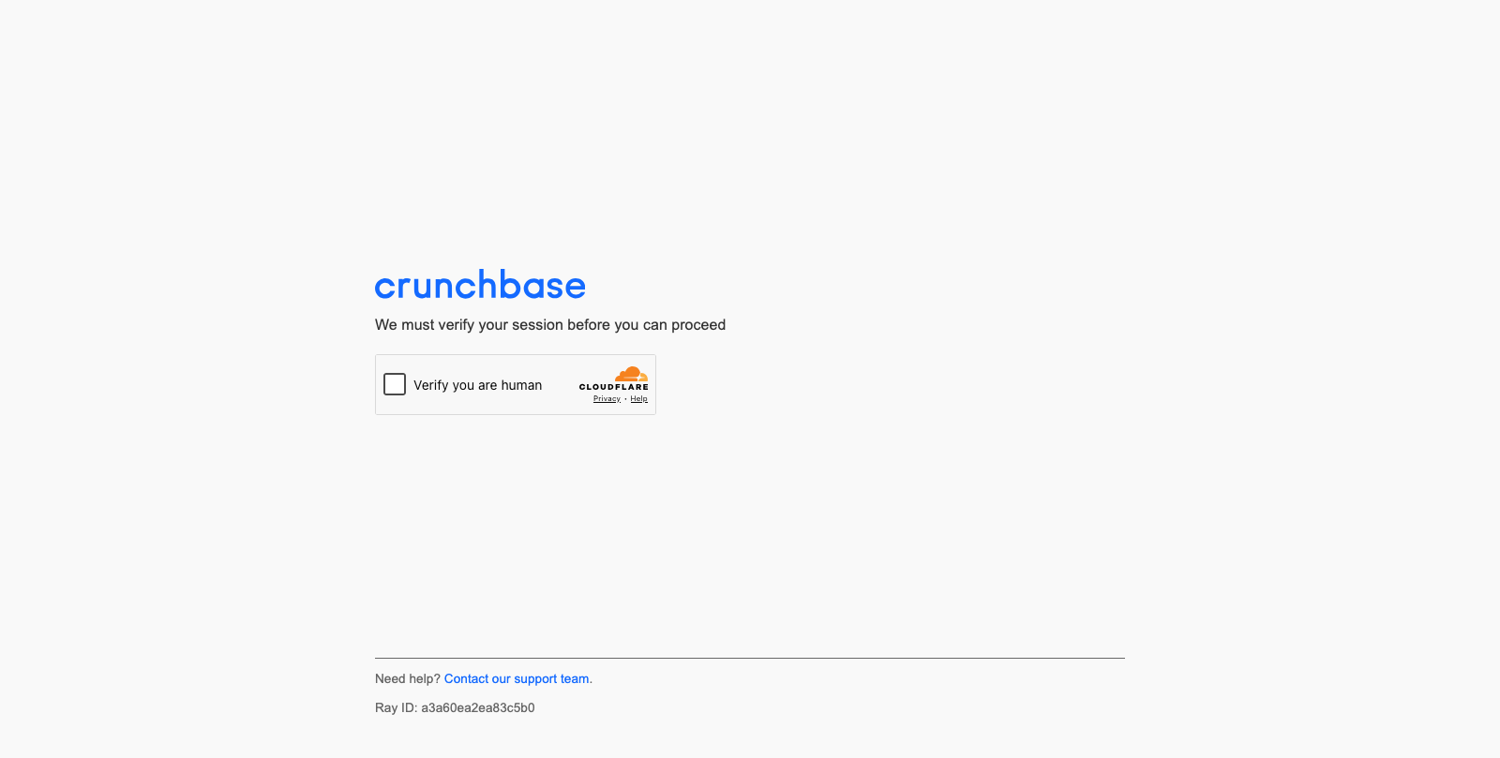
The plan has two phases. Phase one clears the challenge once in a browser profile saved to disk. Phase two reuses that profile, so Cloudflare's clearance cookie comes along, and you skip the checkbox on every later run.
1. Solve the challenge once in a persistent context
A persistent context stores cookies, local storage, and cache in a folder (user_data_dir) instead of throwing them away when the browser closes.
Phase one opens that profile, clicks the Turnstile checkbox with the frame-relative click from the previous section, and falls back to a 60-second window for solving it by hand:
import time

from camoufox.sync_api import Camoufox

URL = "https://www.crunchbase.com/organization/scrapingbee"
PROFILE_DIR = "profile_cb"


def click_turnstile(page, timeout_s=20):
    deadline = time.monotonic() + timeout_s
    while time.monotonic() < deadline:
        for frame in page.frames:
            if "challenges.cloudflare.com" in frame.url:
                page.wait_for_timeout(4000)
                box = frame.frame_element().bounding_box()
                if box and box["width"] > 0:
                    page.mouse.click(box["x"] + 30, box["y"] + box["height"] / 2)
                    return True
        page.wait_for_timeout(500)
    return False


with Camoufox(
    headless=False,
    persistent_context=True,
    user_data_dir=PROFILE_DIR,
    os="windows",
    disable_coop=True,
    i_know_what_im_doing=True,
) as context:
    page = context.new_page()
    page.goto(URL, wait_until="domcontentloaded")

    if "moment" in page.title().lower():
        print("challenge shown, clicking:", click_turnstile(page))
        # If the click doesn't clear it, you have 60 seconds to solve it by hand
        page.wait_for_function("() => !document.title.toLowerCase().includes('moment')", timeout=60_000)

    print("title:", page.title())
    names = [c["name"] for c in context.cookies() if c["name"].startswith(("cf_", "__cf"))]
    print("cloudflare cookies:", names)
Two settings in this launcher carry more weight than they look:
headless=Falseputs a real window on screen for phase one, so if the automatic click doesn't clear the challenge, you can solve it yourself inside the 60-second window.os="windows"is fixed on purpose. Phase two has to present the same user agent, and the next section shows what happens when it doesn't.
On my run, the automatic click did the job:
challenge shown, clicking: True
title: ScrapingBee - Crunchbase Company Profile & Funding
cloudflare cookies: ['cf_clearance', '__cf_bm']
I ran both phases from a residential connection. If you run them through a proxy, use a sticky session and keep the same exit IP for phase one and phase two. Cloudflare's documentation says clearance is "securely tied to the specific visitor and device it was issued to," and an exit IP that changes between phases makes you look like a different visitor.
2. Confirm the clearance cookie with sqlite
Before you build a scraper on top of that profile, check that the cookie landed where you expect.
Firefox profiles keep cookies in a SQLite file, and the original article's trick of reading it directly still works:
sqlite3 profile_cb/cookies.sqlite \
  "SELECT name, host, datetime(expiry / 1000, 'unixepoch') FROM moz_cookies WHERE host LIKE '%crunchbase.com';"

The two Crunchbase cookies it found:
cf_clearance|.crunchbase.com|2027-09-13 09:27:08
__cf_bm|.crunchbase.com|2026-09-13 09:57:08
One change from older guides: Firefox 152 stores the expiry column in milliseconds. My first query skipped the conversion and returned blank dates, so I added / 1000.
The dates tell you what Cloudflare issued. cf_clearance is the pass for the challenge you solved, listed as valid for a year. __cf_bm is Cloudflare's short-lived bot management cookie, which Cloudflare's documentation says expires after 30 minutes of inactivity. As the next section shows, that one-year date is the most it can last, not a promise.
3. Reuse the cookies and extract the profile
Phase two opens the same profile headless and reads the page.
The selectors come from the live page in September 2026. Several from the original article still worked, and the Angular ng-star-inserted classes it relied on are gone:
import json

from camoufox.sync_api import Camoufox

URL = "https://www.crunchbase.com/organization/scrapingbee"
PROFILE_DIR = "profile_cb"

with Camoufox(
    headless=True,  # use headless="virtual" on a Linux server
    persistent_context=True,
    user_data_dir=PROFILE_DIR,
    os="windows",  # same OS as phase one, so the user agent matches
) as context:
    page = context.new_page()
    response = page.goto(URL, wait_until="domcontentloaded")
    if "moment" in page.title().lower():
        raise SystemExit(f"Challenged again (HTTP {response.status}); rerun phase one")

    page.locator("span.entity-name").first.wait_for()

    profile = {
        "name": page.locator("span.entity-name").first.inner_text().strip(),
        "description": page.locator("span.expanded-only-content").first.inner_text().strip(),
    }
    for score in page.locator("score-and-trend").all():
        label = score.locator("span.label").inner_text().strip()
        profile[label] = int(score.locator("div.chip-text").inner_text().strip())

    chips = page.locator("field-formatter.chips-container div.chip-text").all()
    # Crunchbase renders the chips twice (collapsed and expanded), so de-duplicate in order
    profile["industries"] = list(dict.fromkeys(chip.inner_text().strip() for chip in chips))

    print(f"HTTP {response.status}")
    print(json.dumps(profile, indent=2))
It returned the profile with HTTP 200 and no challenge:
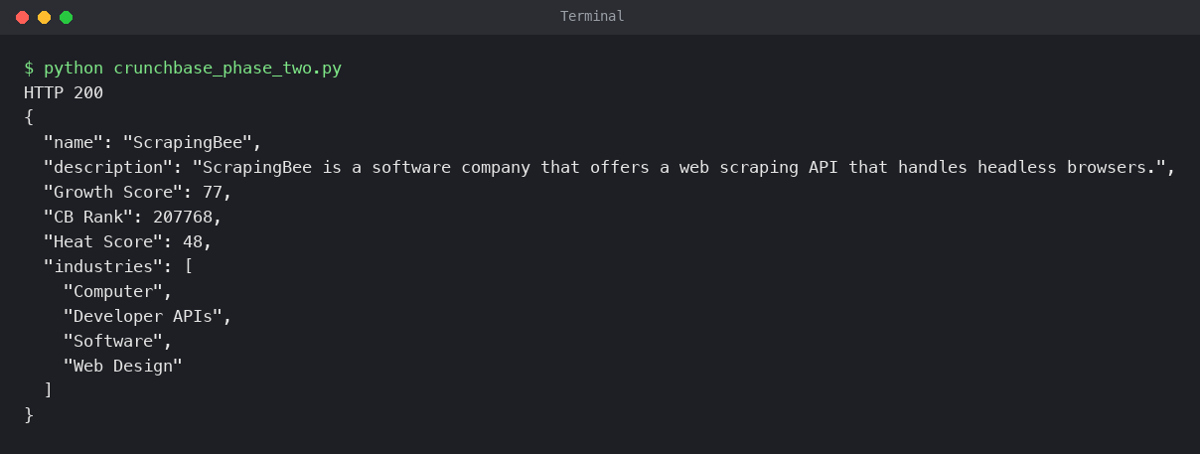
The JSON it printed:
{
  "name": "ScrapingBee",
  "description": "ScrapingBee is a software company that offers a web scraping API that handles headless browsers.",
  "Growth Score": 77,
  "CB Rank": 207768,
  "Heat Score": 48,
  "industries": [
    "Computer",
    "Developer APIs",
    "Software",
    "Web Design"
  ]
}
Then I tried to break it, because a scraper you haven't broken is a scraper you don't understand yet.
Here is what the profile survived and what it didn't:
| Change on the reuse run | Result |
|---|---|
Same profile, same os="windows", headless on macOS | HTTP 200, data extracted |
Same profile copied into a Debian container with headless="virtual", same public IP | HTTP 200, data extracted |
Same profile, os="macos" (a different user agent) | Challenged again, HTTP 403 |
Back to os="windows" after that, within a few minutes | Challenged again, HTTP 429 |
| Phase one rerun, then phase two | HTTP 200, data extracted |
Three lessons came out of that table:
- In my tests, the clearance followed the user agent, not only the cookie jar. Changing
oschanged the user agent, and Cloudflare challenged the stored cookie as if it belonged to someone else. That is why phase two pins the same OS as phase one. - An expiry date is not a lifespan. After the mismatch and a quick burst of repeat visits over a few minutes, the cookie with a one-year expiry stopped working, even with the correct user agent. The fix was to rerun phase one, not to wait. When phase two raises "Challenged again," schedule a phase one run and slow down.
- The profile survives a change of environment, not a change of machine. A Debian container with
headless="virtual"on the same laptop and IP reused it fine. Cloudflare says clearance is tied to the device it was issued to and prevents reuse across machines, so run phase one on the server that will run phase two.
If you run into repeated challenges on Cloudflare-protected targets, our Cloudflare scraping guide covers what else Cloudflare scores beyond the checkbox.
How to scrape Google Maps listings with Camoufox
Google Maps is another target that tests something Crunchbase doesn't: a heavy, interactive single-page app where the data changes as you move around.
Let’s explore the steps to do it properly.
1. Extract names, ratings, and reviews into JSON
The first half of the script defines three helpers: one to get past consent, one to read the result cards, and one to fingerprint the current list so the scraper can tell when it changes:
import json
import re

from browserforge.fingerprints import Screen
from camoufox.sync_api import Camoufox

URL = "https://www.google.com/maps/search/restaurants/@40.7500474,-74.0132272,12z?hl=en"
TARGET = 15
RATING = re.compile(r"([\d.]+) stars? ([\d,]+) Reviews?")


def accept_consent(page):
    # Google redirects some regions to a consent page first
    if "consent.google" in page.url:
        page.get_by_role("button", name="Reject all").first.click()
        page.wait_for_url("**/maps/**")


def read_listings(page):
    listings = []
    for card in page.locator("div[role=feed] div[role=article]").all():
        if card.locator("[aria-label=Sponsored]").count():
            continue  # skip ads
        link = card.locator("a.hfpxzc").first
        label = card.locator("[role=img][aria-label*=stars]").first
        match = RATING.search(label.get_attribute("aria-label") or "") if label.count() else None
        listings.append({
            "name": link.get_attribute("aria-label"),
            "link": link.get_attribute("href").split("?")[0],
            "rating": float(match.group(1)) if match else None,
            "reviews": int(match.group(2).replace(",", "")) if match else None,
        })
    return listings


def feed_signature(page):
    return page.evaluate("[...document.querySelectorAll('div[role=feed] a.hfpxzc')].map(a => a.href).join()")
Wherever Google offers an accessible label, the parser uses it instead of a generated class name. The rating and review count come from one role="img" label that reads like "4.7 stars 6,967 Reviews", which is written for screen readers and changes far less often than classes like MW4etd.
The consent helper clicks "Reject all." It gets you to the map as well as "Accept all" does, and it's the privacy-preserving choice for an automated browser.
2. Pan the map with arrow keys and re-query results
The second half loads the search, reads the first view, ticks "Update results when map moves," and pans north until it has 15 unique restaurants.
Put it in the same file, below the helpers:
with Camoufox(headless=True, os="windows", locale="en-US",
              screen=Screen(max_width=1920, max_height=1080)) as browser:
    page = browser.new_page()
    page.goto(URL, wait_until="domcontentloaded")
    accept_consent(page)
    page.wait_for_function("document.querySelectorAll('div[role=feed] div[role=article]').length > 3")

    results = {item["link"]: item for item in read_listings(page)}
    print(f"initial view: {len(results)} restaurants")

    # Tick "Update results when map moves" so panning refreshes the list
    page.get_by_role("checkbox", name="Update results when map moves").click()

    # The map canvas has an accessible label that tells you arrow keys pan it
    map_region = page.locator("[aria-label^='Map ·']").first

    pans = 0
    while len(results) < TARGET and pans < 8:
        before = feed_signature(page)
        map_region.focus()
        page.keyboard.press("ArrowUp")
        page.keyboard.press("ArrowUp")
        pans += 1
        try:
            page.wait_for_function(
                """(before) => {
                    const hrefs = [...document.querySelectorAll('div[role=feed] a.hfpxzc')].map(a => a.href);
                    return hrefs.length > 0 && hrefs.join() !== before;
                }""",
                arg=before, timeout=15_000,
            )
        except Exception:
            continue  # the map moved but the list didn't change; pan again
        for item in read_listings(page):
            results.setdefault(item["link"], item)
        print(f"after pan {pans}: {len(results)} unique restaurants")

    with open("results.json", "w") as f:
        json.dump(list(results.values())[:TARGET], f, indent=2)
    print(json.dumps(list(results.values())[:2], indent=2))
The fix for panning came from reading what Google tells assistive technology. The map canvas carries an accessible label that starts with "Map · Use arrow keys to pan the map," so the script focuses that element and presses the arrow keys.
With it, each pair of ArrowUp presses moved the map north, which I confirmed by watching the latitude in the URL climb from 40.750 to 40.815, 40.880, and 40.945, while the results moved from Midtown to the Upper West Side and on to Arthur Avenue in the Bronx.
Two details keep the loop honest:
- It waits for the list to change, not for a fixed delay. The original article slept 10 seconds after every pan. This version compares the full set of result links before and after, and moves on as soon as the list refreshes. On my run, the first pan didn't refresh the list, so the script panned again instead of recording duplicates.
- It de-duplicates by link. Neighboring map views share restaurants, and the original script appended every card it saw. Keying results on the place URL means 15 results are 15 different places.
Here is the run:

The whole run took 25 seconds and saved 15 unique restaurants, each with a rating and review count, to results.json.
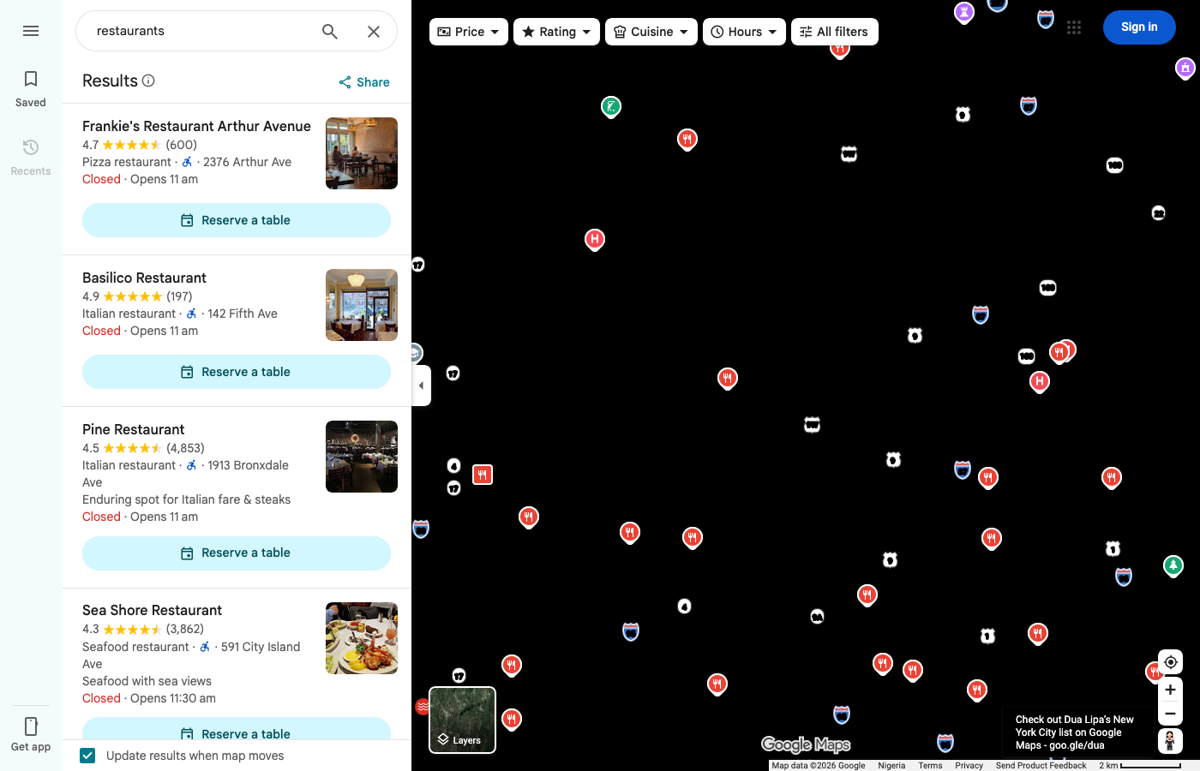
If you look closely at that screenshot, the map itself is black while the list is complete. That's how the map tiles are rendered in my headless run, and it doesn't matter to the scraper, because every field comes from the results panel.
How to handle login sessions with Camoufox
Some data only appears after you sign in: dashboards, saved searches, account-level exports. The pattern below works for any site where you have your own account, and the site's terms allow automated access, so check those terms before you point it at a real service.
I built and tested it againstquotes.toscrape.com, a public practice site that accepts any username and password, so you can run every line without risking an account.
1. Log in once and save the session
The Crunchbase walkthrough showed that a persistent profile carries Cloudflare's clearance cookie between runs, so the obvious move is to log in inside that same profile. I tried it first, and it failed in an easy-to-miss way.
The practice site keeps you signed in with a session cookie, a cookie with no expiry date (expires: -1) that browsers delete when they close. I logged in inside a persistent profile, closed Camoufox, relaunched with the same user_data_dir, and the page showed "Login" again. The profile folder survived.
The session cookie didn't. Plenty of real sites authenticate this way, including many that don't bother with a "remember me" option.
So don't rely on the profile for logins.
Save the cookies yourself after signing in, and restore them on the next launch:
import json
import os
from pathlib import Path

from camoufox.sync_api import Camoufox

BASE = "https://quotes.toscrape.com"
STATE = Path("session.json")


def is_logged_in(page):
    # Validate on a page you need anyway: logged-in users see "Logout", everyone else "Login"
    page.goto(BASE + "/")
    return page.get_by_role("link", name="Logout").count() > 0


def log_in(page):
    page.goto(BASE + "/login")
    page.locator("#username").fill(os.environ["SITE_USERNAME"])
    page.locator("#password").fill(os.environ["SITE_PASSWORD"])
    page.locator("input[type=submit]").click()
    page.wait_for_url(BASE + "/")
    if not is_logged_in(page):
        raise RuntimeError("Login failed: check credentials or look for a challenge")


with Camoufox(headless=True, os="windows") as browser:
    context = browser.new_context()
    if STATE.exists():
        # Restore every cookie, including session cookies the browser would drop on exit
        context.add_cookies(json.loads(STATE.read_text()))

    page = context.new_page()
    if is_logged_in(page):
        print("session valid, skipping login")
    else:
        print("no valid session, logging in")
        log_in(page)
        STATE.write_text(json.dumps(context.cookies(), indent=2))

    first_quote = page.locator(".quote .text").first.inner_text()
    print("logged in:", is_logged_in(page), "| first quote:", first_quote[:45] + "...")
The credentials come from environment variables, so they never end up in your code or your repository:
export SITE_USERNAME="your-username"
export SITE_PASSWORD="your-password"
python login_session.py
The first run logs in and writes session.json. The second run finds a valid session and skips the login form entirely:
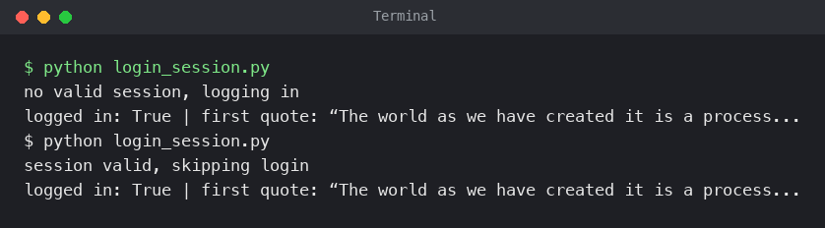
Treat session.json like a password. It holds live authentication cookies, so keep it out of version control and off shared machines.
2. Validate the session before every run
A saved session goes stale without telling you. The site logs you out after a while, invalidates sessions when you sign in somewhere else, or rotates cookies after a password change. A scraper that assumes it's logged in will happily scrape the logged-out version of every page, and you'll find out when someone asks why the data is thin.
That's why the script never trusts session.json on its own. is_logged_in() loads a page and checks for something only a signed-in user sees, here the "Logout" link, before any scraping starts. If the check fails, the script logs in again and overwrites the saved cookies.
To make sure that recovery path works, I ran the script four times and tampered with the saved cookie before the third run:
| Run | State before the run | What the script did |
|---|---|---|
| 1 | No session.json | Logged in, saved cookies |
| 2 | Valid saved session | Skipped login |
| 3 | Session cookie value corrupted | Detected the bad session, logged in again, saved new cookies |
| 4 | Fresh saved session | Skipped login |
Pick a check that matches the site you're scraping.
A good one is cheap, specific to signed-in users, and on a page you were going to load anyway:
- A signed-in-only element, like a "Logout" link, an avatar, or an account menu
- A redirect to a login URL, checked with
page.urlafter navigating to a protected page - A response from an account endpoint, if the site loads your profile as JSON
When validation fails more than once in a row, stop and alert instead of retrying forever. Repeated login attempts from an automated browser are exactly what account-security systems watch for, and a locked account costs far more than a missed run.
Limitations of Camoufox you should plan around
So far, every section has been about getting Camoufox to work. This one is about where it stops, because a tool you don't know the limits of can fail on the target that matters most.
I've kept this to things I measured on the September 2026 build or can point to in the project's own releases and issue tracker.
Where Camoufox passed and failed in my tests
The Camoufox maintainers ask for one thing in every detection report: run stock Firefox through Playwright from the same IP so that you can tell a browser problem from an IP problem.
I used the same control for every test in this guide that had a pass/fail outcome:
| Test | What it checks | Camoufox 0.5.6, Firefox 152 | Stock Playwright Firefox, same IP |
|---|---|---|---|
| CreepJS (headless) | Headless and stealth tells | 0% headless | 33% headless |
| BrowserScan bot detection | 17 automation checks read by the scraper | 0 flagged | WebDriver: Robot |
| NopeCHA Cloudflare demo | Managed challenge with Turnstile | Passed with disable_coop (every run) | No clickable checkbox rendered, not passed |
| Crunchbase company profile | Cloudflare Turnstile on a real site | Passed on the first click, reused for later runs | No clickable checkbox rendered, not passed |
| BrowserScan through a US residential proxy | Location and fingerprint consistency | Timezone and IP matched; 75% to 80% authenticity | Not run |
| TLS fingerprint (tls.peet.ws) | JA3, JA4, HTTP/2 | Identical to stock Firefox | Reference |
Two gaps in that table are deliberate. I didn't test DataDome, Akamai, or Kasada, because I couldn't find a public test page I had permission to hit repeatedly, and pointing an anti-detect browser at someone's production login page to see what happens isn't a test I'd publish. For those vendors, the maintainers' detection tracking issue collects dated, versioned reports.
The 75% to 80% BrowserScan score is the honest ceiling of fingerprint spoofing. Even with the IP, timezone, and language lined up, BrowserScan still flagged that the browser underneath didn't match the operating system and user agent it claimed.
TLS, JA3, and JA4 fingerprints stay real Firefox
Before a single line of HTML loads, the TLS handshake gives away which browser engine is connected. Anti-bot systems summarize it as a JA3 or JA4 fingerprint, and the HTTP/2 settings a client sends form a second fingerprint.
Camoufox doesn't touch either one. I checked all three browsers againsttls.peet.ws:

Camoufox 152 and stock Playwright Firefox 153 produced the same JA3, JA4 (t13d1617h2_86a278354501_3cbfd9057e0d), and HTTP/2 fingerprint. Chromium produced different values for all three.
That cuts both ways. Your TLS layer is a real Firefox handshake, which is more than most HTTP-client scrapers can say. But a Camoufox session can never look like Chrome at the network layer. If a target's bot rules expect a Chrome handshake, spoofing a Chrome user agent in Camoufox makes things worse, and no Camoufox setting fixes it.
For targets that don't need JavaScript at all, the lighter answer is a client that impersonates browser TLS directly. Our curl_cffi guide covers that, and our TLS fingerprinting post explains what the handshake reveals.
No built-in CAPTCHA solver
Camoufox makes you look human. It doesn't solve CAPTCHAs for you.
The Turnstile results earlier are the best case: a single checkbox, clickable once disable_coop is on, with no puzzle behind it. When Cloudflare escalates to an interactive challenge, or a site uses reCAPTCHA, hCaptcha, or Akamai's press-and-hold, Camoufox has no built-in support.
Your options are to solve once by hand and persist the session, as in the Crunchbase walkthrough, or to wire in a solver service such as 2Captcha or CapSolver. Our guide to getting past reCAPTCHA and hCaptcha walks through that trade-off.
SeleniumBase's UC Mode is the notable difference among open-source tools. It ships helpers like uc_gui_click_captcha() that Camoufox lacks.
Firefox's small market share is a signal at scale
Anti-bot systems don't only ask whether your browser looks real. They also ask whether your traffic looks like everyone else's.
In August 2026, StatCounter put Firefox at 2.98% of browser traffic across all platforms and 5.31% of desktop traffic worldwide. At a few hundred requests, that's irrelevant.
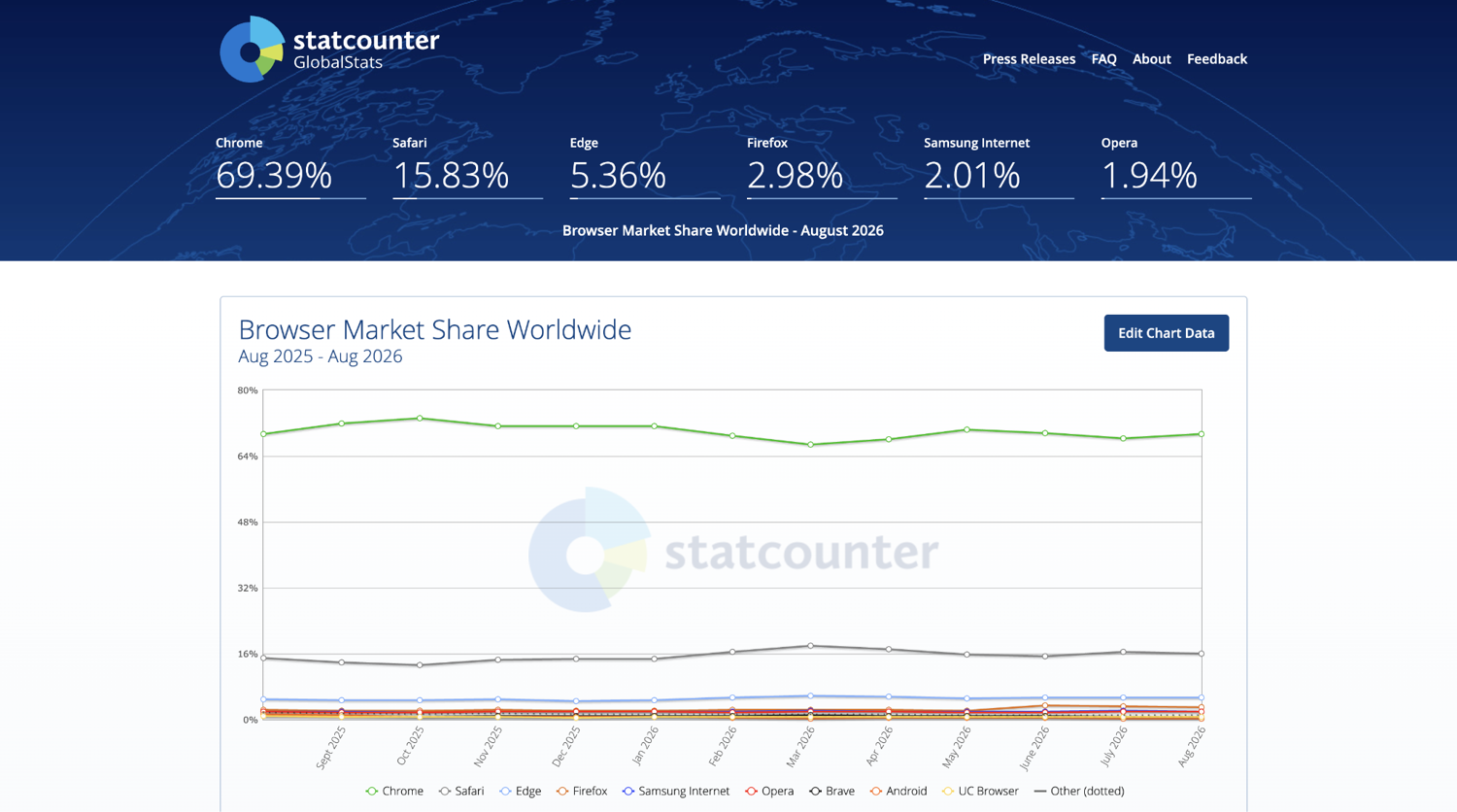
At a million requests a day from one network, every one of them Firefox, you've become a statistical outlier even if each session is flawless.
It's still beta software, so pin and test
The maintainers say it plainly in the v152.0.4-beta.27 and beta.28 release notes: Camoufox "may not be suitable for a production environment."
This update turned up enough rough edges to agree with them:
| What I hit | Where it's covered | Workaround |
|---|---|---|
geoip computed the timezone but didn't apply it | Proxy section | Pass timezone_id or use NewContext() |
NewContext() reported Firefox 150 on the 152 engine | Proxy section | ff_version=browser.version.split(".")[0] |
| Creating pages from parallel coroutines hung (#553) | Async section | Create pages one at a time |
| Concurrent tabs failed in a Linux container (related: #719) | Async section | One Camoufox process per worker |
mouse.click() hung with humanize=True, past every timeout | Turnstile section | humanize=False for single clicks, plus a process-level watchdog |
| Python 3.9 silently installs the 2025 release | Install section | Python 3.10+ and a pinned version |
None of these are reasons to avoid Camoufox. They're reasons to treat an upgrade like a dependency change in production: pin the browser with camoufox set and the package in requirements.txt, rerun a short canary suite (BrowserScan, CreepJS, and one real target) against every new build, and keep a watchdog around any job that clicks.
How ScrapingBee handles Camoufox limitations
Every tool leaves you owning proxies, fingerprints, profile storage, challenge handling, and the upgrade cycle. For Akamai, hard DataDome deployments, Cloudflare's AI Labyrinth, or a team that doesn't want to maintain any of that, a managed API collapses the stack into one request.
Here's what ScrapingBee handles so that job goes away:
- Stealth proxy mode:
stealth_proxy=trueroutes the hardest sites through a separate proxy pool, with JavaScript rendering enabled, for 75 credits per successful call. - JavaScript rendering: A managed headless browser renders React, Vue, and other JavaScript-heavy pages with no local Firefox to pin or patch.
- Premium proxy rotation: Rarely blocked proxies with
country_codegeotargeting, rotated for you, with no proxy pool to buy or maintain. - AI extraction:
ai_extract_rulesandai_queryreturn typed JSON from plain-English descriptions instead of selectors that break. - CSS extraction rules:
extract_rulesturns selectors into structured JSON server-side, with no parsing code to maintain.
Start with 1,000 free API credits and point it at the target your Camoufox setup keeps fighting.
Frequently asked questions about Camoufox
Can Camoufox bypass Cloudflare Turnstile?
In my tests, yes, for Cloudflare's checkbox challenge. With disable_coop=True, a click on the Turnstile frame passed on a Cloudflare demo and on Crunchbase, and the cf_clearance cookie could be reused later. The clearance is tied to the device it was issued to and, in my tests, your user agent; Cloudflare can revoke it early, and no setup is guaranteed.
Can Camoufox bypass DataDome?
Sometimes, depending on the deployment, but I didn't find a public DataDome test page to verify it. DataDome scores IP reputation, behavior, and TLS, and Camoufox's TLS fingerprint is a standard Firefox profile it can't change. Expect to need clean residential or mobile IPs and session continuity, and plan on a managed scraping API for hard DataDome sites.
Can I use Camoufox with Node.js or JavaScript?
Yes, experimentally. Apify maintains camoufox-js, which describes itself as an experimental JavaScript port; its latest release (0.12.0) shipped in July 2026. The Python library can also start Camoufox as a Playwright server with camoufox server, which any Playwright client can connect to. The Python library remains the most actively developed integration.

Ismail is a Senior Managing Editor and Senior AI Workflow Engineer. For a decade, he has turned the trickiest corners of web scraping, Python, content marketing, and AI infrastructure into guides readers keep open in a second tab. He builds the tools before he documents them, breaks them, and reports back with the scars.