If you want to scrape Uber Eats food data, start with two constraints: Uber's terms restrict automated collection, and Uber Eats only renders public menus after JavaScript runs and a delivery location is set. This guide shows how to collect public storefront fields such as menu items and prices with a rendered request, while keeping the scope limited, low-volume, and responsible.
Key takeaways
- Uber's Terms of Use explicitly prohibit scraping its data. Treat that as a contractual limit. Keep any data collection low-volume and public-only. Talk to a lawyer for your specific use case.
- There is no public Uber Eats data API. The Marketplace and Uber Direct APIs are partner-only.
- Uber Eats is a JavaScript application. Any plain request usually returns an app shell or incomplete HTML without rendered menu data. This means you need to render JavaScript.
- The site is geo-gated: no restaurants appear until you set a delivery address. For this reason, scraping is per-location, and you have to iterate addresses for scaling coverage.
- Never scrape logged-in, account, or personal data. Stick to the public storefront, set a real location, use geo-matched residential proxies when you have a legitimate public-data use case, and keep request rates polite.
Can you scrape Uber Eats? What Uber's Terms say
Depending on the country, Uber's Terms of Use expressly prohibit scripts used to scrape. So, automated collection breaches those terms, regardless of the technical method used. Below is what the website states on one of its legal pages, under the restrictions section:
"cause or launch any programs or scripts for the purpose of scraping, indexing, surveying, or otherwise data mining any portion of the Uber Services or unduly burdening or hindering the operation and/or functionality of any aspect of the Uber Services."
US courts have held that scraping publicly accessible data does not necessarily violate federal anti-hacking law, but that does not eliminate contract, copyright, privacy, or other risks. This is not legal advice. So, if you're asking yourself "is it legal to scrape Uber Eats?", you should begin with Uber's own rules.
For this guide, the technical scope is limited to public restaurant storefronts that require neither login nor personal data. While this is not legal advice, keep any research limited and non-intrusive, and review the current terms before collecting data. Consult a qualified lawyer before using scraped information commercially or if you have any doubts.
Is there an Uber Eats API?
There is no public Uber Eats data API for browsing every restaurant. Uber offers the Marketplace API and Uber Direct API, but these are for partners only. Accessing them requires Uber's approval and OAuth credentials.
If you need restaurants' public data and you are not a partner, the public storefront pages are the practical source for non-partners. And this is why this guide focuses on rendering them. Any collection should remain limited to public, non-personal data. Use real delivery locations, keep request volume low, and account for Uber's restrictions on automated scraping.
Why Uber Eats is hard to scrape
Uber Eats is hard to scrape for three main reasons:
- First, it is a JavaScript application. It loads a basic application shell and then uses JavaScript to fetch and render content without fully reloading the page.
- Second, results are geo-gated and depend on the selected delivery address. This is because Uber Eats must know where an order will be delivered before it can determine which stores and items are available. A restaurant may serve one neighborhood but not another. Also, its prices, fees, operating status, menu availability, and estimated delivery times vary by location.
- Third, it applies Cloudflare protection and request-level controls based on factors such as headers, request frequency, browser behavior, and IP reputation.
To successfully scrape Uber Eats without getting blocked, use JavaScript rendering, maintain consistent location state through proxies, and rate-limit your requests.
How to scrape an Uber Eats restaurant page in Python (step by step)
In this paragraph, I'll show you how to scrape Uber Eats restaurant pages in Python. Let's start by defining the prerequisites.
What you need
To reproduce this tutorial, you need the following:
- A ScrapingBee API key (the free trial offers you 1,000 credits. No credit card required).
- Python 3.10+
Create a folder on your local machine called uber-eats-scraper:
mkdir uber-eats-scraper
Navigate to the folder:
cd uber-eats-scraper
Create a virtual environment:
python -m venv venv
Activate the virtual environment:
source venv/bin/activate # For Unix/macOS. For Windows: .\venv\Scripts\activate
In the activated virtual environment, install the needed libraries:
pip install scrapingbee beautifulsoup4
Step 1 - Set a delivery location (the geo-gate)
Uber Eats doesn't show any restaurants before you define a delivery address. Below is what you will see when you open the website:
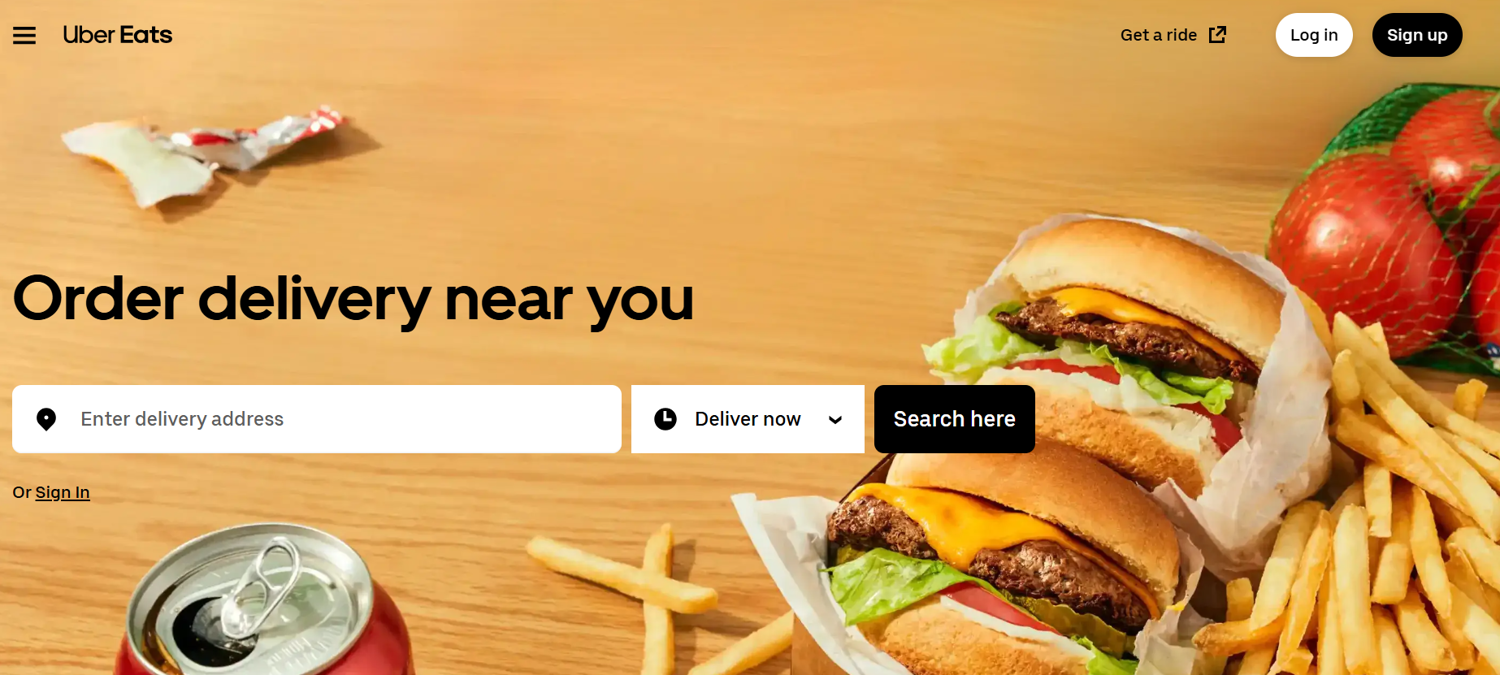
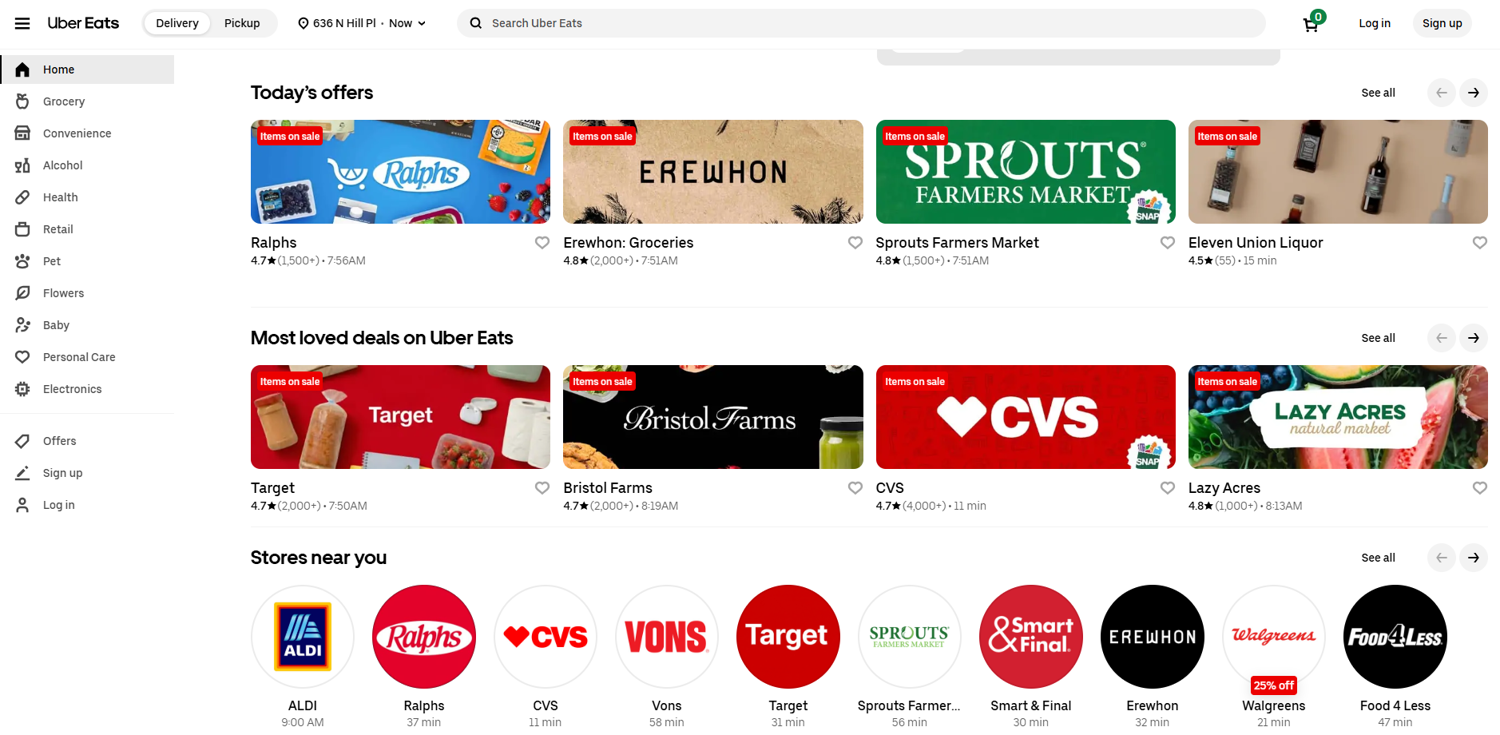
After setting the location and delivery schedule, you will see the stores:
Click on a restaurant of your choice. Your browser's URL bar provides you with the URL to use for scraping purposes:
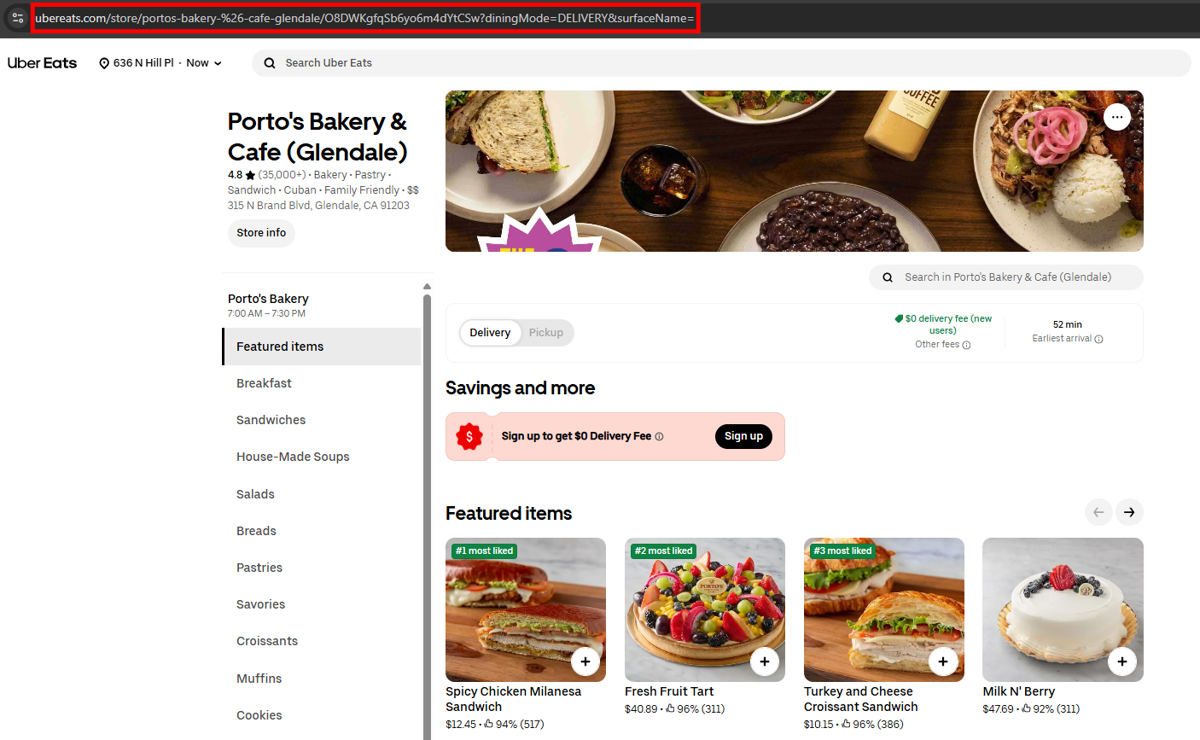
NOTE: The proposed items' catalog and related prices change by delivery zone, and user's context.
Step 2 - Render the store page with ScrapingBee
Define a target restaurant of your choice. To make a simple call using ScrapingBee, I used the following code:
from scrapingbee import ScrapingBeeClient

SCRAPINGBEE_API_KEY = "<MY-SCRAPINGBEE-API-KEY>"
TARGET_URL = "https://www.ubereats.com/store/target-la-central/eG5u3FKjUTepGxo0BPfS_Q?diningMode=DELIVERY&surfaceName="

client = ScrapingBeeClient(api_key=SCRAPINGBEE_API_KEY)
response = client.html_api(
    TARGET_URL,
    params={
        "premium_proxy": "true",
        "render_js": "true",
    },
)

print(f"HTTP status : {response.status_code}")
print(f"HTML length : {len(response.text):,} characters")
This script:
- Defines the target page.
- Uses ScrapingBee's client to fetch the response.
- Prints the response status code and the response's length.
The "premium_proxy" : "true" parameter uses ScrapingBee's proxy pool to overcome Cloudflare. The "render_js" : "true" renders JavaScript as a real browser would.
The result I obtained is the following:
HTTP status : 200
HTML length : 40,894 characters
Generally speaking, a 200 response and a large HTML body are good signs, but they do not prove the menu loaded. Check for expected menu selectors or item text before parsing, and fail clearly if the page returns a block page or an empty app shell if you want to be sure the response returned actual content.
Step 3 - Extract menu items and prices
To extract data from products, render the target web page and use BeautifulSoup for intercepting the selectors. Below is a script for this purpose:
from scrapingbee import ScrapingBeeClient
from bs4 import BeautifulSoup

SCRAPINGBEE_API_KEY = "<MY-SCRAPINGBEE-API-KEY>"
TARGET_URL = "https://www.ubereats.com/store/portos-bakery-%26-cafe-glendale/O8DWKgfqSb6yo6m4dYtCSw?diningMode=DELIVERY&surfaceName="

client = ScrapingBeeClient(api_key=SCRAPINGBEE_API_KEY)

response = client.html_api(
    TARGET_URL,
    params={
        "render_js": "true",
        "stealth_proxy": "true",
        "country_code": "us",
    },
)

print(f"HTTP status : {response.status_code}")

soup = BeautifulSoup(response.content, "html.parser")

# Each product card is anchored to an element whose data-testid starts with store-item-
# Tag-agnostic selector: works whether Uber Eats renders items as <li> or <div>.
store_items = soup.select("[data-testid^='store-item-']")

products = []

for item in store_items:
    # Name: first rich-text span inside each item-thumbnail-label
    labels = item.select("[data-testid='item-thumbnail-label']")

    name = None
    price = None

    for label in labels:
        spans = label.select("span[data-testid='rich-text']")
        for span in spans:
            text = span.get_text(strip=True)
            if text.startswith("$") and price is None:
                price = text
            elif not text.startswith("$") and "%" not in text and text and name is None:
                name = text

    if name or price:
        products.append({"name": name, "price": price})
        print(f"Name : {name}")
        print(f"Price: {price}")
        print("-" * 30)

print(f"\nTotal products found: {len(products)}")
Note that, starting from this step onwards, I use the stealth_proxy parameter instead of the premium_proxy one. This is because stealth_proxy is a stronger one. Also, it needs to be coupled with country_code, which allows you to specify the country of the proxies that ScrapingBee uses. This gives you more chances to not trigger anti-bots.
Here is the output I got:
HTTP status : 200

Name : Spicy Chicken Milanesa Sandwich
Price: $12.45
------------------------------
Name : Fresh Fruit Tart
Price: $40.89
------------------------------
Name : Milk N' Berry
Price: $47.69
------------------------------
Name : Turkey and Cheese Croissant Sandwich
Price: $10.15
------------------------------
Name : Grilled Chicken Cilantro Caesar Salad
Price: $14.39
------------------------------
Name : Cubano (Cuban Sandwich)
Price: $11.25
------------------------------
Name : Parisian Chocolate Cake Round
Price: $39.49
------------------------------
Name : Tres Leches Cake Round
Price: $32.19
------------------------------
Name : Tres Leches Cake Loaf
Price: $16.99
------------------------------
Name : Chocolate Croissant
Price: $3.55
------------------------------
Name : Iced Dulce de Leche Latte
Price: $6.59
------------------------------
Name : Plantain Chips (Mariquitas)
Price: $5.25
------------------------------
Name : Each - Fresh Fruit Tartlet
Price: $5.49
------------------------------

Total products found: 13
You may think that 13 items is low for a restaurant on Uber Eats. And you are right. But there is a technical reason for that.
Step 4 - Handle lazy-loaded images and 'show more'
Uber Eats manages long menus lazily. This is why I obtained only 13 items in the previous step. To overcome this, scroll the DOM vertically by using the scroll_y parameter. I also suggest using the wait parameter to manage scrolling time respectfully. Below is how I used these parameters:
from scrapingbee import ScrapingBeeClient
from bs4 import BeautifulSoup

SCRAPINGBEE_API_KEY = "<MY-SCRAPINGBEE-API-KEY>"
TARGET_URL = "https://www.ubereats.com/store/portos-bakery-%26-cafe-glendale/O8DWKgfqSb6yo6m4dYtCSw?diningMode=DELIVERY&surfaceName="

client = ScrapingBeeClient(api_key=SCRAPINGBEE_API_KEY)

response = client.html_api(
    TARGET_URL,
    params={
        "render_js": "true",
        "stealth_proxy": "true",
        "country_code": "us",
        # Scroll through the menu so Uber Eats renders all sections
        "js_scenario": {
            "instructions": [
                {"scroll_y": 600},
                {"wait": 1500},
            ]
        },
    },
)

print(f"HTTP status : {response.status_code}")

# Parse directly from the response
soup = BeautifulSoup(response.text, "html.parser")

items = soup.select("li[data-testid^='store-item-']")

print(f"\nFound {len(items)} items\n")

results = []

UI_TEXT_MARKERS = {"•", "·", "-", "–", "—", ""}

for item in items:
    texts = [
        span.get_text(" ", strip=True)
        for span in item.select("span[data-testid='rich-text']")
    ]

    texts = [
        t
        for t in texts
        if t and t not in UI_TEXT_MARKERS
    ]

    if not texts:
        continue

    name = None
    price_raw = None
    description = None

    for text in texts:
        if text.startswith("$") and price_raw is None:
            price_raw = text
        elif (
            name is None
            and not text.startswith("$")
            and "%" not in text
        ):
            name = text
        elif (
            description is None
            and text != name
            and not text.startswith("$")
            and "%" not in text
        ):
            description = text

    if name or price_raw:
        results.append(
            {
                "name": name,
                "price_raw": price_raw,
                "description": description,
            }
        )

        print(f"Name : {name}")
        print(f"Price: {price_raw}")
        print("-" * 30)

print(f"\nTotal products found: {len(results)}")
This code:
- Defines the target page.
- Uses ScrapingBee's client to scroll the DOM vertically. Intercepts the response after vertical scrolling.
- Iterates through selectors with for loops.
- Prints the item's description and price.
In this case, the scraper extracted 139 items. For brevity, I show you the shortened result I got:
HTTP status : 200

Found 139 items

Name : Cubano (Cuban Sandwich)
Price: $11.25
------------------------------
Name : Medianoche (Midnight Sandwich)
Price: $10.75
------------------------------
Name : Pan con Lechon (Slow-Roasted Sandwich)
Price: $11.35
------------------------------
Name : Spicy Chicken Milanesa Sandwich
Price: $12.45
------------------------------
Name : Turkey and Candied Bacon Sandwich
Price: $11.85
------------------------------
Name : Ham and Cheese Croissant Sandwich
Price: $10.15
------------------------------
Name : Turkey and Cheese Croissant Sandwich
Price: $10.15
------------------------------
Name : Feta Sandwich
Price: $10.49
------------------------------
Name : Black Bean Soup
Price: $7.35

<...Omitted for brevity...>

Name : Sparkling Water
Price: $4.49
------------------------------
Name : Materva
Price: $3.75
------------------------------
Name : Malta India
Price: $3.85
------------------------------
Name : Inca Kola
Price: $3.75
------------------------------
Name : Iron Beer
Price: $3.75
------------------------------
The key is managing the scroll_y parameter. The higher the value, the more products your scraper will intercept. But keep in mind that if you need to scrape data that is way down on the page, the right approach is to use several values of the scroll_y parameter along with several wait parameters.
In that case, your code should be something like the following:
response = client.html_api(
    TARGET_URL,
    params={
        "render_js": "true",
        "stealth_proxy": "true",
        "country_code": "us",
        # Scroll through the menu
        "js_scenario": {
            "instructions": [
                {"scroll_y": 600},  # Scroll vertically
                {"wait": 1500},     # Wait
                {"scroll_y": 800},  # More vertical scroll
                {"wait": 1500},
            ]
        },
    },
)
This requires some testing to find the right configuration.
Step 5 - Get clean fields with AI extraction
In the previous steps, the code uses BeautifulSoup to parse the selectors. This is a classical choice in web scraping, but it is a brittle one. Because when websites change the DOM or the names of the classes, scrapers break.
To overcome this, ScrapingBee's APIs provide you with AI-powered data extraction features. Use the ai_query parameter to extract the field you want in plain English.
The code below shows how I used it:
import json
from scrapingbee import ScrapingBeeClient

SCRAPINGBEE_API_KEY = "<MY-SCRAPINGBEE-API-KEY>"
TARGET_URL = (
    "https://www.ubereats.com/store/portos-bakery-%26-cafe-glendale/"
    "O8DWKgfqSb6yo6m4dYtCSw?diningMode=DELIVERY&surfaceName="
)
client = ScrapingBeeClient(api_key=SCRAPINGBEE_API_KEY)

response = client.html_api(
    TARGET_URL,
    params={
        "render_js": "true",
        "stealth_proxy": "true",
        "country_code": "us",
        "ai_query": (
            "Extract up to 10 visible menu items from this rendered Uber Eats "
            "restaurant page. Return JSON with: category, item_name, "
            "description, price, currency."
        ),
    },
)

if not response.ok:
    raise RuntimeError(
        f"Request failed with HTTP {response.status_code}: {response.text}"
    )

body = response.text.strip()

if body.startswith("EMPTY_RESPONSE"):
    raise RuntimeError(
        "ScrapingBee could not find menu items in the rendered page."
    )

try:
    result = response.json()
except ValueError:
    print("The AI response was not valid JSON:")
    print(body)
else:
    print(json.dumps(result, indent=2, ensure_ascii=False))
The ai_query parameter is a field where you can insert a custom prompt, and the AI will return the data you need. This is the result I got:
[
  {
    "category": "Featured items",
    "item_name": "Spicy Chicken Milanesa Sandwich",
    "description": "A guest favorite! Breaded, locally farmed, free-range chicken breast, mozzarella cheese, tomato, smashed avocado, and spicy jalapeño spread. Served on a Medianoche roll (a rich, sweet bread with a soft crust) and pressed.",
    "price": "12.45",
    "currency": "$"
  },
  {
    "category": "Featured items",
    "item_name": "Fresh Fruit Tart",
    "description": null,
    "price": "40.89",
    "currency": "$"
  },
  {
    "category": "Featured items",
    "item_name": "Milk N' Berry",
    "description": "A Porto's Original! Sponge cake heavily-soaked with Rosa's original Tres Leches (condensed milk, evaporated milk, cream, and a touch of brandy) layered with whipped cream and a blend of blueberry, strawberry, and blackberry. Finished with whipped cream, fresh berries, and powdered sugar. Serves 10-12. Please note it is common to see an excess of our signature Tres Leches blend around the cake.",
    "price": "47.69",
    "currency": "$"
  },

<...OMITTED FOR BREVITY...>

  {
    "category": "Featured items",
    "item_name": "Tres Leches Cake Loaf",
    "description": "A guest favorite! Sponge cake heavily-soaked with Rosa's original Tres Leches (condensed milk, evaporated milk, cream, and a touch of brandy) and finished with whipped cream. Serves 4.",
    "price": "16.99",
    "currency": "$"
  },
  {
    "category": "Featured items",
    "item_name": "Chocolate Croissant",
    "description": "Traditional croissant made with European style butter filled with and dipped in dark chocolate.",
    "price": "3.55",
    "currency": "$"
  }
]
Note that the prompt asks the AI extractor for up to 10 visible menu items instead of the entire menu. This keeps the response small enough to be returned as complete, valid JSON.
If you want to extract the full menu, note that asking for it in a single AI extraction request can produce a large response. But they are more likely to be truncated before the JSON array is fully closed. When that happens, the response may look like JSON at the beginning, but response.json() will fail. This happens because the returned text is incomplete. For complete menus, a better approach is to split the extraction into smaller batches or sections and then save the successfully parsed results to a local menu.json file.
As a final consideration, note that ai_query parameter simplifies scraping data, because you do not need to rely on selectors that can change over time. However, using it costs an additional 5 API credits. Check the credits system on the ScrapingBee website for detailed information on API costs.
Step 6 - Iterate locations and be a good citizen
The previous steps used a single restaurant as the target URL. To scale to more URLs, remember that Uber Eats shows the data only after defining a delivery location. In other words, insert actual locations to get the restaurants' URLs.
The code below is the one I used to extract data from 3 target restaurants, from two different locations:
import csv
import random
import time
from scrapingbee import ScrapingBeeClient

SCRAPINGBEE_API_KEY = "<MY-SCRAPINGBEE-API-KEY>"

DELIVERY_ZONES = [
    {
        "location": "East 67 street, Los Angeles",
        "store_urls": [
            "https://www.ubereats.com/store/tacos-gavilan-slauson/RIbUdr2SWr2nKX4PsEd1WQ?diningMode=DELIVERY&pl=JTdCJTIyYWRkcmVzcyUyMiUzQSUyMkVhc3QlMjA2N3RoJTIwU3RyZWV0JTIyJTJDJTIycmVmZXJlbmNlJTIyJTNBJTIyRWlWRklEWTNkR2dnVTNRc0lFeHZjeUJCYm1kbGJHVnpMQ0JEUVNBNU1EQXdNeXdnVlZOQklpNHFMQW9VQ2hJSkNlbS1XclBKd29BUnFDT1c3MkkzLXc0U0ZBb1NDUlBhSjl4ZHg4S0FFZlFJUmlWdjN5X2klMjIlMkMlMjJyZWZlcmVuY2VUeXBlJTIyJTNBJTIyZ29vZ2xlX3BsYWNlcyUyMiUyQyUyMmxhdGl0dWRlJTIyJTNBMzMuOTc4ODA1JTJDJTIybG9uZ2l0dWRlJTIyJTNBLTExOC4yNjkzMTQxJTdE",
            "https://www.ubereats.com/store/birrieria-becerrito-2/0WFymSTSWLa5419pTHKwDA?diningMode=DELIVERY&pl=JTdCJTIyYWRkcmVzcyUyMiUzQSUyMkVhc3QlMjA2N3RoJTIwU3RyZWV0JTIyJTJDJTIycmVmZXJlbmNlJTIyJTNBJTIyRWlWRklEWTNkR2dnVTNRc0lFeHZjeUJCYm1kbGJHVnpMQ0JEUVNBNU1EQXdNeXdnVlZOQklpNHFMQW9VQ2hJSkNlbS1XclBKd29BUnFDT1c3MkkzLXc0U0ZBb1NDUlBhSjl4ZHg4S0FFZlFJUmlWdjN5X2klMjIlMkMlMjJyZWZlcmVuY2VUeXBlJTIyJTNBJTIyZ29vZ2xlX3BsYWNlcyUyMiUyQyUyMmxhdGl0dWRlJTIyJTNBMzMuOTc4ODA1JTJDJTIybG9uZ2l0dWRlJTIyJTNBLTExOC4yNjkzMTQxJTdE",
        ],
    },
    {
        "location": "W 4th street, New York",
        "store_urls": [
            "https://www.ubereats.com/store/andiamo-pizza-402-avenue-of-the-americas/PORsIXhUShy0nOF60ESS4w?pl=JTdCJTIyYWRkcmVzcyUyMiUzQSUyMlclMjA0dGglMjBTdHJlZXQlMjIlMkMlMjJyZWZlcmVuY2UlMjIlM0ElMjJFaHRYSURSMGFDQlRkQ3dnVG1WM0lGbHZjbXNzSUU1WkxDQlZVMEVpTGlvc0NoUUtFZ2tCNUtrMmxGbkNpUkdCSkZxQWVpRjdLQklVQ2hJSk93Z18wNlZQd29rUll2NTM0UWFQQzhnJTIyJTJDJTIycmVmZXJlbmNlVHlwZSUyMiUzQSUyMmdvb2dsZV9wbGFjZXMlMjIlMkMlMjJsYXRpdHVkZSUyMiUzQTQwLjczMjM0ODElMkMlMjJsb25naXR1ZGUlMjIlM0EtNzQuMDAxNjg2NiU3RA%3D%3D"
        ],
    },
]

client = ScrapingBeeClient(api_key=SCRAPINGBEE_API_KEY)

rows = []
request_count = 0

for zone in DELIVERY_ZONES:
    for store_url in zone["store_urls"]:
        response = client.html_api(
            store_url,
            params={
                "render_js": "true",
                "stealth_proxy": "true",
                "country_code": "us",
                "ai_query": (
                    "Extract up to 10 visible menu items from this rendered "
                    "Uber Eats restaurant page. Return JSON with: category, "
                    "item_name, description, price, currency."
                ),
            },
        )

        request_count += 1

        if response.ok:
            try:
                menu_items = response.json()
            except ValueError:
                rows.append(
                    {
                        "delivery_location": zone["location"],
                        "store_url": store_url,
                        "category": "",
                        "item_name": "",
                        "description": "",
                        "price": "",
                        "currency": "",
                        "error": response.text.strip(),
                    }
                )
            else:
                if not isinstance(menu_items, list):
                    rows.append(
                        {
                            "delivery_location": zone["location"],
                            "store_url": store_url,
                            "category": "",
                            "item_name": "",
                            "description": "",
                            "price": "",
                            "currency": "",
                            "error": "AI response was valid JSON but not a list.",
                        }
                    )
                    continue

                for item in menu_items:
                    if not isinstance(item, dict):
                        rows.append(
                            {
                                "delivery_location": zone["location"],
                                "store_url": store_url,
                                "category": "",
                                "item_name": "",
                                "description": "",
                                "price": "",
                                "currency": "",
                                "error": "Menu item was not a JSON object.",
                            }
                        )
                        continue

                    rows.append(
                        {
                            "delivery_location": zone["location"],
                            "store_url": store_url,
                            "category": item.get("category", ""),
                            "item_name": item.get("item_name", ""),
                            "description": item.get("description", ""),
                            "price": item.get("price", ""),
                            "currency": item.get("currency", ""),
                            "error": "",
                        }
                    )
        else:
            rows.append(
                {
                    "delivery_location": zone["location"],
                    "store_url": store_url,
                    "category": "",
                    "item_name": "",
                    "description": "",
                    "price": "",
                    "currency": "",
                    "error": f"HTTP {response.status_code}",
                }
            )

        # Keep request volume low.
        time.sleep(random.uniform(3, 6))

        # Take a longer pause periodically.
        if request_count % 5 == 0:
            time.sleep(random.uniform(20, 30))

with open("ubereats_results.csv", "w", newline="", encoding="utf-8") as file:
    fieldnames = [
        "delivery_location",
        "store_url",
        "category",
        "item_name",
        "description",
        "price",
        "currency",
        "error",
    ]

    writer = csv.DictWriter(file, fieldnames=fieldnames)
    writer.writeheader()
    writer.writerows(rows)

print(f"Wrote {len(rows)} rows to ubereats_results.csv")
To iterate over different locations, I defined an array called DELIVERY_ZONES. This contains the specific locations and related target URLs.
The scraper saves the results in the ubereats_results.csv file. The result is the following:
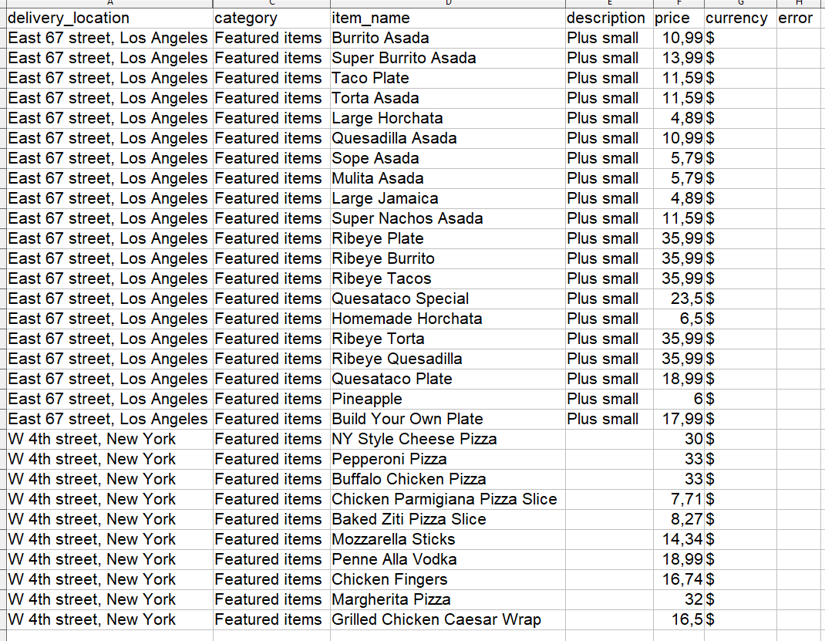
Note that, for visualization purposes, I've hidden the store URL column in the CSV.
Internal JSON API vs rendering the page: which approach
There are two main ways to scrape Uber Eats food data:
- Render a public store page in a browser environment and extract menu information from the resulting HTML. This is the exact method I used in the tutorial.
- Identify and replay the Uber Eats internal API requests used by the website itself.
Both techniques expose similar information, but they differ in maintainability, implementation risk, and alignment with the platform's rules:
- Rendering the public store page is not immune to front-end changes. Uber Eats relies heavily on JavaScript, as you've seen. This means that a basic HTTP request may return an incomplete document without the menu content. Also, selectors may stop working when Uber Eats renames attributes or restructures menu components. At low request volumes, with deliberate rate limiting and real delivery locations, it is generally the more maintainable and defensible option.
- Replaying an Uber Eats internal API can appear more attractive from a purely technical perspective. This is because internal endpoints return compact JSON, require less bandwidth, and eliminate HTML parsing. However, request formats, headers, CSRF tokens, and session requirements can change without notice. This means an internal request may work during development and fail later because Uber modifies a token or changes a required header. Maintaining the integration may require repeated browser inspection and ongoing replication of session behavior. In practice, the apparently "cleaner" JSON approach can create substantially more maintenance work than rendering the page.
Overall, internal endpoints extraction is what productized scraping tools do. And this approach best suits that technical case. For all the other cases, the right approach is rendering public pages, at a low volume.
Staying unblocked and polite at scale
A single well-formed request to a public Uber Eats store page completes without triggering a hard CAPTCHA. Blocking risk increases with request volume. Uber Eats anti-bot systems evaluate signals such as headers, request frequency, behavioral patterns, and IP reputation. This means that, to scrape it, a responsible approach is conservative: wait a few seconds between requests, avoid unnecessary concurrency, and cache results rather than repeatedly fetching unchanged pages.
But that's not all. For web scraping without getting blocked, ScrapingBee provides you with several parameters. The most useful are:
- premium_proxy: When a website is hard to scrape, this is your first go-to parameter. Under the hood, it will implement your requests with proxies that make your requests hard to block.
- stealth_proxy: When your requests are blocked even using premium_proxy, this is the right solution for you. This parameter packs requests with a pool of proxies that's hard to block. This also supports geolocation, so you need to define the country_code parameter.
NOTE: ScrapingBee will not charge you for failed requests that, for example, return a 500 status code. This means that if you use premium_proxy and your request gets blocked, you can switch to stealth_proxy and no credit will be consumed.
Collect public Uber Eats data responsibly with ScrapingBee
Uber Eats' public menus and prices are accessible on storefront pages. However, JavaScript rendering and Cloudflare protection mean a plain HTTP request may return no usable menu data.
ScrapingBee renders the page and rotates proxies through a single API request. This lets you collect public storefront information responsibly without maintaining browsers or proxy infrastructure.
Start your free ScrapingBee trial with 1,000 free API credits, and no credit card required.
Uber Eats scraping FAQs
Is it legal to scrape Uber Eats?
It is legally risky and may violate Uber's Terms of Use, which restrict automated scraping, crawling, and bulk data collection, including pricing. Some US court decisions have held that accessing publicly available data does not violate specific computer-access laws. However, those rulings do not eliminate contractual, copyright, privacy, or other legal risks.
This is not legal advice; limit collection to public data, keep volumes low, and consult a qualified lawyer about your use case.
Does Uber Eats have an API?
No, Uber Eats does not offer a public API for browsing all restaurants and menus. Uber's Marketplace APIs help approved partners manage stores, menus, and orders, while Uber Direct supports merchant delivery logistics. Both require approval/credentials and are not general consumer menu data feeds.
Why does my Uber Eats scraper return nothing?
Uber Eats is a JavaScript application, so a plain Python requests or BeautifulSoup call may receive an initial HTML shell without the rendered menu. The site is also location-dependent, and restaurant availability remains unavailable until you select a delivery location.
How do I get Uber Eats restaurants for a specific city or address?
Set a real delivery location for the area you want to examine. Uber Eats scopes restaurant availability, menus, and prices to delivery zones, with location context maintained through page parameters, browser state, and cookies. To compare markets or cover a city, use real delivery locations.
What data can I get from Uber Eats?
You can collect public storefront data such as restaurant listings available for an address, menu categories, item names, descriptions, prices, ratings, and delivery estimates. Focus on catalog information that is visible without authentication. Avoid collecting personal information from reviews or contact details, and never access customer, account, or order data behind a login.
Do I need to log in to scrape Uber Eats menus?
No, and you shouldn't. Public restaurant menus and prices can be viewed without an account after a delivery location is selected. Login-only areas such as cart, checkout, account, and order data are outside this guide's scope and should not be scraped.