In this guide, we'll dive into how to scrape Indeed job listings without getting blocked. The first time I tried to extract job data from this website, it was tricky. I thought a simple requests.get() would do the trick, but within minutes I was staring at a CAPTCHA wall. That's when I realized I needed a proper web scraper with proxy rotation and headers baked in to scrape job listing data.
Now that I have figured out how to build a reliable Indeed scraper, I'll show you how to extract data from Indeed, including job titles, company names, locations, and links. The best tool for the job is ScrapingBee's API. It's an excellent solution for those who want an easy setup without needing extra tools.
We'll explore how our API removes barriers, such as IP bans and pagination, while ensuring seamless JavaScript rendering, allowing you to scrape Indeed job postings successfully.
Web Scraping Indeed (TL;DR)
ScrapingBee is a cloud service for web scraping, and its Indeed scraper lets you extract job postings efficiently with just one API call. All you have to do is run the correct code.
Here's a complete working example that allows you to scrape Indeed job postings:
from bs4 import BeautifulSoup
import requests
import csv

def fetch_indeed_jobs(api_key, query, location, pages=2):
    results = []

    for page in range(pages):
        start = page * 10
        search_url = f"https://www.indeed.com/jobs?q={query}&l={location}&start={start}"

        response = requests.get(
            "https://app.scrapingbee.com/api/v1/",
                params={
                    "api_key": api_key,
                    "url": search_url,
                    "country_code": "us",
                    "render_js": "true",
                },
                timeout=20
        )

        if response.ok:
            results.append(response.text)
        else:
            print(f"Skipping page {page + 1}: HTTP {response.status_code}")

    return results


def parse_job_results(html_pages):
    all_jobs = []
    for html in html_pages:
        soup = BeautifulSoup(html, 'html.parser')
        cards = soup.select('div.job_seen_beacon')
        for card in cards:
            title = card.select_one('h2.jobTitle span')
            company = card.select_one('span[data-testid="company-name"]')
            location = card.select_one('div[data-testid="text-location"]')

            job = {
                'title': title.get_text(strip=True),
                'company': company.get_text(strip=True),
                'location': location.get_text(strip=True)
            }
            all_jobs.append(job)
    return all_jobs

def clean_job_data(jobs):
    cleaned_jobs = []

    for job in jobs:
        cleaned_jobs.append({
            "title": job.get("title", "N/A").strip() if job.get("title") else "N/A",
            "company": job.get("company", "N/A").strip() if job.get("company") else "N/A",
            "location": job.get("location", "N/A").strip() if job.get("location") else "N/A"
        })

    return cleaned_jobs

def export_to_csv(cleaned_jobs, filename="indeed_jobs.csv"):
    keys = cleaned_jobs[0].keys()
    with open(filename, "w", newline="", encoding="utf-8") as f:
        writer = csv.DictWriter(f, fieldnames=keys)
        writer.writeheader()
        writer.writerows(cleaned_jobs)

# Example usage
API_KEY = "YOUR_API_KEY"
pages_html = fetch_indeed_jobs(API_KEY, "software+engineer", "new+york")
jobs = parse_job_results(pages_html)
cleaned_jobs = clean_job_data(jobs)
export_to_csv(cleaned_jobs)
Make sure to configure parameters, such as job title, company name, and country. Then, replace YOUR_API_KEY with your actual API key, and you're ready to extract data.
The provided code should help you build an efficient job scraper without requiring additional configuration of residential proxies and JavaScript rendering, as these are already working in the background.
However, if this quick answer has left you a bit puzzled, don't worry, I'll explain how this data extraction works step-by-step below.
How to Scrape Indeed Job Data with ScrapingBee
Let's walk through every step of the working Python example that uses our API to extract Indeed job listings. We'll scrape and parse the core job listing data most job seekers need, such as job titles of your choice, paired with a company name and country.
But before we begin, you can take a quick look at how Indeed data extraction with ScrapingBee actually works.
Step 1: Understand Indeed Job Pages
The easiest way to figure out what to scrape is to open an Indeed results page and inspect one of the job cards. Indeed has two main page types: search result pages (which list multiple jobs matching a query) and individual job detail pages (which show a full description for a single posting). In this guide, we'll focus on search result pages first, since they give us the most job listings per request.
On Mac, open Developer Tools with Cmd+Option+I in Chrome or Safari. If you're on Windows, press Ctrl+Shift+I. You can also right-click any listing and choose Inspect to jump straight to the HTML for that card.
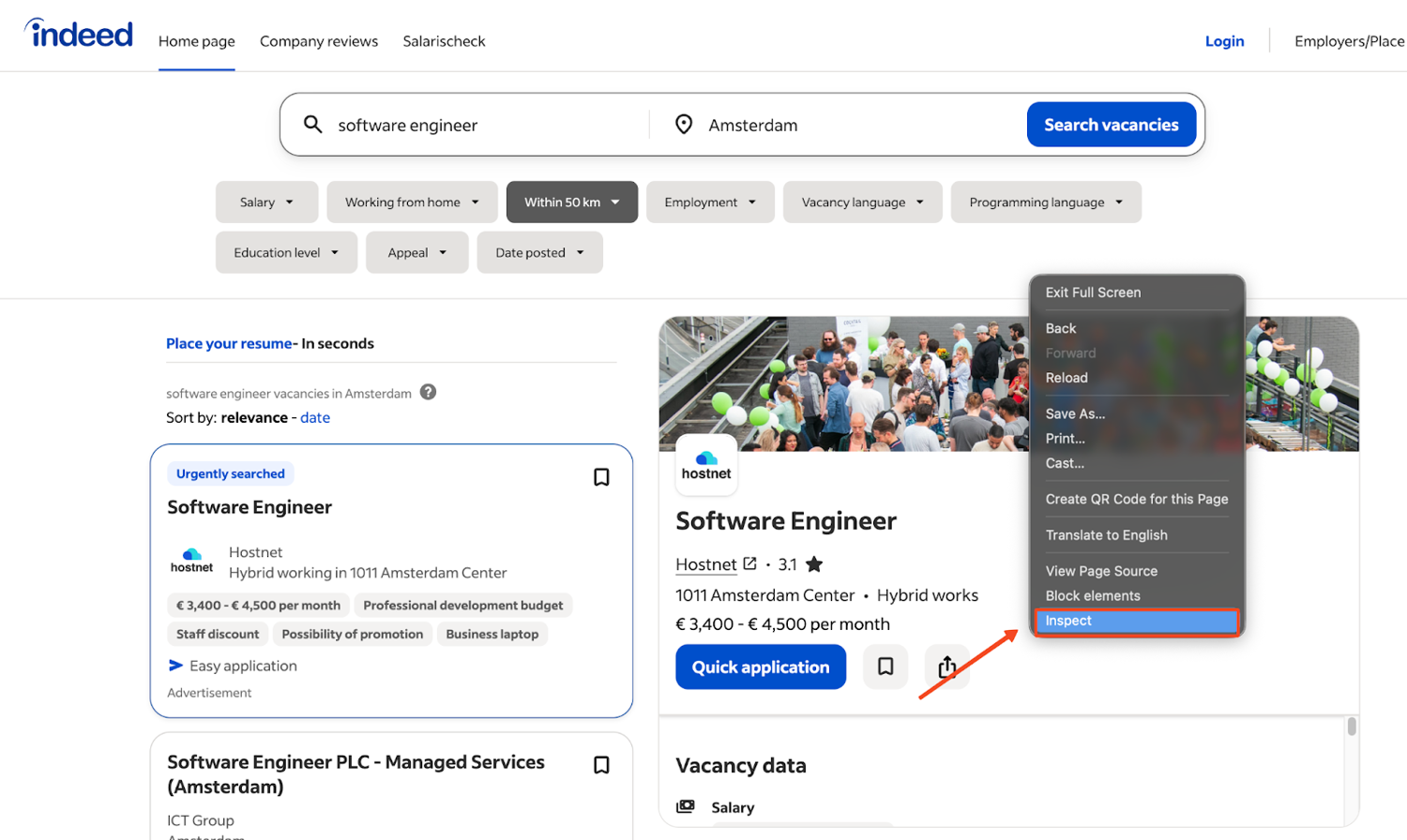
What you're looking for are the key blocks that wrap each result, plus the smaller elements inside it that hold the title, company, and location. For example, each job card is wrapped in a div with class job_seen_beacon, which we target in our scraper.
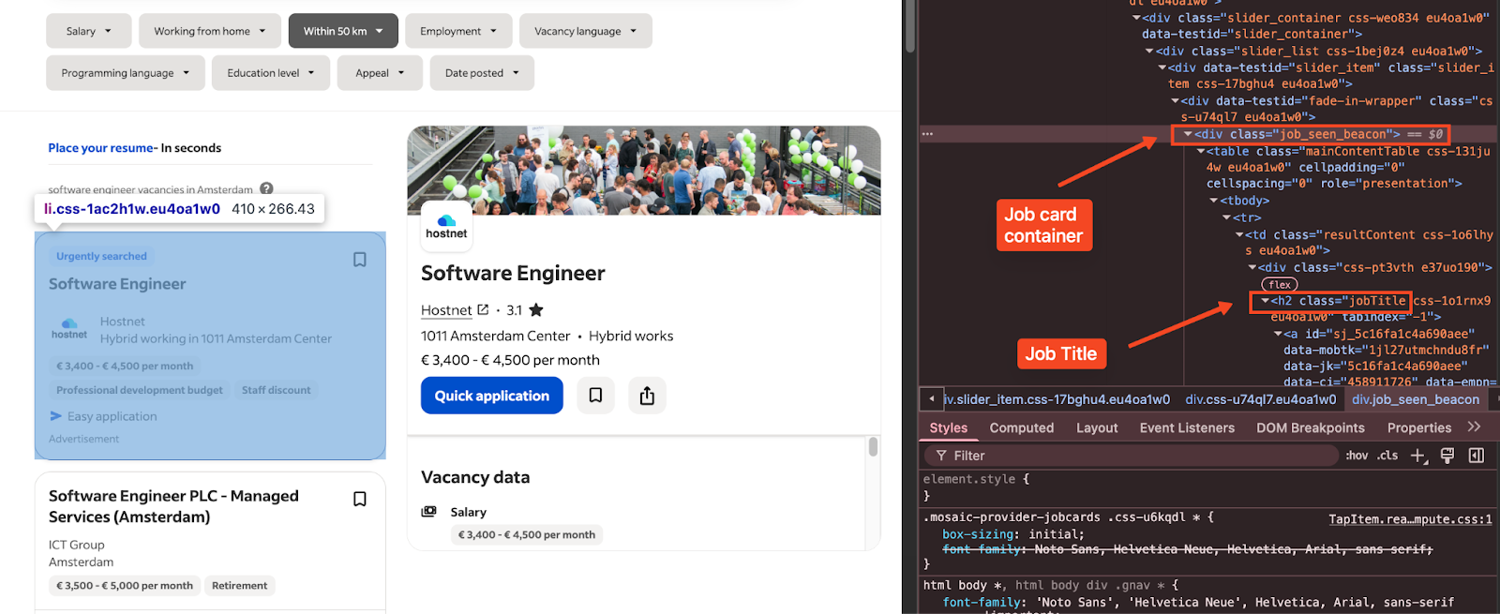
Also, Indeed paginates its search results using a start= query parameter. The first page uses start=0, the second page uses start=10, and so on. This is how we loop through multiple pages in our code to collect more than just the first few results.
Step 2: Set Up Your Environment for Indeed Job Scraping
You won't receive any job postings if you can't set up your profile correctly. Therefore, ensure that you follow these steps thoroughly.
Download and install Python: If you haven't installed Python yet, download it from the official website. When installing, make sure pip (Python's package installer) is included in your PATH.
Install the required packages:
pip install scrapingbee beautifulsoup4You're installing:
- requests: to call ScrapingBee's API before you gather data.
- beautifulsoup4: to parse the HTML response gathered by your job scraper.
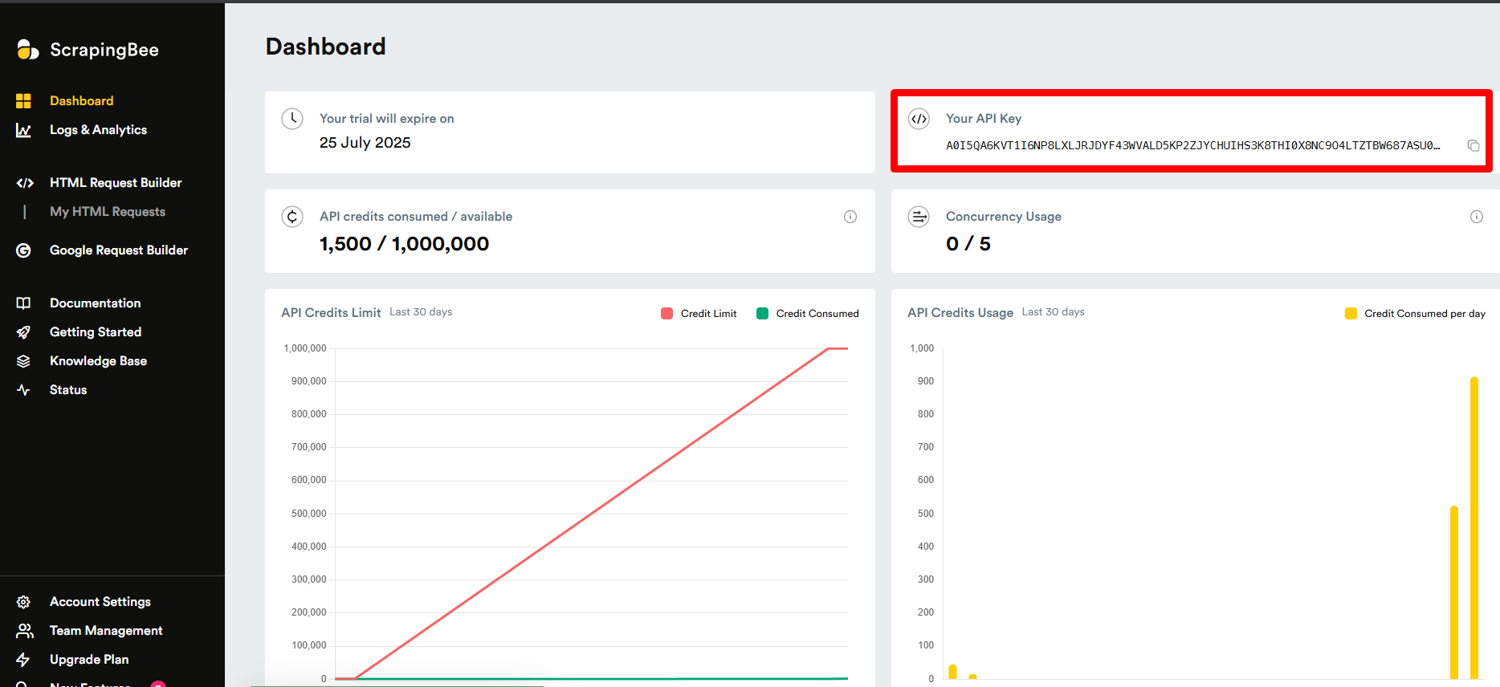
Get your ScrapingBee API key: Sign up for ScrapingBee's API and get your API key from the dashboard.
![ScrapingBee dashboard API key]()
Create a new Python file (I'll call mine indeed_scraper.py) and add:
import requests
from bs4 import BeautifulSoup
import json
import csv

API_KEY = 'YOUR_SCRAPINGBEE_API_KEY'  # Replace this with your real key
Great, now you're ready to scrape data!
Step 3: Make the API Call to Scrape Indeed
Let's run this code to enable your Indeed scraper:
def scrape_indeed_jobs(query, location, pages=1):
    all_jobs = []

    for page in range(pages):
        start = page * 10
        url = f"https://www.indeed.com/jobs?q={query}&l={location}&start={start}"

        response = requests.get(
            "https://app.scrapingbee.com/api/v1/",
            params={
                'api_key': API_KEY,
                'url': url,
            }
        )

        if response.status_code == 200:
            html = response.text
            jobs = extract_job_data(html)
            all_jobs.extend(jobs)
        else:
            print(f"Error fetching page {page+1}: {response.status_code}")

    return all_jobs
What's happening here? We're using pagination to fetch multiple pages of job postings. This means we're not just scraping the first page. Instead, for each page, we:
- Calculate the start parameter (which Indeed uses for pagination)
- Format the Indeed URL with our search query and location
- Make a request to ScrapingBee's Indeed API, passing our API key and the Indeed URL
- Extract job data from each successful response
You may wonder if you need JavaScript rendering to access all the Indeed data. The answer is yes, but when you're creating an Indeed scraper with our platform, JavaScript rendering is enabled by default. It's one less thing to worry about when you're web scraping.
However, if you're feeling like disabling this feature or looking for more advanced settings to scrape Indeed job postings, check out our documentation.
Step 4: Parse the HTML and Extract Job Data
Once we have the HTML, we need to parse it and extract the job information. This is where BeautifulSoup comes into play:
def extract_job_data(html):
    jobs = []
    soup = BeautifulSoup(html, 'html.parser')
    cards = soup.select('div.job_seen_beacon')
    for card in cards:
        title = card.select_one('h2.jobTitle span')
        company = card.select_one('span[data-testid="company-name"]')
        location = card.select_one('div[data-testid="text-location"]')

        job = {
            'title': title.get_text(strip=True),
            'company': company.get_text(strip=True),
            'location': location.get_text(strip=True)
        }
        jobs.append(job)
    return jobs
HTML parsing is a bit like surgery – you need to know exactly where to look and what to extract. I've found that Indeed occasionally updates its HTML structure, so you might need to adjust these selectors if they stop working. So, if you get stuck, check out this HTML Parsing Tutorial.
Step 5: Clean and Structure the Data
Freshly scraped data is rarely ready to use straight away. When you pull job listings from Indeed, some fields may be missing or contain extra whitespace, and if your keys are not consistent across every record, your CSV or JSON output becomes harder to work with later.
Let's run the scraped results through a small cleanup function before saving them:
def clean_job_data(jobs):
    cleaned_jobs = []

    for job in jobs:
        cleaned_jobs.append({
            "title": job.get("title", "N/A").strip() if job.get("title") else "N/A",
            "company": job.get("company", "N/A").strip() if job.get("company") else "N/A",
            "location": job.get("location", "N/A").strip() if job.get("location") else "N/A"
        })

    return cleaned_jobs
Here, we normalize missing values to something like None or "N/A", trim text with strip=True, and keep a consistent schema for each record, such as title, company, and location. Once the data is structured cleanly, exporting it becomes much easier.
Step 6: Export the Data to JSON or CSV
With the cleanup step in place, you can export the final dataset in whatever format fits your workflow. You can print it as JSON for immediate viewing:
if __name__ == "__main__":
    jobs = scrape_indeed_jobs("python developer", "New York", pages=2)
    cleaned_jobs = clean_job_data(jobs)

    print(json.dumps(cleaned_jobs, indent=2))
And if you want to save the same cleaned dataset to a CSV file for further data analysis in Google Sheets or Excel:
def save_to_csv(cleaned_jobs, filename='jobs.csv'):
    if not cleaned_jobs:
        print("No jobs to save.")
        return

    keys = cleaned_jobs[0].keys()
    with open(filename, 'w', newline='', encoding='utf-8') as f:
        writer = csv.DictWriter(f, fieldnames=keys)
        writer.writeheader()
        writer.writerows(cleaned_jobs)
By looping through the next page parameter (start=), you can scrape job titles, company names, and locations in one run. From there, it's easy to save the data in CSV format or JSON for Indeed scraping analysis.
Whether you're tracking Python jobs, building a job board, or doing market analysis, an Indeed web scraping tool built with ScrapingBee is a fast, scalable solution.
Tips for Scraping Indeed at Scale
In my experience, scraping job search websites at scale can feel like trying to fill a bucket with a hole in it. If you don't address certain challenges, your data collection efforts can be an absolute waste.
Here are some tips I've learned the hard way:
Handle rate limits when gathering Indeed data
Indeed will throttle your requests if you hit them too quickly. With our platform, you get automatic proxy rotation, but you should still space out your API calls for large-scale scraping. Consider adding a slight delay between pages:import time time.sleep(1) # Add a 1-second delay between page requestsGeo-targeting for regional job listings
Indeed shows different results based on your location. Our API's country_code parameter lets you specify which country's proxies to use. This is essential if you're targeting job postings in specific regions:params={ 'api_key': API_KEY, 'url': url, 'render_js': 'true', 'country_code': 'uk' # Use UK proxies for UK job listings }Error handling is your friend
Web scraping is unpredictable. Add robust error handling to your code to catch and respond to failures:try: response = requests.get(...) except requests.exceptions.RequestException as e: print(f"Request failed: {e}") # Implement retry logic here
In the example below, we'll combine everything into a single workflow that scrapes multiple pages, extracts job IDs and metadata from Indeed, and exports the results. This ensures your project setup is ready for any job search automation task.
Example: Paginate and Export 100 Job Postings
Now let's put everything together to extract job listings at scale – for example, 100 results, which equals about 10 pages on Indeed.
This code combines pagination, data cleanup, and CSV export:
def main():
    query = "data scientist"
    location = "remote"
    pages = 10  # 10 pages × 10 results = ~100 jobs

    print(f"Scraping {pages} pages of {query} jobs in {location}...")
    jobs = scrape_indeed_jobs(query, location, pages)
    cleaned_jobs = clean_job_data(jobs)

    filename = f"{query.replace(' ', '_')}_{location}_jobs.csv"
    save_to_csv(cleaned_jobs, filename)
    print(f"Scraped {len(cleaned_jobs)} jobs and saved to {filename}")

if __name__ == "__main__":
    main()
Now you know how an Indeed scraper can scrape job postings across multiple pages, collecting structured job data. Instead of writing time-consuming code to manage proxies or headers such as Accept-Language and Accept-Encoding, our platform simplifies the web scraping process.
Why Scrape Indeed Job Listings?
Indeed is one of the largest job boards in the world, making it home to lots of valuable employment data. But why would you want to scrape it in the first place? Here are some of the most common use cases:
Market research
By scraping Indeed job listings over time, you can track salary trends, identify which skills are in high demand, and spot shifts in hiring patterns across industries or regions. This kind of data is invaluable for recruiters, career coaches, and HR analysts.
Job aggregation
You can use scraped job data to build your own job board or feed that pulls listings from Indeed and other sources into a single interface. This is a popular approach for niche job platforms that focus on specific industries or roles.
Lead generation
Companies posting lots of open roles are likely growing fast. That's valuable information for sales teams, recruiters, and staffing agencies looking to reach out at the right time.
Automation
Instead of manually checking Indeed every day, you can set up a scraper that tracks new postings for specific roles or locations and alerts you when something relevant appears.
What Data Can You Extract from Indeed?
Now that you've built the scraper, it's helpful to know other data you can extract from Indeed. In this guide, we extract the core fields from search results:
- Job title
- Company name
- Location
- Job URL
These fields are readily available on Indeed's search result pages and are enough for most aggregation, tracking, and analysis tasks.
If you want more details like salaries, full job descriptions, or specific requirements, you'll need to go one step further. This means visiting each individual job page and scraping its content on its own.
By handling search results first and then moving on to detail pages, you can collect more data without putting too much load on Indeed's servers.
Indeed Robots.txt Scraping Policy
A robots.txt file tells automated tools (like web crawlers and scrapers) which parts of a website are allowed or disallowed from accessing. It is not the same as a legal contract, but it is a widely respected guideline that responsible scrapers should follow.
Indeed's robots.txt file includes disallow rules for several job-related paths and query patterns. For example, Indeed's robots.txt disallows scraping of resume-related directories (/resumes*), application start pages (/applystart), and company internal pages (/cmp/_/).
However, certain search engine bots (Googlebot, Bingbot, and others) receive broader Allow: / permissions, which means they can access more of the site than a random crawler.
It's worth noting that robots.txt is a guideline, not an enforceable legal document. That said, responsible scraping should always respect these directives along with rate limits and server load considerations. Before running any scraper, check Indeed's robots.txt file to understand which directories are off-limits to automated crawlers.
Using a tool like ScrapingBee can help you manage requests more responsibly by rotating proxies and managing request rates, but you should still be aware of and follow site policies when you scrape Indeed.
Scraping Indeed Job Listings the Easy Way
Scraping job data from Indeed doesn't have to be time-consuming or frustrating. Our API lets you build a reliable Indeed scraper that extracts the same data you'd expect from a job board. In a matter of minutes, you can collect dozens of job titles and even job details like salary ranges or descriptions.
Then you can export the data and sort it by company name. If you also want to collect job listings directly from Google's job search results, you can use our Google Jobs Scraper API alongside your Indeed scraper.
You don't need to worry about proxies or headless browsers – these are on by default. That means you can focus on building your job scraper for market analysis, research, or even automating your next job search.
By combining our API with Python, you can:
- Scrape Indeed job postings across multiple pages without hitting CAPTCHAs
- Collect structured job openings in clean CSV format or JSON
- Scale up your job scraping process to include advanced job position details
- Use the same code to scrape other websites, not just Indeed
If you're ready to create your own Indeed scraper, sign up for ScrapingBee's API and see how fast you can go from the first page of results to a complete dataset of job postings.
Indeed Web Scraping FAQs
Does Indeed allow web scraping?
Indeed's terms of service don't explicitly allow scraping, but if you do scrape, make sure you respect robots.txt directives and don't overload their servers.
Also, if your scraper collects personally identifiable information from job postings, data protection laws such as GDPR or CCPA may also become relevant depending on your jurisdiction and use case.
It is safer to focus on publicly available job listing data, avoid scraping personal data unnecessarily, and avoid reproducing copyrighted content such as full job descriptions at scale without a clear legal basis. Violating site policies can lead to IP bans, blocked requests, account restrictions, or other legal risks.
How does Indeed scrape jobs?
Indeed gathers job listings through various methods. It crawls employer career pages and job boards, much like how a search engine indexes websites. Employers can also post jobs directly on Indeed or through applicant tracking systems (ATS) that send listings to Indeed's platform through XML feeds or API integrations.
When you search for a job on Indeed, you're searching this aggregated index, not the individual employer sites. That's why Indeed can display millions of listings from thousands of sources in a single search.
How to avoid getting blocked by Indeed?
Scraping without getting blocked by Indeed is less likely if you follow best practices. First, add delays between requests. Second, randomize the timing of your requests. Third, limit concurrent requests. And finally, use solutions, like ScrapingBee, to ensure your requests appear to come from a real browser.
How can I scrape jobs by keyword or location?
It's as simple as changing the query and location parameters in your URL. For example, to search for "machine learning" jobs in "Chicago", use this parameter:
url = f"https://www.indeed.com/jobs?q={machine+learning}&l={Chicago}"
What is the best way to extract job details like salary or description?
To extract the job description, salary, and other details, you'll need to scrape the individual job pages. First, extract the job URLs from the search results page. Then make a separate request to each job URL. Parse the detailed page for salary, description, requirements, etc. This two-stage approach gives you complete job details.
Before you go, check out these related reads: