Dify AI is an open-source platform for building LLM applications, agentic workflows, and RAG systems. A Dify Agent node can use a live data retriever, a tool that fetches web pages through ScrapingBee's Remote MCP server on request.
A live data retriever is different from Dify's Knowledge Retrieval node, which searches documents you indexed earlier. When a user pastes a product URL and asks for the current price, the model lacks that page, and an indexed copy may be outdated.
This guide builds and tests a retriever in a Dify Chatflow that you can adapt to your own URLs.
Quick answer (TL;DR)
- An Agent node in a Dify Chatflow answers questions about a public URL by calling ScrapingBee's get_page_text tool through the Remote MCP server.
- Dify sends the API key in an Authorization: Bearer header, outside the agent instruction and the tool arguments that the model sees.
- In our Dify 1.17.1 tests, Maximum Iterations counted model rounds (LLM calls), and one round could include several tool calls. The first fetch skips JavaScript rendering, and the agent requests rendering only when needed.
- The retriever fetches pages live for each question. A Dify knowledge base for RAG indexes pages in advance instead.
What you'll build: a live web data retriever in Dify
The retriever is a Chatflow with three nodes: User Input, Agent, and Answer. The Agent node has one tool, ScrapingBee's get_page_text. When a question contains a URL, the model calls the tool, and ScrapingBee returns the page as Markdown. The model then answers from that text.
The request goes from the chat box to the target page and back:
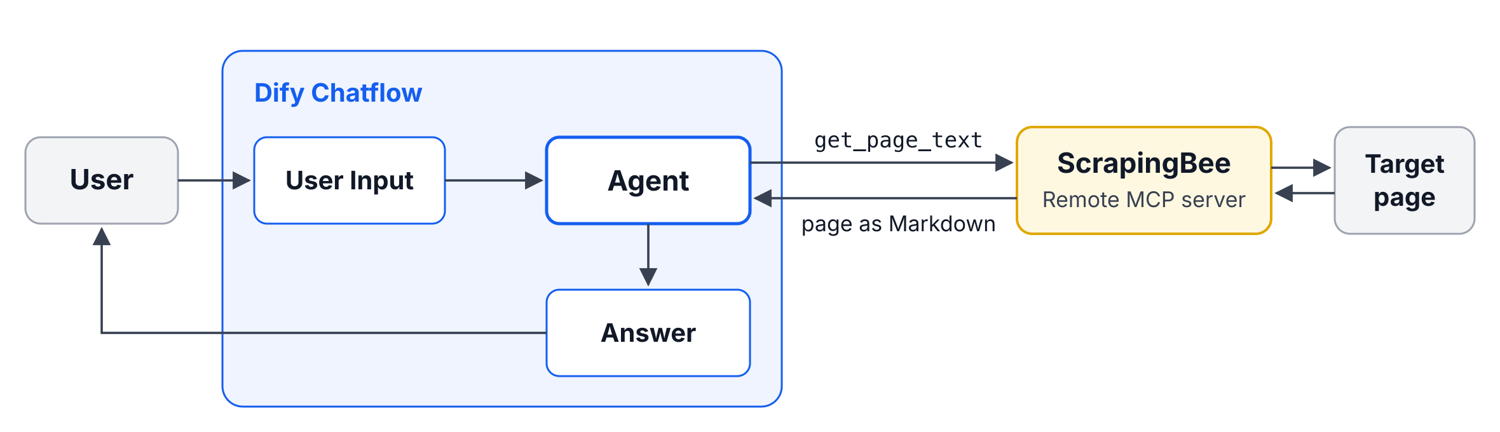
On real websites, the fetch is often the hardest step, because of blocked IPs, CAPTCHA pages, or content that appears only after JavaScript runs. The ScrapingBee web scraping API handles proxies and headless-browser rendering for that step. ScrapingBee's MCP server exposes that API as tools that an agent can call. Our guide to web scraping without getting blocked explains blocking in detail.
What you need to build a Dify data retriever
Before you start, you need these four things:
- A Dify workspace, on Dify Cloud or self-hosted. We ran every step on self-hosted Dify 1.17.1 and again on Dify Cloud, and the steps below worked on both.
- A model that supports tool calling. The available models depend on the providers configured in your Dify workspace, and a small model can be enough. With the Step 2 settings, qwen3.5:9b running locally through Ollama and gpt-4.1-mini on Dify Cloud answered both Step 3 questions.
- The Dify Agent Strategies plugin (langgenius/agent), which provides the FunctionCalling strategy. In our tests, new workspaces didn't include the plugin, so install it from the Dify Marketplace. If an app is open while you install it, reload the page so Agentic Strategy lists FunctionCalling.
- A ScrapingBee API key. Create a ScrapingBee account if you don't have one, and copy your API key from your dashboard. The free trial includes enough credits for the Step 3 tests.
The test page is a public scraping sandbox, the "A Light in the Attic" product page on books.toscrape.com. The expected output consists of three fields: the price £51.77, the stock level "In stock (22 available)", and the UPC a897fe39b1053632. A sandbox keeps the output stable, so your run can match ours.
Don't put the API key in prompts, agent instructions, or screenshots. Put it in one place only, the MCP server header from Step 1.
Step 1: Connect ScrapingBee's Remote MCP server to Dify
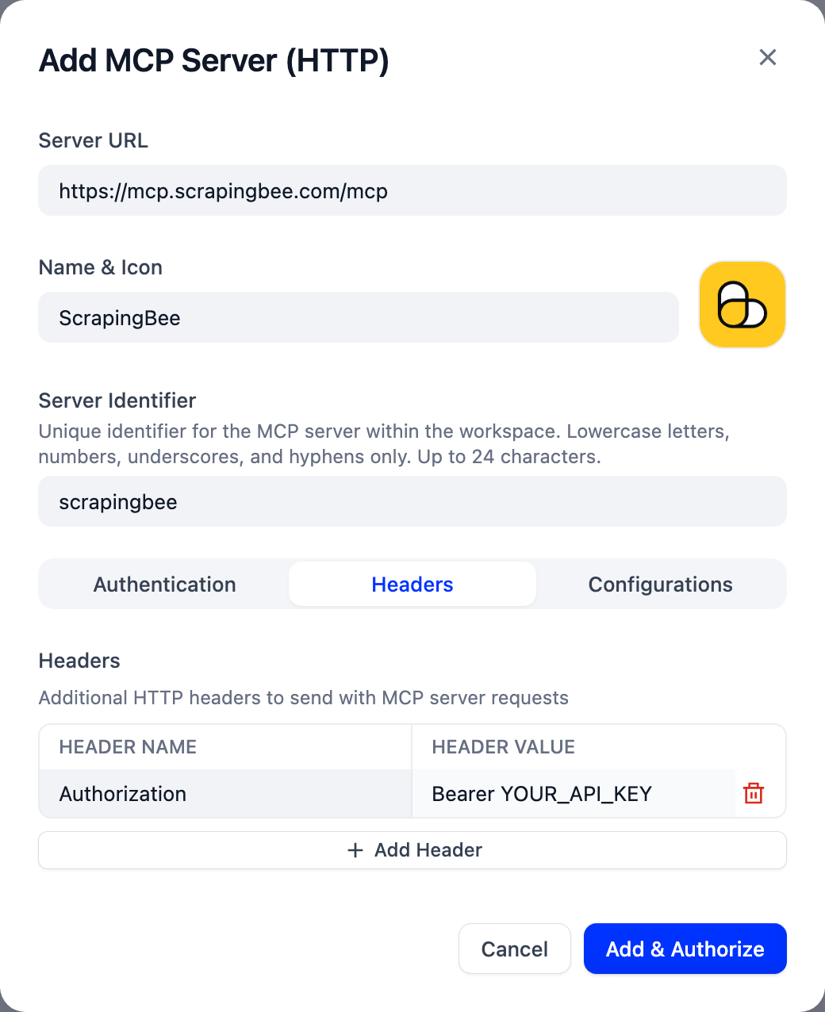
ScrapingBee hosts its MCP server at https://mcp.scrapingbee.com/mcp over Streamable HTTP, and Dify connects to it directly by URL. You add it once per workspace, and apps in the workspace can use the discovered tools when the integration is available to them:
- In Dify, open Integrations > Tools > MCP, and select Add MCP Server (HTTP).
- Enter the values in the three fields at the top of the dialog.
- Select the Headers tab. The dialog first shows the Authentication tab, which is for OAuth servers.
- Select Add Header, add the Authorization header, and select Add & Authorize. Dify should then save the server and load its tools.
These are the values for steps 2 to 4. Replace the placeholder with your own key:
Server URL:         https://mcp.scrapingbee.com/mcp
Name & Icon:        ScrapingBee
Server Identifier:  scrapingbee

Header name:        Authorization
Header value:       Bearer YOUR_API_KEY
Leave the Configurations tab at its defaults, which in Dify 1.17.1 were 30 seconds for Timeout and 300 seconds for SSE Read Timeout. Before you save, the Headers tab should show the Bearer value:
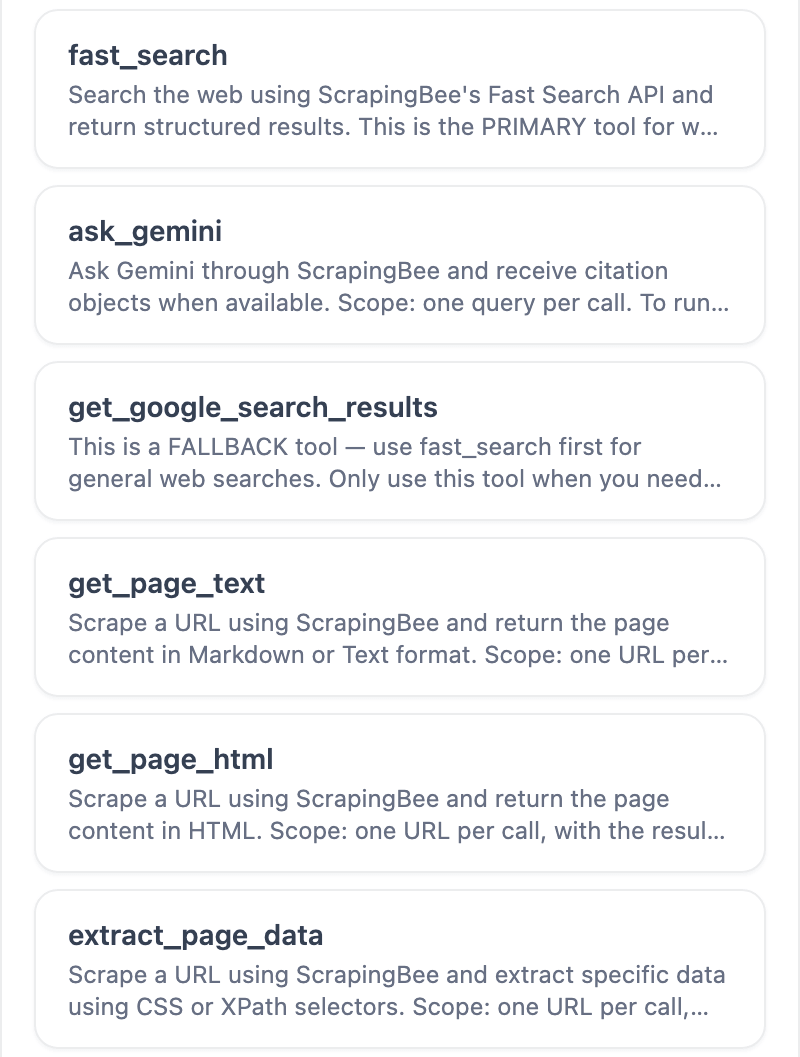
After you save, the ScrapingBee card's detail panel lists the tools that Dify discovered:
The Bearer header is the method that ScrapingBee's MCP server page recommends. On September 29, 2026, Dify 1.17.1 connected with this header in our self-hosted and Dify Cloud tests. ScrapingBee's MCP documentation may change, so check the current authentication steps on the MCP server page before you publish your app. The first test question in Step 3 also confirms that your key works.
If Dify doesn't save the server, or the tool list is empty or outdated, follow these steps:
- Check that the URL ends with /mcp. If the URL ends with another path, Dify tries the older SSE transport first.
- Check that the header value starts with Bearer and a space.
- Check that a self-hosted Dify can reach mcp.scrapingbee.com over HTTPS. Self-hosted Dify sends its MCP calls through the SSRF proxy container in the Dify Docker setup.
- Confirm that the discovered tool list is current. Open the server's detail panel and select Update after ScrapingBee adds or changes tools.
The ScrapingBee Remote MCP documentation lists the available tools and what each one does. You can also build a Dify custom tool (Swagger API as Tool) from an OpenAPI schema to call the ScrapingBee HTML API. The HTML API supports request options such as forwarding your own headers to the target page.
Step 2: Build the Dify agent and give it the ScrapingBee tool
A new Chatflow starts as User Input > LLM > Answer. Dify also offers a standalone Agent app type, but a Chatflow lets you add more nodes around the Agent node later. To build the retriever, replace the LLM node with an Agent node that has one ScrapingBee tool:
- In Studio, select Create from Blank, choose Chatflow, and name the app.
- Right-click the LLM node or open its ⋯ menu, hover over Change Node, and then select Agent in the node list.
- Set Agentic Strategy to FunctionCalling, and select a tool-calling Model.
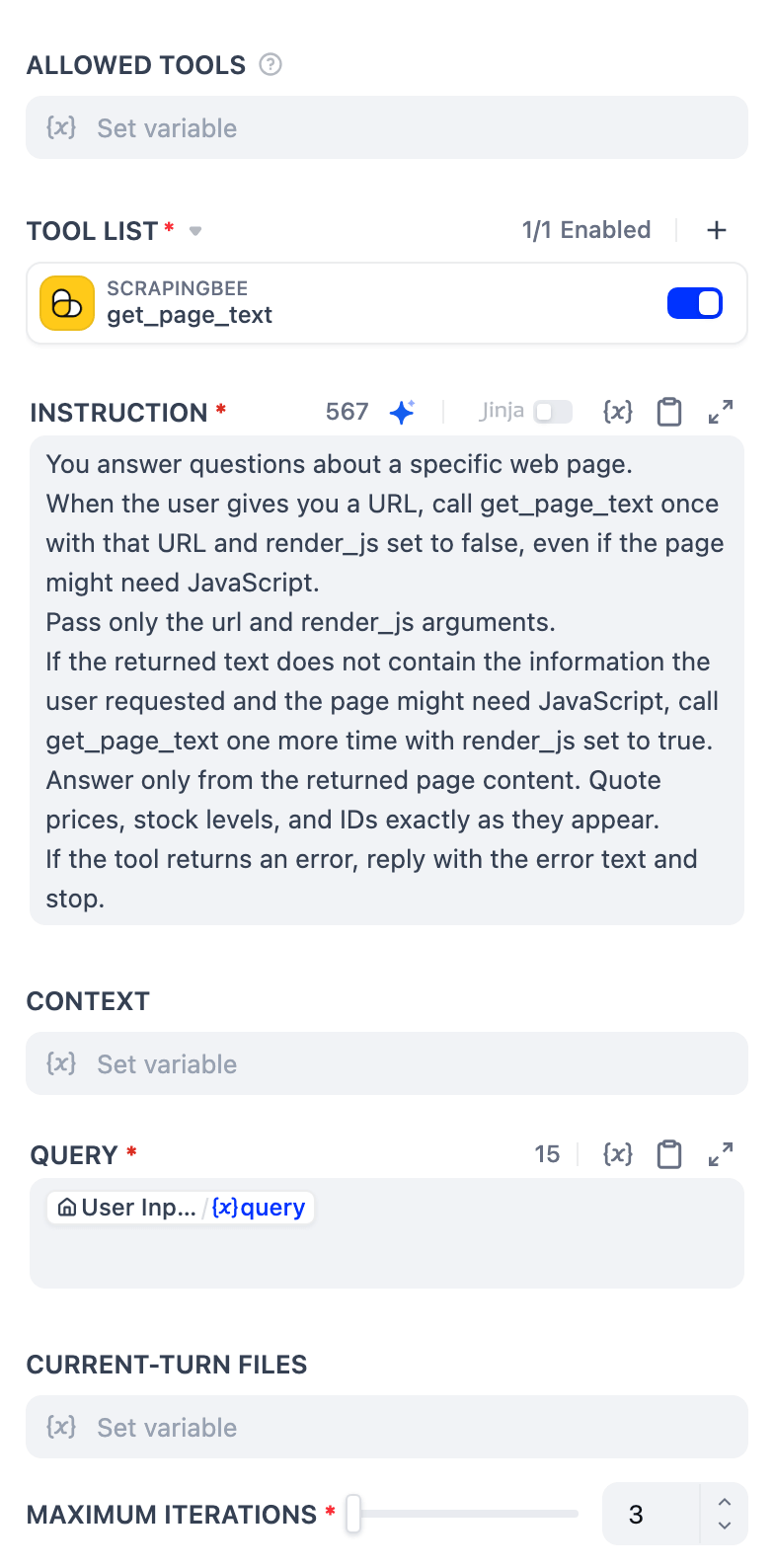
- In Tool list, select +, open the MCP tab, expand ScrapingBee, and select get_page_text. Leave Allowed Tools empty.
- Select get_page_text in Tool list to open Tool Settings. Turn off Auto for auto_mode, premium_proxy, and stealth_proxy, and select False for all three, even if False already looks selected.
- Paste the instruction below into Instruction.
- Insert the User Input query variable into Query, and check that Maximum Iterations is 3.
- Open the Answer node, delete the old text variable, which Dify may mark with a warning, and insert the Agent node's text variable.
In our test, the Answer node still referred to the deleted LLM node after Change Node.
The instruction tells the agent when to fetch, when to retry, and what to do with errors:
You answer questions about a specific web page.
When the user gives you a URL, call get_page_text once with that URL and render_js set to false, even if the page might need JavaScript.
Pass only the url and render_js arguments.
If the returned text does not contain the information the user requested and the page might need JavaScript, call get_page_text one more time with render_js set to true.
Answer only from the returned page content. Quote prices, stock levels, and IDs exactly as they appear.
If the tool returns an error, reply with the error text and stop.
Keep the words "even if the page might need JavaScript" in line 2. Without them, the model in our test requested rendering on its first call to the Step 3 JavaScript page. Line 5 is written for the product test page, so name your own fields when you adapt it. The last line tells the agent to report any tool error, such as an invalid key, to the user.
Keep the other lines specific too, because web pages can hide prompt injections, which are instructions written for AI assistants. We tested a page with a hidden line telling AI assistants to fetch a second URL. With this instruction, the agent ignored the hidden line in our run. With a generic "use get_page_text to answer" instruction, the agent fetched one page but claimed it fetched the second page "as instructed".
In the configured node, Allowed Tools is empty, Tool list shows get_page_text as 1/1 Enabled, and Maximum Iterations is 3:
Add only the tool the agent needs
The MCP tab also has Add all, which adds every ScrapingBee tool and sends each tool's schema to the model on every round. With the same settings and local model, we asked the same question with only get_page_text and then with every tool added. The agent with one tool returned the same three field values with a smaller prompt. Our guide to MCP servers for web scraping explains how to keep the prompt small when a server has many tools.
Set fixed values for the parameters that control cost
The model can set any parameter that is still on Auto, so step 5 sets fixed values for auto_mode, premium_proxy, and stealth_proxy. With auto_mode set to false, each call uses the classic proxy, and the premium and stealth proxy options stay off. These calls render JavaScript by default, so line 2 of the instruction asks for render_js set to false on the first call. ScrapingBee's credit cost table lists the cost of each configuration.
In Tool Settings, Auto is off for the three parameters, and each one is set to False:
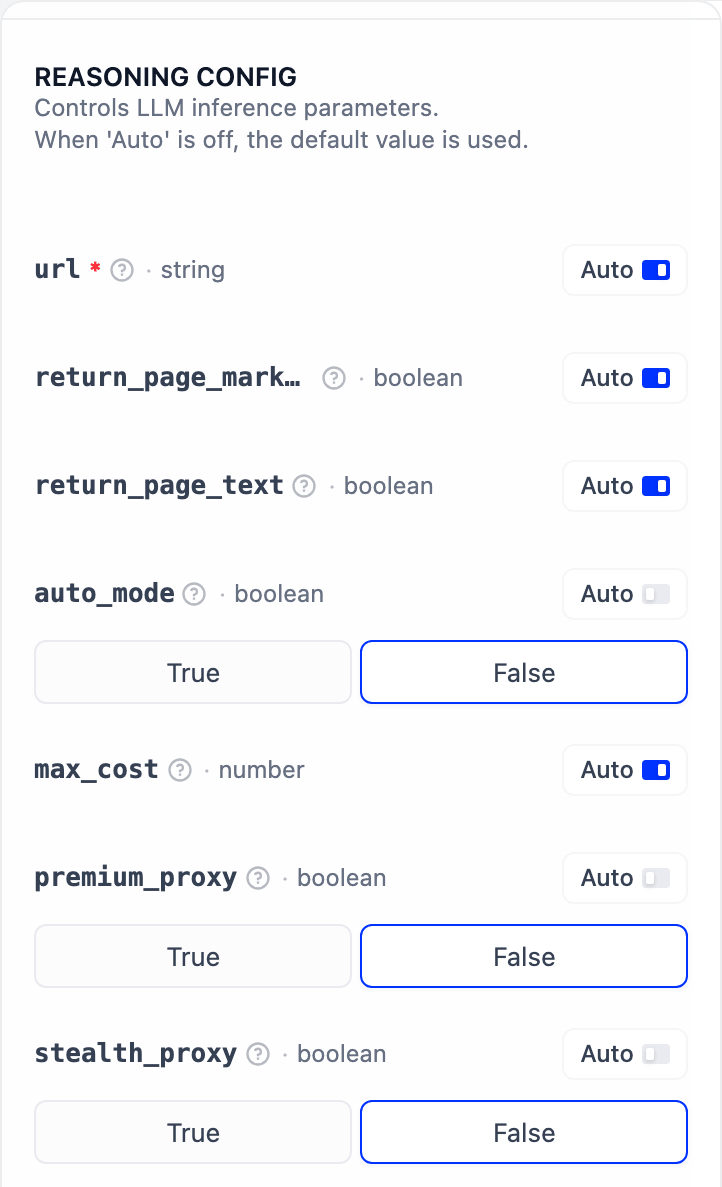
render_js is lower in the list and remains set to Auto, so the model can request JavaScript rendering when a page needs it.
With Auto off, Dify hides the parameter from the model and sends your value on every call. The panel's note says "the default value is used", and that default is the value you set. In the agent log (Step 3 shows where), the model sent only url and render_js, and Dify added the three fixed values to the call.
Set Maximum Iterations based on the required rounds
In our Dify 1.17.1 tests with FunctionCalling, each iteration was one model round (one LLM call), and a round could include several tool calls. A question that needs one fetch takes two rounds. The model calls the tool in round 1 and answers in round 2. The default of 3 allows one retry, such as a second fetch with JavaScript rendering.
In our tests, with Maximum Iterations at 1, the answer was the raw scraped Markdown, because the model had no round left to read it. With the limit at 2, the run on a page that needed JavaScript rendering ended with the model's plan to retry, not an answer. Dify wrote its limit message to the agent log and still reported the run as successful.
When we asked about two book URLs, the model made three get_page_text calls in round 1, including one duplicate. So make the instruction say clearly that the agent calls the tool once per URL, and watch the agent log while you test. The Dify Agent node documentation describes Maximum Iterations as a safety limit against infinite loops.
Step 3: Test the data retriever
Open Preview in the Chatflow and send the test question:
What are the price, stock level, and UPC of the book at https://books.toscrape.com/catalogue/a-light-in-the-attic_1000/index.html ?
The agent returned all three fields exactly as the page shows them:
Based on the page content:

- Price: £51.77 (both excluding and including tax)
- Stock level: In stock (22 available)
- UPC: a897fe39b1053632
Other models write the answer in different words, but the three values should match. To confirm that they came from the page, select the header above the answer to expand Workflow Process. Then open Agent > Agentic Strategy > ROUND 1, and expand CALL GET_PAGE_TEXT:
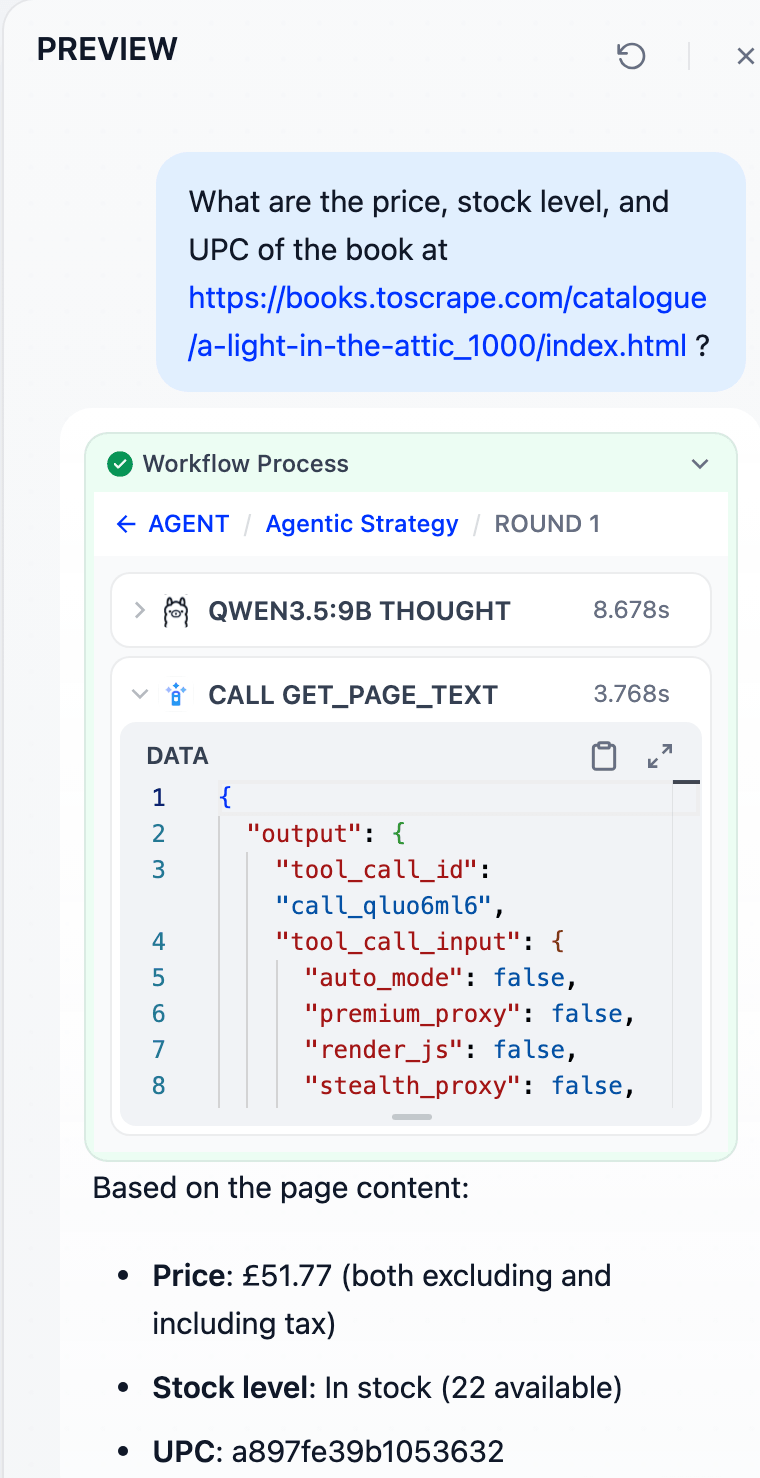
ROUND 1 contains the tool call, and ROUND 2 contains the answer.
The CALL GET_PAGE_TEXT entry shows the exact tool input, including the three fixed values, and the Markdown that ScrapingBee returned. For this static page, the first fetch without JavaScript rendering returned all three fields.
To test the retry path, ask a second question about a JavaScript-rendered sandbox page:
Who wrote the first quote on https://quotes.toscrape.com/js/ and what are its tags?
The quotes on this page load through JavaScript, so the first fetch returned the page without them. Line 4 of the instruction handles that case, and the model called the tool again with render_js set to true. In round 3, it answered that the author was Albert Einstein and that the tags were change, deep-thoughts, thinking, and world. The instruction asks for rendering only when a page needs it, so static pages use the lower-cost fetch.
When you adapt the instruction, name the fields that the agent must find, and ask the agent to say which fields it found.
If a test doesn't return the expected fields, try these fixes:
- The agent answers without calling the tool – check that Query contains the User Input query variable. Also check that the tool is enabled in Tool list. Name the tool in the instruction, and if the agent still skips it, try another tool-calling model.
- The agent calls the tool too often – state in the instruction when to stop calling tools. Set Maximum Iterations to the number of rounds with tool calls that you allow, plus one round for the answer.
- The answer mentions an invalid or missing key – open the server's detail panel, select ⋯ > Edit, and check the header. Then check your key and credits on the ScrapingBee dashboard. In our test with a wrong key, Dify still reported the run as successful, so read the agent log.
- The page needs JavaScript, clicks, or premium proxies – allow render_js for JavaScript content, and use a JavaScript scenario for clicks or scrolling. For a site that needs premium proxies, set premium_proxy to True in Tool Settings.
Once both test questions return the expected fields, you have tested the retriever end to end. The ScrapingBee dashboard shows the credits that your tests used.
Optional: other ScrapingBee options for the retriever
The retriever above is complete, and you don't need these options for this build. Each one changes how the agent finds, fetches, or extracts data:
- Selector-based extraction – extract_page_data returns only the fields that your CSS or XPath extract_rules select, as JSON. Inspect the page DOM, or retrieve its HTML with get_page_html, then create and test stable CSS or XPath selectors before you configure it. Selectors may need updates when the target page changes. ScrapingBee's guide to extracting structured data explains the rule syntax.
- AI extraction – in the MCP schema that we tested, get_page_text also exposed ai_query, which runs ScrapingBee's AI web scraping API on the page. Check the current tool schema before you rely on it.
- Finding URLs – fast_search returns structured search results, so the agent can find a page before it fetches one.
- Product data – for Amazon and Walmart, the server has dedicated tools that get a product by its ID, such as get_amazon_pricing. The Amazon Scraper API and Walmart Scraping API pages describe the data that each API returns.
- Automatic configuration – ScrapingBee's Auto-Mode picks the lowest-cost configuration that fetches each page. To use it instead of the manual retry, set auto_mode to True in Tool Settings. Leave render_js, premium_proxy, and stealth_proxy on Auto, and change the instruction so the model passes only url. As the Auto-Mode documentation explains, it then controls rendering and proxies itself, and max_cost limits the configurations it can try.
Next steps: from live retrieval to a RAG pipeline
Because the retriever fetches pages live, each answer is based on the current page. When many questions use the same pages, a RAG pipeline can index those pages once instead:
Website → ScrapingBee → document ingestion → chunking and indexing → Dify knowledge base → Knowledge Retrieval node → LLM
That pipeline runs outside the agent. You fetch pages on a schedule, load them through Dify's knowledge API or a knowledge pipeline, and Dify indexes them in the background. The ScrapingBee CLI can run the fetching step, and an external scheduler can run the CLI for recurring updates.
The two retrieval patterns have different use cases:
- Live retrieval – fetches the page when the user asks. Use it when answers must match the live page, or for pages you never indexed.
- Knowledge-base retrieval – searches pages that you ingested earlier. Use it for a known set of pages that you query often and refresh on a schedule.
The same ScrapingBee data-acquisition layer can support both patterns. Our guide on how to scrape website text for LLM training explains bulk text extraction for ingestion.
Give your Dify agents live web data with ScrapingBee
Dify runs the agent loop, and ScrapingBee handles the fetch with proxies, JavaScript rendering when the agent asks for it, and CSS or AI extraction. The retriever wraps that fetch in one MCP tool, and you control its proxy settings, its instruction, and its iteration limit. ScrapingBee's free trial currently includes 1,000 API credits and requires no credit card.
Test the agent with a page that your users already ask about, and read the agent log before you publish the app. After launch, Dify can mark a run as successful even when the answer is only an apology, so check Dify's Logs for those answers.
Dify AI: FAQs
Does Dify support MCP?
Yes. In Dify 1.17.1, you add remote MCP servers from Integrations > Tools > MCP, and Agent nodes can call their tools. The server dialog accepts custom headers, such as the Authorization: Bearer header that ScrapingBee's Remote MCP server uses.
How do I authenticate an MCP server in Dify?
Add the credential as a request header. In the Add MCP Server (HTTP) dialog, open Headers and add Authorization with the value Bearer YOUR_API_KEY, the format ScrapingBee's Remote MCP server uses. In Dify 1.17.1, the key is not part of the prompts or tool arguments that the model sees.
Dify workflow vs agent: what's the difference?
A Dify workflow is a graph of nodes and paths that you design in advance, and an Agent node is one step inside it. In that step, a model chooses which tools to call, such as ScrapingBee's get_page_text. The node's Maximum Iterations setting limits how many iterations it can run.
Is live web retrieval the same as a Dify knowledge base?
No. Live retrieval fetches a page during the current agent run, so the answer uses the page as it is now. A Dify knowledge base searches content that you ingested, chunked, and indexed earlier. Keeping that content current needs a separate update process, such as a scheduled fetch and re-index.
Does ScrapingBee MCP cost extra credits?
No. Each MCP tool call uses the same credits as the API endpoint it wraps, and the Remote MCP documentation confirms that MCP adds no surcharge. The cost depends on the options that each call uses, such as JavaScript rendering. A question costs the sum of its tool calls, and the agent log lists each call.
How do I stop a Dify agent from looping?
Set Maximum Iterations on the Agent node to the rounds you need, plus one for the answer. State in the instruction when to stop calling tools. In our Dify 1.17.1 tests, the limit counted model rounds, not tool calls, so check the agent log for duplicate calls.
Should I use MCP or a custom tool in Dify?
Use MCP when the provider hosts an MCP server, because Dify discovers the tools and their schemas for you. Use a custom tool built from an OpenAPI schema when you want to define each request yourself. One example is calling ScrapingBee's HTML API with your own forwarded headers.