The interactive REPL for ScrapingBee CLI is now available.
The ScrapingBee CLI already lets you run scraping, search, crawl, and extraction commands from your terminal. Now you can do it from a full-screen terminal interface built for testing requests, viewing results, monitoring credits, and reusing settings without leaving the command line.
Run scrapingbee without a subcommand to open the new interactive REPL, then send API requests, inspect responses, adjust defaults, and iterate faster from one terminal session.
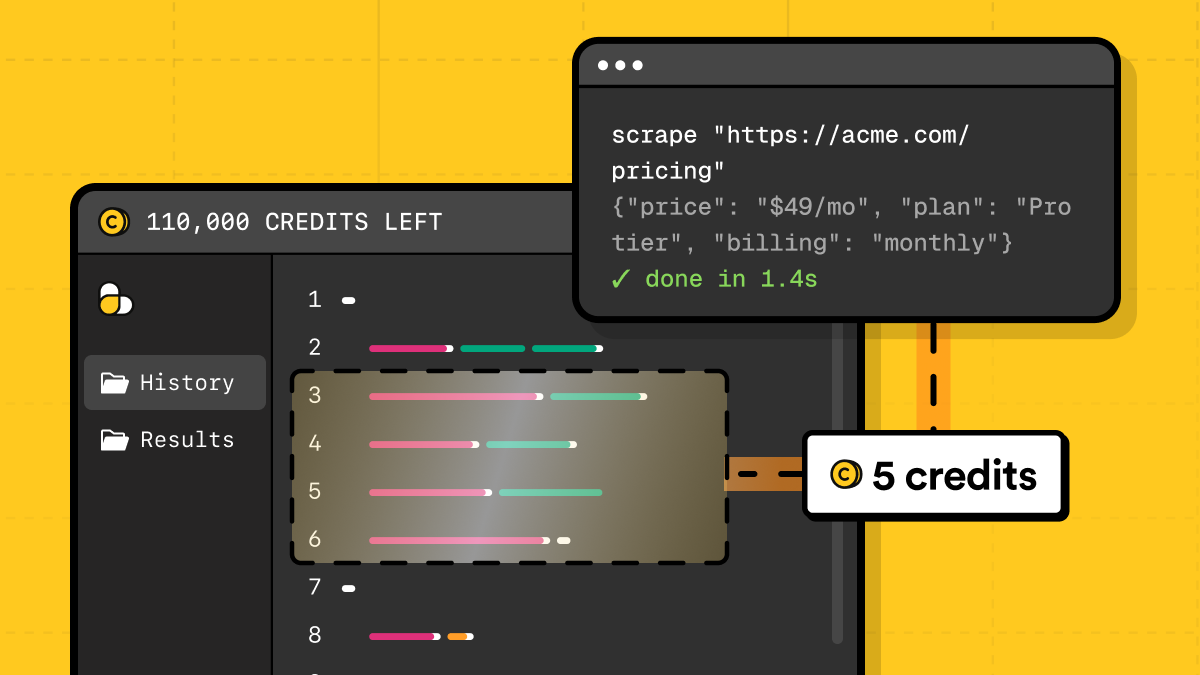
Why interactive mode?
The ScrapingBee CLI is a command line interface for running ScrapingBee requests from your terminal. It is useful when you want to test an API call quickly, automate a scraping task, or add ScrapingBee commands to scripts and CI jobs.
But command line workflows can get repetitive. You often need to edit long commands, rerun them with different options, open output files, check your credits, and keep track of what changed between requests.
Interactive mode solves this by turning the CLI into an interactive REPL. You stay in one terminal session, run commands as you go, view results, reuse settings, and iterate without rebuilding the same command from scratch each time.
Quick refresher: what are CLI and REPL?
- A CLI, or command line interface, is a way to use a tool by typing commands in the terminal instead of clicking buttons in a browser.
- A REPL is an interactive session that waits for a command, runs it, prints the result, and then waits for the next command. The name stands for "read, evaluate, print loop."
ScrapingBee CLI interactive mode works like a small terminal dashboard. Run scrapingbee, type a command such as scrape, inspect the response, change a setting, and run the next command from the same session.
Quickstart: open the interactive REPL
Before starting, make sure Python and uv are installed. Interactive mode requires ScrapingBee CLI v1.5.0 or later. Existing ScrapingBee CLI users do not need to re-authenticate, but should upgrade their local package first:
uv tool upgrade scrapingbee-cli
New users can install the CLI with:
uv tool install scrapingbee-cli
Then save your API key:
scrapingbee auth
Now run scrapingbee without a subcommand:
scrapingbee
This opens the interactive REPL. From there, you can run regular ScrapingBee commands, test requests, view responses, and adjust session settings without leaving the terminal.
For example, you can scrape Hacker News and ask ScrapingBee to extract the main story titles:
scrape "https://news.ycombinator.com" --ai-query "extract the main story titles"
Then open the latest response inside the REPL:
:view
You can rerun the same request with different options, inspect the result, and keep iterating without leaving the terminal.
What you can do in interactive mode
Interactive mode gives you a terminal dashboard for ScrapingBee. You can keep everything inside one session instead of running a command, checking the output, editing flags, and running it again.
Inside the interactive REPL, you can:
- Run regular ScrapingBee commands for scraping, crawling, search, ecommerce, and LLM scraper workflows.
- Use autocomplete for commands, flags, and supported values.
- Monitor available credits, session usage, active defaults, and running jobs from the live toolbar.
- Set session defaults once and reuse them across multiple requests.
- Open the latest response with
:view. - Inspect JSON, HTML, Markdown, or plain text responses in the built-in viewer.
- Track long-running crawls and batch jobs with progress widgets.
- Click local output paths to open generated files or folders.
Useful REPL commands
Interactive mode supports regular ScrapingBee commands and REPL-only commands that start with :. These commands help you manage the session, reuse settings, and inspect results without leaving the terminal.
| Command | What it does |
|---|---|
:help | Show available commands and key bindings |
:set key=value | Set a default option for the current session |
:unset key | Remove a session default |
:show | Display active session settings |
:view | Open the latest response in the built-in viewer |
:view crawl | Open the latest crawl log |
:list | List active scheduled jobs, if any |
:clear | Clear the scrollback |
:q | Exit the REPL |
For example, you can set a country once and reuse it across multiple requests:
:set country-code=fr
scrape "https://example.com"
scrape "https://example.com/pricing"
:show
You can also inspect the latest response without opening another app:
scrape "https://news.ycombinator.com" --return-page-markdown true
:view
The viewer can open the latest response, pretty-print JSON or HTML, and let you switch between raw and formatted output.
Reuse parameters and save results
Interactive mode is especially useful when you need to test several versions of the same request. Instead of retyping the same flags every time, you can set session defaults once and reuse them across commands.
For example, if you are testing pages from the same country with premium proxies, set those options once:
:set country-code=fr
:set premium-proxy=true
Every following command will use these defaults unless you override them:
scrape "https://example.com"
scrape "https://example.com/pricing" --country-code us
Check active defaults at any time:
:show
You can also save responses to files, just like with the regular CLI:
scrape "https://news.ycombinator.com" --return-page-markdown true --output-file hn.md
If the file already exists, use --overwrite inside the REPL to skip the confirmation prompt:
scrape "https://news.ycombinator.com" --return-page-markdown true --output-file hn.md --overwrite
This makes interactive mode useful for real testing sessions: tune parameters, save outputs, compare responses, and keep the final command ready for a script or CI job.
Advanced workflows
Follow crawls from the terminal
Interactive mode is also useful for longer jobs. When you run a crawl, the REPL shows live progress in the terminal, so you do not have to wait on a silent command or keep checking output files manually.
For example, you can crawl a few Hacker News pages and save the results as Markdown:
crawl "https://news.ycombinator.com" --max-depth 1 --max-pages 10 --return-page-markdown true --output-dir hn_crawl
While the crawl is running, interactive mode shows progress directly in the terminal user interface. You can see the crawl status, fetched pages, saved pages, and the current URL when available.
The example above shows a small Hacker News crawl, but the CLI supports many more options for crawling, scraping, output formats, proxies, JavaScript rendering, AI extraction, and more. See the ScrapingBee CLI documentation for the full list of commands and flags.
After the crawl finishes, open the latest crawl log from the same REPL session:
:view crawl
This makes interactive mode a good fit for testing small crawls before turning them into scheduled jobs, scripts, or larger scraping workflows.
Use presets for common scraping tasks
Presets apply a predefined set of options without requiring every flag to be typed manually. They only set flags that are not already defined, so any preset value can still be overridden when needed.
For example, use the screenshot preset to capture a page screenshot:
scrape "https://example.com" --preset screenshot --output-file page
You can also combine a preset with your own flags. Inline options still win:
scrape "https://example.com" --preset screenshot --screenshot-full-page true --output-file full-page
Presets are useful when you want a quick starting point for common tasks like screenshots, fast fetches, link extraction, email extraction, phone extraction, or infinite scroll pages.
Reuse dashboard scraping configurations
Saved scraping configurations from the ScrapingBee dashboard can also be reused from the CLI.
In the dashboard, go to Request builders → HTML and configure the request visually. Available options include proxy type, output format, JavaScript rendering, AI extraction, and more. When the request looks right, click Save the request, then add a name and an optional description.
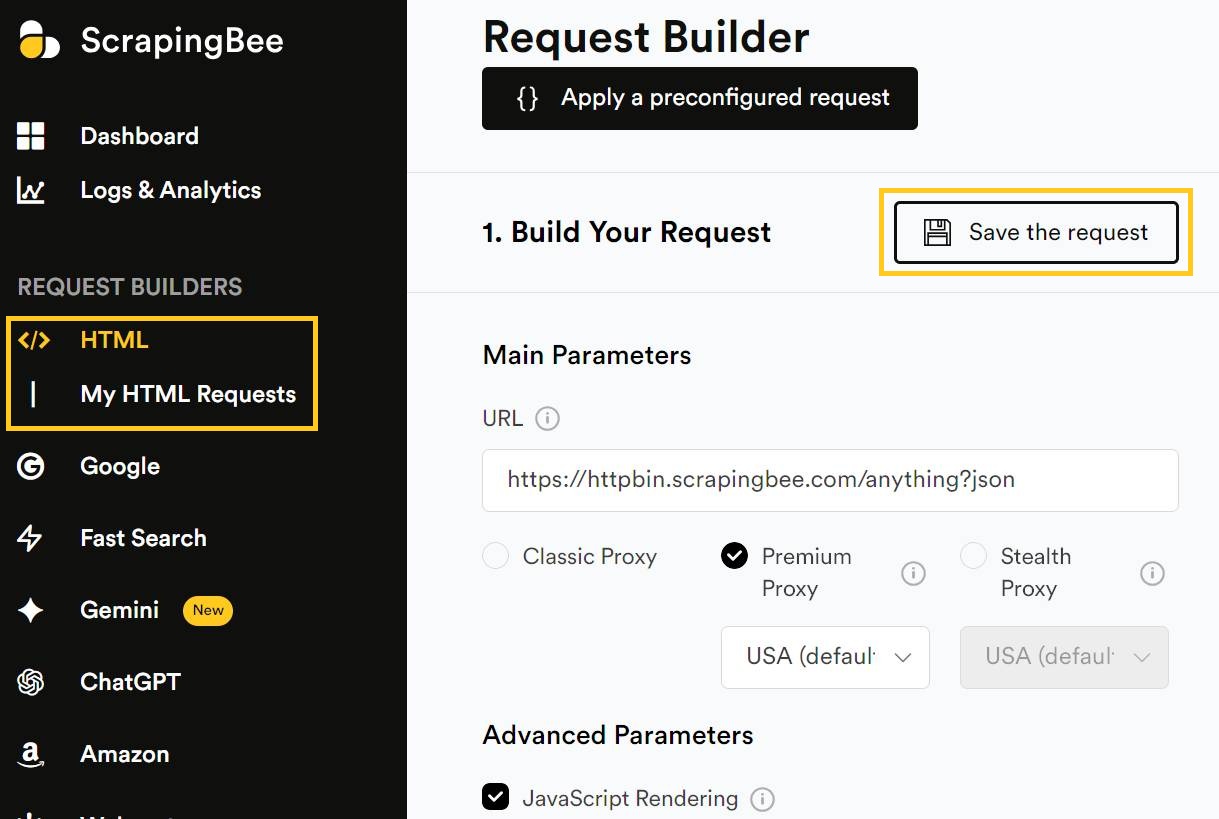
Saved requests appear under My HTML requests. You can then use the saved request name from the CLI with --scraping-config:
scrape "https://example.com" --scraping-config "My-Config"
This lets you prepare the request visually in the dashboard, then reuse the same settings from the terminal without typing every flag again.
You can also use a saved configuration as a base and override individual options for one request:
scrape "https://example.com" --scraping-config "My-Config" --premium-proxy false
This is useful when you want consistent defaults across repeated tests, but still need to adjust one or two flags inside the interactive REPL.
Move from the REPL to scripts
Interactive mode is built for the messy part of API work: trying parameters, checking responses with :view, adjusting the request, and running it again.
Once a command returns what you need, move it out of the REPL and use it in a shell script, cron job, CI pipeline, or backend task. The same ScrapingBee commands work both ways, so the flow stays simple: test interactively first, then automate the final command.
Try interactive mode today
Ready to try it in your own terminal? Install the ScrapingBee CLI, authenticate with your API key, and run scrapingbee to start an interactive REPL session.
If you are new to ScrapingBee, create a free account and get 1,000 API credits to test scraping, crawling, search, and extraction commands from your terminal. No credit card required.
FAQ
What is ScrapingBee CLI interactive mode?
ScrapingBee CLI interactive mode is a full-screen terminal interface for running ScrapingBee commands. It works like an interactive REPL where you can test requests, view results, reuse settings, and monitor credits without leaving your terminal.
How do I start the interactive REPL?
Install the ScrapingBee CLI, authenticate with your API key, and run scrapingbee without a subcommand. This opens interactive mode.
Can I use regular ScrapingBee CLI commands inside interactive mode?
Yes. You can run regular ScrapingBee commands inside the REPL, including scraping, crawling, search, Amazon, Walmart, YouTube, and LLM scraper commands.
Can I reuse settings across multiple requests?
Yes. Use REPL commands like :set to define session defaults, such as country code or proxy options. Those defaults apply to later commands until you change or remove them.
Can I view responses directly in the terminal?
Yes. Use :view to open the latest response in the built-in viewer. You can inspect JSON, HTML, Markdown, or plain text output without switching to another tool.

Ilya is an IT tutor and author, web developer, and ex-Microsoft/Cisco specialist. His primary programming languages are Ruby, JavaScript, Python, and Elixir. He enjoys coding, teaching people and learning new things. In his free time he writes educational posts, participates in OpenSource projects, tweets, goes in for sports and plays music.